
1. Introduction
This manual provides essential information for the proper setup, operation, and maintenance of your Snopy Rampage SG-R601 USB Gamepad. This gamepad is designed for use with PlayStation 3 (PS3) and Personal Computers (PC), offering a reliable wired connection for an enhanced gaming experience. Please read these instructions carefully before using the product.
2. Package Contents
- 1x Snopy Rampage SG-R601 USB Gamepad
3. Setup
3.1 Connecting to a PC
- Ensure your PC is powered on.
- Locate an available USB port on your computer.
- Plug the USB connector of the SG-R601 Gamepad into the USB port.
- The operating system will automatically detect and install the necessary drivers. This process may take a few moments.
- Once the drivers are installed, the gamepad is ready for use. You may need to configure the gamepad within your game settings.
3.2 Connecting to a PlayStation 3 (PS3)
- Ensure your PS3 console is powered on.
- Locate an available USB port on your PS3 console.
- Plug the USB connector of the SG-R601 Gamepad into the USB port.
- The PS3 console will recognize the gamepad. It should function as a standard wired controller.
4. Operating Instructions
The Snopy Rampage SG-R601 Gamepad features a standard layout for intuitive control in various games.
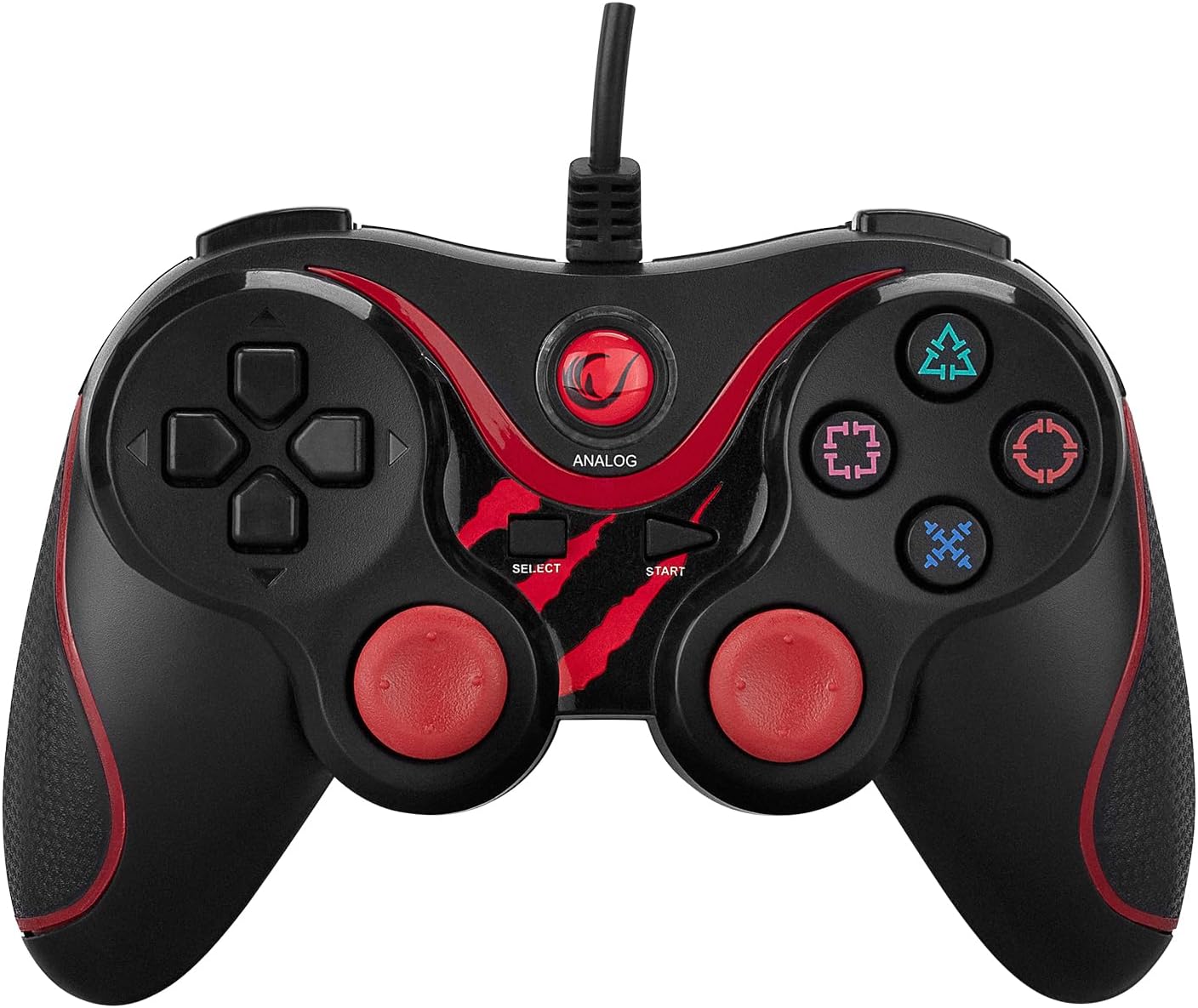
Figure 1: Front view of the Snopy Rampage SG-R601 USB Gamepad, showing the D-pad, action buttons, analog sticks, and central function buttons.
4.1 Button Layout and Functions
- Directional Pad (D-Pad): Located on the left, used for precise directional input.
- Left Analog Stick: Located below the D-Pad, provides analog movement control.
- Right Analog Stick: Located on the right, provides analog camera or aiming control.
- Action Buttons: Typically labeled as Triangle, Circle, Cross (X), Square (or similar symbols), used for in-game actions.
- START Button: Used to pause games or access menus.
- SELECT Button: Used for various in-game functions or menu navigation.
- ANALOG Button: Toggles between digital and analog modes for the left stick and D-pad, if supported by the game. An indicator light may illuminate when in analog mode.
- Shoulder Buttons (L1, R1): Located on the top front edge of the gamepad.
- Trigger Buttons (L2, R2): Located below the shoulder buttons on the top front edge.

Figure 2: Top view of the Snopy Rampage SG-R601 USB Gamepad, highlighting the L1, R1, L2, and R2 buttons and the cable connection point.
4.2 Vibration Feedback
The gamepad supports vibration feedback in compatible games, providing tactile sensations for in-game events such as impacts or explosions. This feature is automatically enabled when supported by the game and platform.
5. Maintenance
5.1 Cleaning
- Disconnect the gamepad from your device before cleaning.
- Use a soft, dry cloth to wipe the surface of the gamepad.
- For stubborn dirt, slightly dampen the cloth with water or a mild cleaning solution. Avoid harsh chemicals or abrasive materials.
- Do not allow liquids to enter the gamepad's internal components.
5.2 Storage
- Store the gamepad in a cool, dry place away from direct sunlight and extreme temperatures.
- Avoid wrapping the cable too tightly around the gamepad to prevent damage to the cable or connector.

Figure 3: Side view of the Snopy Rampage SG-R601 USB Gamepad, illustrating the ergonomic design and textured grip for comfortable handling.
6. Troubleshooting
If you encounter issues with your gamepad, please refer to the following common problems and solutions:
- Gamepad not recognized by PC/PS3:
- Ensure the USB cable is securely plugged into both the gamepad and the device.
- Try plugging the gamepad into a different USB port.
- Restart your PC or PS3 console.
- For PC, check Device Manager to see if the gamepad is listed and if there are any driver issues.
- Buttons or analog sticks are unresponsive/behaving erratically:
- Test the gamepad on another game or device to determine if the issue is with the gamepad or the specific game/software.
- Ensure the gamepad is in the correct mode (digital/analog) if applicable, by pressing the ANALOG button.
- Clean around the buttons and analog sticks to remove any debris that might be causing interference.
- No vibration feedback:
- Verify that the game you are playing supports vibration feedback.
- Check in-game settings to ensure vibration is enabled.
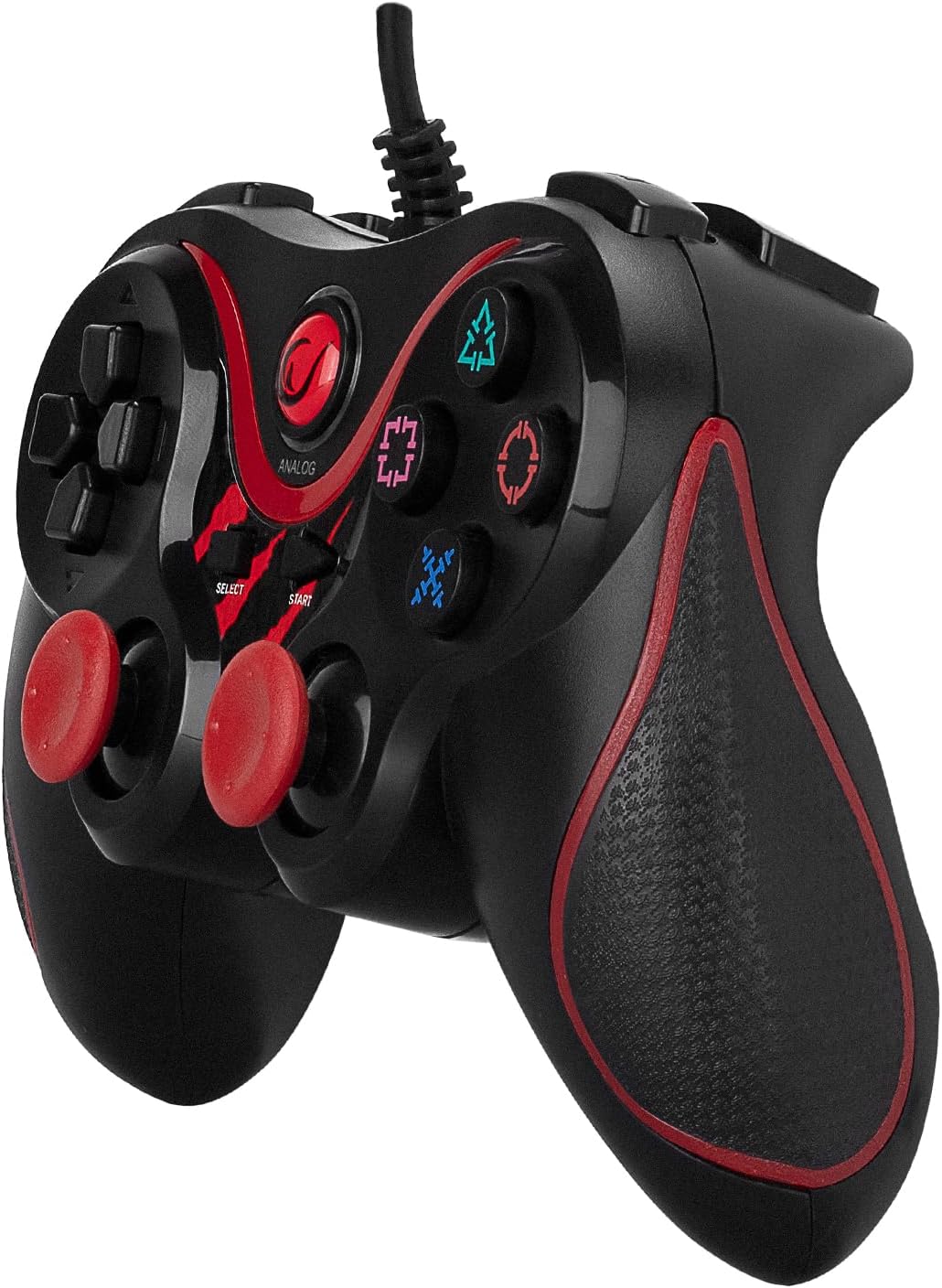
Figure 4: Angled view of the Snopy Rampage SG-R601 USB Gamepad, showcasing its overall design and button placement from a different perspective.
7. Specifications
| Feature | Detail |
|---|---|
| Brand | Rampage |
| Model Name | SG-R601 |
| Compatible Devices | PlayStation 3, PC |
| Controller Type | Gamepad |
| Connectivity Technology | USB |
| Number of Buttons | 10 |
| Hardware Platform | PlayStation |
| Power Source | Wired Electric |
| Compatible Video Game Console Models | sony_playstation_3 |
| Product Weight | 0.17 Kilogram |
| Product Dimensions | 6 x 9.4 x 15.5 centimeters |
| Manufacturer | Snopy |
| Product Type Name | Joypad |
| Part Number | 30489 |
| Color | Red |
8. Warranty Information
Warranty details for the Snopy Rampage SG-R601 USB Gamepad are typically provided at the point of purchase or can be found on the manufacturer's official website. Please retain your proof of purchase for any warranty claims.
9. Support
For further assistance, technical support, or inquiries not covered in this manual, please contact the manufacturer's customer service or visit their official support channels. Contact information is usually available on the product packaging or the manufacturer's website.


