
HUAWEI H112-372
HUAWEI 5G CPE Pro
User Manual
1. Product Overview
The HUAWEI 5G CPE Pro is a high-performance 5G dual-band Wi-Fi router designed to provide ultra-fast internet connectivity for homes, businesses, and travel. It supports connection for up to 64 devices, offering extensive coverage and high download speeds.

Figure 1: HUAWEI 5G CPE Pro Router
This image displays the front of the HUAWEI 5G CPE Pro router, a sleek white cylindrical device with indicator lights for 5G, 4G, and Wi-Fi status, and the HUAWEI logo prominently displayed.
Key Features:
- Unlocked to all networks (SIM not included).
- Supports up to 64 connected devices.
- Download speeds up to 2.3 Gbps.
- Lightweight and portable design.
- Smart dual-band Wi-Fi for extended coverage.
- Compatible with 4G networks.
2. Setup Guide
2.1 What's in the Box
Before you begin, ensure all components are present:
- 1 x HUAWEI 5G CPE Pro Router
- 1 x Power Adapter
- 1 x Quick Start Guide
- 1 x Ethernet Cable
- 1 x Warranty Card

Figure 2: Product Packaging
This image shows the retail packaging for the HUAWEI 5G CPE Pro, highlighting the product name and key features like Balong 5000 chip and SmartHome App compatibility.
2.2 SIM Card Installation
The HUAWEI 5G CPE Pro requires a 5G or 4G data SIM card (not included) for internet access. Ensure the SIM card is activated by your chosen network provider.
- Locate the SIM card slot on the device.
- Insert the SIM card into the slot with the gold contacts facing down and the notched corner aligned correctly. Push until it clicks into place.

Figure 3: SIM Card Insertion
This diagram illustrates the process of inserting a 5G SIM card into the router, emphasizing the potential for up to 2.33Gbps maximum download speeds.
2.3 Power Connection
- Connect the power adapter to the router's power port.
- Plug the power adapter into a wall outlet.
- The router will automatically power on. Wait for the indicator lights to stabilize, indicating a successful connection to the network.
3. Operating Instructions
3.1 Connecting Devices via Wi-Fi
The HUAWEI 5G CPE Pro broadcasts a Wi-Fi network for wireless devices.
- On your device (smartphone, laptop, tablet), search for available Wi-Fi networks.
- Select the Wi-Fi network name (SSID) displayed on the label at the bottom of your router.
- Enter the Wi-Fi password (Key) found on the same label.
- Your device should now be connected to the internet.

Figure 4: Dual-Band Wi-Fi Connectivity
This image illustrates the router's built-in 2.4/5GHz dual-band Wi-Fi capability, supporting 1167Mbps for smooth 4K HD streaming without buffering.
3.2 Connecting Devices via Ethernet
For wired connections, use the Ethernet ports on the back of the router.
- Connect one end of the Ethernet cable to an Ethernet port on the router.
- Connect the other end of the Ethernet cable to the Ethernet port on your device (e.g., PC, game console, smart TV).
3.3 SmartHome App Control
Manage your router settings and connected devices using the HUAWEI SmartHome App. Download the app from your device's app store and follow the in-app instructions for setup and control.
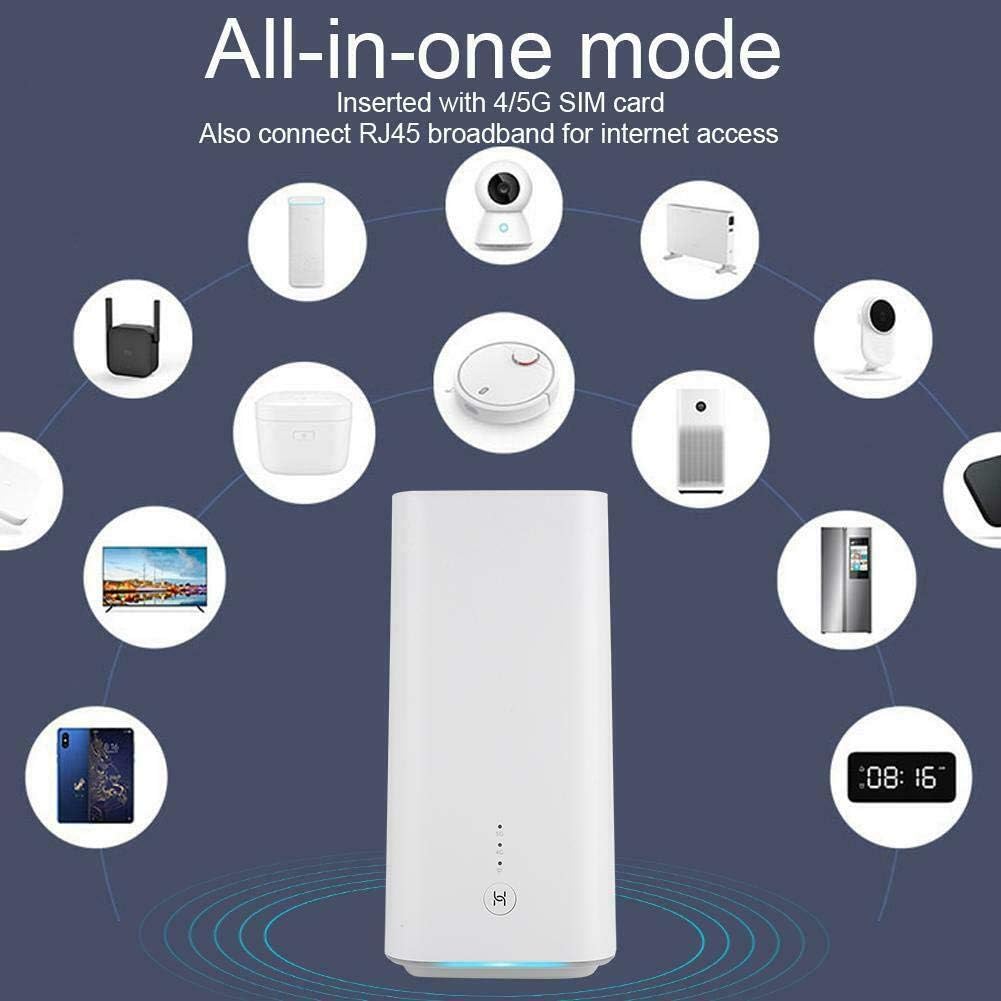
Figure 5: All-in-One Connectivity Mode
This image depicts the router's versatility, showing it as a central hub connecting various smart home devices like smart speakers, cameras, robots, TVs, and smartphones, either via an inserted 4G/5G SIM card or an RJ45 broadband connection.
3.4 4G Network Compatibility
The HUAWEI 5G CPE Pro is downward compatible with 4G networks, allowing it to function as a Wi-Fi hotspot even in areas without 5G coverage.

Figure 6: 4G Compatibility and Coverage
This diagram visually represents how the router can turn 4G/5G networks into Wi-Fi hotspots, showing the broader reach of 2.4G Wi-Fi and the more concentrated coverage of 5G within a home environment.
4. Maintenance
4.1 General Care and Cleaning
- Keep the router in a well-ventilated area to prevent overheating.
- Avoid exposing the device to extreme temperatures, direct sunlight, or moisture.
- Clean the exterior with a soft, dry cloth. Do not use liquid cleaners or aerosols.
4.2 Firmware Updates
Periodically check for firmware updates through the HUAWEI SmartHome App or the router's web interface. Updates can improve performance, add new features, and enhance security. Be aware that some updates may reset custom settings, so it is advisable to back up your configuration before proceeding.
5. Troubleshooting
5.1 No Internet Connection
- Check SIM Card: Ensure the SIM card is correctly inserted and activated.
- Signal Strength: Verify the 5G/4G signal indicator on the router. If the signal is weak, try relocating the router to an area with better reception.
- Power Cycle: Disconnect the power adapter, wait 10 seconds, and then reconnect it. Allow the router to restart fully.
- Network Provider: Confirm there are no network outages in your area with your mobile network provider.
5.2 Slow Speeds
- Router Placement: Position the router in a central location, away from obstructions and other electronic devices that may cause interference.
- Network Congestion: Internet speeds can vary based on network traffic and time of day.
- Device Capacity: While the router supports up to 64 devices, heavy usage by many devices simultaneously can impact individual speeds.
- Firmware: Ensure your router's firmware is up to date.
5.3 Wi-Fi Connectivity Issues
- Incorrect Password: Double-check the Wi-Fi password.
- Signal Range: Move closer to the router to ensure you are within its Wi-Fi range.
- Interference: Other Wi-Fi networks or electronic devices can cause interference. Try changing the Wi-Fi channel in the router settings.
6. Specifications
| Feature | Detail |
|---|---|
| Brand | HUAWEI |
| Model Name | 5G CPE Pro |
| Item Model Number | H112-372 |
| Product Dimensions | 10.7 x 9.9 x 21.5 cm |
| Item Weight | 700 g |
| Colour | White |
| Wireless Type | 802.11b, 802.11ac |
| Frequency Band Class | Dual-Band |
| Connectivity Technology | Wi-Fi, Ethernet |
| Voltage | 240 Volts (AC) |
| Wattage | 24 watts |
| Compatible Devices | Laptop, Personal Computer, Tablet, Smart Television, Smartphone |
| Recommended Uses | Home, Business |

Figure 7: 5G Network Support
This close-up image of the router's top surface emphasizes its support for dual NSA/SA 5G networks, powered by the 7nm Balong 5000 chip, designed for global use.
7. Warranty and Support
7.1 Warranty Information
The HUAWEI 5G CPE Pro comes with a 2-year warranty. Please refer to the included Warranty Card for detailed terms and conditions regarding coverage and claims.
7.2 Customer Support
For further assistance, technical support, or warranty claims, please visit the official HUAWEI support website or contact their customer service. Refer to the Quick Start Guide or Warranty Card for specific contact details relevant to your region.
Related documentsH112-372


Ask a question about this manual
Ask about setup, troubleshooting, compatibility, parts, safety, or missing instructions. Manuals+ will review the question and use this page’s manual context to help answer it.