
symcode MJ-1400DA
Contents
Symcode MJ-1400DA 2D Wireless Barcode Scanner User Manual
Model: MJ-1400DA
1. Introduction
Thank you for choosing the Symcode MJ-1400DA 2D Wireless Barcode Scanner. This device is designed for efficient and accurate barcode data capture, offering both 2.4G wireless and USB wired connectivity. It is compatible with various operating systems and software, making it a versatile tool for inventory management, retail, and other business applications. This manual provides comprehensive instructions to help you set up, operate, and maintain your scanner.

Figure 1.1: Symcode MJ-1400DA 2D Wireless Barcode Scanner and included accessories.
2. Package Contents
Please verify that all items are present in your package:
- 1 x Symcode MJ-1400DA Barcode Scanner
- 1 x USB Charging Cord
- 1 x USB Wireless Dongle (for wireless connection)
- 1 x User Manual (this document)
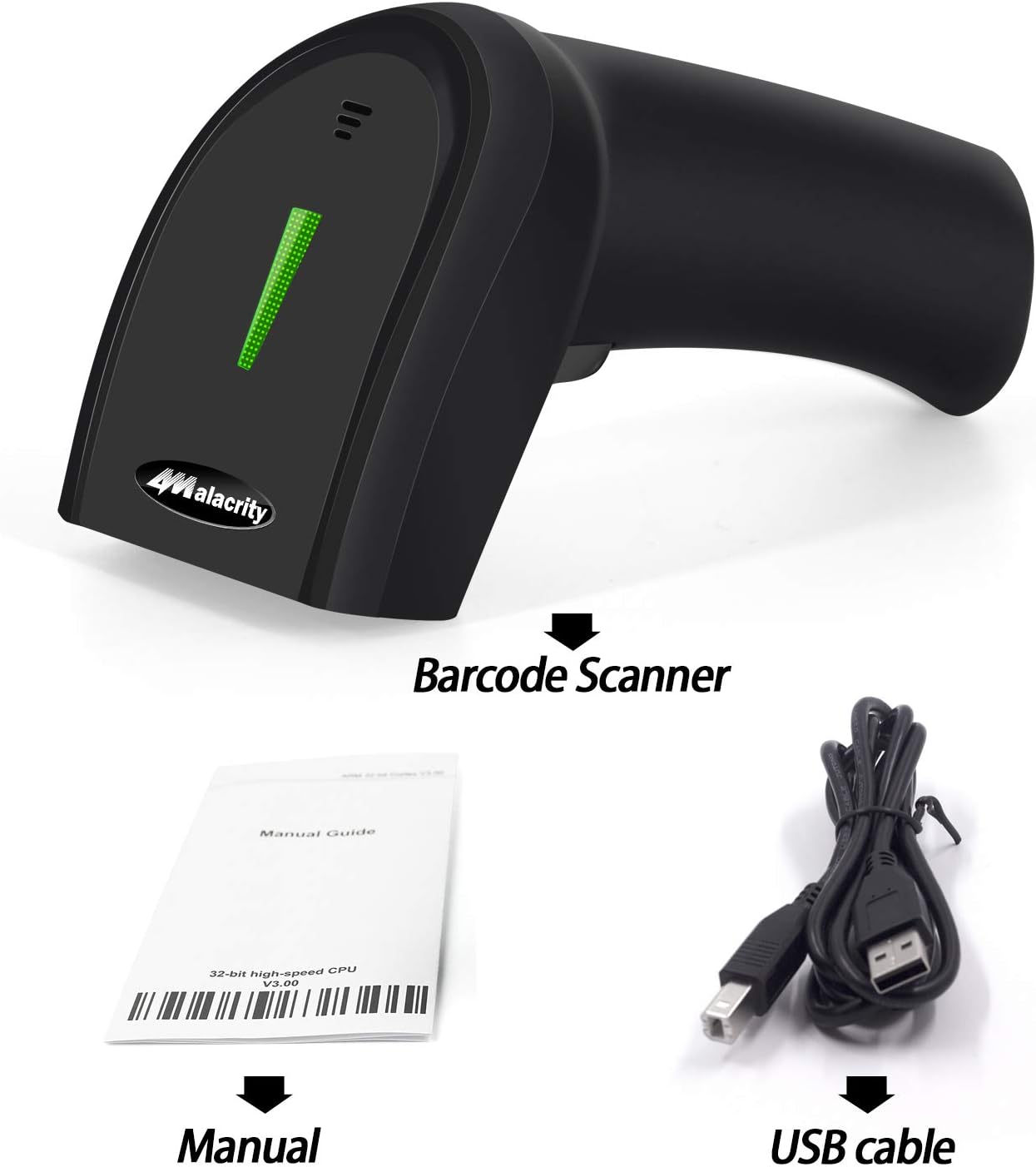
Figure 2.1: Included components: Barcode Scanner, Manual, and USB cable.
3. Setup
3.1 Charging the Scanner
Before first use, fully charge the scanner. Connect the provided USB charging cord to the scanner's charging port and the other end to a USB power source (e.g., computer USB port, USB wall adapter). A full charge takes approximately 2.5 hours.
3.2 Connecting the Scanner
The MJ-1400DA scanner supports two connection methods: 2.4G Wireless and USB Wired.
3.2.1 2.4G Wireless Connection
- Insert the USB wireless dongle into an available USB port on your computer (Windows, Mac, or Linux).
- The system will automatically install the necessary drivers.
- The scanner should automatically pair with the dongle. If not, refer to the troubleshooting section or scan the pairing barcode (usually found in a separate quick start guide or on the dongle itself, if applicable).
- The wireless range is approximately 40 meters in an open environment.
3.2.2 USB Wired Connection
- Connect the scanner directly to your computer using the provided USB cable.
- The scanner will function as a wired device and also charge simultaneously.
- The system will automatically install the necessary drivers.

Figure 3.1: Connection options: USB Wired Connection and USB Wireless Dongle. Compatible with PC and Portable devices.
4. Operating the Scanner
4.1 Scanning Barcodes
The scanner utilizes CMOS optical imaging technology to read both 1D and 2D barcodes from various surfaces, including paper labels and digital screens (computer, cell phone). The decoding speed is 100 times per second.
4.1.1 Supported Barcode Types
The scanner supports a wide range of barcode symbologies:
- 1D Barcodes: UPC/EAN, UPC/EAN with Supplemental, UCC/EAN 128, Code 39, Code 39 Full ASCII, Trioptic Code 39, Code 128 Full ASCII, Codabar, Interleaved 2 of 5, Discrete 2 of 5, Code 93, MSI, Code 11, RSS variants, Chinese 2 of 5, and extended ASCII support for Code 128 barcodes.
- 2D Barcodes: PDF417, QR-code, Data Matrix.

Figure 4.1: The scanner's ability to read 2D and 1D barcodes from digital screens.
4.1.2 Scanning Modes
The scanner offers three primary reading modes:
- Manual Trigger Mode: Press the trigger button to activate the scan beam and read a barcode.
- Auto-sense Mode: The scanner automatically detects a barcode in its field of view and scans it without needing to press the trigger.
- Continuous Mode: The scan beam remains active, continuously scanning for barcodes.
4.2 Data Storage and Upload
The scanner features a large capacity inventory mode, capable of saving up to 10,000 codes. This allows you to collect data offline and upload it to your computer later.
- Storage Mode: Scan barcodes, and the data will be stored internally in the scanner's memory.
- Upload Mode: Connect the scanner to your computer and activate upload mode to transfer the stored data to your system.

Figure 4.2: Data management options: Storage Mode and Upload Mode.
4.3 Configuration Options
The barcode reader offers over 180 configuration options to customize its behavior. These options typically involve scanning specific configuration barcodes found in the full user manual (not included in this summary). Common customizations include:
- Adding prefix and suffix codes to scanned data.
- Deleting starting or ending characters from scanned data.
- Adding keyboard keys or combinations to the scanning operation.
4.4 System Compatibility
The Symcode MJ-1400DA scanner is compatible with the following operating systems and software:
- Operating Systems: Windows, Mac, Linux
- Software: Quickbook, Word, Excel, Novell, and all common software applications.
5. Maintenance
5.1 Battery Life and Standby Time
The scanner is equipped with a rechargeable battery. A full charge provides approximately 30 hours of continuous operation. The standby time is impressive, lasting over 30 days (720 hours).

Figure 5.1: Battery capacity and standby time of the scanner.
5.2 Durability
The scanner is built with durable construction and can sustain drops from heights of up to 5 feet (approximately 1.5 meters).

Figure 5.2: Drop height resistance of the scanner.
5.3 Cleaning
To clean the scanner, gently wipe the exterior with a soft, dry cloth. For the scanning window, use a lint-free cloth and a mild, non-abrasive cleaner if necessary. Avoid using harsh chemicals or abrasive materials that could damage the device.
6. Troubleshooting
If you encounter issues with your Symcode MJ-1400DA scanner, please review the following common problems and solutions:
- Scanner not connecting/pairing: Ensure the USB wireless dongle is securely inserted into your computer's USB port. If using wired connection, ensure the USB cable is properly connected to both the scanner and the computer. Try restarting your computer or reconnecting the dongle/cable.
- Scanner not reading barcodes:
- Ensure the barcode is clean, clear, and not damaged.
- Check the distance and angle between the scanner and the barcode.
- Verify that the barcode type is supported by the scanner (refer to Section 4.1.1).
- Ensure the scanner is fully charged.
- No data transmitted to computer: Verify the scanner is properly connected (wireless dongle or USB cable). Ensure the correct input field is active on your computer (e.g., a text editor, spreadsheet). If in storage mode, ensure you have initiated the upload process.
- Special Barcode/Environment Considerations: If your barcode is not standard (e.g., too long, blurry, damaged, or not printed on ordinary paper) or if you are using the scanner in a challenging environment (e.g., extreme temperatures, reflective light, fast-moving objects), performance may vary. Consult the manufacturer for specific guidance in such scenarios.
7. Specifications
| Feature | Specification |
|---|---|
| Model | MJ-1400DA |
| Input Voltage | DC5V±0.25v |
| Working Current | 25 mA |
| Instantaneous Current | 95 mA |
| Decoding Speed | 100 times / sec |
| Wireless Range | 40m (open space) |
| Charging Time | 2.5 Hours |
| Battery Life | 30 Hours (continuous operation) |
| Standby Time | 720 Hours (30+ Days) |
| Battery Type | Lithium Polymer (included) |
| Connectivity | 2.4G Wireless, USB Wired |
| Compatible OS | Windows, Mac, Linux |
| Drop Height Resistance | Up to 5 ft (1.5 m) |
| Dimensions | 17.2 x 9.3 x 5.9 cm |
| Weight | 210 g |
8. Warranty Information
Specific warranty details for the Symcode MJ-1400DA barcode scanner are not provided in the available product information. Please refer to the warranty card included with your product or contact Symcode customer support for detailed warranty terms and conditions.
9. Support
For further assistance, technical support, or inquiries regarding your Symcode MJ-1400DA barcode scanner, please refer to the contact information provided in your product packaging or visit the official Symcode website. No specific support contact details are available in this document.
Ask a question about this manual
Ask about setup, troubleshooting, compatibility, parts, safety, or missing instructions. Manuals+ will review the question and use this page’s manual context to help answer it.