
Sanyo XT-32A170H
Sanyo Kaizen Series HD Ready Smart Certified Android IPS LED TV
Model: XT-32A170H
Introduction
This manual provides comprehensive instructions for the setup, operation, maintenance, and troubleshooting of your Sanyo Kaizen Series HD Ready Smart Certified Android IPS LED TV, Model XT-32A170H. Please read this manual thoroughly before using your television to ensure proper and safe operation. Keep this manual for future reference.

Image: Front view of the Sanyo Kaizen Series HD Ready Smart Certified Android IPS LED TV, showcasing its sleek design and the "Sanyo Kaizen Android Smart TV" logo on the screen.
Setup
1. Unboxing and Contents
Carefully remove all components from the packaging. Ensure all items listed below are present:
- 1 LED TV
- 1 Table Top Stand
- 1 Wall Mount Bracket
- 1 User Manual (this document)
- 1 Warranty Card
- 1 Remote Control (with 2 AAA batteries included)
2. Attaching the Stand or Wall Mounting
You have the option to place the TV on a flat surface using the included table-top stand or mount it on a wall using the provided wall mount bracket.
Table Top Stand Installation:
- Place the TV screen-down on a soft, clean surface to prevent scratches.
- Align the stand bases with the corresponding screw holes on the bottom of the TV.
- Secure the stand bases using the screws provided.
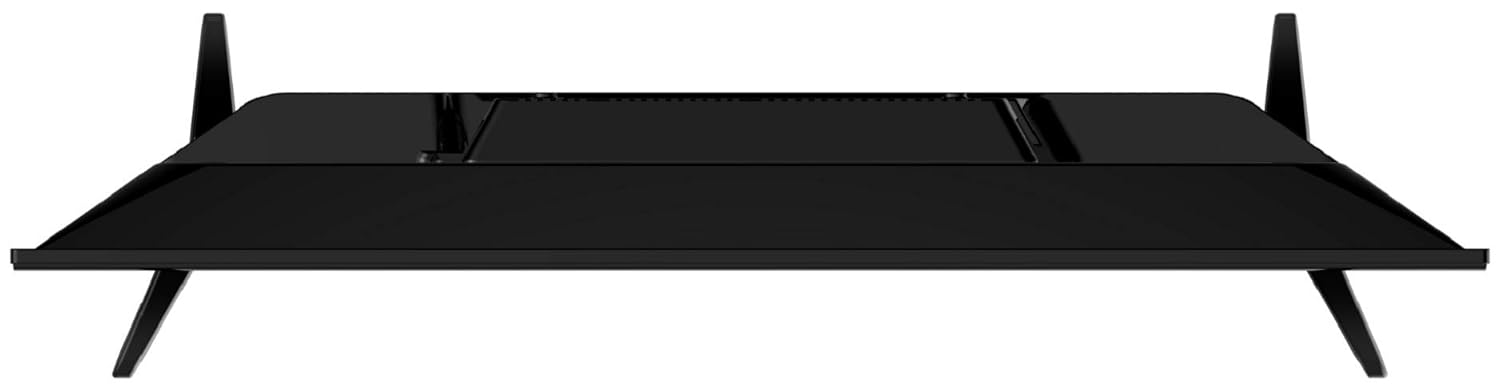
Image: Top-down view of the Sanyo TV, illustrating how the table-top stands are attached to the bottom of the television unit.
Wall Mount Installation:
For wall mounting, refer to the separate instructions provided with the wall mount bracket. Ensure the wall can support the weight of the TV (approximately 3.8 kg). It is recommended to seek professional assistance for wall mounting.

Image: Rear view of the Sanyo TV, highlighting the VESA mounting holes for wall bracket installation.
3. Connecting External Devices
Your Sanyo TV offers various connectivity options:
- HDMI Ports (2): Connect set-top boxes, gaming consoles, streaming devices, or Blu-ray players.
- USB Ports (2): Connect hard drives, USB flash drives, or other USB devices for media playback.
- Bluetooth Ver 5.0: Connect compatible wireless audio devices like soundbars or headphones.
- Wi-Fi (802.11a/b/g/n 2.4G 2T2R): Connect to your home network for smart TV features.

Image: Side profile of the Sanyo TV, displaying the accessible HDMI and USB ports for connecting external devices.
After connecting all desired devices, plug the TV's power cord into a wall outlet.
4. Initial Setup
Upon first power-on, the TV will guide you through the initial setup process:
- Select your preferred language.
- Connect to your Wi-Fi network by selecting your network and entering the password.
- Sign in with your Google account to access Android TV features, Google Play Store, and personalized recommendations.
- Follow on-screen prompts to complete the setup, including channel scanning (if connecting an antenna) and privacy settings.
Operating
1. Remote Control Functions
The included Bluetooth remote control provides easy navigation and access to smart features. Insert the two AAA batteries into the remote before use.
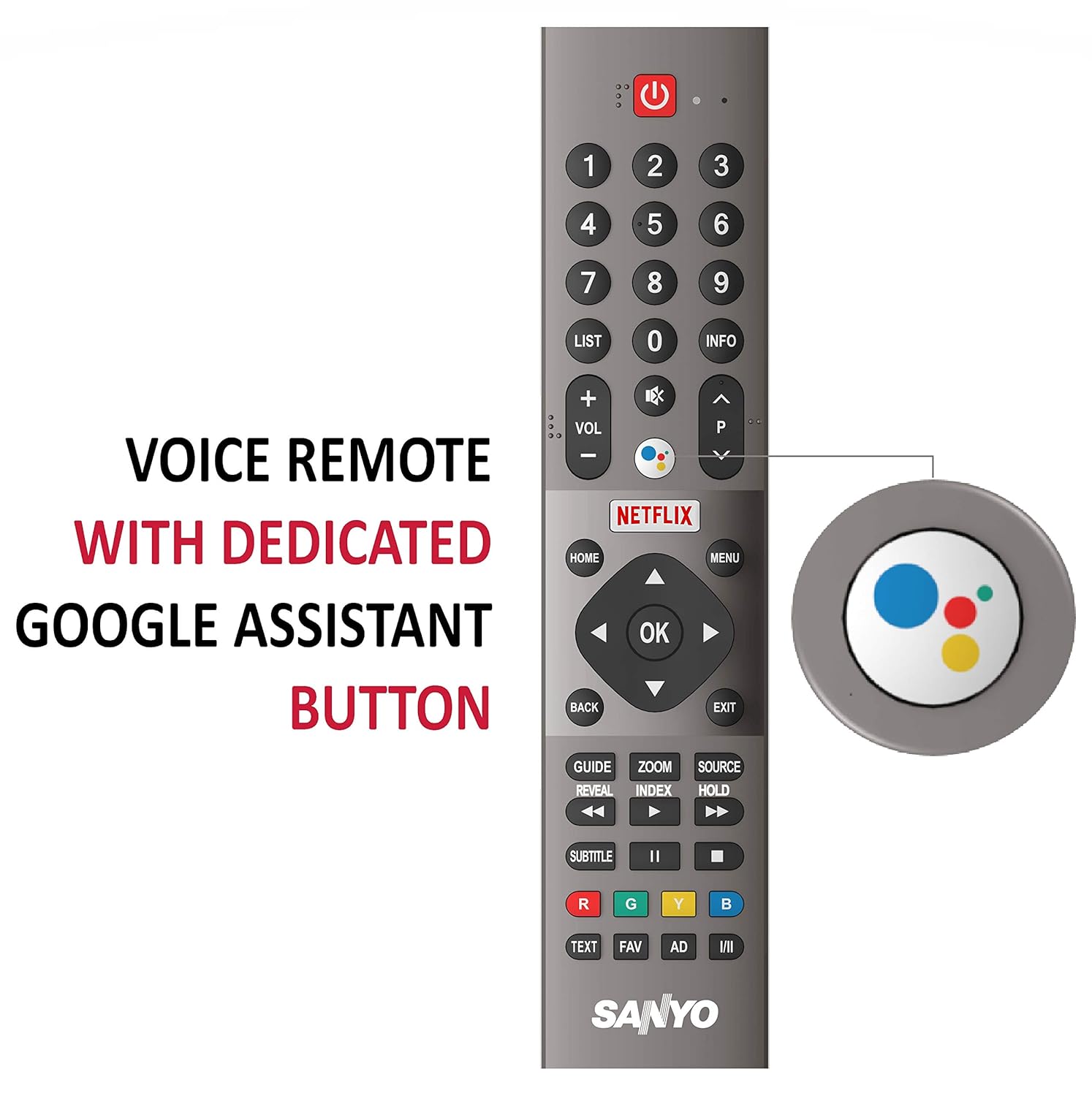
Image: The Sanyo TV remote control, featuring a dedicated Google Assistant button for voice search and other smart functions.
- Power Button: Turns the TV on or off.
- Number Buttons: Direct channel selection.
- Volume Up/Down: Adjusts the volume level.
- Channel Up/Down: Changes TV channels.
- Navigation Pad (Up/Down/Left/Right/OK): Navigates menus and confirms selections.
- Back: Returns to the previous screen.
- Home: Accesses the Android TV home screen.
- Google Assistant Button: Activates voice search and commands.
- Netflix/Prime Video Buttons: Direct access to these streaming applications.
2. Navigating Android TV
The Sanyo Kaizen TV runs on Google Certified Android Pie 9.0, offering a user-friendly interface for accessing content and applications.

Image: The Sanyo TV screen showing the Android TV home interface, populated with popular streaming applications like Netflix, Prime Video, and YouTube.
- Home Screen: Displays recommended content, installed apps, and input sources.
- Apps: Access all your installed applications from the Google Play Store.
- Inputs: Switch between HDMI, USB, and other connected devices.
- Settings: Configure network, display, sound, system, and other TV settings.
3. Using Google Assistant and Chromecast
- Google Assistant: Press the dedicated Google Assistant button on your remote and speak your command. You can search for content, get information, control smart home devices, and more.
- Chromecast Built-in: Cast content (videos, photos, music) directly from your compatible smartphone, tablet, or computer to your TV using the Chromecast feature. Ensure your device and TV are on the same Wi-Fi network.
No official product videos are available from the seller for embedding in this manual.
Maintenance
1. Cleaning the TV
- Screen: Gently wipe the screen with a soft, lint-free cloth. For stubborn marks, slightly dampen the cloth with water or a specialized screen cleaner. Do not spray liquid directly onto the screen.
- Body: Wipe the TV frame and stand with a soft, dry cloth. Avoid using abrasive cleaners or solvents.
- Always unplug the TV from the power outlet before cleaning.
2. Software Updates
Your Android TV may receive periodic software updates to improve performance and add new features. Ensure your TV is connected to the internet to receive these updates. You can check for updates manually in the TV's settings menu.
3. General Care
- Avoid placing the TV in direct sunlight or near heat sources.
- Ensure adequate ventilation around the TV.
- Protect the TV from moisture and dust.
- Do not place heavy objects on top of the TV.
Troubleshooting
If you encounter issues with your TV, refer to the following common problems and solutions before contacting support.
| Problem | Possible Cause / Solution |
|---|---|
| No Power | Check if the power cord is securely plugged into the TV and the wall outlet. Ensure the outlet has power. Try a different outlet. |
| No Picture / Black Screen | Ensure the correct input source is selected. Check cable connections to external devices. Try restarting the TV. |
| No Sound | Check the volume level and ensure mute is not activated. Verify audio cable connections. If using external speakers, check their power and connections. |
| Wi-Fi Connection Issues | Ensure your router is on and working. Re-enter the Wi-Fi password. Try restarting both the TV and your router. Move the TV closer to the router if possible. |
| Remote Control Not Responding | Check and replace the batteries. Ensure there are no obstructions between the remote and the TV. Re-pair the Bluetooth remote if necessary (refer to TV settings). |
Specifications
Key technical specifications for the Sanyo Kaizen Series HD Ready Smart Certified Android IPS LED TV (Model XT-32A170H):
| Feature | Detail |
|---|---|
| Screen Size | 32 Inches (80 cm) |
| Resolution | HD Ready (1366x768 pixels) |
| Refresh Rate | 60 Hz |
| Display Type | IPS LED Panel |
| Viewing Angle | 178 Degrees |
| Image Contrast Ratio | 1200:1 |
| Sound Output | 20 Watts (Dolby Digital, Digital Sound Processing) |
| Operating System | Google Certified Android Pie 9.0 |
| RAM Memory | 1 GB |
| Connectivity | 2 HDMI, 2 USB, Bluetooth 5.0, Wi-Fi (802.11a/b/g/n 2.4G 2T2R) |
| Special Features | Chromecast Built-in, Google Assistant, Google Play App Store, Netflix, Prime Video, Hotstar |
| Product Dimensions (LxWxH) | 72 x 8.9 x 42.1 cm |
| Item Weight | 3.8 kg |
| On-mode Power Consumption | 60 watts |

Image: A visual summary table highlighting key features of the Sanyo TV, including screen size, connectivity, display, sound, smart TV capabilities, and warranty information.
Warranty and Support
1. Warranty Information
Your Sanyo Kaizen Series TV comes with a 1-year brand warranty provided by Sanyo from the date of purchase. Please retain your purchase invoice for warranty claims.
2. Installation and Demo Support
For requesting installation, wall mounting, or a product demonstration after delivery, please directly contact Sanyo support. Provide the product's model name (XT-32A170H) and the seller's details mentioned on your invoice.
3. Customer Support
For any queries, technical assistance, or service requests, please contact Sanyo support at:
Toll-Free Number: 18004195088
This product is eligible for replacement within 10 days of delivery in case of any product defects, damage, or features not matching the description provided.
Related documentsXT-32A170H

Ask a question about this manual
Ask about setup, troubleshooting, compatibility, parts, safety, or missing instructions. Manuals+ will review the question and use this page’s manual context to help answer it.