
1. Introduction
Thank you for purchasing the Gioteck Wx4 Wired Controller. This controller is designed for use with Nintendo Switch, PlayStation 3 (PS3), and PC, offering a reliable and responsive gaming experience. This manual provides essential information on setting up, operating, maintaining, and troubleshooting your new controller.
Please read this manual thoroughly before using the product and retain it for future reference.
2. Setup
2.1 Package Contents
- Gioteck Wx4 Wired Controller
- Instruction Manual (this document)
2.2 Connecting the Controller
The Gioteck Wx4 is a plug-and-play wired controller. No additional drivers are typically required for basic functionality on supported platforms.
For Nintendo Switch:
- Ensure your Nintendo Switch console is powered on and updated to the latest system software.
- Connect the USB cable of the Wx4 controller into an available USB port on the Nintendo Switch dock.
- The controller should be automatically recognized. You may need to navigate to the "Controllers" menu on your Switch to confirm connection or change controller order.
Note: The Switch console must be in TV mode (docked) to use wired USB controllers directly through the dock's USB ports.
For PlayStation 3 (PS3):
- Ensure your PS3 console is powered on.
- Connect the USB cable of the Wx4 controller into an available USB port on the front of the PS3 console.
- The controller should be automatically recognized and assigned a player number.
For PC:
- Power on your PC.
- Connect the USB cable of the Wx4 controller into an available USB port on your computer.
- The operating system (Windows, macOS, Linux) should automatically detect and install the necessary drivers. This may take a few moments.
- Once installed, the controller will be ready for use in compatible games. You may need to configure controller settings within individual game menus.
Note: For optimal performance on PC, ensure your operating system is up to date. Some games may require specific controller configurations.
3. Operating Instructions
The Gioteck Wx4 controller features a standard layout for intuitive gameplay. Familiarize yourself with the button functions:
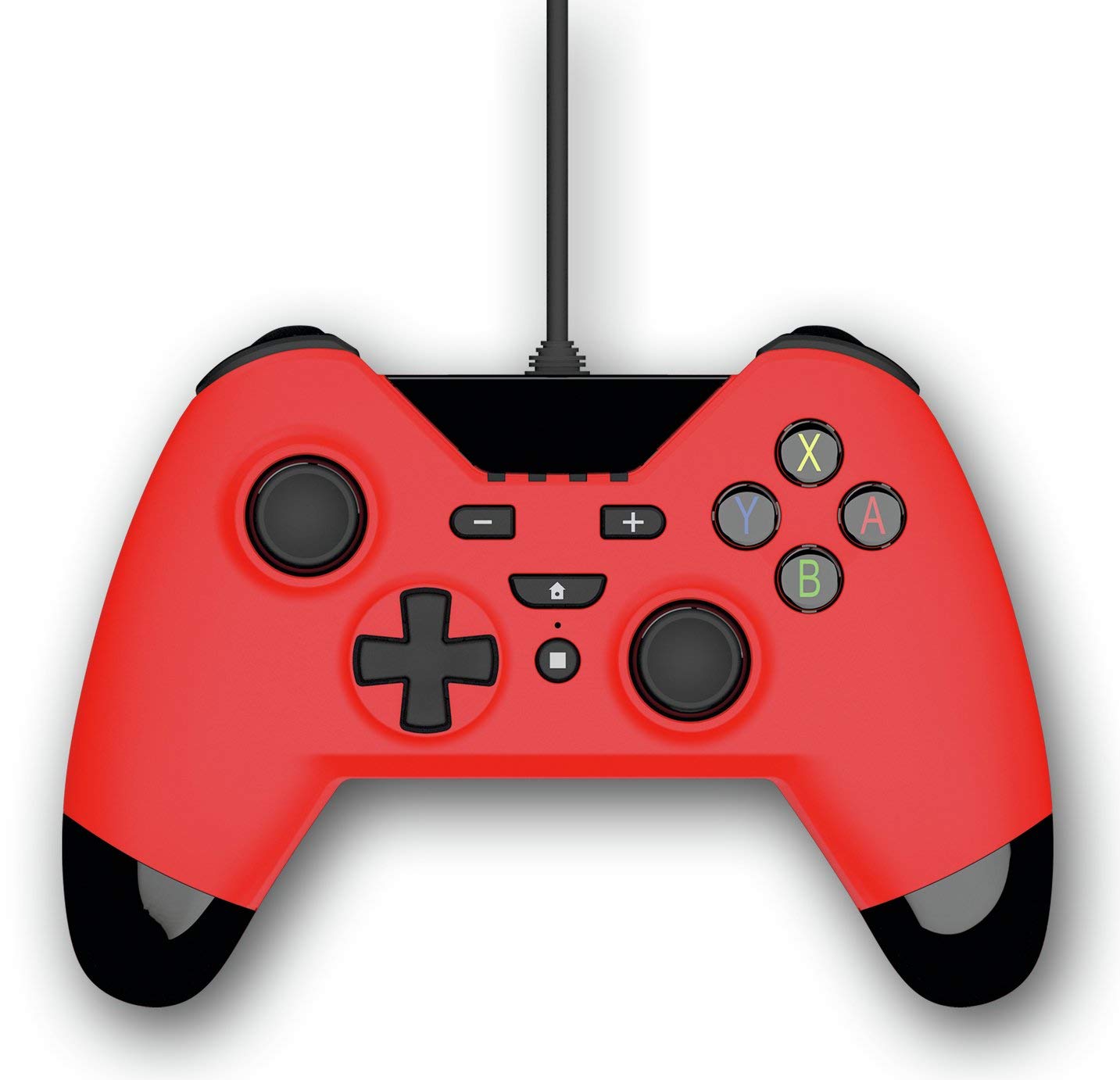
Image 1: Front view of the Gioteck Wx4 Wired Red Controller. This image displays the controller's face buttons (A, B, X, Y), directional pad, analog sticks, Home button, Share button, and Plus/Minus buttons.
3.1 Button Layout and Functions
- Analog Sticks (Left & Right): Used for movement and camera control.
- Directional Pad (D-Pad): For precise directional input, menu navigation.
- Face Buttons (A, B, X, Y): Primary action buttons, functions vary by game.
- Shoulder Buttons (L, R) & Triggers (ZL, ZR): Located on the top of the controller, typically used for actions like aiming, shooting, or menu navigation.
- Home Button: Returns to the system's home menu.
- Plus (+) / Minus (-) Buttons: Often used for in-game menus or system functions.
- Share Button: For capturing screenshots or video clips (functionality may vary by platform and game).

Image 2: Side view of the Gioteck Wx4 Wired Red Controller. This image highlights the ergonomic grip and the placement of the shoulder buttons and triggers.
3.2 General Usage Tips
- Always ensure the controller's USB cable is securely connected to the console/PC.
- For optimal gaming experience, sit at a comfortable distance from your screen.
- Refer to individual game manuals for specific button assignments and control schemes.
4. Maintenance
Proper care will extend the life of your Gioteck Wx4 controller.
- Cleaning: Use a soft, dry cloth to wipe the controller. For stubborn dirt, a slightly damp cloth can be used, but ensure no moisture enters the controller. Do not use harsh chemicals or abrasive cleaners.
- Storage: Store the controller in a clean, dry place away from direct sunlight, extreme temperatures, and excessive dust.
- Cable Care: Avoid bending or twisting the USB cable excessively. Do not pull the cable to disconnect the controller; always grasp the USB connector.
- Avoid Impact: Do not drop the controller or subject it to strong impacts, as this can damage internal components.
5. Troubleshooting
If you encounter issues with your Gioteck Wx4 controller, please refer to the following common solutions:
| Problem | Possible Solution |
|---|---|
| Controller not recognized by console/PC. |
|
| Buttons or analog sticks are unresponsive. |
|
| Controller disconnects intermittently. |
|
If these steps do not resolve your issue, please contact Gioteck customer support (see Section 7).
6. Specifications
| Model Name: | Wx4 |
| Item Model Number: | 237671 |
| Brand: | Gioteck |
| Connectivity: | Wired USB |
| Compatibility: | Nintendo Switch, PlayStation 3 (PS3), PC |
| Product Dimensions: | 3.11 x 6.61 x 4.76 inches |
| Item Weight: | 10.6 ounces (approximately 300 grams) |
| Manufacturer: | Gioteck |
| Date First Available: | July 23, 2019 |
7. Warranty and Support
Gioteck products are manufactured to the highest standards. For information regarding warranty, technical support, or customer service, please refer to the official Gioteck website or contact their customer support directly. Please retain your proof of purchase for warranty claims.
Note: Specific warranty terms and conditions may vary by region.


