
EVGA 220-GA-0750-X1
EVGA Super Nova 750 GA Power Supply User Manual
Model: 220-GA-0750-X1
Introduction
Thank you for choosing the EVGA Super Nova 750 GA Power Supply. This fully modular, 80 Plus Gold certified power supply is designed to provide stable and efficient power to your computer system. This manual provides essential information for the safe installation, operation, and maintenance of your new power supply.
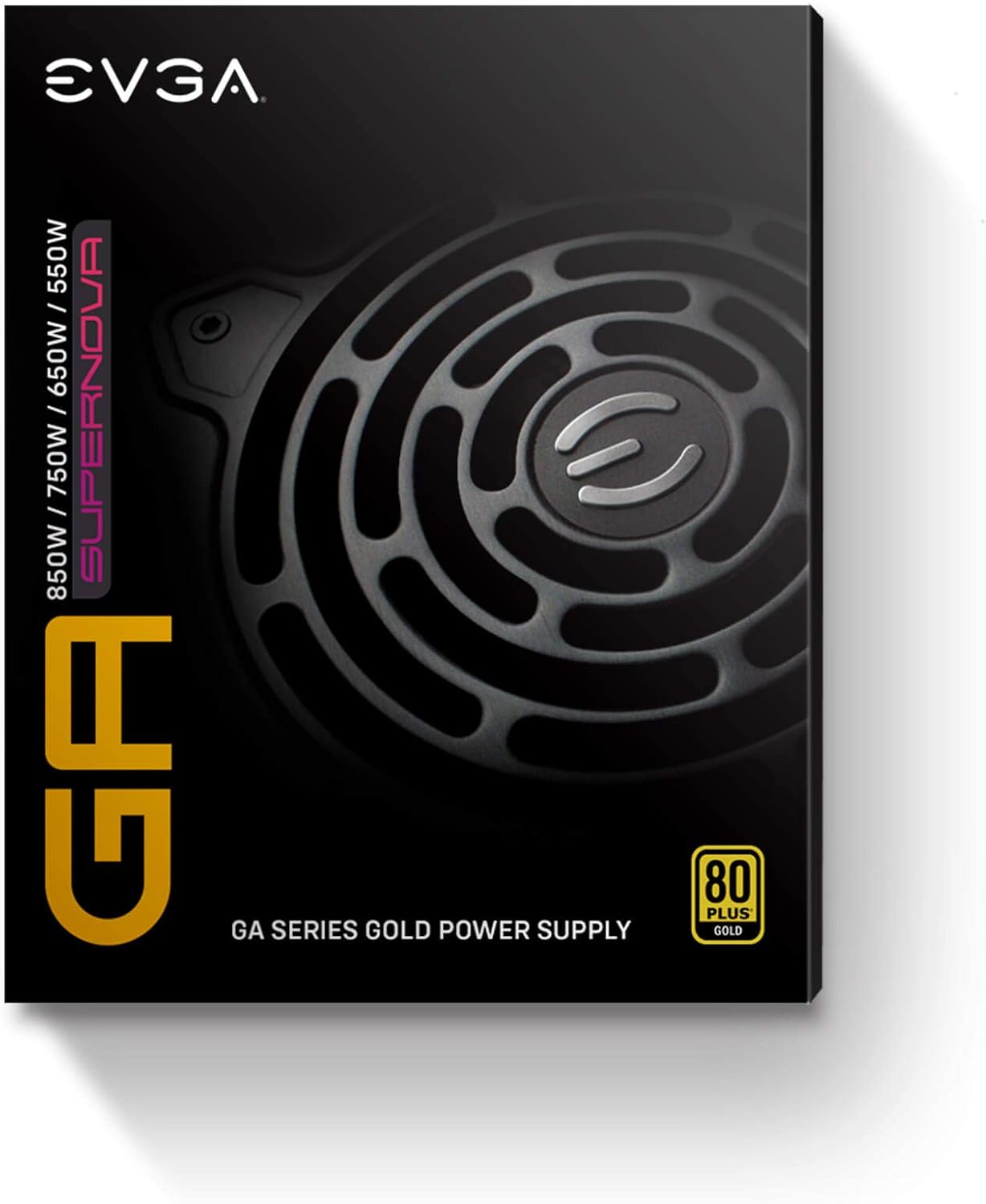
Image: The retail packaging for the EVGA Super Nova GA series power supply, showing the 80 Plus Gold certification and wattage options.
Safety Information
WARNING: Improper installation or use can result in serious injury or damage to your equipment. Please read and follow all instructions carefully.
- Ensure the power supply is disconnected from the AC power outlet before installation or removal.
- This power supply is designed for use in computer systems only. Do not use it for any other purpose.
- Do not open the power supply casing. High voltages are present inside, and there are no user-serviceable parts. Opening the unit will void the warranty.
- Install the power supply in a well-ventilated area, away from heat sources and moisture.
- Use only the modular cables provided with this EVGA power supply. Using third-party cables may cause damage and void your warranty.
- Ensure all cables are securely connected before powering on the system.
Package Contents
Verify that your package contains the following items:
- EVGA Super Nova 750 GA Power Supply
- Modular Cable Set (various types for motherboard, CPU, PCIe, SATA, Peripherals)
- AC Power Cord
- Mounting Screws
- Cable Ties/Velcro Straps
- User Manual (this document)

Image: A collection of black modular cables, including ATX, CPU, PCIe, SATA, and peripheral connectors, along with the AC power cord and mounting screws, typically included with the power supply.
Setup and Installation
1. Physical Installation
- Prepare your system: Ensure your computer case is open and accessible. Disconnect all power from your existing power supply if you are replacing one.
- Mount the power supply: Carefully slide the EVGA Super Nova 750 GA into the power supply bay of your computer case. Ensure the fan is oriented correctly for optimal airflow (typically facing downwards if there's a bottom vent, or upwards if not). Secure the power supply with the provided mounting screws.

Image: An overhead view of the EVGA Super Nova 750 GA power supply, showcasing its fan grille and modular cable ports on the side.
2. Cable Connections
The EVGA Super Nova 750 GA is a fully modular power supply, allowing you to connect only the cables you need. This reduces cable clutter and improves airflow within your case.
- 24-pin ATX Motherboard Cable: Connect the large 24-pin cable to the corresponding port on your motherboard and the power supply.
- 8-pin (4+4) CPU Power Cable: Connect one or two 8-pin (or 4+4 pin) CPU cables to your motherboard's CPU power connectors and the power supply's CPU ports.
- PCIe Power Cables: For graphics cards, connect the appropriate 6-pin or 8-pin (6+2 pin) PCIe cables to your graphics card(s) and the power supply's VGA ports.
- SATA Power Cables: Connect SATA power cables to your SSDs, HDDs, and optical drives.
- Peripheral (Molex) Cables: Use these for older components or case accessories that require Molex connectors.

Image: A close-up view of the modular cable connection panel on the EVGA Super Nova 750 GA power supply, showing labeled ports for MB, SATA, PERIF, VGA, and CPU cables.
3. AC Power Connection
Once all internal connections are made, connect the AC power cord to the power supply's AC inlet and then to a wall outlet or surge protector. Ensure the power switch on the back of the PSU is in the "OFF" position before connecting to AC power.

Image: The rear panel of the EVGA Super Nova 750 GA power supply, featuring the AC power inlet, a main power ON/OFF switch, and a separate ECO mode ON/OFF switch.
Operating Instructions
Powering On/Off
- After all cables are securely connected, flip the main power switch on the back of the power supply to the "ON" position.
- You can now power on your computer system using the case's power button.
- To power off the system, shut down your operating system normally. For complete power disconnection, flip the main power switch on the PSU to "OFF" and unplug the AC cord.
ECO Mode Operation
The EVGA Super Nova 750 GA features an ECO mode, controlled by a switch on the rear panel.
- ECO Mode ON: When ECO mode is enabled, the power supply fan will remain off during low to moderate loads, providing silent operation. The fan will only spin up when the internal temperature or load reaches a certain threshold.
- ECO Mode OFF: When ECO mode is disabled, the power supply fan will operate continuously, adjusting its speed based on load and temperature. This provides constant airflow through the power supply.
Choose the ECO mode setting that best suits your preference for noise levels and cooling.
Maintenance
Proper maintenance ensures the longevity and optimal performance of your power supply.
- Dust Cleaning: Periodically clean the power supply's fan grille and vents to prevent dust buildup, which can impede airflow and lead to overheating. Use compressed air to gently blow dust out of the unit. Ensure the power supply is disconnected from AC power before cleaning.
- Cable Management: Ensure cables are neatly routed and do not obstruct airflow within your computer case.
- Environmental Conditions: Operate the power supply within recommended temperature and humidity ranges. Avoid extreme conditions.
Troubleshooting
If you encounter issues with your power supply, refer to the following common solutions:
- No Power:
- Check if the AC power cord is securely plugged into both the power supply and the wall outlet.
- Ensure the main power switch on the back of the PSU is in the "ON" position.
- Verify that all modular cables are firmly connected to both the power supply and the components (motherboard, CPU, GPU).
- Test the wall outlet with another device to ensure it has power.
- System Instability/Crashes:
- Ensure your system's power requirements do not exceed the 750W capacity of the power supply.
- Check for loose cable connections.
- Monitor system temperatures to ensure proper cooling.
- Fan Not Spinning (in ECO Mode):
- This is normal behavior if ECO mode is enabled and the system load/temperature is low. The fan will activate when needed.
- If the fan does not spin even under heavy load with ECO mode OFF, contact support.
The EVGA Super Nova 750 GA is equipped with multiple protection features, including OVP (Over Voltage Protection), UVP (Under Voltage Protection), OCP (Over Current Protection), OPP (Over Power Protection), SCP (Short Circuit Protection), and OTP (Over Temperature Protection). If any of these protections are triggered, the power supply may shut down to prevent damage to your system.
Specifications
Key technical specifications for the EVGA Super Nova 750 GA Power Supply:
| Characteristic | Value |
|---|---|
| Model No. | 750 GA |
| AC Input | 100-240V~, 9-4.5A, 60/50Hz |
| DC Output +3.3V | 20A |
| DC Output +5V | 20A |
| DC Output +12V | 62.5A |
| DC Output -12V | 0.3A |
| DC Output +5Vsb | 3A |
| Combined Wattage (+3.3V & +5V) | 120W |
| Combined Wattage (+12V) | 750W |
| Combined Wattage (-12V) | 3.6W |
| Combined Wattage (+5Vsb) | 15W |
| Output Power, Pcont | 750W @ +50°C |
Image: A close-up of the power supply's specification label, detailing AC input, DC output voltages and currents, and total wattage.

General Specifications
- Wattage: 750 Watts
- 80 PLUS Rating: Gold
- Form Factor: ATX
- Modularity: Fully Modular
- Fan Type: Double Ball Bearing
- ECO Mode: Yes
- Dimensions (L x W x H): Approximately 150mm x 150mm x 86mm (Compact ATX standard)
- Protections: OVP, UVP, OCP, OPP, SCP, OTP
Warranty and Support
Warranty Information
The EVGA Super Nova 750 GA Power Supply comes with a 10-year warranty from the date of purchase. This warranty covers defects in materials and workmanship under normal use. Please retain your proof of purchase for warranty claims.
For full warranty terms and conditions, please visit the official EVGA website.
Technical Support
If you require technical assistance or have questions not covered in this manual, please contact EVGA customer support:
- EVGA Website: www.evga.com
- Support Page: Refer to the support section on the EVGA website for contact numbers, email, and FAQ.
Related documents220-GA-0750-X1


Ask a question about this manual
Ask about setup, troubleshooting, compatibility, parts, safety, or missing instructions. Manuals+ will review the question and use this page’s manual context to help answer it.