
Introduction
This manual provides comprehensive instructions for the installation, setup, operation, and maintenance of your V-TAC Smarthome VT-5119 WiFi LED Smart Bulb. Please read this manual carefully before use to ensure safe and optimal performance of your device.

Image: The V-TAC Smarthome VT-5119 WiFi LED Smart Bulb, a white bulb with an E27 screw base.
Safety Information
- Ensure the power is turned off before installing or removing the bulb.
- Do not use in fully enclosed luminaires as this may shorten the bulb's lifespan.
- This bulb is designed for indoor use only and is rated IP20. Avoid exposure to water or high humidity.
- Do not disassemble or modify the bulb.
- Keep out of reach of children.
- Operate within the specified voltage range (230 Volts).
Product Overview
Features:
- Model: VT-5119
- Type: WiFi LED Smart Bulb
- Base: E27
- Power: 10W (60W incandescent equivalent)
- Brightness: 806 Lumens
- Color: RGB + Warm White to Cool White (2700K-6400K)
- Dimmable: Yes
- Connectivity: WiFi (2.4GHz only)
- Smart Home Compatibility: Amazon Alexa, Google Assistant
- Control: V-TAC Smart Light App
Package Contents:
- 1 x V-TAC Smarthome VT-5119 WiFi LED Smart Bulb
- 1 x User Manual (this document)

Image: The retail packaging for the V-TAC Smarthome VT-5119 bulb, highlighting its features like 10W, 806 lumens, RGB+Color change, dimmable, and compatibility with Alexa and Google Assistant.
Setup
1. Physical Installation
- Ensure the power to the light fixture is turned off at the main switch.
- Carefully screw the V-TAC Smarthome VT-5119 bulb into a standard E27 light socket. Do not overtighten.
- Turn on the power to the light fixture. The bulb should light up.

Image: A hand screwing the V-TAC smart bulb into a light socket, demonstrating the physical installation step.

Image: Close-up of the E27 screw base of the V-TAC smart bulb, indicating its compatibility with standard E27 fixtures.

Image: The V-TAC smart bulb installed and illuminated within a decorative wall fixture, demonstrating its use in a typical setting.
2. App Installation and Pairing
The V-TAC Smarthome VT-5119 bulb requires the V-TAC Smart Light app for full functionality.
- Download the App: Search for "V-TAC Smart Light" on the Google Play Store (for Android) or the Apple App Store (for iOS). Alternatively, scan the QR codes provided on the product packaging or in the app setup image.
- Register an Account: Open the app and follow the on-screen instructions to register a new account or log in if you already have one.
- Add Device:
- Ensure your mobile device is connected to a 2.4GHz WiFi network. The bulb does not support 5GHz WiFi.
- In the app, tap "Add Device" or the "+" icon.
- Select "Lighting" or "Light Source (Wi-Fi)".
- Reset the Bulb: Turn the bulb ON-OFF-ON-OFF-ON (with a few seconds interval for each switch) until it starts flashing rapidly. This indicates it's in pairing mode.
- Confirm the bulb is flashing rapidly in the app.
- Enter your 2.4GHz WiFi network password.
- The app will attempt to connect to the bulb. Once connected, you can rename the bulb.

Image: A visual guide showing the three steps for setting up the smart bulb: installing the bulb, registering an account and pairing with the V-TAC Smart Light app, and linking to Amazon Alexa or Google Home. QR codes for Android and iOS app downloads are visible.
3. Smart Home Integration (Alexa & Google Assistant)
To control your V-TAC Smarthome VT-5119 bulb with voice commands, link it to your Amazon Alexa or Google Assistant account.
- For Amazon Alexa:
- Open the Alexa app.
- Go to "Skills & Games".
- Search for "V-TAC Smart Light" skill and enable it.
- Link your V-TAC Smart Light account with your Alexa account.
- Discover devices. Alexa should find your smart bulb.
- For Google Assistant:
- Open the Google Home app.
- Tap "+" > "Set up device" > "Works with Google".
- Search for "V-TAC Smart Light" and link your account.
- Assign the bulb to a room if desired.
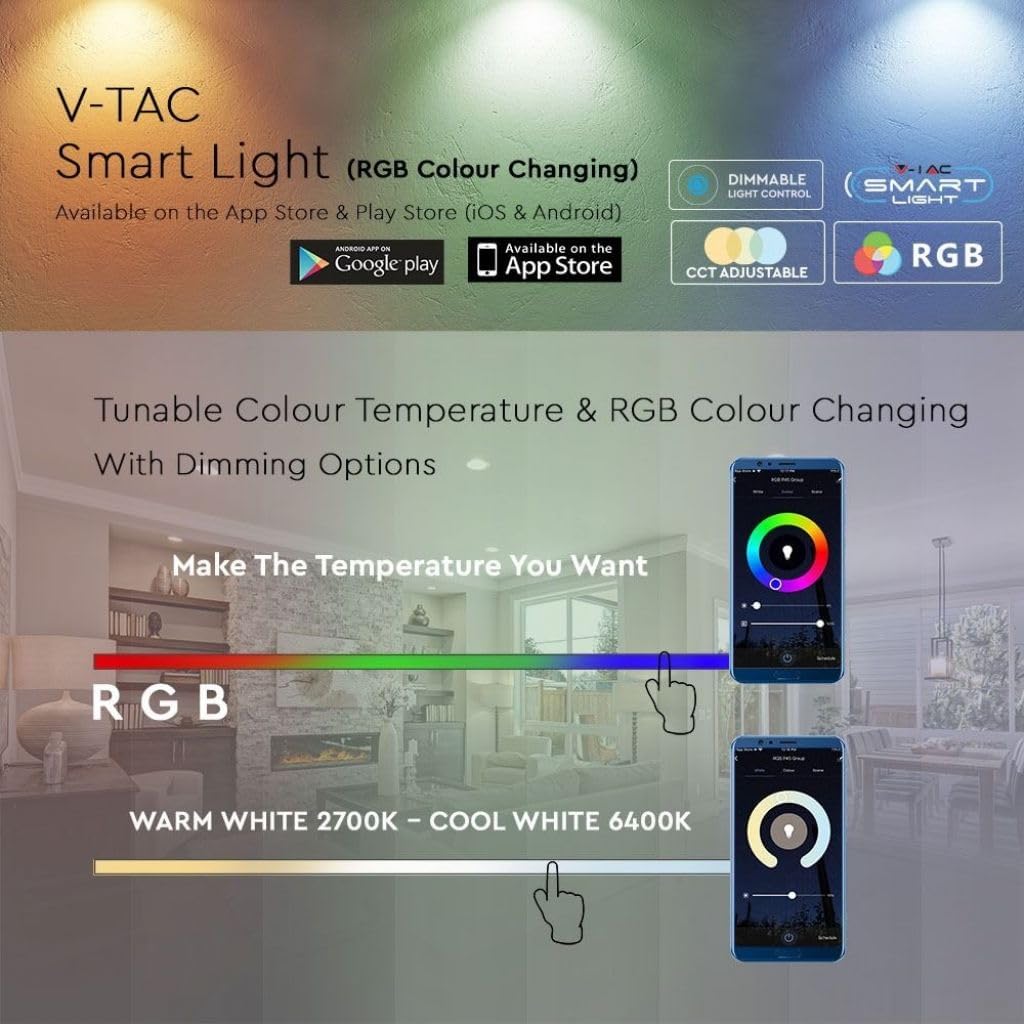
Image: A person using voice commands to control the smart light, illustrating compatibility with Amazon Alexa and Google Assistant. Examples of commands like "Alexa..." and "OK Google... turn on the bedroom light" are shown.
Operating Instructions
Once connected, you can control your V-TAC Smarthome VT-5119 bulb using the V-TAC Smart Light app or voice commands.
- On/Off: Tap the power icon in the app or use voice commands like "Alexa, turn on [bulb name]".
- Dimming: Adjust the brightness slider in the app. Voice commands: "Hey Google, dim [bulb name] to 50%".
- Color Changing (RGB+W):
- In the app, select the color mode. You can choose from a wide spectrum of RGB colors.
- Adjust the white light temperature from warm white (2700K) to cool white (6400K).
- Voice commands: "Alexa, change [bulb name] to blue", "Hey Google, set [bulb name] to warm white".
- Scheduling:
- Use the scheduling feature in the V-TAC Smart Light app to set specific times for the bulb to turn on/off or change settings.
- Example: Set the bulb to turn on at 6:47 AM with a specific brightness and color.

Image: The V-TAC Smart Light app interface showing options for tunable color temperature (warm white to cool white) and RGB color changing, along with dimming controls.
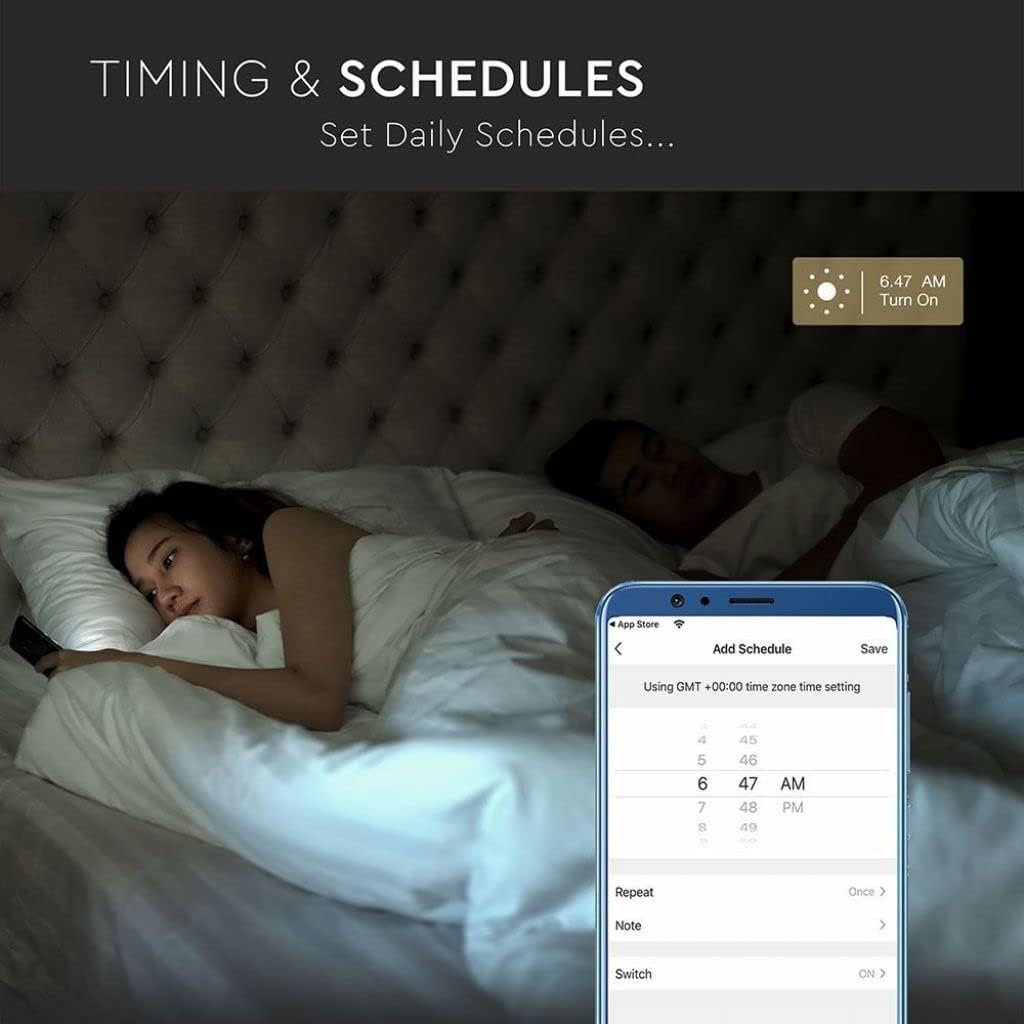
Image: The V-TAC Smart Light app displaying the scheduling function, allowing users to set daily schedules for the bulb, such as turning on at a specific time.
Maintenance
- Ensure the bulb is cool and the power is off before cleaning.
- Wipe the bulb with a soft, dry cloth. Do not use liquid cleaners or abrasive materials.
- Regularly check for any loose connections in the light fixture.
Troubleshooting
| Problem | Possible Cause | Solution |
|---|---|---|
| Bulb does not light up. | No power; bulb not screwed in correctly; bulb faulty. | Check power switch; ensure bulb is securely screwed in; test bulb in another fixture. |
| Bulb cannot connect to WiFi. | Incorrect WiFi band (5GHz); incorrect password; bulb not in pairing mode; weak signal. | Ensure router is broadcasting 2.4GHz WiFi and your phone is connected to it; re-enter password; reset bulb to pairing mode (ON-OFF-ON-OFF-ON); move bulb closer to router. |
| Voice control not working. | Skill not enabled; accounts not linked; incorrect device name. | Verify "V-TAC Smart Light" skill is enabled and accounts are linked in Alexa/Google Home app; ensure correct device name is used in commands. |
| Bulb is unresponsive. | Temporary network issue; app glitch. | Restart the V-TAC Smart Light app; turn the bulb off and on at the switch; check your WiFi connection. |
Specifications
| Model Number | VT-5119 (Reference: 2751) |
| Brand | V-TAC |
| Type | WiFi LED Smart Bulb |
| Base Type | E27 |
| Power Consumption | 10 Watts |
| Incandescent Equivalent | 60 Watts |
| Luminous Flux | 806 Lumens |
| Color Temperature | 2700K - 6400K (Tunable White) + RGB |
| Dimmable | Yes |
| Voltage | 230 Volts |
| Color Rendering Index (CRI) | 80 |
| IP Rating | IP20 (Indoor use only) |
| Dimensions (L x W x H) | 6 x 6 x 12 cm |
| Weight | 60 grams |
| Connectivity | WiFi 2.4GHz |
| Energy Efficiency Class | G (as per 2019/2015 EU regulation) |

Image: A diagram illustrating the dimensions of the V-TAC Smarthome VT-5119 bulb, showing a diameter of 60mm and a height of 120mm.

Image: The EU energy label for the V-TAC VT-5119 bulb, showing an energy efficiency class of G and a consumption of 10 kWh/1000h. A QR code links to the EPREL database.
For detailed product information, refer to the EPREL database (QR code link).
Warranty and Support
For warranty information and technical support, please refer to the documentation provided with your purchase or visit the official V-TAC website. Keep your proof of purchase for warranty claims.