
1. Introduction
This manual provides essential information for the installation, operation, and maintenance of your G.SKILL Trident Z Neo Series DDR4 RAM. Designed for high-performance computing, these memory modules are optimized for both AMD Ryzen and Intel platforms, offering a blend of speed, stability, and customizable RGB lighting. Please read this manual thoroughly before installation to ensure proper setup and optimal performance.
2. Product Overview
The G.SKILL Trident Z Neo Series DDR4 RAM kit (Model: F4-3600C16D-32GTZNC) includes two 16GB modules, totaling 32GB. Key features include:
- Capacity: 32GB (2x16GB)
- Speed: Rated for up to DDR4-3600 MT/s
- Timings: CL16-19-19-39
- Voltage: 1.35V
- Type: Non-ECC, DDR4 U-DIMM, 288-pin
- Compatibility: Designed for Desktop PC & Gaming, optimized for AMD Ryzen platforms, also compatible with Intel platforms.
- Profiles: Includes JEDEC default profile and Intel XMP memory overclock profile.
- Aesthetics: Features a dual-tone heat spreader design and vibrant customizable RGB lighting.
The Trident Z Neo modules are engineered to deliver exceptional memory performance and stability for demanding applications and gaming.
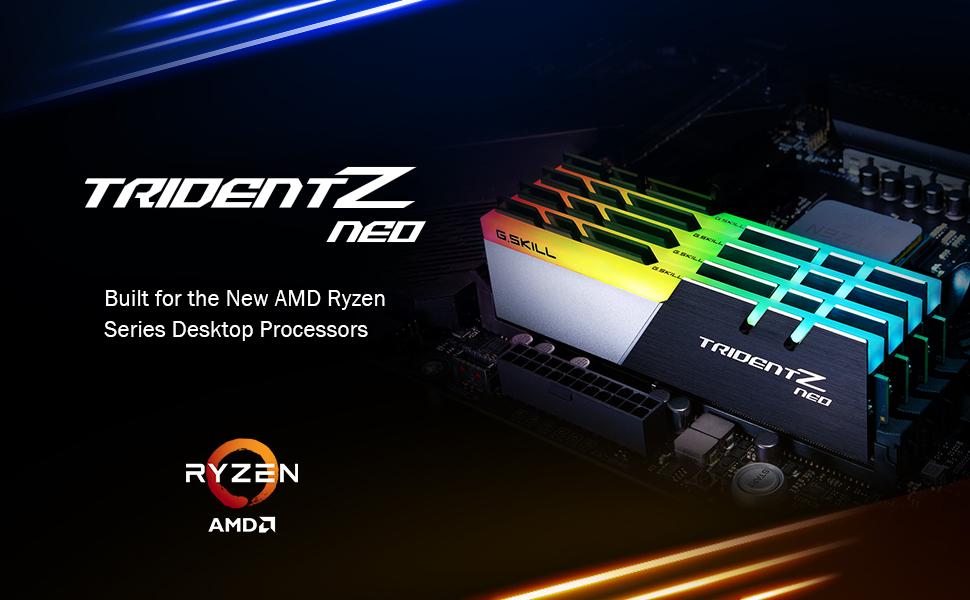
Image: G.SKILL Trident Z Neo RAM modules installed on a motherboard, showcasing their optimized DDR4 performance for AMD Ryzen and vibrant RGB lighting.
3. Safety Information
Please observe the following safety precautions:
- Always power off your computer and disconnect it from the power source before installing or removing memory modules.
- Discharge any static electricity from your body by touching a grounded metal object (e.g., your computer case) before handling components.
- Handle memory modules by their edges to avoid touching the gold contacts or integrated circuits.
- Do not mix memory kits. Memory kits are sold in matched sets designed to function together. Mixing kits can lead to stability issues or system failure.
- Using the memory in a manner inconsistent with manufacturer specifications, warnings, designs, or recommendations may result in lower speeds, system instability, or damage to the system or its components.
4. Installation
Follow these steps to install your G.SKILL Trident Z Neo DDR4 RAM modules:
- Prepare Your System: Power off your computer, unplug the power cable, and open the computer case.
- Locate DIMM Slots: Identify the DDR4 DIMM slots on your motherboard. Consult your motherboard manual for the correct slot configuration for dual-channel memory. Typically, these are alternating slots (e.g., slots 2 and 4).
- Open Retention Clips: Gently push open the retention clips at both ends of the DIMM slots.
- Align Memory Modules: Hold the memory module by its edges. Align the notch on the bottom of the memory module with the key in the DIMM slot. Ensure the module is oriented correctly.
- Insert Memory Modules: Place the module into the slot and apply firm, even pressure to both ends until the retention clips snap into place. You should hear a click.
- Verify Installation: Ensure both clips are fully closed and the module is seated securely.
- Close Case and Power On: Close your computer case, reconnect the power cable, and power on your system.

Image: G.SKILL Trident Z Neo RAM modules correctly installed in a motherboard's DIMM slots.
Video: Official G.SKILL Trident Z Neo Product Video, showcasing the modules and their RGB lighting, which can assist in visual identification during installation.
5. Operating Instructions
Upon initial boot, memory kits will typically operate at their JEDEC default SPD speed. To achieve the rated XMP overclock speed of your G.SKILL Trident Z Neo modules, you must enable the XMP/DOCP/A-XMP profile in your motherboard's BIOS.
- Access BIOS: During system startup, repeatedly press the designated key (commonly DEL, F2, F10, or F12) to enter your motherboard's BIOS/UEFI settings.
- Locate XMP/DOCP/A-XMP Setting: Navigate to the memory or overclocking section of your BIOS. The exact location and name may vary by motherboard manufacturer (e.g., ASUS uses DOCP, MSI uses A-XMP).
- Enable Profile: Select and enable the Extreme Memory Profile (XMP) or its equivalent. This will automatically configure the memory to its rated speed and timings.
- Save and Exit: Save the changes and exit the BIOS. Your system will restart with the new memory settings.
Note: Enabling XMP is considered an act of overclocking and requires BIOS setting adjustments. Reaching the rated XMP overclock speed and system stability depends on the compatibility and capability of your specific motherboard and CPU.
For RGB lighting control, please refer to G.SKILL Trident Z Lighting Control software or supported third-party motherboard software (e.g., ASUS Aura Sync, MSI Mystic Light Sync, Gigabyte RGB Fusion, ASRock Polychrome Sync).
6. Maintenance
To ensure the longevity and optimal performance of your memory modules:
- Keep your computer's interior clean and free of dust. Dust buildup can impede airflow and lead to overheating.
- Ensure adequate airflow within your computer case to maintain optimal operating temperatures for all components, including RAM.
- Avoid physical impact or excessive force on the memory modules.
7. Troubleshooting
If you encounter issues after installing your G.SKILL Trident Z Neo RAM, consider the following:
- System Not Booting/Post Errors: Double-check that the memory modules are fully seated in their DIMM slots and the retention clips are closed. Ensure they are installed in the correct slots as per your motherboard manual.
- Lower Than Expected Speeds: Verify that the XMP/DOCP/A-XMP profile is enabled in your BIOS. If not, enable it as described in Section 5.
- System Instability/Crashes: This can sometimes occur if XMP is enabled on incompatible hardware or if the memory is faulty. Try resetting BIOS to default settings and re-enabling XMP. If issues persist, test modules individually.
- Mixing Memory Kits: As stated in safety information, mixing memory kits is not recommended and can cause instability. Ensure all installed modules are from the same matched kit.
- Compatibility: Refer to the G.SKILL memory QVL (Qualified Vendor List) or RAM Configurator tool on the G.SKILL website to confirm compatibility with your specific motherboard and CPU.
8. Specifications
| Feature | Specification |
|---|---|
| RAM Capacity | 32 GB DDR4 |
| Memory Speed | 3600 MHz |
| Brand | G.SKILL |
| Item Model Number | F4-3600C16D-32GTZNC |
| Item Weight | 5.3 ounces |
| Product Dimensions (LxWxH) | 5.2 x 0.67 x 1.7 inches |
| Computer Memory Type | DDR4 SDRAM |
| Voltage | 1.35 Volts |
| Color | Multicolor (RGB) |
9. Warranty and Support
G.SKILL products are backed by a manufacturer's warranty. For specific warranty terms, technical support, or to access the latest drivers and software (including RGB control software), please visit the official G.SKILL website. You can also find a memory QVL (Qualified Vendor List) and RAM Configurator tool on their website for detailed compatibility information.
