
Introduction
The Xtreme 4-Port USB Hub expands a single USB port on your computer into four usable USB 2.0 ports. Each port features an individual power switch and an LED indicator for convenient control and status monitoring. This hub is designed for connecting various USB devices such as smartphones, tablets, wireless mice, keyboards, and flash drives to your laptop or desktop computer.
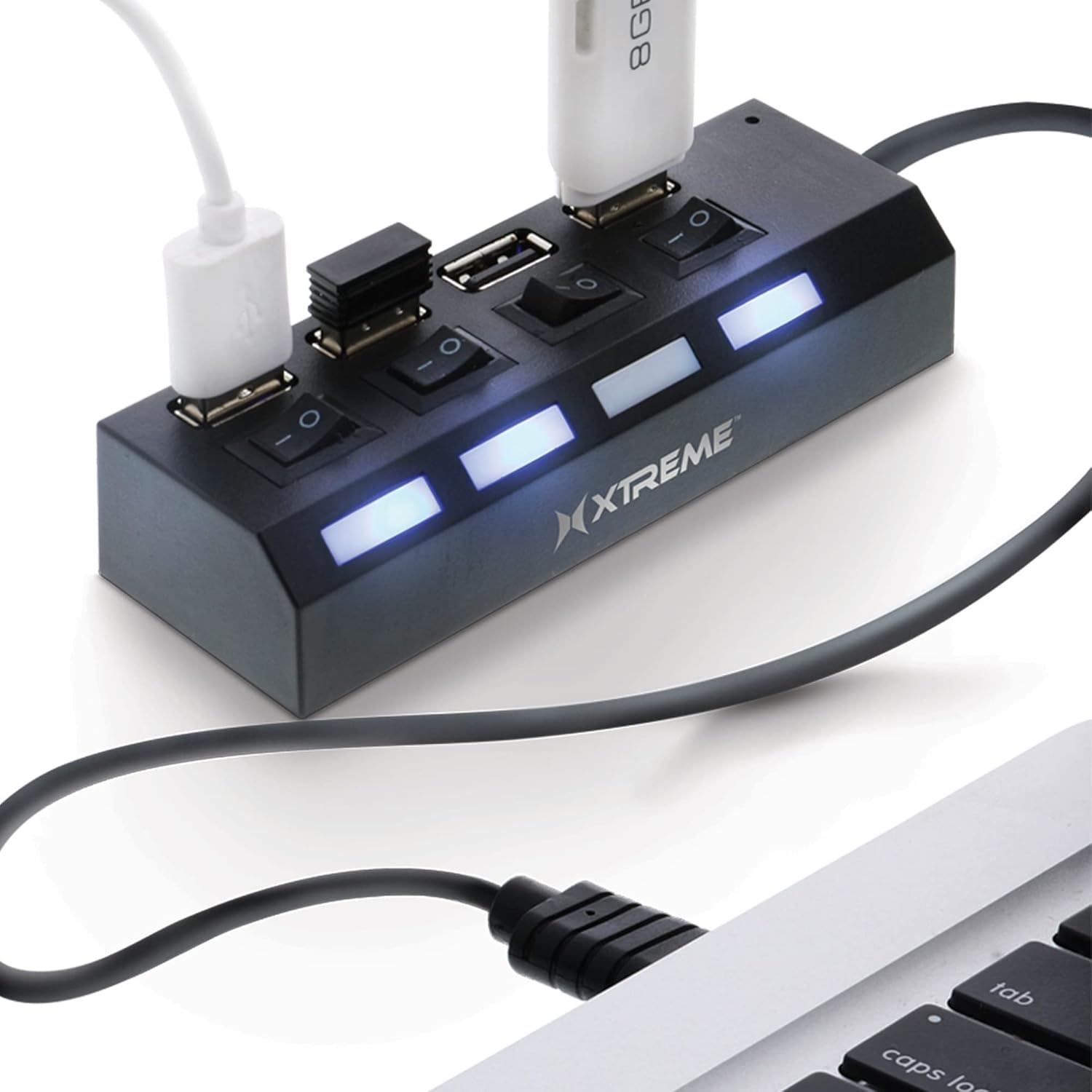
Image: The Xtreme 4-Port USB Hub in use, showing its compact design and individual port switches with blue LED indicators.
Setup Instructions
- Connect the Hub: Plug the USB connector of the Xtreme 4-Port USB Hub into an available USB port on your computer (laptop or desktop).
- Automatic Installation: The hub is plug-and-play. Your operating system should automatically detect and install the necessary drivers without requiring additional software.
- Connect Devices: Once the hub is recognized, you can connect your USB devices (e.g., flash drives, external hard drives, keyboards, mice) to any of the four available ports on the hub.

Image: A visual representation of the USB hub connected to a laptop, ready for device connection.
Operating Instructions
- Individual Port Control: Each of the four USB ports on the hub has an independent power switch.
- Power On/Off: To activate a specific USB port, slide its corresponding switch to the 'On' position. To deactivate it, slide the switch to the 'Off' position.
- LED Indicator: A blue LED light next to each switch illuminates when the port is active and receiving power, indicating that a connected device is powered on and ready for use.
- Device Connection: Connect your USB devices to the desired ports. Ensure the port's power switch is in the 'On' position for the device to function.

Image: A close-up view of the hub's top surface, highlighting the four USB ports and their respective power switches.
Maintenance
- Cleaning: Use a soft, dry cloth to clean the exterior of the hub. Avoid using liquid cleaners or solvents.
- Storage: When not in use, store the hub in a cool, dry place away from direct sunlight and extreme temperatures.
- Handling: Handle the hub with care to prevent damage to the ports or internal components. Avoid bending or twisting the cable excessively.

Image: The compact Xtreme 4-Port USB Hub fitting easily into a laptop bag, demonstrating its portability.
Troubleshooting
- Device Not Recognized:
- Ensure the individual power switch for the connected port is in the 'On' position and its LED is illuminated.
- Try connecting the device directly to your computer's USB port to verify the device itself is functioning correctly.
- Connect the hub to a different USB port on your computer.
- Restart your computer.
- Insufficient Power:
- Some high-power devices (e.g., external hard drives) may require more power than the hub can provide, especially if multiple devices are connected. Try connecting such devices directly to your computer or using a powered USB hub if available.
- Intermittent Connection:
- Check all cable connections to ensure they are secure.
- Avoid placing the hub near sources of strong electromagnetic interference.
- Compatibility:
- While designed for broad compatibility, some operating systems or specific devices may have unique requirements. Ensure your computer's operating system is up to date.
Specifications
| Model Number | XHU2-0105-BLK |
| Ports | 4 x USB 2.0 |
| Hardware Interface | USB, USB 2.0 |
| Special Features | Individual LED Power Switches, Plug and Play |
| Compatible Devices | Smartphones, Tablets, Wireless Mice, Keyboards, USB Flash Drives, etc. |
| Product Dimensions | 4 x 1.5 x 5.75 inches |
| Item Weight | 1.6 ounces |
| Color | Black |

Image: The physical dimensions of the Xtreme 4-Port USB Hub, indicating its compact size.
Warranty and Support
For warranty information or technical support, please refer to the product packaging or contact XTREME DIGITAL LIFESTYLE ACCESSORIES directly through their official website or customer service channels. Keep your purchase receipt for warranty claims.