1. Product Overview
The TREATLIFE Smart Light Switch is designed to provide convenient control over your home lighting. It integrates with 2.4GHz Wi-Fi networks, allowing for remote control via smartphone applications and voice commands through popular smart home assistants like Amazon Alexa and Google Home. This single-pole switch requires a neutral wire for installation and is FCC listed for safety.

Figure 1: TREATLIFE Smart Light Switch with its packaging.
2. What's in the Box
- 1 x Single Pole Smart Switch
- 1 x Wallplate
- 4 x Wire Nuts
- 2 x Screws
- 1 x User Manual
3. Important Safety Information
Please read and understand all safety instructions before installation and use. Improper installation can lead to electric shock or fire.
- Neutral Wire Required: This smart switch requires a neutral wire for proper operation. If your home was built or remodeled before the mid-1980s, you may not have a neutral wire in your switch box. Consult a qualified electrician if unsure.
- Not for Dimmer Use: This switch is designed for ON/OFF control only and is not compatible with dimmable lights or as a dimmer switch.
- Not for 3-Way or Multi-Way Use: This is a single-pole switch and cannot be used in 3-way or multi-way switch configurations where two or more switches control the same light fixture.
- 2.4GHz Wi-Fi Only: The switch only supports 2.4GHz Wi-Fi networks. It is not compatible with 5GHz Wi-Fi.
- Electrical Safety: Always turn off power at the circuit breaker before installing or servicing the switch. The device features flame-retardant material and built-in overheat protection for added safety.

Figure 2: Key compatibility and safety considerations for the smart switch.
4. Setup & Installation
Follow these steps for physical installation and initial setup.
4.1 Physical Installation
- Turn Off Power: Locate your circuit breaker and turn off the power to the light switch you are replacing. Verify power is off using a voltage tester.
- Remove Old Switch: Carefully remove the old switch from the wall box.
- Identify Wires: Identify the Line (hot), Load, Neutral, and Ground wires. The neutral wire is typically white and often bundled with other white wires in the box.
- Wire the Smart Switch: Connect the wires from the wall box to the corresponding wires on the TREATLIFE Smart Light Switch using the provided wire nuts.
- Green wire: Ground
- Black wire: Line (Hot)
- Red wire: Load
- White wire: Neutral
- Mount the Switch: Secure the smart switch into the wall box with the provided screws. Attach the screwless snap-on wall plate.
- Restore Power: Turn the power back on at the circuit breaker.

Figure 3: Basic wiring diagram for the TREATLIFE Smart Light Switch.
4.2 App Setup and Pairing
To enable smart features, download the Smart Life App and pair your device.
- Download App: Download the "Smart Life" app from your smartphone's app store (available for iOS and Android).
- Register/Login: Register for a new account or log in if you already have one.
- Add Device: In the app, tap the "+" icon to add a new device. Select "Electrical" > "Switch (Wi-Fi)".
- Pairing Mode: Long press the ON/OFF button on the smart switch until the red indicator light blinks rapidly (confirm 2.4GHz Wi-Fi network).
- Connect to Wi-Fi: Confirm the indicator light is blinking rapidly in the app, then enter your 2.4GHz Wi-Fi network password. The switch will connect to your network.

Figure 4: Remote control of the smart switch via the Smart Life App.
5. App Integration & Voice Control
Once paired with the Smart Life App, you can integrate your switch with voice assistants for hands-free control.
5.1 Voice Control with Amazon Alexa / Google Assistant
The TREATLIFE Smart Light Switch is compatible with Amazon Alexa and Google Assistant, allowing you to control your lights with voice commands.
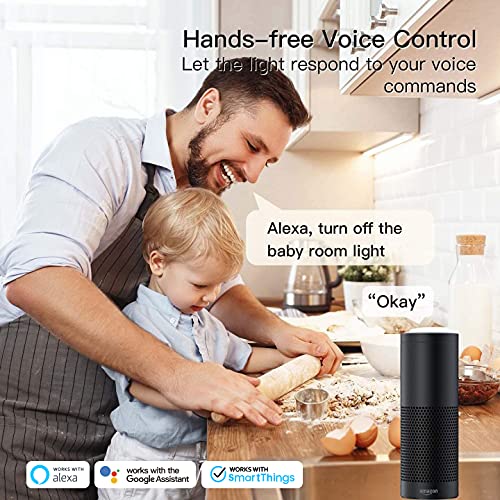
Figure 5: Hands-free voice control of lighting using a smart assistant.
To link your TreatLife account to Amazon Alexa, follow these steps or refer to the video below:
- Open the Amazon Alexa App.
- Tap on "More" at the bottom right, then tap on "Skills & Games".
- Tap on the Magnifier Icon (Search).
- Type "TreatLife" and search.
- Tap on "TreatLife" in the search results.
- Tap on "ENABLE TO USE".
- Enter your TreatLife account and password and Tap on "Link Now".
- Tap on "Authorize".
- Tap on "DISCOVER DEVICES".
Video 1: Step-by-step guide on how to link your TreatLife App to Amazon Alexa for voice control.
5.2 App Features
- Remote Control: Turn lights ON/OFF from anywhere using your smartphone.
- Schedules & Timers: Create custom schedules (timer or countdown) to automatically turn lights ON/OFF based on your daily routines or to simulate occupancy for security.
- Device Sharing: Share control of your smart switch with family members.
- Real-time Status: Monitor the real-time ON/OFF status of your lights.

Figure 6: Automated scheduling features for the smart switch.
6. Operating Instructions
The TREATLIFE Smart Light Switch offers multiple ways to control your lighting.
- Manual Control: Press the physical button on the switch to toggle lights ON/OFF.
- App Control: Use the Smart Life App on your smartphone to turn lights ON/OFF remotely, set schedules, or create scenes.
- Voice Control: Use voice commands with Amazon Alexa or Google Assistant (e.g., "Alexa, turn on the living room light").

Figure 7: Manual operation of the smart light switch.
7. Maintenance
To ensure the longevity and proper functioning of your smart light switch, follow these simple maintenance guidelines:
- Cleaning: Gently wipe the switch and wallplate with a soft, dry cloth. Avoid using abrasive cleaners, solvents, or harsh chemicals, as these can damage the finish or internal components.
- Regular Checks: Periodically check the switch for any signs of damage or loose connections. If any issues are observed, turn off the power at the circuit breaker and consult a qualified electrician.
- Software Updates: Keep the Smart Life App updated to the latest version to ensure optimal performance and access to new features.
8. Troubleshooting
If you encounter issues with your TREATLIFE Smart Light Switch, refer to the following common solutions:
- Switch Not Responding:
- Ensure the circuit breaker is ON and the switch has power.
- Verify the neutral wire is correctly connected.
- Cannot Connect to Wi-Fi:
- Confirm your Wi-Fi network is 2.4GHz. The switch does not support 5GHz networks.
- Ensure your Wi-Fi signal is strong at the switch's location.
- Try restarting your Wi-Fi router.
- When connecting, ensure the indicator light on the switch is blinking rapidly. If not, re-enter pairing mode.
- Some users find success using AP mode for connection if standard mode fails.
- Voice Control Issues:
- Ensure your TreatLife account is correctly linked to your Alexa or Google Home app.
- Verify the device name in the Smart Life App matches the name used for voice commands.
- Check your internet connection.
- Intermittent Connectivity:
- Ensure your Wi-Fi router is not overloaded with too many devices.
- Consider repositioning your router or using a Wi-Fi extender to improve signal strength.
For more detailed troubleshooting steps, please refer to the complete user manual provided with your product or contact TREATLIFE customer support.
9. Specifications
| Feature | Specification |
|---|---|
| Product Dimensions | 5.07 x 3.34 x 1.61 inches; 6.4 ounces |
| Item Model Number | AUB07WRQB999 |
| Operation Mode | ON-OFF-ON |
| Current Rating | 10 Amps |
| Operating Voltage | 120 Volts (AC) |
| Contact Type | Normally Closed |
| Connector Type | Screw |
| Brand | TREATLIFE |
| Terminal | Spst |
| Circuit Type | Push Button |
| Mounting Type | Wall Mount |
10. Warranty & Support
TREATLIFE is committed to providing reliable products and excellent customer service.
- Customer Support: For any questions, technical assistance, or warranty inquiries, please contact TREATLIFE customer support. Refer to the product packaging or the official TREATLIFE website for contact details.
- FCC Certification: This device is certified by FCC, ensuring compliance with safety and regulatory standards.


