
Introduction
The LENTION CB-C95 USB C Docking Station is designed to expand the connectivity of your USB-C enabled laptop, tablet, or smartphone. It provides multiple ports for video output, data transfer, network connection, and power delivery, enhancing your productivity and workspace organization.

Image: The LENTION CB-C95 docking station connected to a MacBook, showcasing its compact design and multiple ports.
Package Contents
Verify that all items are present in your package:
- LENTION USB C Docking Station (CB-C95)
- USB-C to USB-C Cable (for host connection)
- DC Power Adapter (24V/5.83A, 140W)
- USB-C to USB-A Adapter
- USB Stick (containing DisplayLink drivers for offline installation)
- Instruction Manual
Video: Unboxing the LENTION C95 11-IN-1 USB C Docking Station, showing the contents of the package including the dock, cables, and power adapter.
Product Overview
The LENTION CB-C95 features a comprehensive array of ports for various connectivity needs. Its unique riser design also aids in laptop cooling and ergonomic viewing.
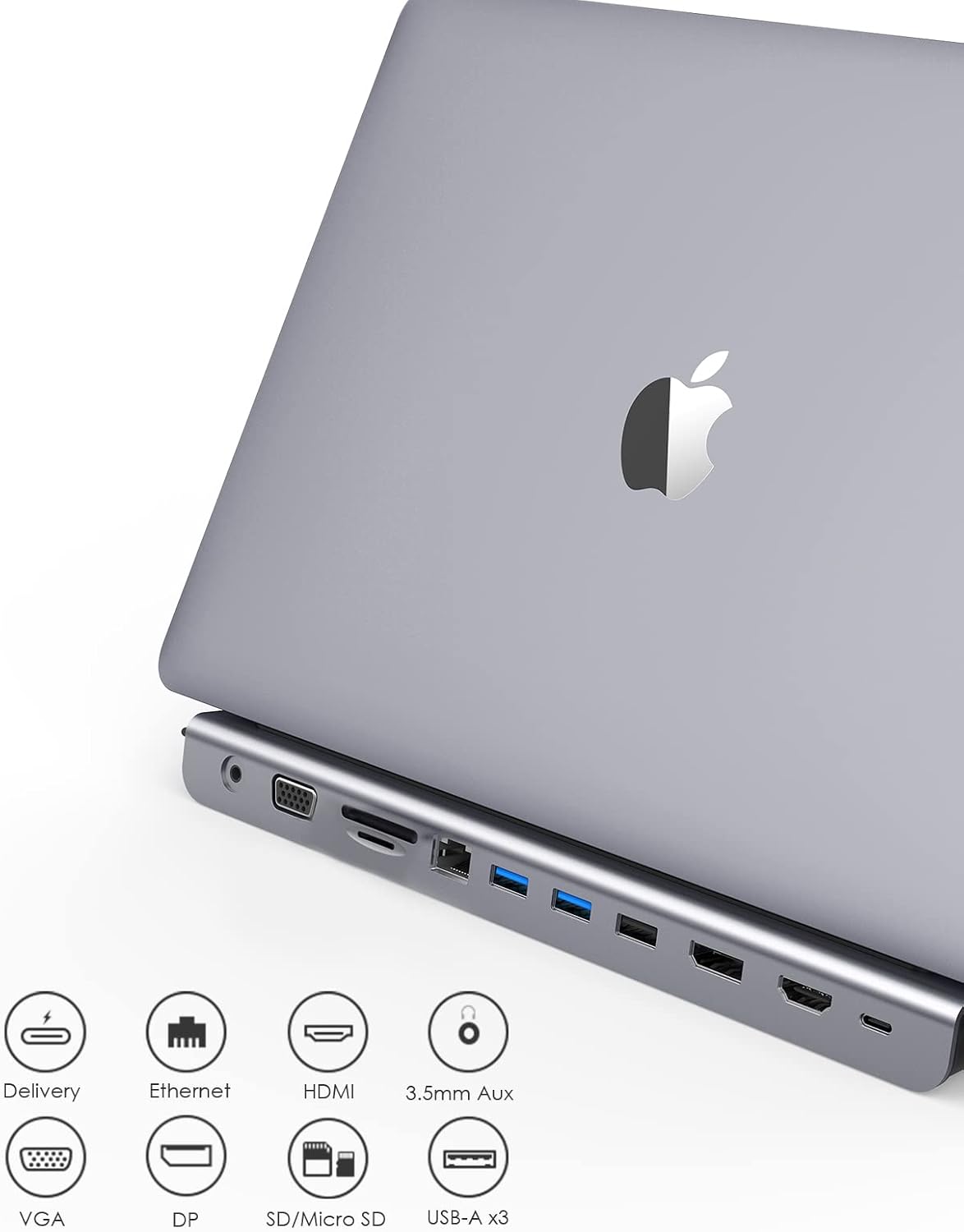
Image: Detailed view of the LENTION CB-C95 docking station, highlighting its various ports including USB, HDMI, DisplayPort, VGA, Ethernet, and card readers.
Front Ports:
- Power Button: To turn the dock on/off.
- SD & TF Card Reader: Supports speeds up to 104MB/s.
- 2 x USB 3.0 Ports: 10Gbps data transfer, 7.5W power output.
- 2 x USB-C 3.2 Gen2 Ports: 10Gbps data transfer, 7.5W power output.
- 1 x USB-C 3.2 Gen1 Port: 10Gbps data transfer, 30W Power Delivery (PD) output.
- 3.5mm Audio/Mic Jack: For headphones or microphones.
- 1 x USB 2.0 Port: For keyboard, mouse, or other low-bandwidth peripherals.
Rear Ports:
- DC In: 24V/5.83A (140W) for power adapter.
- To Host (USB-C): Connects to your laptop's USB-C port for all data, video, and power.
- DP Alt Mode (HDMI 8K@30Hz or DP 8K@30Hz): Primary video output.
- Display 1 (HDMI 4K@60Hz or DP 4K@60Hz): Secondary video output.
- Display 2 (HDMI 4K@60Hz or DP 4K@60Hz): Tertiary video output.
- Gigabit Ethernet: 10/100/1000Mbps wired network connection.

Image: The docking station positioned under a laptop, demonstrating its riser design for improved ergonomics and heat dissipation.
Setup Guide
Follow these steps to set up your LENTION USB C Docking Station:
- Power Connection: Connect the provided DC Power Adapter to the "DC In" port on the rear of the docking station, then plug it into a power outlet.
- Host Connection: Use the included USB-C to USB-C cable to connect the "TO HOST" port on the rear of the docking station to a full-function USB-C or Thunderbolt 3 port on your laptop.
- Driver Installation (if necessary): For optimal display functionality, especially on Windows, DisplayLink drivers may be required. If your system does not automatically install them, use the provided USB stick or download the latest drivers from the LENTION support website.
- Connect Peripherals:
- Monitors: Connect your external monitors to the HDMI, DisplayPort, or VGA ports on the docking station.
- Network: Connect an Ethernet cable to the Gigabit Ethernet port for a wired internet connection.
- USB Devices: Plug in your USB devices (keyboard, mouse, external drives, etc.) to the available USB 3.0, USB 2.0, or USB-C ports.
- SD/Micro SD Cards: Insert memory cards into the dedicated card reader slots.
- Audio: Connect headphones or speakers to the 3.5mm audio jack.
- Power On: Press the power button on the front of the docking station to turn it on.
Video: A demonstration of connecting various peripherals to the LENTION C95 Triple Display Docking Station, including power, USB-C host, and multiple display cables.
Operating Modes: Display Configuration
The LENTION CB-C95 supports various display configurations depending on your operating system.
Windows OS (MST/SST - Multiple Stream Transport / Single Stream Transport):
- Triple Extend Displays: Supports up to three split screens (MST) on most Windows devices.
- Video Resolution:
- HDMI + DisplayPort: Up to 3840x2160@30Hz.
- VGA + HDMI (or VGA + DisplayPort): Up to 1920x1080@60Hz.
- VGA + HDMI + DisplayPort: Limited to 1280x720@60Hz.
- Configuration Steps: Right-click desktop -> Graphic setting -> Display -> Extended Desktop/Clone Display.
macOS / ChromeOS / iPadOS (SST Only - Single Stream Transport):
- Mirror Mode: All external displays will mirror the host screen.
- Extend Mode: Only one mirroring screen (SST) is supported across all external displays. The external displays will show the same content, which can be different from the host screen.
- Video Resolution:
- HDMI + DisplayPort: Up to 3840x2160@30Hz.
- VGA + HDMI (or VGA + DisplayPort): Up to 1920x1080@60Hz.
- VGA + HDMI + DisplayPort: Up to 1920x1080@60Hz.
- Configuration Steps: Mac OS: Set -> Display -> Arrangement -> Mirror Display or Not.

Image: Visual guide illustrating mirror and extend display modes for both Mac and Windows operating systems when using the LENTION CB-C95 docking station.
Power Delivery (PD)
The LENTION CB-C95 supports up to 100W Power Delivery pass-through to charge your host device. Note that the docking station itself withholds approximately 15W of power for its operation.
The actual charging power delivered to your host device is the power of your PD power adapter minus the 15W required by the dock. Ensure your power adapter provides sufficient wattage for both the dock and your device.

Image: The LENTION docking station connected to a laptop, illustrating its 100W Power Delivery capability for charging the host device.
Power Delivery Charging Table (Partial List):
| USB-C Cable | Power of Charger (Watts) | Power Required for Hub (Watts) | Power to Host Device (Watts) | iPad | MacBook Air | MacBook Pro | Windows Laptop | Samsung S9/S10 |
|---|---|---|---|---|---|---|---|---|
| 100 | 18 | 15 | 3 | ✓ | X | X | X | X |
| 100 | 20 | 15 | 5 | ✓ | X | X | X | X |
| 100 | 30 | 15 | 15 | ✓ | ✓ | X | X | ✓ |
| 100 | 45 | 15 | 30 | ✓ | ✓ | X | ✓ | ✓ |
| 100 | 60 | 15 | 45 | ✓ | ✓ | ✓ | ✓ | ✓ |
| 100 | 65 | 15 | 50 | ✓ | ✓ | ✓ | ✓ | ✓ |
| 100 | 87 | 15 | 72 | ✓ | ✓ | ✓ | ✓ | ✓ |
| 100 | 90 | 15 | 75 | ✓ | ✓ | ✓ | ✓ | ✓ |
| 100 | 96 | 15 | 81 | ✓ | ✓ | ✓ | ✓ | ✓ |
| 100 | 100 | 15 | 85 | ✓ | ✓ | ✓ | ✓ | ✓ |
Note: ✓ Recommended, O Slow charging speed, X Not recommended. The actual power to charge the host device is the power of the charger minus 15W. If the actual power is lower than the power required by the host device, it cannot be charged. It will also vary depending on the wattage of the cable and the host device.


