
Introduction
This manual provides detailed instructions for the setup, operation, maintenance, and troubleshooting of your Retro-Bit Sega Genesis 2.4 GHz Wireless Controller. This controller is designed for compatibility with Sega Genesis, Sega Genesis Mini, PC, Mac, PlayStation 3, and Nintendo Switch systems, offering a versatile gaming experience.

Image: The Retro-Bit Sega Genesis 2.4 GHz Wireless Controller, its retail packaging, and the two included wireless receivers (one for Sega Genesis port, one USB).
Setup
Package Contents
Verify that all items are present in the package:
- Retro-Bit Sega Genesis 2.4 GHz Wireless Controller
- Sega Genesis Port Receiver
- USB Port Receiver
- 3.3ft Charging Cable
- Storage Case

Image: The Retro-Bit controller, both receivers, and the charging cable neatly organized within the included storage case.
Charging the Controller
The controller features a built-in 550 mAh rechargeable battery. Before initial use, fully charge the controller using the provided 3.3ft charging cable. Connect the micro-USB end of the cable to the controller's charging port and the USB-A end to a compatible USB power source (e.g., computer USB port, USB wall adapter).

Image: The bottom edge of the controller, highlighting the micro-USB charging port and the red LED indicator light, which illuminates during charging.
Connecting to Devices
The controller utilizes 2.4 GHz wireless technology for connection. Select the appropriate receiver for your system.
Sega Genesis / Genesis Mini
1. Insert the Sega Genesis Port Receiver into a controller port on your Sega Genesis or Sega Genesis Mini console.
2. Power on your console.
3. Press the START button on the wireless controller to power it on. The controller will automatically attempt to pair with the receiver. A solid LED on both the controller and receiver indicates a successful connection.
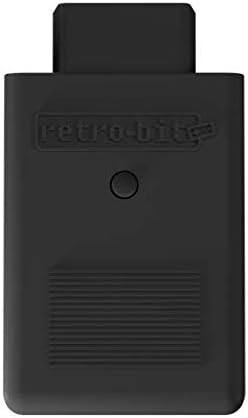
Image: The Sega Genesis Port Receiver, a black dongle designed to plug directly into a Sega Genesis controller port.
PC / Mac / Nintendo Switch / PS3
1. Insert the USB Port Receiver into an available USB port on your PC, Mac, Nintendo Switch dock, or PlayStation 3 console.
2. Power on your device.
3. Press the START button on the wireless controller to power it on. The controller will automatically attempt to pair with the receiver. A solid LED on both the controller and receiver indicates a successful connection.
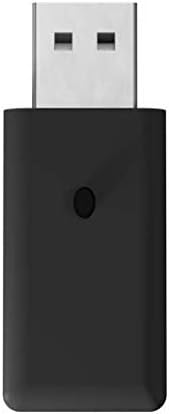
Image: The USB Port Receiver, a black USB dongle compatible with various modern systems.

Image: A compatibility chart illustrating which systems are supported by the 2.4 GHz wireless controller, including Mac, PC, Nintendo Switch, PS3, and Sega Genesis Mini.
Operating Instructions
Button Layout
The controller features an 8-button arcade pad layout, including a D-pad, START, SELECT/HOME, and six face buttons (A, B, C, X, Y, Z), along with two shoulder buttons (L, R).

Image: A clear view of the controller's face, detailing the directional pad, START button, SELECT/HOME button, and the six action buttons (A, B, C, X, Y, Z).
Power On/Off
- To power on: Press the START button. The LED indicator will light up.
- To power off: Press and hold the START button for approximately 3 seconds until the LED indicator turns off.
Sleep Mode
The controller is equipped with an automatic sleep mode feature. If there is no activity for 5 minutes, the controller will enter sleep mode to conserve battery life. To wake the controller, press any button.
Gaming Range
The 2.4 GHz wireless connection provides a gaming range of up to 30 feet (approximately 9 meters) from the receiver. Optimal performance is achieved within this range without significant obstructions.
Maintenance
Cleaning
To clean the controller, use a soft, dry cloth. For stubborn dirt, a slightly damp cloth can be used, followed by immediate drying. Avoid using harsh chemicals, abrasive cleaners, or excessive moisture, as these can damage the controller's finish and internal components.
Battery Care
To prolong the life of the internal lithium-ion battery:
- Avoid fully discharging the battery frequently.
- Store the controller in a cool, dry place when not in use for extended periods.
- Charge the controller periodically if stored for a long time to prevent deep discharge.
Troubleshooting
- Controller not connecting:
Ensure the correct receiver is plugged into the device. Verify the controller is charged. Try pressing the START button to initiate pairing. If issues persist, try unplugging and re-plugging the receiver, then restarting the controller. - Input lag or dropped connection:
Ensure the controller is within the 30-foot operating range of the receiver. Minimize physical obstructions between the controller and receiver. Avoid strong electromagnetic interference from other wireless devices. - Controller not charging:
Check that the charging cable is securely connected to both the controller and the power source. Try a different USB port or power adapter. Ensure the charging port on the controller is free of debris. - Buttons unresponsive:
Power cycle the controller and reconnect it. If specific buttons are consistently unresponsive, contact customer support.
Specifications
| Model Number | 849172011007 |
| Connectivity | 2.4 GHz Wireless |
| Compatible Devices | Sega Genesis, Sega Genesis Mini, PC, Mac, PlayStation 3, Nintendo Switch |
| Battery Type | 1 Lithium Ion (included) |
| Battery Capacity | 550 mAh |
| Wireless Range | Up to 30 feet (9 meters) |
| Item Weight | 10.4 ounces |
| Color | Black |
Warranty and Support
For information regarding product warranty, technical support, or service, please refer to the official Retro-Bit website or contact their customer service department. Details are typically available on the manufacturer's packaging or official product pages.