
1. Introduction
Thank you for choosing the Nooie Smart Wi-Fi Plug. This manual provides essential information for the safe and efficient use of your smart plug. Please read it thoroughly before installation and operation, and keep it for future reference.
The Nooie Smart Wi-Fi Plug allows you to control your home appliances remotely via the Nooie app, voice commands with Amazon Alexa or Google Home, and set schedules and timers for automated operation. Its compact and elegant design ensures it blends seamlessly into any modern home environment.
2. Safety Information
To ensure safe operation and prevent damage, please observe the following safety precautions:
- Indoor Use Only: This device is designed for indoor use in dry locations. Do not expose it to water, moisture, or high humidity.
- Electrical Rating: Do not exceed the maximum load current of 10A. Overloading may cause overheating and damage to the device or connected appliances.
- Proper Installation: Ensure the smart plug is fully inserted into a standard electrical outlet. Do not force it into an incompatible outlet.
- Child Safety: Keep the device out of reach of children. Utilize the Child Lock feature in the app to prevent unintended operation.
- Cleaning: Unplug the device from the power outlet before cleaning. Use a dry, soft cloth to clean the surface. Do not use liquid cleaners.
- Disassembly: Do not attempt to disassemble, repair, or modify the device. This will void the warranty and may pose safety risks.
- Operating Temperature: Operate the device within the recommended temperature range (typically 0°C to 40°C).
3. Product Features
- Compact Design: Mini size ensures the second outlet remains free for other devices.
- Remote Control: Control connected devices from anywhere using the Nooie app on your smartphone.
- Voice Control: Compatible with Amazon Alexa and Google Home for hands-free operation.
- Scheduling & Timer: Set custom schedules and countdown timers for automatic on/off control of appliances.
- Child Lock: Prevents children from accidentally tampering with the plug's settings.
- Device Sharing: Share control of your smart plugs with family members.
- Energy Monitoring: (Feature implied by image) Track and monitor energy consumption of connected devices.
- Safety Certified: FCC and ELT approved for quality and safety.
4. Setup and Installation
Follow these steps to set up your Nooie Smart Wi-Fi Plug:
- Plug In: Insert the Nooie Smart Wi-Fi Plug into a standard electrical outlet. Ensure it is firmly seated.
- Download the App: Download the free 'Nooie' app from the App Store (iOS) or Google Play Store (Android).
- Create Account: Open the Nooie app and register for a new account or log in if you already have one.
- Add Device: In the app, tap the '+' icon to add a new device. Select 'Smart Plug' from the device list.
- Connect to Wi-Fi: Follow the in-app instructions to connect the smart plug to your 2.4GHz Wi-Fi network. Note: The smart plug only supports 2.4GHz Wi-Fi.
- Pairing: The app will guide you through the pairing process. This usually involves pressing and holding the button on the plug until an indicator light blinks, then confirming in the app.
- Rename Device: Once successfully paired, you can rename your smart plug for easier identification (e.g., 'Living Room Lamp', 'Coffee Maker').

Image: A set of four Nooie Smart Wi-Fi Plugs, illustrating the compact design.

Image: An illustration showing the compact size of the Nooie Smart Plug (5.5cm x 5.5cm) and icons representing its features: 2.4G WLAN, Device Sharing, Voice Control, Child Lock, Remote Control, and Scheduling & Timer.
5. Operating Instructions
5.1 Remote Control via Nooie App
Once your smart plug is connected to the Nooie app, you can control it from anywhere with an internet connection:
- Open the Nooie app.
- Select the desired smart plug from your device list.
- Tap the power icon to turn the connected appliance on or off.
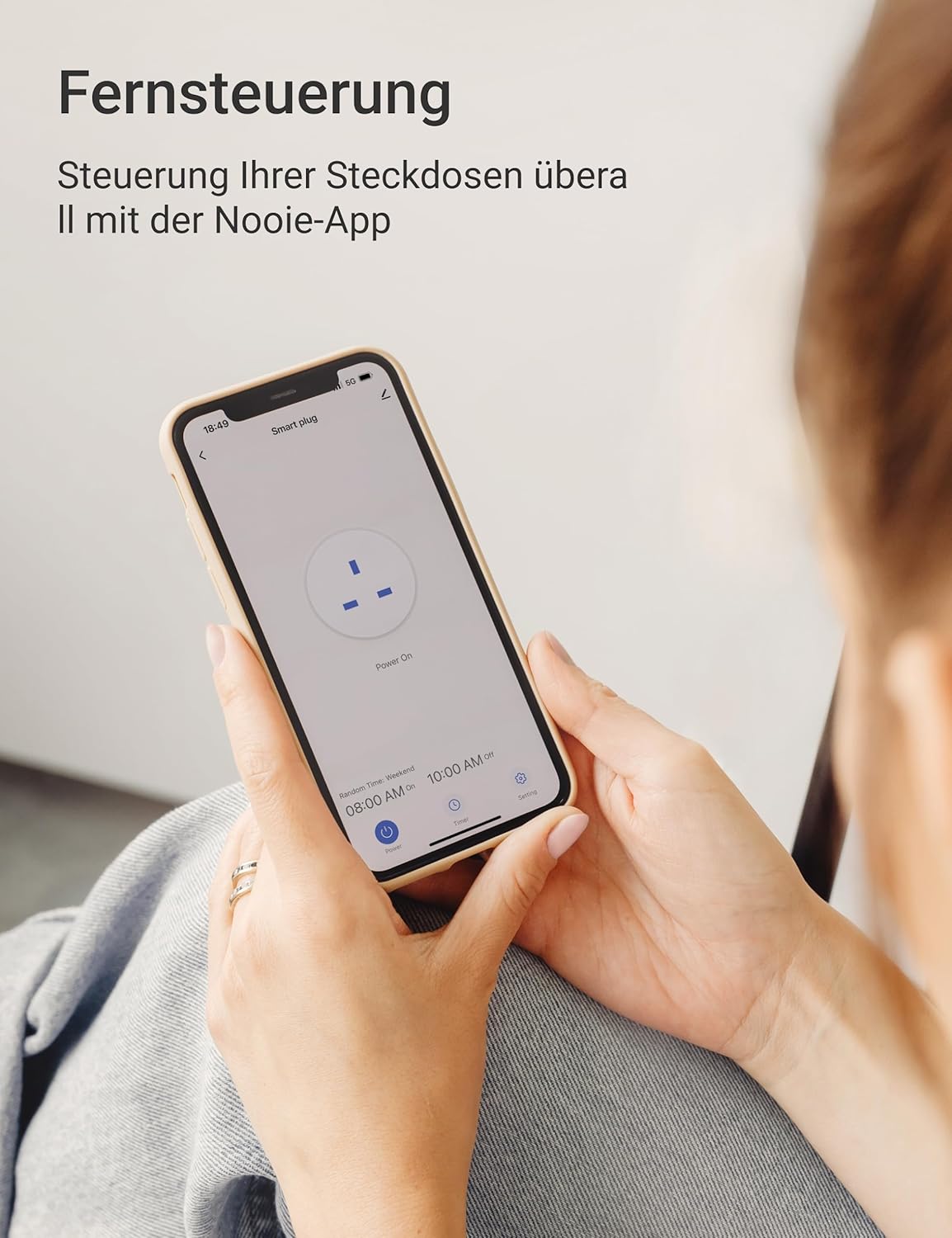
Image: A person holding a smartphone displaying the Nooie app interface, demonstrating remote control of the smart plug.
5.2 Voice Control (Alexa/Google Home)
Integrate your Nooie Smart Plug with Amazon Alexa or Google Home for convenient voice control:
- Ensure your Alexa or Google Home device is set up and connected to the same Wi-Fi network as your smart plug.
- Open the Alexa or Google Home app.
- Enable the 'Nooie' skill/action.
- Link your Nooie account when prompted.
- Discover devices. Your smart plug should appear.
- You can now use voice commands, e.g., "Alexa, turn on Living Room Lamp" or "Hey Google, turn off Coffee Maker."

Image: A Nooie Smart Plug connected to an outlet with an Amazon Echo Dot nearby, illustrating voice control functionality. Text indicates compatibility with Alexa and Google Assistant.
5.3 Scheduling and Timer Functions
Automate your devices with custom schedules and timers:
- Scheduling: In the Nooie app, select your smart plug and navigate to the 'Schedule' section. Set specific times for the plug to turn on or off on chosen days of the week. For example, schedule your coffee maker to turn on at 8:00 AM on weekdays.
- Timer: Use the 'Timer' function to set a countdown for the plug to turn off after a specified duration (e.g., 5 minutes, 1 hour).
- Loop Timer: Create a loop timer to turn your device on and off repeatedly at set intervals. This is useful for specific applications like aquarium lights.
- Travel Away Mode: Simulate presence in your home by setting the plug to randomly turn devices on and off while you are away.

Image: A smartphone screen displaying various scheduled on/off times for a smart plug, set against a kitchen background, demonstrating the scheduling feature.

Image: A Nooie Smart Plug connected to a lamp, with a goldfish bowl in the foreground, illustrating the 'Loop Timer' feature for repetitive on/off cycles.
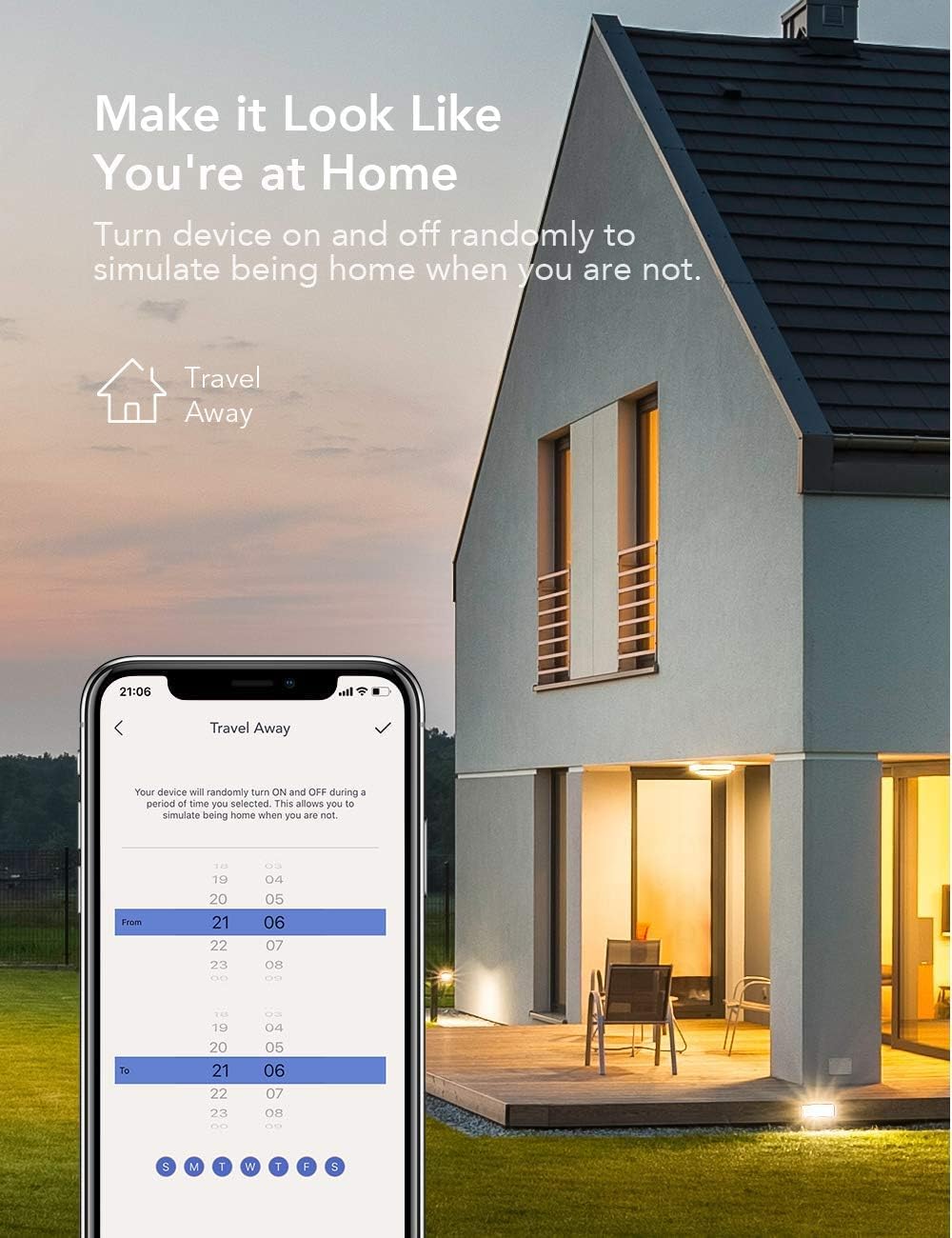
Image: A smartphone screen showing the 'Travel Away' schedule, with a house illuminated at night in the background, demonstrating how the smart plug can simulate occupancy.
5.4 Child Lock and Device Sharing
- Child Lock: Activate this feature in the Nooie app to prevent accidental changes to the smart plug's settings by children.
- Device Sharing: Share control of your smart plugs with family members. In the app, go to the device settings and select 'Share Device' to invite others to control your appliances.

Image: Two people looking at their smartphones, with text indicating 'Share Access with the Whole Family' and 'Device Sharing', illustrating the multi-user control feature.
5.5 Energy Monitoring
The Nooie app may provide a feature to monitor the energy consumption of devices connected to your smart plug. This allows you to track usage and potentially identify areas for energy saving.

Image: A graph showing energy usage over several days, with a Nooie Smart Plug connected to an outlet, demonstrating the energy monitoring capability.
6. Maintenance
The Nooie Smart Wi-Fi Plug requires minimal maintenance. Follow these guidelines:
- Cleaning: Always unplug the smart plug from the wall outlet before cleaning. Use a soft, dry cloth to wipe the surface. Do not use abrasive cleaners, solvents, or harsh chemicals, as these can damage the plastic.
- Storage: If storing the device for an extended period, unplug it and keep it in a cool, dry place away from direct sunlight and extreme temperatures.
- Inspection: Periodically inspect the plug for any signs of damage, such as cracks, frayed wires, or loose connections. If any damage is found, discontinue use immediately and contact customer support.
7. Troubleshooting
If you encounter issues with your Nooie Smart Wi-Fi Plug, refer to the following common problems and solutions:
| Problem | Possible Cause | Solution |
|---|---|---|
| Smart plug not turning on/off | No power, plug not fully inserted, device malfunction. | Check the power outlet. Ensure the plug is fully inserted. Try a different outlet. |
| Cannot connect to Wi-Fi | Incorrect Wi-Fi password, 5GHz Wi-Fi network, weak signal, router issues. | Ensure you are connecting to a 2.4GHz Wi-Fi network. Double-check your Wi-Fi password. Move the plug closer to the router. Restart your router. |
| Voice control not working | Incorrect device name, Nooie skill/action not enabled, account not linked. | Verify the device name in the Nooie app and your voice assistant app. Ensure the 'Nooie' skill/action is enabled and your accounts are linked. Try re-discovering devices. |
| Schedules/Timers not activating | Incorrect settings, plug offline, time zone issues. | Check the schedule/timer settings in the Nooie app. Ensure the smart plug is online. Verify your phone's time zone settings. |
| App not responding | App glitch, network issue, outdated app version. | Close and reopen the app. Check your phone's internet connection. Update the Nooie app to the latest version. |
If the problem persists after trying these solutions, please contact Nooie customer support for further assistance.
8. Specifications
| Attribute | Value |
|---|---|
| Model Number | 673869934634 |
| Manufacturer | Nooie |
| Package Dimensions | 22.9 x 9 x 5.9 cm |
| Item Weight | 336 grams |
| Operating Mode | Automatic |
| Current Rating | 10 A |
| Contact Type | Normally closed |
| Connector Type | Standard electrical plug |
| Switch Type | TRIAC |
| Terminal | Screw |
| Material | Plastic |
| Circuit Type | 1 way |
| Mounting Type | No mounting |
| Country of Origin | China |
9. Warranty and Support
Nooie products are designed and manufactured to the highest quality standards. For information regarding warranty coverage, please refer to the warranty card included with your product or visit the official Nooie website.
If you require technical support, have questions about your product, or need assistance with troubleshooting, please contact Nooie customer support through their official website or the contact information provided in the Nooie app.
For the latest updates, FAQs, and support resources, please visit: www.nooie.com


