1. Introduction
This manual provides detailed instructions for the installation, setup, and operation of your hizpo Android 12 Car Stereo. Please read this manual thoroughly before using the product to ensure proper functionality and safety. Keep this manual for future reference.
2. Safety Information
- Do not operate the device in a manner that distracts you from driving. Always prioritize road safety.
- Ensure proper installation by a qualified professional to prevent damage to the vehicle or the stereo.
- Avoid exposing the unit to extreme temperatures, direct sunlight for prolonged periods, or moisture.
- Do not attempt to disassemble or modify the unit. This may void the warranty and cause damage.
- Use only approved accessories and cables.
3. Package Contents
Verify that all items are present in your package:
- hizpo Android 12 Car Stereo Unit
- Power Cable
- RCA Harness (with 4G SIM Card Slot for 4G version only)
- RCA Harness (for WiFi version only)
- 4 Pin USB Cable
- 6 Pin USB Cable
- 4G LTE Antenna (for 4G version only)
- GPS Antenna
- External Microphone
- Rear Camera Input RCA Cable
- Radio Antenna Adapter Cable

Figure 3.1: Included Accessories
4. Product Overview
The hizpo Android 12 Car Stereo is designed for Mercedes-Benz W169, W245, W639, W906 Sprinter models (2006 onwards) and VW Crafter. It features an Android 12 operating system, an Octa-Core CPU, 4GB RAM, and 32GB ROM for smooth performance. Key features include:
- Wireless CarPlay and Android Auto support
- Built-in GPS Navigation
- Bluetooth 5.0 for hands-free calling and audio streaming
- Weather Display
- Split Screen functionality
- Steering Wheel Control compatibility
- Picture-in-Picture (PIP) video playback
- Built-in DSP for enhanced audio control
- Support for AHD Rearview Camera input
- Day and Night mode switching

Figure 4.1: hizpo Android 12 Car Stereo User Interface

Figure 4.2: Key Features Overview
5. Installation Guide
Professional installation is highly recommended for this car stereo. Incorrect wiring can cause damage to the unit or your vehicle's electrical system.
5.1 Wiring Diagram and Connections
Refer to the detailed wiring diagram provided with your unit for specific connections. Ensure all cables are securely connected to their corresponding ports.

Figure 5.1: Connector Pin Diagram
Important Notes:
- If connecting to 'Connect 1' Power interface, use 'I' and 'A' interfaces.
- If connecting to 'Connect 2' Power interface, use 'Z' and 'A' interfaces.
- If connecting to 'Connect 3' Power interface, use 'B' and 'A' interfaces.
- Mercedes-Benz B-class models may require specific connectors. Choose the appropriate connector when installing.
- A Canbus Box is a decoder for adapting to steering wheel control functions of your original car system.
- The tandem valve bridges the connection and disconnection of cables for replacing the male connector and Canbus Box.
- If your car has a Command system, this unit is not compatible.
- This device cannot decode the air-conditioning information of your car.
6. Setup
6.1 Initial Power On
After installation, turn on your vehicle's ignition. The stereo should power on automatically. Follow any on-screen prompts for initial setup, such as language selection and time zone.
6.2 Canbus Type Settings
To ensure proper integration with your vehicle's systems, configure the Canbus settings:
- Navigate to Car Settings or CarAPP from the main menu.
- Locate Canbus Type Settings.
- Select your vehicle's brand and model from the list. Confirm your selection.

Figure 6.1: Canbus Type Settings Interface
7. Operating Instructions
7.1 User Interface and Navigation
The main screen provides quick access to essential functions. Swipe left or right to access additional applications. The status bar at the top displays time, Bluetooth status, Wi-Fi, and other system information.

Figure 7.1: Main User Interface Functions
7.2 CarPlay and Android Auto
The unit supports both wireless CarPlay and wired/wireless Android Auto for seamless smartphone integration.
- Connect your iPhone via Bluetooth or USB for CarPlay.
- Connect your Android phone via Bluetooth or USB for Android Auto.
- Follow the on-screen prompts to complete the connection.
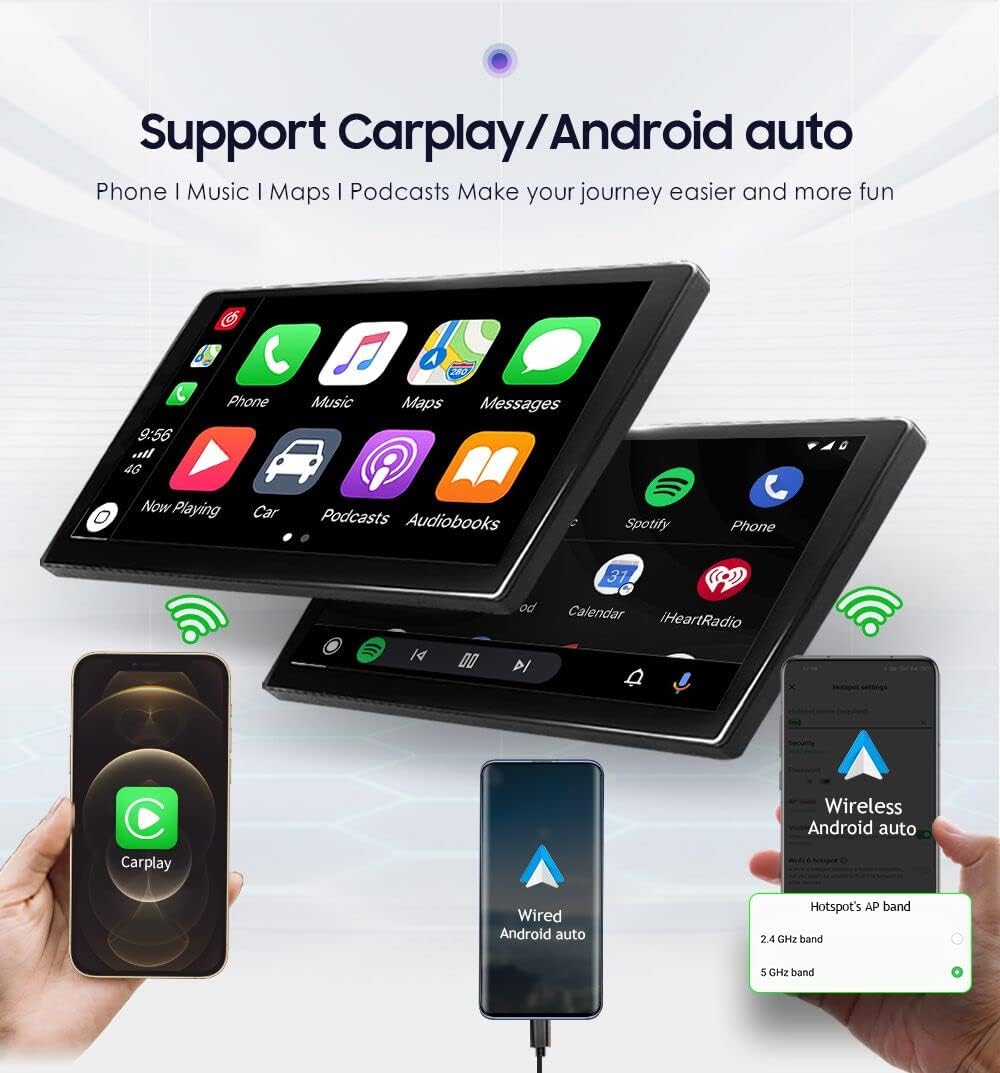
Figure 7.2: CarPlay and Android Auto Connectivity

Figure 7.3: Wireless CarPlay and Android Auto with Voice Control
7.3 GPS Navigation
The unit comes with built-in GPS functionality. You can use pre-installed navigation apps or download others from the Play Store.
- Ensure the GPS antenna is properly installed and has a clear view of the sky.
- Open your preferred navigation application.
- Enter your destination and follow the voice and visual prompts.
7.4 Bluetooth Functions
Pair your smartphone to the car stereo via Bluetooth for hands-free calling and audio streaming.
- Go to the Bluetooth menu on the stereo.
- Enable Bluetooth on your smartphone and search for available devices.
- Select the stereo's name (e.g., "hizpo") from your phone's list and pair.
- Confirm the pairing code on both devices.
7.5 Radio Operation
The unit features a professional radio chip with RDS for stable reception.
- Open the Radio application.
- Use the on-screen controls to scan for stations, manually tune, or select presets.
- Save your favorite stations to the preset buttons.

Figure 7.4: Professional Radio Chip
7.6 Audio Settings (DSP)
The built-in Digital Sound Processor (DSP) allows for advanced audio customization.
- Access the DSP application from the main menu.
- Adjust equalizer settings, sound field, bass enhancement, and bass filtering to optimize your audio experience.

Figure 7.5: Built-in DSP Interface
7.7 Split Screen Functionality
Use two applications simultaneously with the split-screen feature.
- Long-press an app icon or use the split-screen button (if available) to activate.
- Select a second application to run alongside the first.

Figure 7.6: Split Screen in Use
7.8 Picture-in-Picture (PIP)
Watch videos in a small, adjustable window while using other functions.
- Start a video playback.
- Activate PIP mode (specific method may vary by app or system settings).
- Drag and resize the video window as needed.

Figure 7.7: Picture-in-Picture (PIP) Functionality
7.9 Steering Wheel Control
Program your steering wheel buttons to control the stereo for convenience and safety.
- Go to Car Settings or KeyStudy.
- Follow the on-screen instructions to assign functions to your steering wheel buttons.

Figure 7.8: Steering Wheel Control Setup
7.10 Reverse Camera Support
The unit supports AHD rearview cameras for safer parking and reversing.
- Connect a compatible AHD rearview camera to the designated input.
- The display will automatically switch to the camera view when the vehicle is in reverse gear.

Figure 7.9: Reverse Camera Display
7.11 Weather Display
View real-time weather information directly on your stereo screen.
- Ensure the unit is connected to the internet via Wi-Fi or 4G (if applicable).
- The weather widget will display current conditions and updates.

Figure 7.10: Weather Display Feature
7.12 Day and Night Mode
The display automatically adjusts brightness for optimal viewing in different lighting conditions.
- The system can switch between day mode (brighter) and night mode (dimmer) based on headlights or time settings.

Figure 7.11: Day and Night Mode
7.13 Official Product Video
Video 7.1: Demonstration of hizpo Carplay Android 12 car radio with weather display. This video showcases various features and the user interface of the car stereo.
8. Maintenance
- Keep the screen clean using a soft, lint-free cloth. Avoid abrasive cleaners.
- Regularly check for software updates to ensure optimal performance and access to new features.
- Avoid spilling liquids on the unit.
- If the unit requires service, contact customer support. Do not attempt repairs yourself.
9. Troubleshooting
| Problem | Possible Cause | Solution |
|---|---|---|
| Unit does not power on | Incorrect wiring; Blown fuse; Vehicle ignition off | Check power connections; Inspect vehicle fuses; Turn on ignition |
| No sound | Volume too low; Mute activated; Speaker wiring issue | Increase volume; Deactivate mute; Check speaker connections |
| GPS signal lost/weak | Antenna obstruction; Poor satellite reception | Ensure GPS antenna has clear view; Move to open area |
| Bluetooth pairing failed | Incorrect pairing mode; Device not discoverable | Ensure both devices are in pairing mode; Restart Bluetooth on both devices |
| Steering wheel controls not working | Canbus not configured; Controls not programmed | Configure Canbus settings; Program controls via KeyStudy app |
10. Specifications
| Feature | Detail |
|---|---|
| Operating System | Android 12 |
| CPU | Octa-Core (8x1.8GHz) Unisoc 7862A |
| RAM | 4GB |
| ROM | 32GB |
| Display Resolution | 1280x720 |
| Connectivity | USB, Wi-Fi (2.4GHz & 5GHz), Bluetooth 5.0 |
| Special Features | Built-In Bluetooth, Touchscreen, CarPlay/Android Auto, GPS, DSP, Weather Display, Split Screen, PIP |
| Product Dimensions | 9 x 9 x 9 inches |
| Item Weight | 3.78 pounds |
| Manufacturer | Hitour Tech |

Figure 10.1: Core Specifications
11. Warranty and Support
For warranty information, technical support, or service inquiries, please contact hizpo customer service through your purchase platform or the official hizpo website. Keep your proof of purchase for warranty claims.


