
Introduction
This manual provides essential information for the safe operation and maintenance of your Potensic T35 GPS Drone. Please read this manual thoroughly before operating the drone to ensure proper function and to avoid damage or injury. Keep this manual for future reference.
Safety Guidelines
- Always operate the drone in open areas, away from people, buildings, and obstacles.
- Maintain a safe distance from the drone during flight.
- Do not fly in strong winds or adverse weather conditions.
- Ensure batteries are fully charged before each flight.
- Follow all local regulations and laws regarding drone operation.
- Keep fingers and loose clothing away from rotating propellers.
Package Contents
Verify that all items are present in your package:
- Potensic T35 GPS Drone
- Remote Controller
- 2 x 2500mAh Drone Batteries
- USB Charging Cable
- Spare Propellers
- Propeller Guards
- Screwdriver
- User Manual
Product Overview
Drone Components
Familiarize yourself with the main parts of your T35 drone.

Image: The Potensic T35 GPS Drone, showcasing its overall design with propellers and integrated camera.
Key Features
- 1080P HD Camera with 120° FOV: Captures high-definition aerial footage. The camera angle is 90° adjustable. A 4-32G SD card is required for 1080P recording.
- FPV Live Video: Real-time video transmission to your smartphone via Wi-Fi.
- Dual GPS System: Provides stable flight and precise positioning.
- GPS Return Home: Automatically returns the drone to its takeoff point in case of low battery, signal loss, or manual activation.
- Follow Me Mode: The drone follows your movement, capturing footage automatically.
- Altitude Hold: Maintains a consistent altitude for stable hovering.
- Draw the Dot (Waypoint Flight): Plan a flight path by drawing points on the app screen, and the drone will follow it.
- 2500mAh Battery: Provides extended flight time. Two batteries are included for longer sessions.
Setup
1. Battery Installation and Charging
- Insert the 2500mAh battery into the drone's battery compartment until it clicks into place.
- To charge, remove the battery and connect it to the USB charging cable. Plug the USB cable into a compatible USB power source (e.g., computer, USB wall adapter). The charging indicator will show charging status.

Image: Two 2500mAh drone batteries, ready for charging or installation.
2. Propeller and Propeller Guard Installation
- Attach the propellers to the motor shafts, ensuring correct orientation (A and B propellers).
- Secure the propeller guards to the drone's arms using the provided screws and screwdriver.
3. Remote Controller Setup
- Install 4 AA batteries (not included) into the remote controller.
- Mount your smartphone onto the controller's phone holder.
4. App Installation
- Download and install the official Potensic drone app from your smartphone's app store (iOS or Android).
- Connect your smartphone to the drone's Wi-Fi network (usually named 'Potensic_XXXXXX') in your phone's Wi-Fi settings.
Operating Instructions
1. Power On and Pairing
- Place the drone on a flat, level surface.
- Turn on the drone, then turn on the remote controller.
- Push the left joystick up then down to pair the drone with the controller. The drone's indicator lights will become solid.
2. GPS Calibration
- Perform compass calibration as instructed by the app or manual. This typically involves rotating the drone horizontally and vertically.
- Wait for the drone to acquire sufficient GPS satellites (indicated by solid green lights or app status).
3. Takeoff and Landing
- One-Key Takeoff: Press the one-key takeoff button on the controller or in the app. The drone will automatically ascend to a safe altitude.
- Manual Takeoff: Push both joysticks down and outwards to start the motors. Then push the left joystick up to ascend.
- One-Key Landing: Press the one-key landing button. The drone will descend and land automatically.
- Manual Landing: Gently pull the left joystick down to descend.
4. Flight Modes
The Potensic T35 offers several intelligent flight modes:
- GPS Return Home: When activated, the drone will fly back to its recorded takeoff point. This feature is also triggered automatically by low battery or signal loss.
- Follow Me Mode: Enable this mode in the app. The drone will use GPS to track your mobile device and follow you, maintaining a set distance and altitude.
- Altitude Hold: This mode is active by default, allowing the drone to maintain its current altitude without constant throttle input.
- Draw the Dot (Waypoint Flight): In the app, draw a series of points on the map. The drone will fly along this predefined path while maintaining its altitude.
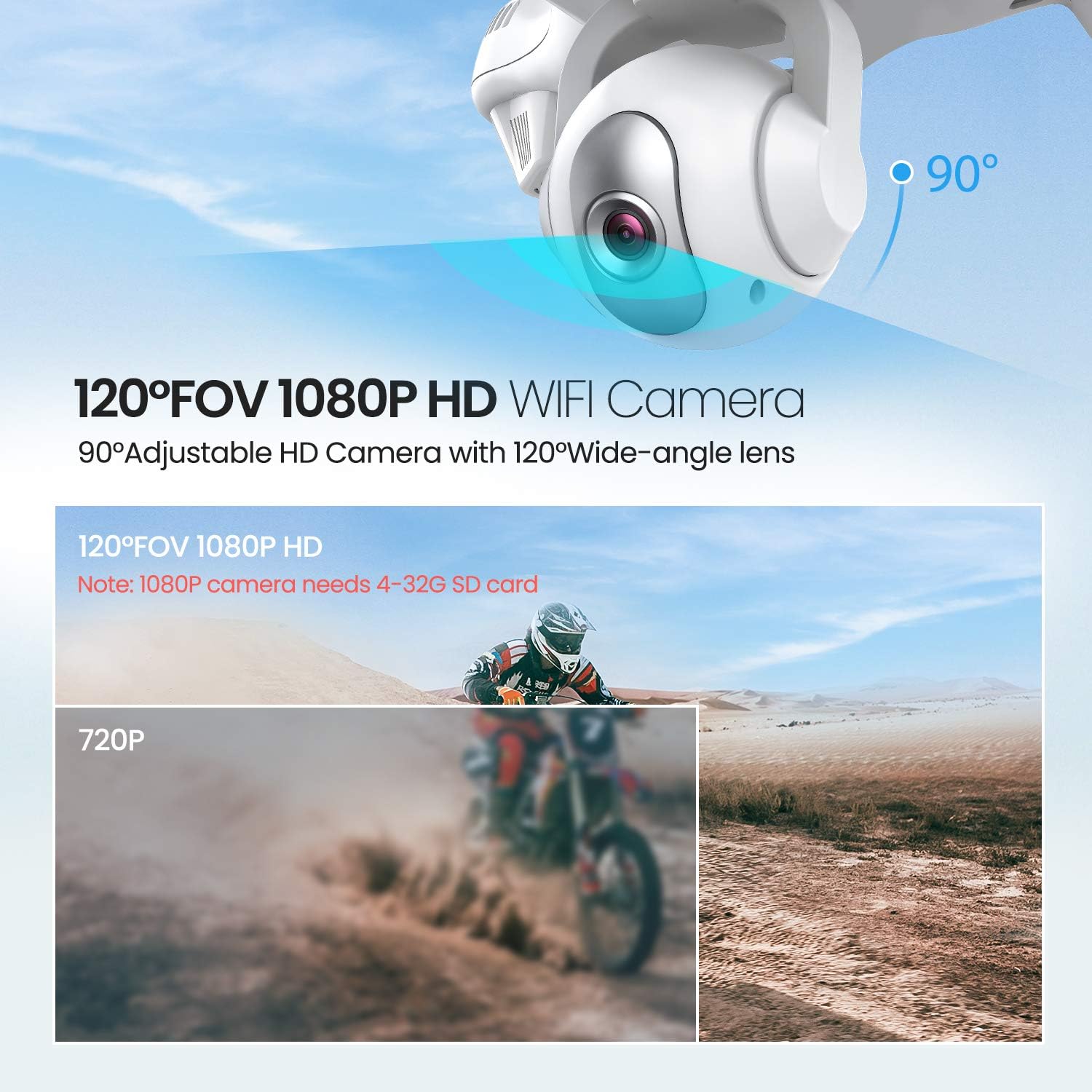
Image: The drone illustrating its GPS Auto Return function, showing a flight path back to a designated home point.

Image: The drone demonstrating its Follow Me Technology, tracking a moving subject.

Image: A user interacting with the 'Draw the Dot' feature on a smartphone, planning the drone's flight path.
Camera Operation
1. 1080P HD Camera
The T35 drone is equipped with a 1080P HD camera with a 120° wide-angle lens. The camera angle can be adjusted by 90° for optimal viewing.

Image: Close-up of the drone's 120° FOV 1080P HD Wi-Fi camera, highlighting its adjustable angle.
2. FPV Live Video
Once connected to the drone's Wi-Fi, open the Potensic app to view real-time FPV (First Person View) video directly on your smartphone. This allows for precise framing of photos and videos.
3. Recording and Photos
- Insert a 4-32GB SD card into the drone's camera slot for 1080P video recording and photo storage.
- Use the dedicated buttons on the remote controller or the app interface to start/stop video recording or take photos.
Maintenance
- Cleaning: Use a soft, dry cloth to clean the drone and remote controller. Do not use harsh chemicals or solvents.
- Propellers: Regularly inspect propellers for damage. Replace any bent or chipped propellers immediately.
- Battery Care: Store batteries in a cool, dry place. Do not overcharge or over-discharge batteries.
- Storage: When not in use, store the drone and its components in a protective case to prevent damage.
Troubleshooting
| Problem | Possible Cause | Solution |
|---|---|---|
| Drone does not power on | Battery not installed correctly or discharged | Ensure battery is fully charged and properly inserted. |
| Drone cannot pair with controller | Incorrect pairing sequence or low controller battery | Follow pairing instructions. Replace controller batteries. |
| Unstable flight / Drifting | Improper calibration or strong winds | Perform GPS and gyroscope calibration. Avoid flying in windy conditions. |
| No FPV video feed | Wi-Fi not connected or app issue | Ensure phone is connected to drone's Wi-Fi. Restart app and drone. |
| GPS Return Home not working | Insufficient GPS satellites or no recorded home point | Ensure drone acquires enough GPS signals before takeoff. |
Specifications
| Feature | Detail |
|---|---|
| Brand | Potensic |
| Model Name | T35 |
| Video Capture Resolution | 1080p |
| Connectivity Technology | Wi-Fi |
| Battery Capacity | 2500 Milliamp Hours |
| Control Type | Remote Control |
| Media Type | SD Card (4-32GB recommended for 1080P) |
| Age Range (Description) | Adult |
Official Product Video
Watch this official video for an overview of the Potensic T35 GPS Drone's features and operation.
Video: An official product video showcasing the Potensic T35 GPS Drone in action, highlighting its various features and capabilities.
Warranty and Support
For warranty information, technical support, or service inquiries, please refer to the contact details provided on the Potensic official website or your purchase documentation. Keep your proof of purchase for warranty claims.


