
1. Introduction
The STEELPLAY HP51 Gaming Headset is designed to provide an immersive audio experience for gamers across multiple platforms. Featuring 3D sound, a flexible omnidirectional microphone, and versatile connectivity options, this headset enhances communication and gameplay. This manual provides instructions for setup, operation, and maintenance of your HP51 headset.

Image 1.1: Front view of the STEELPLAY HP51 Gaming Headset, showcasing its black design with red accents and attached flexible microphone.
2. Package Contents
Please verify that all items listed below are present in your package:
- STEELPLAY HP51 Gaming Headset
- Flexible Omnidirectional Microphone (pre-attached or detachable)
- Integrated cable with 3.5mm Jack and USB connectors, featuring in-line controls

Image 2.1: The retail packaging for the STEELPLAY HP51 Gaming Headset, displaying product features and compatibility.
3. Features
- Immersive 3D Sound: Delivers clear and rich audio with depth and distance effects for enhanced gaming.
- High-Quality Omnidirectional Microphone: Flexible and detachable microphone for clear communication.
- Comfortable and Durable Design: Lightweight, comfortable ear cushions and an adjustable, padded metal headband for extended gaming sessions.
- Multi-Platform Compatibility: Connects to PS4, Xbox One, Nintendo Switch, PC, Mac, Laptops, and Smartphones.
- Dual Connectivity: Features both a 3.5mm jack and a USB connector for versatile plug-and-play use.
- In-line Controls: Conveniently located controls on the braided cable for volume adjustment and microphone mute.
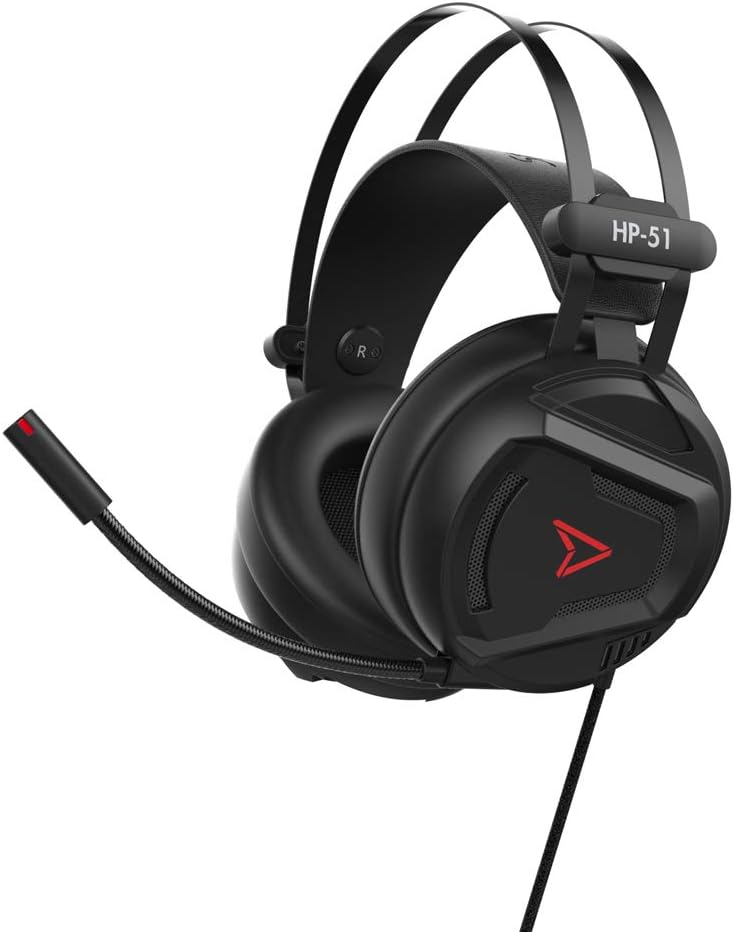
Image 3.1: Side view of the STEELPLAY HP51 Gaming Headset, highlighting the adjustable headband and the flexible microphone with a red indicator light.
4. Setup
4.1 Connecting the Microphone
If your microphone is detachable, gently insert the microphone jack into the designated port on the left earcup until it clicks into place. Ensure it is securely connected for optimal voice pickup.
4.2 Connecting to Gaming Consoles (PS4, Xbox One, Nintendo Switch)
- Locate the 3.5mm audio jack on your console's controller.
- Plug the 3.5mm connector from the HP51 headset cable into the controller's audio jack.
- Adjust audio settings on your console if necessary to ensure the headset is recognized as the primary audio input/output device.
4.3 Connecting to PC, Mac, or Laptop
- For audio and microphone functionality, plug the 3.5mm connector into your computer's combined audio jack (if available). If separate ports are present, you may need an adapter (not included).
- Alternatively, for power (e.g., LED lighting, if applicable) and potentially enhanced audio features, plug the USB connector into an available USB port on your computer.
- Verify audio input and output settings in your operating system's sound preferences to select the HP51 headset.
4.4 Connecting to Smartphones
Plug the 3.5mm connector directly into your smartphone's audio jack. If your smartphone does not have a 3.5mm jack, a compatible adapter (not included) will be required.

Image 4.1: Close-up of the STEELPLAY HP51 headset's braided cable, showing the 3.5mm jack, USB connector, and the in-line control unit for volume and microphone.
5. Operating Instructions
5.1 Wearing the Headset
Adjust the headband to fit comfortably over your head. The earcups should fully enclose your ears for optimal sound isolation and comfort. The flexible microphone can be positioned near your mouth for clear voice pickup or moved away when not in use.

Image 5.1: Top view of the STEELPLAY HP51 Gaming Headset, showing the padded headband with the "Steelplay" logo and the overall robust construction.
5.2 Using In-line Controls
- Volume Control: Use the scroll wheel or slider on the in-line control unit to increase or decrease the audio volume.
- Microphone Mute: Flip the switch on the in-line control unit to mute or unmute the microphone. Ensure the microphone is unmuted when you wish to communicate.
6. Maintenance
- Cleaning: Use a soft, dry cloth to clean the headset. Do not use abrasive cleaners or solvents.
- Storage: Store the headset in a cool, dry place away from direct sunlight and extreme temperatures. Avoid placing heavy objects on the headset.
- Cable Care: Avoid sharp bends or excessive pulling on the cable to prevent damage.
7. Troubleshooting
| Problem | Possible Solution |
|---|---|
| No sound from headset |
|
| Microphone not working |
|
| Sound quality is poor |
|
8. Specifications
| Feature | Detail |
|---|---|
| Model Number | JVAMUL00110 |
| Connectivity | 3.5mm Jack, USB |
| Microphone Type | Omnidirectional, Flexible, Detachable |
| Sound Features | 3D Sound, Immersive Audio |
| Dimensions (L x W x H) | 23 x 11 x 23.5 cm |
| Weight | 236 grams |
| Compatibility | PS4, Xbox One, Nintendo Switch, PC, Mac, Laptop, Smartphone |
9. Warranty and Support
The STEELPLAY HP51 Gaming Headset comes with a manufacturer's warranty. Please refer to the warranty card included with your product or visit the official Steelplay website for detailed warranty terms and conditions. For technical support or further assistance, please contact Steelplay customer service through their official channels.
Information regarding spare parts availability is currently not provided.


