
1. Introduction
This manual provides detailed instructions for the installation, operation, and maintenance of your DOGAIN Smart Light Bulb. This smart LED bulb features an E12 candelabra base, color changing capabilities, dimming, and smart control via Wi-Fi, compatible with Alexa and Google Assistant. Please read this manual thoroughly before use to ensure proper functionality and safety.

Image 1.1: DOGAIN Smart Light Bulbs (4-pack) displaying various colors.
2. Product Overview
2.1 Key Features
- Voice Control: Compatible with Alexa and Google Assistant for hands-free operation.
- Remote Control: Manage lights from your smartphone via the Smart Life app.
- Scheduling: Set custom schedules for automatic on/off times.
- Group Control: Control multiple bulbs simultaneously by grouping them in the app.
- Adjustable White Light: Color temperature adjustable from 2700K (warm white) to 6500K (daylight).
- Color Changing: Access to 16 million colors for personalized ambiance.
- Music Sync: Synchronize light effects with music.
- Home Automation: Create automated routines based on weather, location, or other device statuses.
- Easy Setup: Connects directly to 2.4GHz Wi-Fi networks; no hub required.
2.2 What's Included
- DOGAIN WiFi Smart Bulb(s) (Quantity as per package)
- Welcome Guide
3. Specifications
| Brand | DOGAIN |
| Model Number | E12, B10/B11 |
| Light Type | LED |
| Bulb Base | E12 |
| Bulb Shape Size | B10 |
| Wattage | 4.5 Watts (LED), 35 Watts (Incandescent Equivalent) |
| Brightness | 360 Lumens |
| Color Temperature | 2700K - 6500K (Adjustable White), RGB (16 Million Colors) |
| Voltage | 100-120 Volts, 60 Hertz |
| Control Method | App (Smart Life), Voice (Alexa, Google Assistant) |
| Connectivity | 2.4GHz Wi-Fi Only |
| Dimensions | 1.57"W x 4.3"H |
| Material | Copper |
| Indoor/Outdoor Usage | Indoor |
4. Setup Instructions
Follow these steps to install and connect your DOGAIN Smart Light Bulb.
- Install the Bulb:
- Ensure the power to the light fixture is turned OFF at the switch before installation.
- Carefully screw the DOGAIN Smart Light Bulb into an E12 candelabra base socket.
- Turn the power ON at the switch.
- Download the App:
- Download the "Smart Life" app from the Apple App Store or Google Play Store.
- Register for a new account or log in if you already have one.
- Pair the Bulb:
- Turn the light switch OFF and ON three times (OFF-ON-OFF-ON-OFF-ON). The bulb should begin to blink rapidly, indicating it is in pairing mode.
- Open the Smart Life app. Tap the "+" icon in the top right corner to add a device.
- Select "Lighting" then "Light Source (Wi-Fi)".
- Important Pairing Tip: Initially connect the bulb via Bluetooth within the app. Once registered, proceed to connect it to your Wi-Fi network.
- Confirm the bulb is blinking rapidly.
- Enter your 2.4GHz Wi-Fi network password. Note: The bulb only supports 2.4GHz Wi-Fi networks. Ensure your phone is connected to a 2.4GHz network during setup.
- The app will search for and connect to the bulb. Once connected, you can rename the bulb for easier control.
- Connect to Voice Assistants (Optional):
- For Amazon Alexa:
- Open the Alexa app.
- Go to "Skills & Games" and search for "Smart Life".
- Enable the Smart Life skill and link your Smart Life account.
- Discover devices. Your DOGAIN Smart Light Bulb will appear in the Alexa app.
- For Google Assistant:
- Open the Google Home app.
- Tap "Add" > "Set up device" > "Works with Google".
- Search for "Smart Life" and link your Smart Life account.
- Assign the bulb to a room.
- For Amazon Alexa:

Image 4.1: Remote control of the smart bulb via smartphone app.
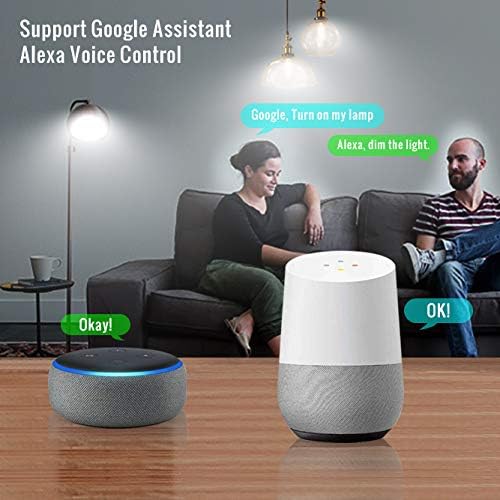
Image 4.2: Voice control compatibility with Amazon Alexa and Google Assistant.
5. Operating Instructions
5.1 App Control (Smart Life)
- On/Off: Tap the power icon in the app to turn the bulb on or off.
- Brightness Adjustment: Use the slider to adjust the light intensity from 1% to 100%.
- Color Selection: Choose from 16 million colors using the color wheel or preset color options.
- White Light Adjustment: Adjust the color temperature from warm white (2700K) to cool daylight (6500K).
- Scene Modes: Select from various pre-programmed scenes (e.g., Reading, Party, Relax) or create custom scenes.
- Music Sync: Activate music synchronization to have the light change with audio.
- Scheduling: Set specific times for the bulb to turn on, turn off, or change settings.
- Group Control: Create groups of multiple DOGAIN bulbs to control them simultaneously.

Image 5.1: Example of scheduling smart lights for automatic operation.

Image 5.2: Smart Life app interface showing various scene options for lighting.
5.2 Voice Control
Once linked with Alexa or Google Assistant, you can use voice commands to control your DOGAIN Smart Light Bulb.
- "Alexa, turn on [Light Name]."
- "Hey Google, dim [Light Name] to 50%."
- "Alexa, change [Light Name] to blue."
- "Hey Google, set [Light Name] to warm white."
- "Alexa, turn off all lights."
6. Maintenance
- Cleaning: Ensure the bulb is off and cool before cleaning. Wipe with a soft, dry cloth. Do not use liquid cleaners.
- Storage: If storing the bulb, keep it in a cool, dry place away from direct sunlight.
- Firmware Updates: Periodically check the Smart Life app for available firmware updates to ensure optimal performance and security.
7. Troubleshooting
| Problem | Possible Cause / Solution |
|---|---|
| Bulb does not turn on. |
|
| Bulb does not enter pairing mode (not blinking). |
|
| Cannot connect to Wi-Fi. |
|
| Voice control not working. |
|
| Bulb is unresponsive or offline. |
|
8. Warranty and Support
Your DOGAIN Smart Light Bulb comes with the following support:
- 30-Day Free Return: For any issues within 30 days of purchase.
- 12-Month Warranty: Covers manufacturing defects for one year from the purchase date.
- Lifetime Technical Support: Access to technical assistance for the lifespan of the product.
- Customer Service: Friendly customer service available 24/7.
For support, please refer to the contact information provided in your product packaging or visit the official DOGAIN website.