
1. Product Overview
The MekedeTech Android Car Stereo GPS is an advanced head unit designed for seamless integration into BMW E46 Coupe, M3, Rover 316i, 318i, and 3 Series vehicles manufactured between 1999 and 2005. This unit features an Android 12 operating system, an 8-Core A53 1.8GHz CPU, 2GB RAM, and 32GB ROM, providing a responsive and feature-rich in-car entertainment and navigation experience.
Key features include a 9-inch IPS touch screen with 1280x720 resolution, built-in wireless CarPlay and wired Android Auto, 4G LTE connectivity, Wi-Fi, Bluetooth 5.0, and a DSP sound system for enhanced audio quality.
2. Package Contents
Verify that all components are present in the package:
- MekedeTech Android Car Stereo Head Unit
- Dash Kit (pre-installed or separate, specific to BMW E46)
- Power Cable
- RCA Cable
- USB Cables
- GPS Antenna
- 4G Antenna
- External Microphone
- Reversing Camera Cable (if included with specific variant)

Image 2.1: Overview of included accessories and wiring harnesses for installation.
3. Installation Guide
This unit is designed for a plug-and-play installation in compatible BMW E46 models. Professional installation is recommended, but the following steps provide a general overview.
3.1 Pre-Installation Checks
- Ensure the vehicle's battery is disconnected before starting installation.
- Confirm compatibility with your specific BMW E46 model and year (1999-2005).
- Familiarize yourself with your vehicle's existing dashboard layout and wiring.
3.2 Removing the Old Head Unit
Carefully remove the existing car stereo and any associated trim panels. Refer to your vehicle's service manual for specific instructions on dashboard disassembly.

Image 3.1: Example of the MekedeTech stereo installed in a BMW E46 dashboard.
3.3 Wiring Connections
- Connect the main power cable harness from the new unit to the vehicle's wiring.
- Connect the RCA cables for audio output and input (e.g., for external amplifier, subwoofer).
- Attach the GPS antenna and position it in a location with clear sky view (e.g., dashboard, under windshield).
- Connect the 4G antenna for cellular data access.
- Connect the external microphone for improved call quality.
- If installing a reversing camera, connect its cable to the designated input on the head unit and ensure proper power supply to the camera.
- Connect USB cables for external storage or wired Android Auto.
3.4 Securing the Head Unit
Once all connections are made, carefully slide the MekedeTech head unit into the dashboard opening and secure it using the provided mounting brackets or screws. Reassemble any removed trim panels.
3.5 Initial Power-Up and Configuration
Reconnect the vehicle's battery. Power on the unit and follow any on-screen prompts for initial setup. Ensure all functions, including steering wheel controls, radio, navigation, and audio, are working correctly.

Image 3.2: Internal components and initial setup steps for the cooling fan and sound settings.
4. Operating Instructions
4.1 Touch Screen Interface
The unit features a responsive 9-inch IPS touch screen. Navigate through menus and applications by tapping, swiping, and pinching gestures similar to a smartphone or tablet.

Image 4.1: Main user interface of the Android car stereo.
4.2 Wireless CarPlay and Android Auto
The unit supports both wireless CarPlay (for iOS devices) and wired Android Auto (for Android devices).
- Wireless CarPlay:
- Enable Bluetooth on your iPhone and pair it with the car stereo.
- Open the 'Car Link' application on the stereo.
- Follow on-screen prompts to establish the CarPlay connection.
- Wired Android Auto:
- Connect your Android phone to the stereo using a USB cable.
- Open the 'Car Link' application on the stereo.
- Follow on-screen prompts to establish the Android Auto connection.

Image 4.2: Wireless CarPlay and Android Auto connection instructions.
4.3 Navigation (GPS)
The unit comes with built-in GPS navigation and pre-installed maps. Access the navigation application from the main menu. Ensure the GPS antenna is properly installed for optimal signal reception.
4.4 Radio and Media Playback
Access the Radio application for FM/AM tuning. The unit supports various audio (APE/FLAC/WAV/MP3/WMA) and video (MKV/RMVB/AVI/MP4/MDV) formats for playback from USB drives or internal storage.

Image 4.3: Radio interface and media playback options.
4.5 4G LTE and Wi-Fi Connectivity
Insert a 4G SIM card into the designated slot to access cellular data. Alternatively, connect to a Wi-Fi hotspot for internet access. This enables online navigation, streaming, and app downloads.
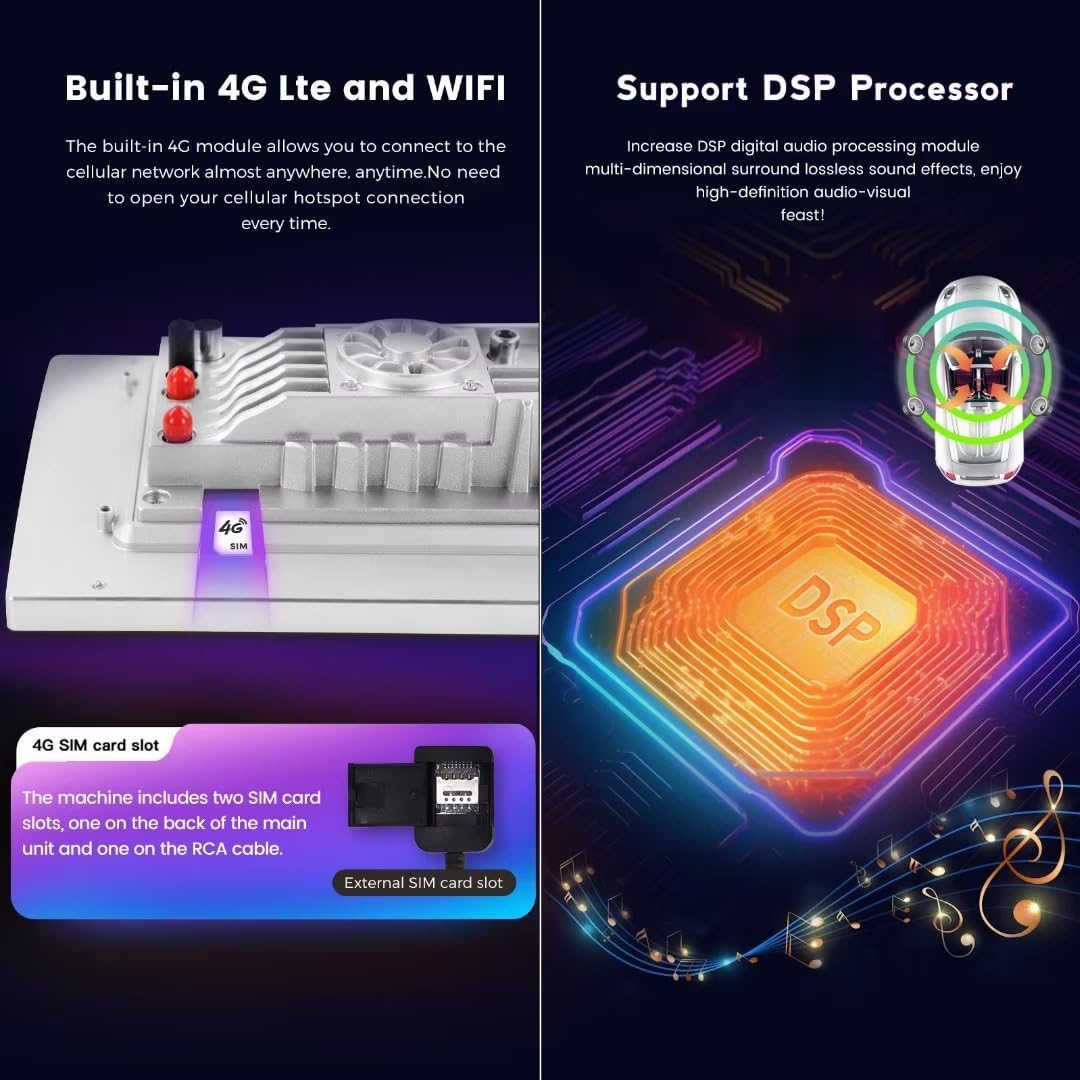
Image 4.4: 4G LTE SIM card slot and DSP processor details.
4.6 Bluetooth 5.0
Pair your smartphone via Bluetooth for hands-free calling and audio streaming. The external microphone enhances call clarity.
4.7 Steering Wheel Controls
The unit supports the vehicle's original steering wheel control functions, allowing you to adjust volume, change tracks, and answer calls without taking your hands off the wheel.
5. Maintenance
- Screen Cleaning: Use a soft, lint-free cloth to clean the touch screen. Avoid abrasive cleaners or solvents.
- Software Updates: Periodically check for software updates to ensure optimal performance and access to new features. Updates can typically be found on the manufacturer's website or through the unit's settings menu.
- General Care: Avoid exposing the unit to extreme temperatures or direct sunlight for prolonged periods.
6. Troubleshooting
If you encounter issues with your MekedeTech Android Car Stereo, refer to the following common solutions:
- No Power: Check all power connections and fuses. Ensure the vehicle's battery is fully charged.
- No Sound: Verify speaker connections. Check audio settings on the unit, including volume levels and mute status. Ensure the DSP is configured correctly.
- GPS Signal Issues: Ensure the GPS antenna is securely connected and positioned with a clear view of the sky. Try moving the antenna to a different location.
- Bluetooth Connectivity Problems: Ensure Bluetooth is enabled on both the stereo and your device. Try unpairing and re-pairing the devices.
- Steering Wheel Controls Not Working: Confirm that the steering wheel control wires are correctly connected and configured in the unit's settings. A battery disconnect/reconnect after installation can sometimes resolve this.
- Touch Screen Unresponsive: Try restarting the unit. If the problem persists, a factory reset might be necessary (note: this will erase all user data).
- Slow Performance: Close unnecessary background applications. Clear cache if available in settings.
For persistent issues, contact MekedeTech customer support.
7. Specifications
| Feature | Specification |
|---|---|
| Operating System | Android 12 OS |
| CPU | 8-Core A53 1.8GHz |
| Memory | 2GB RAM, 32GB ROM |
| Display Size | 9 Inches |
| Display Resolution | 1280x720 IPS Touch Screen |
| Power Output | 4*50W |
| Connectivity | 4G LTE, Wi-Fi, Bluetooth 5.0 |
| Navigation | Built-in GPS, Worldwide Map Type |
| Special Features | Wireless CarPlay, Wired Android Auto, DSP Sound System, Steering Wheel Control Support |
| Audio Format Support | APE/FLAC/WAV/MP3/WMA etc. |
| Video Format Support | MKV/RMVB/AVI/MP4/MDV etc. |
| Item Weight | 5.46 pounds |
| Package Dimensions | 12.8 x 9.8 x 6.65 inches |
8. Warranty and Support
The MekedeTech Android Car Stereo GPS comes with a 1-Year Warranty from the date of purchase. This warranty covers manufacturing defects and malfunctions under normal use.
For technical support, warranty claims, or further assistance, please contact MekedeTech customer service through their official website or the platform where the product was purchased.