Introduction
The GIGABYTE AORUS GM-AORUS M4 is a high-performance gaming mouse designed for precision and customization. It features an ambidextrous design, a real 6400 DPI optical engine with 50 DPI increments, and durable 50-million-click Omron switches. With RGB FUSION 2.0, you can synchronize its lighting with other AORUS devices. The mouse also boasts fully programmable buttons and onboard memory for saving profiles, along with on-the-fly DPI adjustment for seamless gaming.

Image: Top-down view of the AORUS M4 gaming mouse, showcasing its sleek black design and illuminated AORUS logo.
Setup
- Unboxing: Carefully remove the GM-AORUS M4 mouse from its packaging. Ensure all components are present.
- Connection: Connect the USB cable of the mouse to an available USB port on your computer. The mouse is plug-and-play compatible with Windows, MAC, and Linux operating systems.
- Software Installation (Optional but Recommended): For full customization, including button programming and RGB FUSION 2.0 synchronization, download and install the AORUS ENGINE software from the official GIGABYTE website.
- Visit www.gigabyte.com and navigate to the support section for the GM-AORUS M4.
- Download the latest version of AORUS ENGINE.
- Follow the on-screen instructions to complete the installation.
- Initial Configuration: Once connected, the mouse will be ready for basic use. If AORUS ENGINE is installed, launch it to configure DPI settings, button assignments, and RGB lighting effects.

Image: Angled view of the AORUS M4 mouse, highlighting its ambidextrous design and textured side grips.
Operating Instructions
DPI Adjustment
The GM-AORUS M4 features on-the-fly DPI adjustment. Use the dedicated DPI buttons (typically located near the scroll wheel) to cycle through preset DPI levels. You can customize these levels in the AORUS ENGINE software, with increments of 50 DPI, up to a real 6400 DPI.
Programmable Buttons
The mouse is equipped with fully programmable buttons. Using the AORUS ENGINE software, you can assign various functions, macros, or key combinations to these buttons. Profiles can be saved directly onto the mouse's onboard memory, allowing you to use your custom settings on any computer without needing the software installed.
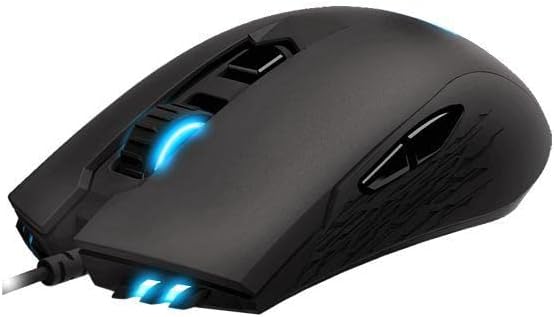
Image: Front-angled view of the AORUS M4 mouse, highlighting the illuminated scroll wheel and front light strips.
RGB FUSION 2.0
Customize the RGB lighting of your GM-AORUS M4 using RGB FUSION 2.0 within the AORUS ENGINE software. You can choose from various lighting effects, colors, and synchronize them with other compatible AORUS devices for a unified aesthetic.
Ambidextrous Design
The GM-AORUS M4 features an ambidextrous design, making it comfortable for both left-handed and right-handed users. The symmetrical shape ensures a natural grip for various hand sizes and grip styles.
Maintenance
- Cleaning: Use a soft, dry cloth to wipe down the mouse surface. For stubborn dirt, slightly dampen the cloth with water or a mild cleaning solution. Avoid using harsh chemicals or abrasive materials.
- Sensor Care: Keep the optical sensor on the underside of the mouse clean and free from dust or debris to ensure accurate tracking.
- Cable Management: Avoid sharp bends or excessive pulling on the USB cable to prevent damage.
- Storage: When not in use, store the mouse in a clean, dry environment away from extreme temperatures.

Image: Side view of the AORUS M4 mouse, showcasing the textured grip area and the two programmable side buttons.
Troubleshooting
| Problem | Possible Cause | Solution |
|---|---|---|
| Mouse not responding / Cursor not tracking |
|
|
| Buttons not clicking or feeling firm |
|
|
| RGB lighting not working or synchronizing |
|
|
Specifications
| Feature | Detail |
|---|---|
| Brand | GIGABYTE |
| Model Number | GM-AORUS M4 |
| Series | M4 |
| Design | Ambidextrous |
| DPI | Real 6400 DPI optical engine with 50 DPI increment |
| Switch Type | Omron switch (50-million-click lifespan) |
| RGB Lighting | RGB FUSION 2.0 |
| Buttons | Fully programmable buttons, saved onboard |
| Connectivity Technology | USB |
| Hardware Platform | PC |
| Operating System Compatibility | Windows, MAC, Linux |
| Item Weight | 4.4 ounces (converted from pounds for better mouse context) |
| Product Dimensions (LxWxH) | 4.82 x 2.61 x 1.58 inches |
| Color | Black |

Image: Bottom view of the AORUS M4 mouse, displaying the optical sensor and regulatory information label.
Warranty and Support
For warranty information, technical support, and driver downloads, please visit the official GIGABYTE website. Keep your proof of purchase for warranty claims.
GIGABYTE Official Website: www.gigabyte.com
For further assistance, you may also refer to the product's Amazon listing page or contact Amazon customer service.


