
Introduction
This manual provides comprehensive instructions for the installation, operation, maintenance, and troubleshooting of your Sapphire Pulse RX 5700 XT 8GB GDDR6 Graphics Card. Designed for an immersive gaming experience, this card features the AMD RDNA gaming architecture and 7nm process technology, offering high visual fidelity and performance for modern games.
The Pulse RX 5700 XT includes 2560 stream processors, a boost clock of up to 1925 MHz, and 8 GB of GDDR6 memory. It incorporates Sapphire's Dual-X cooling solution for efficient and quiet operation, maintaining temperatures below 75°C during gaming.
1. Setup and Installation
1.1 System Requirements
- Operating System: Windows 10 (64-bit) or Windows 7 (64-bit)
- Power Supply: Recommended 650 Watt (minimum 600 Watt)
- Power Connectors: 1 x 8-pin, 1 x 6-pin
- Motherboard: PCI Express-based PC with one X16 lane graphics slot available
- System Memory (RAM): Minimum 8 GB, 16 GB recommended
1.2 Physical Installation
- Prepare your PC: Power off your computer and unplug all cables. Open the computer case.
- Locate PCIe Slot: Identify an available PCI Express x16 slot on your motherboard.
- Insert Graphics Card: Carefully align the graphics card with the PCIe slot and press down firmly until it is securely seated. Ensure the retention clip on the motherboard engages.
- Secure the Card: Use a screw to fasten the graphics card bracket to the PC case.
- Connect Power: Connect the required 8-pin and 6-pin PCIe power connectors from your power supply to the corresponding ports on the graphics card.
- Close Case and Connect Peripherals: Close your computer case, reconnect all cables (monitor, keyboard, mouse, power), and power on your PC.
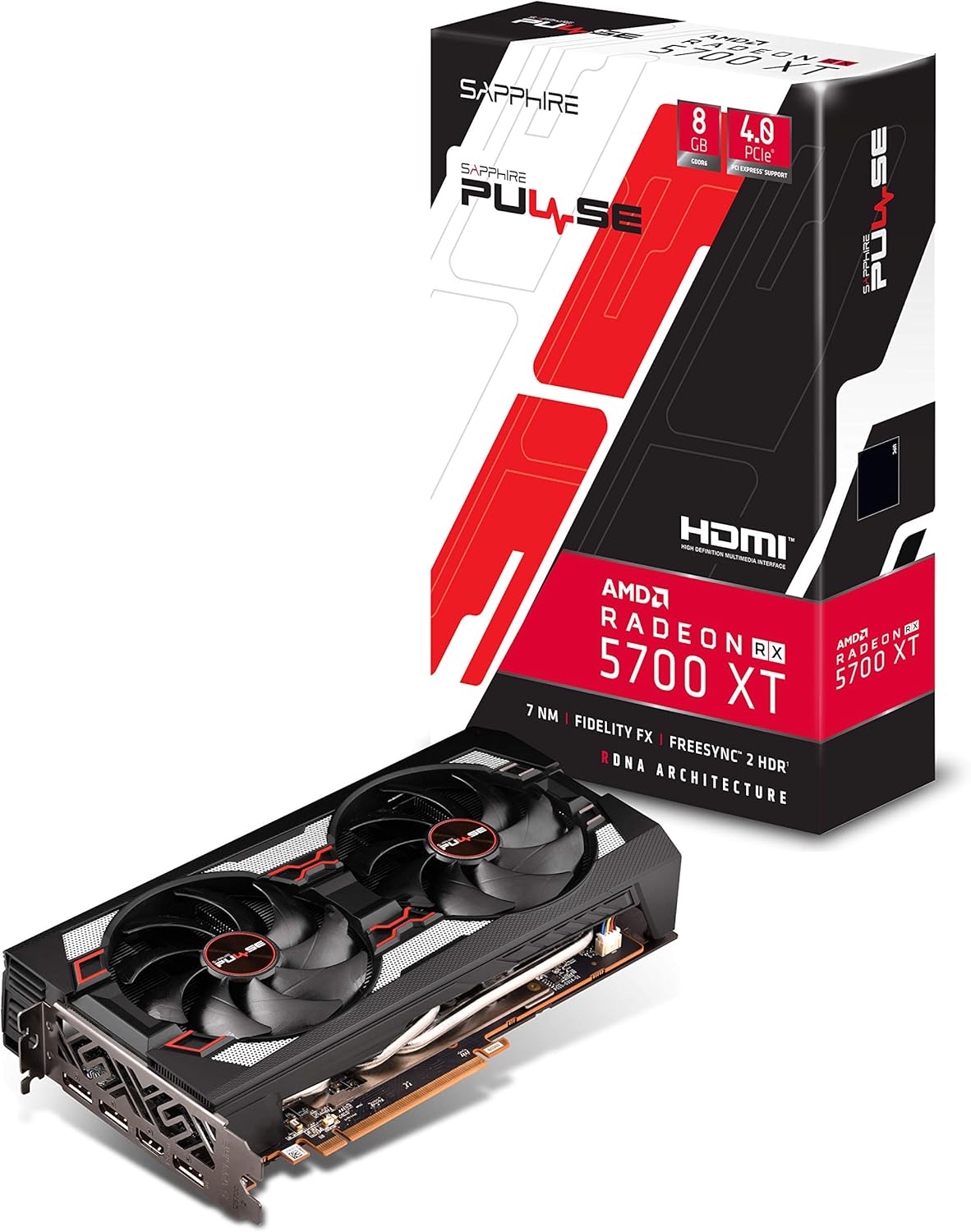
Figure 1: Front view of the Sapphire Pulse RX 5700 XT Graphics Card, showing the Dual-X cooling fans.

Figure 2: Angled view of the graphics card, highlighting the display output ports (HDMI and DisplayPort).
1.3 Driver Installation
After physical installation, you will need to install the latest AMD Radeon drivers.
- Using the Installation CD: Insert the provided installation CD into your optical drive and follow the on-screen instructions.
- Downloading Latest Drivers: For optimal performance and compatibility, it is recommended to download the latest drivers directly from the official AMD website (www.amd.com/en/support). Select your graphics card model and operating system to download the appropriate driver package.
- Follow Installation Prompts: Run the downloaded driver installer and follow the prompts to complete the installation. A system restart may be required.
2. Operating Your Graphics Card
2.1 Connecting Displays
The Sapphire Pulse RX 5700 XT supports multiple display outputs: 1 x HDMI and 3 x DisplayPort. Connect your monitor(s) to the appropriate ports on the graphics card.
- HDMI: For connecting to HDMI-compatible displays.
- DisplayPort (DP): For connecting to DisplayPort-compatible displays, often supporting higher refresh rates and resolutions.
2.2 Software Features and Optimization
Leverage AMD Radeon Software to optimize your gaming experience and graphics card performance. Key features include:
- Radeon Image Sharpening (RIS): Enhances visual clarity in games that may have softened images due to post-processing effects.
- FidelityFX: An open-source toolkit for game developers offering high-quality post-process effects for improved visual fidelity and performance balance.
- Radeon Anti-Lag: Reduces input-to-display response times, improving responsiveness in competitive gaming.
- Intelligent Fan Control: The card's cooling solution intelligently adjusts fan speeds to maintain optimal temperatures and minimize noise during operation.
Video: Overview of the Sapphire Pulse RX 5700 XT series, demonstrating features and performance. (Source: Althon Micro Inc.)
3. Maintenance
Regular maintenance helps ensure the longevity and optimal performance of your graphics card.
- Dust Removal: Periodically clean dust from the fans and heatsink using compressed air. Ensure the PC is powered off and unplugged before cleaning. Hold the fan blades gently to prevent them from spinning rapidly during cleaning.
- Driver Updates: Keep your graphics drivers updated by regularly checking the official AMD website for new releases.
- Temperature Monitoring: Utilize monitoring software (e.g., AMD Radeon Software) to keep an eye on your GPU temperatures, especially during heavy loads, to ensure it operates within safe limits.
4. Troubleshooting
If you encounter issues with your graphics card, refer to the following common troubleshooting steps:
- No Display Output:
- Ensure the monitor cable is securely connected to both the graphics card and the monitor.
- Verify that the graphics card is fully seated in the PCIe slot.
- Check that all required power connectors (8-pin and 6-pin) are firmly attached to the graphics card.
- Test with a different display cable or monitor if possible.
- System Instability or Crashes:
- Ensure your graphics drivers are up-to-date. Consider performing a clean installation of the drivers.
- Check your power supply unit (PSU) to ensure it meets the recommended wattage (650W recommended).
- Monitor GPU temperatures to ensure the card is not overheating.
- Poor Performance in Games:
- Verify that your game settings are appropriate for your system and graphics card capabilities.
- Ensure your graphics drivers are the latest version.
- Check for background applications consuming system resources.
For further assistance, consult the AMD support website or Sapphire's official support channels.
5. Technical Specifications
| Feature | Specification |
|---|---|
| Model Name | 11293-01-20G |
| Graphics Processor | AMD Radeon RX 5700 XT (Navi) |
| Stream Processors | 2560 |
| Graphics Memory | 8 GB GDDR6 |
| Memory Clock Speed | 1.4 GHz |
| Interface | PCI-Express 4.0 x16 |
| Base Clock | 1670 MHz |
| Game Clock | 1815 MHz |
| Boost Clock | Up to 1925 MHz |
| Video Output | 1 x HDMI, 3 x DisplayPort |
| Max Resolution | 3840x2160 (4K) / 1440P |
| Cooling Solution | Dual-X Cooling (2 Fans) |
| Form Factor | 2.3 slot, ATX |
| Dimensions (L x W) | 10"L x 5.31"W (254 x 135 x 46.5 mm) |
| Item Weight | 1 Kilogram |
| UPC | 840777083000 |

Figure 3: Graphics card dimensions, showing approximate length and width.
6. Warranty Information
This Sapphire Pulse RX 5700 XT Graphics Card comes with a 2-year manufacturer's warranty. Please retain your proof of purchase for warranty claims. For detailed terms and conditions, refer to the official Sapphire website or contact their customer support.
7. Customer Support
For technical support, driver downloads, FAQs, and additional product information, please visit the official Sapphire website:
www.sapphiretech.com/en/support
You can also refer to the AMD support website for general Radeon software and driver assistance:
www.amd.com/en/support


