
Garmin 010-02174-11
Contents
Garmin Vivoactive 4 GPS Smartwatch User Manual
Model: 010-02174-11
Introduction
This manual provides comprehensive instructions for the setup, operation, maintenance, and troubleshooting of your Garmin Vivoactive 4 GPS Smartwatch. Please read this manual thoroughly to ensure proper use and to maximize the device's capabilities.
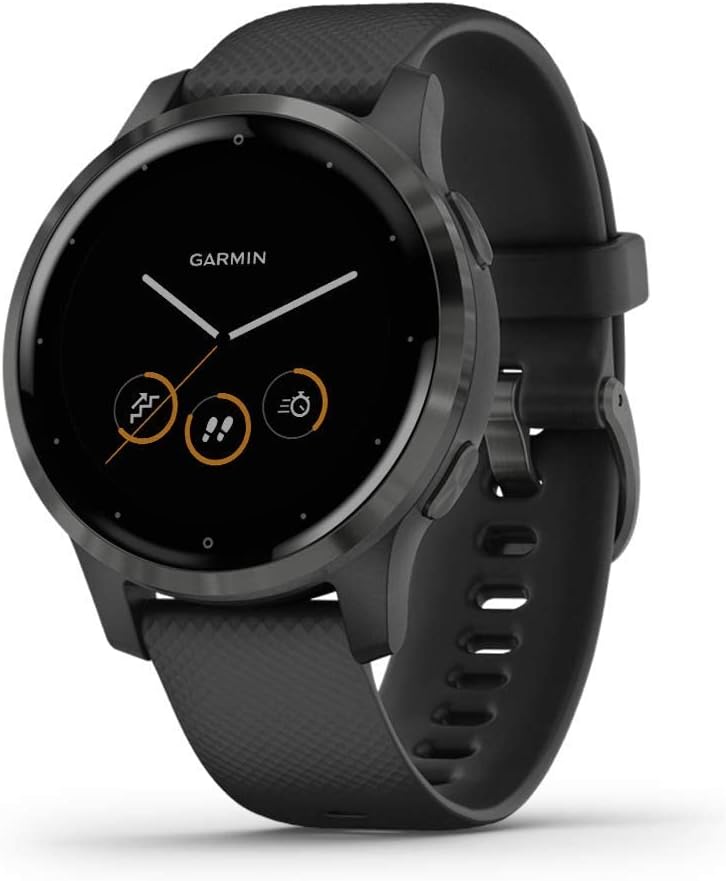
Figure 1: Garmin Vivoactive 4 GPS Smartwatch. This image shows the front view of the black smartwatch with its display active, showing the time and icons for steps, intensity minutes, and calories burned.
Setup
1. Initial Charging
Before first use, fully charge your Vivoactive 4. Connect the charging cable to the charging port on the back of the watch and plug the USB end into a power source. A full charge typically takes approximately 1-2 hours.
2. Pairing with Your Smartphone
- Download the Garmin Connect app from your smartphone's app store (App Store for iOS, Google Play Store for Android).
- Open the Garmin Connect app and follow the on-screen instructions to create an account or sign in.
- Turn on your Vivoactive 4 by pressing and holding the top right button.
- In the Garmin Connect app, select Garmin Devices > Add Device and follow the prompts to pair your watch.
- A pairing code will appear on your watch. Enter this code into the app when prompted.
3. Basic Watch Settings
Once paired, the app will guide you through initial settings such as time format, units of measure, and language preferences. These can be adjusted later via the watch settings or the Garmin Connect app.
Operating the Vivoactive 4
1. Navigating the Interface
- Touchscreen: Swipe up or down to scroll through glances (widgets). Tap to select an option or view more details.
- Top Right Button (Action Button): Press to open the activity list and start an activity. Hold to view the controls menu.
- Bottom Right Button (Back Button): Press to return to the previous screen. Hold to view the watch settings menu.
2. Health Monitoring Features
The Vivoactive 4 offers a comprehensive suite of health monitoring features:
- Body Battery™ Energy Monitoring: Tracks your energy levels throughout the day, helping you identify optimal times for activity and rest.
- Pulse Ox Sensor: Measures blood oxygen saturation. This data can indicate how well your body is absorbing oxygen, especially during sleep. (Note: This is not a medical device and is not intended for use in the diagnosis or monitoring of any medical condition.)
- Heart Rate Monitoring: Continuously monitors your heart rate from the wrist.
- Advanced Sleep Monitoring: Provides a breakdown of light, deep, and REM sleep stages, along with respiration data.
- Stress Tracking: Monitors your stress levels and offers relaxation reminders.
- Hydration Tracking: Allows you to log daily fluid intake and set hydration goals.
- Menstrual Cycle Tracking: Available through the Garmin Connect app.

Figure 2: Health Statistics. The watch screen shows current health metrics such as heart rate, Body Battery, stress level, and respiration rate.

Figure 3: Body Battery Monitoring. A graph on the watch display illustrates the user's Body Battery energy levels over an 8-hour period.
3. Music Storage and Playback
The Vivoactive 4 allows you to download songs and playlists directly to your watch from compatible music services like Spotify, Amazon Music, or Deezer (premium subscription may be required). Connect wireless headphones (sold separately) for phone-free listening.

Figure 4: Music Services. Two Vivoactive 4 watches are shown side-by-side, one displaying the Spotify logo and the other the Amazon Music logo, indicating music integration.
4. Sports Apps and Animated Workouts
The watch comes preloaded with over 20 GPS and indoor sports apps, including yoga, running, swimming, and more. You can also access easy-to-follow, animated workouts directly on your watch screen for cardio, strength, yoga, and Pilates.

Figure 5: Sports Apps and Workouts. The image shows two watch faces: one listing activity options like Run, Bike, and Pool Swim, and the other demonstrating an animated workout.
Utilize the Garmin Coach feature for free personal running coaching to help you train for 5K, 10K, or half-marathon goals.
5. Smart Notifications
When paired with a compatible smartphone, receive smart notifications for incoming calls, text messages, calendar reminders, and more directly on your watch. Android users can also respond to texts from the watch.
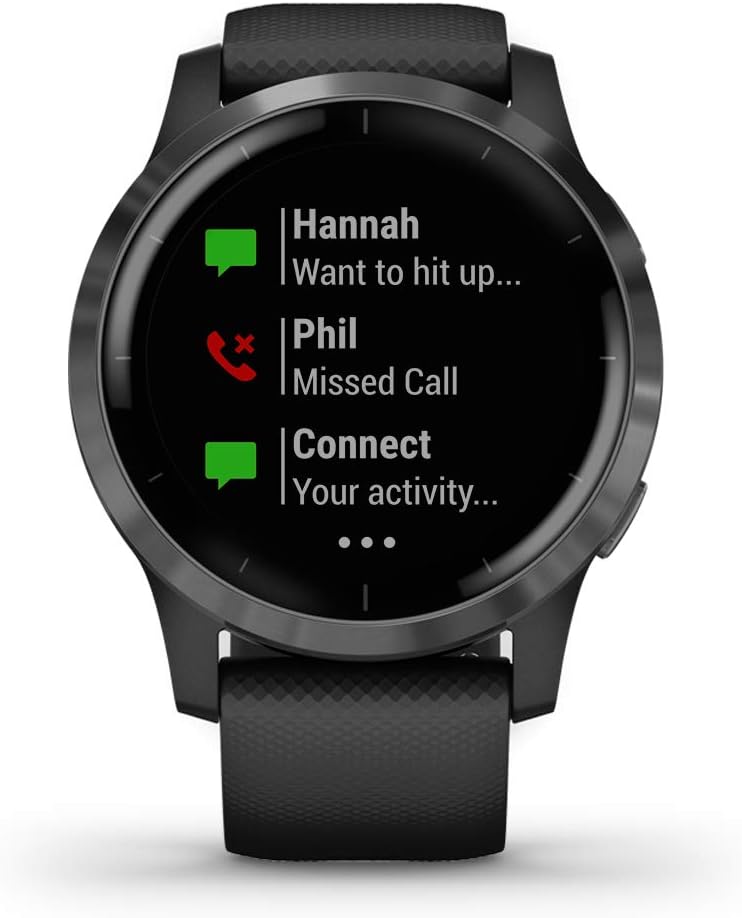
Figure 6: Smart Notifications. The watch screen shows notifications for a new message from "Hannah" and a missed call from "Phil", along with a Garmin Connect activity alert.
6. Garmin Pay™ Contactless Payments
Make secure, contactless payments directly from your watch with Garmin Pay. Set up your cards in the Garmin Connect app.
7. Connect IQ™ Store
Personalize your watch by downloading thousands of free watch faces, apps, and widgets from the Connect IQ Store via the Garmin Connect app.
8. Safety and Tracking Features
When your watch and phone are paired, you can manually send your live location to contacts. During outdoor activities, built-in incident detection can automatically send assistance alerts.
Maintenance
1. Cleaning the Device
- Regularly clean the watch and band to prevent skin irritation and corrosion.
- Rinse the device with fresh water after exposure to sweat, chlorine, or saltwater.
- For general cleaning, wipe the device with a damp cloth and dry thoroughly. Avoid harsh chemicals or abrasive cleaners.
2. Charging Best Practices
- Use only the charging cable provided by Garmin.
- Ensure the charging contacts on the watch and cable are clean and dry before charging.
- Avoid exposing the device to extreme temperatures during charging.
3. Water Resistance
The Vivoactive 4 has a water rating of 5 ATM, making it suitable for splashes, rain or snow, showering, swimming, diving into water, and snorkeling. It is not suitable for scuba diving or high-speed water sports.
Troubleshooting
1. Music Cuts Out or Headphones Disconnect
- Ensure a direct line of sight between the watch and the headphone antenna.
- Avoid placing your body between the watch and headphones, as this can cause signal loss.
- Try wearing the watch on the wrist closest to your headphone's antenna.
- If issues persist, try moving the watch to your other wrist, as headphone models vary.
2. Maximizing Battery Life
- Reduce the display timeout setting.
- Lower the display brightness.
- Turn off Bluetooth technology when not using connected features.
- Disable activity tracking if not needed for a period.
- Limit the number of smartphone notifications displayed on the device.
3. Activity Tracking (Step Count) Inaccuracy
- Wear the device on your non-dominant wrist.
- If pushing a stroller or lawn mower, carry the device in your pocket.
- If actively using only your hands or arms, carry the device in your pocket.
4. General Troubleshooting
If the device is unresponsive, try restarting it by holding the top right button until the screen turns off. For more detailed troubleshooting steps, refer to the official Garmin Vivoactive 4 User Manual (PDF) available online, specifically pages 28-30 for additional solutions.
Specifications
| Feature | Specification |
|---|---|
| Model Name | Garmin Vivoactive 4 |
| Model Number | 010-02174-11 |
| Product Dimensions | 1.78 x 1.78 x 0.5 inches |
| Item Weight | 1.3 ounces |
| Display Resolution | 260 x 260 pixels |
| Screen Size | 1.3 Inches |
| Operating System | Garmin OS |
| Connectivity Technologies | Bluetooth, Wi-Fi |
| GPS | Built-in GPS |
| Battery Life (Smartwatch Mode) | Up to 8 days |
| Battery Life (GPS + Music Mode) | Up to 6 hours |
| Water Rating | 5 ATM |
| What's in the Box | Vivoactive 4, Charging/data cable, Documentation |
Warranty and Support
Garmin products are designed for reliability and performance. For specific warranty details, please refer to the warranty information included with your product documentation or visit the official Garmin website.
For additional support, frequently asked questions, or to download the full user manual in PDF format, please visit the Garmin support website or refer to the provided documentation:
Documents and downloads
Ask a question about this manual
Ask about setup, troubleshooting, compatibility, parts, safety, or missing instructions. Manuals+ will review the question and use this page’s manual context to help answer it.