
1. Introduction
Thank you for choosing the Lefant M520 Robotic Vacuum Cleaner. This manual provides essential information for the safe operation, maintenance, and troubleshooting of your new robot vacuum. Please read this manual thoroughly before using the product and retain it for future reference.
The Lefant M520 is designed to provide efficient and convenient cleaning for various floor types, including hard floors and medium-pile carpets. It features strong 2200Pa suction, Wi-Fi connectivity, and compatibility with voice assistants like Amazon Alexa and Google Assistant, ensuring a smart and effortless cleaning experience.
2. Safety Instructions
To reduce the risk of injury or damage, read these safety instructions carefully and keep them handy when setting up, using, and maintaining your robot vacuum.
- The robot vacuum is for indoor use only. Do not use it outdoors or on commercial surfaces.
- Do not operate the robot vacuum in areas with open flames or fragile objects.
- Keep hair, loose clothing, fingers, and all parts of the body away from openings and moving parts.
- Do not pick up anything that is burning or smoking, such as cigarettes, matches, or hot ashes.
- Do not use the robot vacuum to pick up large debris, liquids, or sharp objects.
- Ensure the charging base is placed against a wall on a level surface, away from obstacles.
- Unplug the charging base when not in use for extended periods or before cleaning/maintenance.
- Only use the original charger and battery provided by the manufacturer.
- Supervise children and pets when the robot vacuum is operating.
3. Package Contents
Please check the package contents to ensure all items are present and in good condition:
- Lefant M520 Robotic Vacuum Cleaner
- Charging Base
- Power Adapter
- Remote Control (with batteries)
- Side Brushes (set)
- High-Efficiency Filter
- Cleaning Tool
- User Manual
4. Product Overview
Robot Vacuum Components

Figure 4.1: The Lefant M520 Robot Vacuum, showcasing its sleek design, power button, Wi-Fi indicator, and accompanying remote control and smartphone application interface.
- Top Panel: Power button, Wi-Fi indicator.
- Front Bumper: Collision sensors.
- Side Brushes: Two rotating brushes for edge and corner cleaning.
- Driving Wheels: Large wheels for navigating various floor types.
- Dust Bin: Removable compartment for collecting debris.
- Charging Contacts: Located on the bottom, for connecting to the charging base.
- Drop Sensors: Prevent the robot from falling down stairs.
Charging Base
- Charging Pins: Connect with the robot's charging contacts.
- Power Indicator: Shows charging status.
- Power Port: For connecting the power adapter.
5. Setup
5.1 Preparing for First Use
- Remove all protective films and stickers from the robot and charging base.
- Install the side brushes by pressing them onto the posts until they click into place.
- Ensure the dust bin and filter are correctly installed inside the robot.
5.2 Placing the Charging Base

Figure 5.1: The robot vacuum automatically navigates back to its charging base when its battery is low or cleaning is complete, ensuring it's always ready for the next task.
- Place the charging base against a wall in an open, uncluttered area.
- Ensure there is at least 0.5 meters (1.6 feet) of clear space on both sides of the charging base and 1.5 meters (4.9 feet) in front of it.
- Plug the power adapter into the charging base and then into a wall outlet. The power indicator on the charging base will illuminate.
5.3 Initial Charging
Place the robot vacuum onto the charging base, ensuring the charging contacts align. The robot will begin charging. For optimal battery life, fully charge the robot for at least 5-6 hours before its first use.
5.4 Connecting to Wi-Fi and App
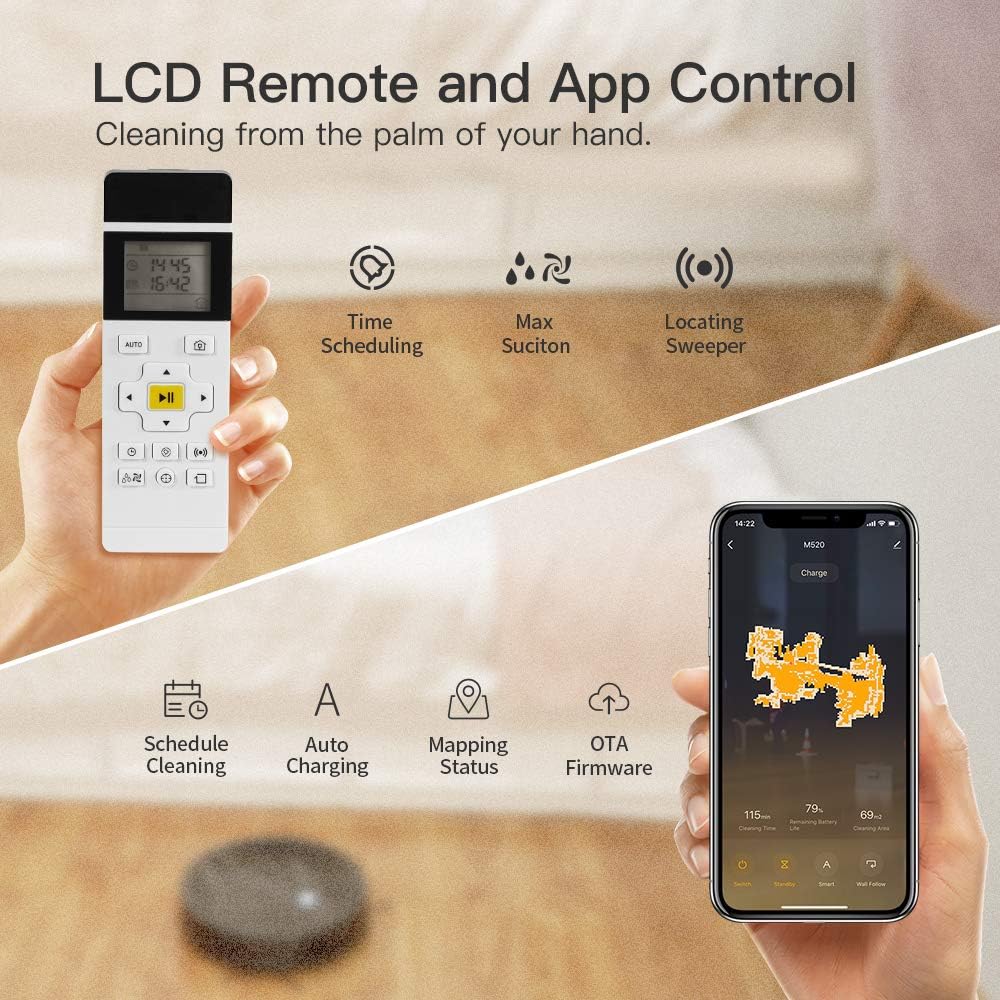
Figure 5.2: The Lefant M520 offers flexible control options, including a dedicated LCD remote for quick commands and a comprehensive smartphone application for advanced features like scheduling, mapping status, and firmware updates.
- Download the Lefant Life App from the App Store (iOS) or Google Play Store (Android).
- Register an account and log in.
- Turn on the robot vacuum by pressing the power button. The Wi-Fi indicator will blink.
- Follow the in-app instructions to connect your robot vacuum to your home Wi-Fi network. Ensure your Wi-Fi is 2.4GHz, as 5GHz networks are not supported.
6. Operating the Robot Vacuum
6.1 Starting and Stopping Cleaning
- Manual Start: Press the power button on the robot or the 'Auto' button on the remote control.
- App Control: Use the Lefant Life App to start or pause cleaning.
- Voice Command: If connected to Alexa or Google Assistant, say "Alexa, turn on M520 robot" or "Hey Google, start M520 robot."
- To stop cleaning, press the power button again, the 'Pause' button on the remote, or use the app.

Figure 6.1: The Lefant M520 integrates seamlessly with smart home ecosystems, allowing users to initiate or stop cleaning cycles using simple voice commands through Amazon Alexa or Google Assistant.
6.2 Cleaning Modes

Figure 6.2: The Lefant M520 offers versatile cleaning with three distinct modes: Auto cleaning for general coverage, Spot cleaning for concentrated areas, and Edge cleaning for thorough cleaning along walls and furniture.
- Auto Cleaning: The robot cleans in a systematic pattern to cover the entire floor area. This is the default mode.
- Spot Cleaning: The robot intensely cleans a specific area in a spiral pattern. Useful for concentrated dirt.
- Edge Cleaning: The robot cleans along walls and furniture edges to ensure thorough coverage.
Select cleaning modes using the remote control or the Lefant Life App.
6.3 Scheduling Cleaning
You can schedule cleaning times using the Lefant Life App or the remote control. Refer to the app's instructions or the remote control section of this manual for detailed steps on setting up a cleaning schedule.
6.4 FreeMove Technology

Figure 6.3: The M520 incorporates FreeMove Technology, which helps the robot navigate around and under furniture without getting stuck, ensuring continuous and efficient cleaning.
The Lefant M520 is equipped with FreeMove Technology, which helps prevent the robot from getting stuck under furniture or in tight spaces. This technology allows the robot to navigate more effectively and complete its cleaning tasks without frequent intervention.
6.5 Strong Suction Performance

Figure 6.4: With 2200Pa of strong suction power, the Lefant M520 effectively picks up debris from both hard floors and medium-pile carpets, ensuring a thorough clean.
The M520 features 2200Pa of strong suction, making it highly effective at picking up dust, dirt, and pet hair from various surfaces. This powerful suction ensures a deep clean on both hard floors and carpets.
6.6 Official Product Video: Free Move Technology
Video 6.1: This official video from Lefant demonstrates the M520 Robot Vacuum's Free Move Technology, showcasing its ability to navigate and clean effectively without getting stuck. The video highlights the robot's intelligent movement patterns and obstacle avoidance capabilities.
7. Maintenance
Regular maintenance is crucial for the optimal performance and longevity of your Lefant M520 robot vacuum. Always turn off the robot and unplug the charging base before performing any maintenance.
7.1 Cleaning the Dust Bin and Filter
- Press the dust bin release button and pull out the dust bin.
- Open the dust bin cover and empty its contents into a trash can.
- Remove the filter from the dust bin. Tap the filter gently to remove dust. Do not wash the filter with water.
- Rinse the dust bin with water if necessary, ensuring it is completely dry before reinstallation.
- Reinstall the filter and dust bin into the robot.
Recommended frequency: After each use or every 1-3 uses, depending on usage.
7.2 Cleaning the Side Brushes
- Gently pull the side brushes upwards to remove them.
- Remove any hair or debris wrapped around the brushes or the brush posts.
- Reinstall the side brushes, ensuring they click into place.
Recommended frequency: Weekly or as needed.
7.3 Cleaning the Sensors
Wipe the drop sensors (located on the bottom of the robot) and the bumper sensors (on the front bumper) with a clean, dry cloth. Dust and debris can interfere with sensor performance.
Recommended frequency: Monthly or as needed.
8. Troubleshooting
If your Lefant M520 encounters issues, refer to the following table for common problems and their solutions.
| Problem | Possible Cause | Solution |
|---|---|---|
| Robot does not turn on. | Low battery; Power switch off. | Charge the robot; Ensure power switch is ON. |
| Robot cannot return to charging base. | Charging base obstructed; Robot too far from base. | Clear area around base; Manually place robot on base. |
| Suction power is weak. | Dust bin full; Filter clogged. | Empty dust bin; Clean/replace filter. |
| Robot gets stuck frequently. | Obstacles on floor; Sensors dirty. | Clear cables/small objects; Clean sensors. |
| Cannot connect to Wi-Fi. | Incorrect Wi-Fi band (5GHz); Incorrect password. | Ensure 2.4GHz network; Re-enter password carefully. |
9. Specifications
| Feature | Detail |
|---|---|
| Brand | Lefant |
| Model Name | M520-US |
| Special Feature | Voice Control |
| Included Components | Batteries |
| Filter Type | Cartridge |
| Battery Life | 120 minutes |
| Dust Bin Capacity | 0.6 Liters |
| Power Source | Battery Powered |
| Control Method | Remote, Voice, App |
| Lithium Battery Voltage | 220 Volts |
| Compatible Devices | Amazon Echo, Google Home |
| Form Factor | Robotic |
| Product Dimensions | 12.59 x 12.59 x 3.15 inches |
| Item Weight | 0.071 ounces |
| Date First Available | August 7, 2019 |
10. Warranty and Support
Information regarding product warranty and customer support contact details is typically provided on the product packaging, a separate warranty card, or the official Lefant website. Please refer to those resources for specific warranty terms and support options.


