
1. Introduction
This manual provides comprehensive instructions for the installation, operation, and maintenance of your Intelbras MHDX 1108 8-Channel Multi HD Digital Video Recorder (DVR). The MHDX 1108 is a versatile 5-in-1 DVR, compatible with HDCVI, AHD, HDTVI, Analog, and IP camera technologies, offering a robust solution for your surveillance needs. Please read this manual carefully before using the product to ensure proper setup and functionality.
2. Package Contents
Verify that all items listed below are included in your product package:
- 01 x Intelbras MHDX 1108 8-Channel Multi HD DVR (1080p Lite)
- 01 x 1TB Western Digital Purple Hard Drive (pre-installed)
- 01 x 12V Power Supply
- 01 x USB Mouse
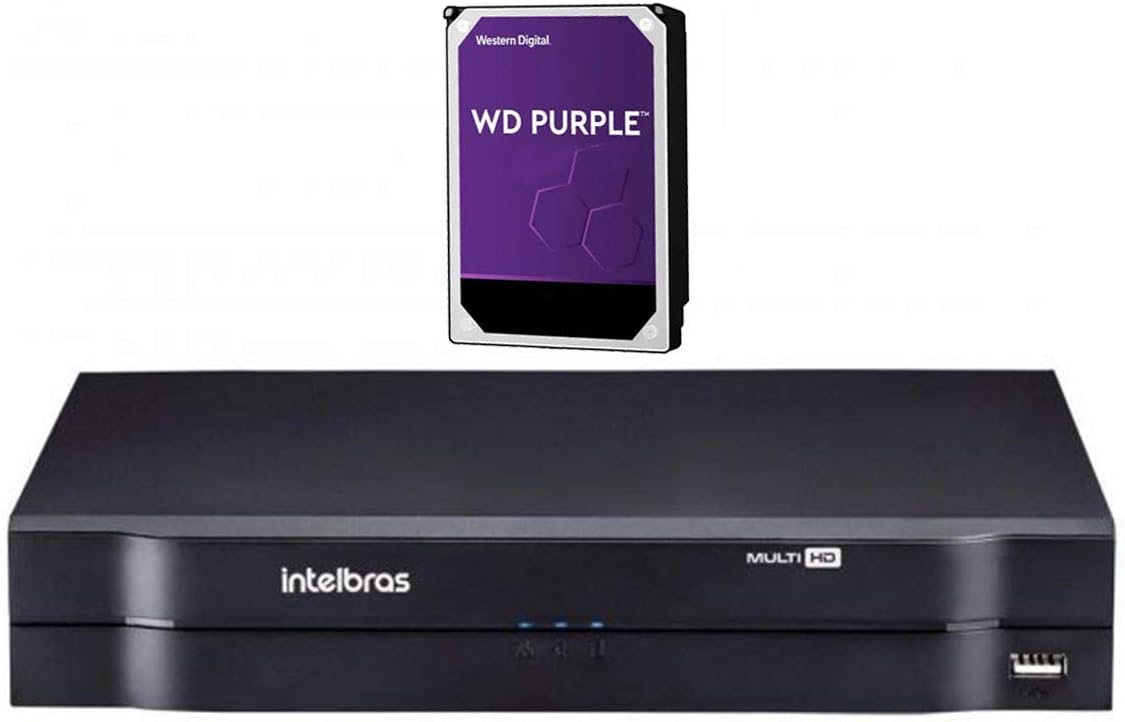
Image 2.1: Intelbras MHDX 1108 DVR unit shown with the included 1TB Western Digital Purple hard drive.
3. Key Features
- Multi HD Compatibility: Supports 5 technologies: HDCVI, AHD, HDTVI, Analog, and IP cameras.
- 8 Video Channels: 8 BNC video inputs, expandable with 2 additional IP channels, or up to 10 IP channels in NVR mode.
- High-Performance Processor: Integrated for reliable operation.
- Video Outputs: HDMI, VGA, and BNC analog output for monitor connectivity.
- Recording Resolution: Max 1080N for analog technologies and 1080p/720p for IP cameras.
- Audio Support: 1 audio input and 1 audio output channel.
- H.265+ Video Compression: Efficient storage and bandwidth usage.
- 1TB HDD Included: Pre-installed Western Digital Purple HDD, optimized for surveillance.
- Remote Access: P2P (Peer-to-Peer) functionality for easy remote viewing without complex port forwarding.
- Network Protocols: Supports a wide range of protocols including HTTP, TCP/IP, UPNP, RTSP, SMTP, NTP, DHCP, DNS, DDNS, Intelbras Cloud, Onvif, and Wi-Fi (via USB adapter).
- Expandable Storage: Supports up to 1 SATA HDD with a maximum capacity of 12 TB.
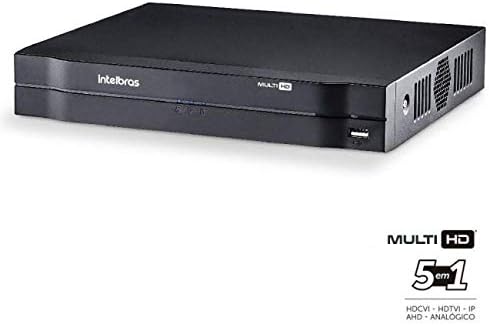
Image 3.1: Front-side view of the Intelbras MHDX 1108 DVR, highlighting its Multi HD 5-in-1 compatibility.
4. Setup Guide
Follow these steps to set up your Intelbras MHDX 1108 DVR:
4.1. Unpacking and Inspection
- Carefully remove all components from the packaging.
- Inspect the DVR and accessories for any signs of damage. If any damage is found, contact your dealer immediately.
4.2. Connecting the DVR
Refer to the rear panel diagram for port identification:

Image 4.1: Rear panel connections of the Intelbras MHDX 1108 DVR, including video inputs, audio ports, network, HDMI, VGA, and power input.
- Connect Cameras: Connect your HDCVI, AHD, HDTVI, or Analog cameras to the BNC video input ports (1-8) on the rear panel. For IP cameras, connect them to your network and ensure they are discoverable by the DVR.
- Connect Monitor: Connect a monitor to the DVR using either the HDMI or VGA port. An analog BNC output is also available.
- Connect Audio: If using external audio, connect an audio source to the audio input port and speakers/audio output device to the audio output port.
- Connect Network: Connect an Ethernet cable from the DVR's LAN port to your network router or switch for remote access and IP camera connectivity.
- Connect USB Mouse: Plug the included USB mouse into one of the USB ports on the DVR (front or rear).
- Power On: Connect the 12V power supply to the DVR's power input and then plug the power supply into an electrical outlet. The DVR will power on automatically.
4.3. Initial Configuration
Upon first power-on, the DVR will guide you through an initial setup wizard. This typically includes setting the date/time, network settings, and creating an administrator password. Follow the on-screen prompts.
5. Operating Instructions
5.1. User Interface Navigation
Use the connected USB mouse to navigate the DVR's graphical user interface (GUI). Right-click to access the main menu, and left-click to select options or confirm actions.
5.2. Live View
After logging in, the DVR will display the live view of all connected cameras. You can switch between single-camera view, multi-camera grids, and customize the display layout.
5.3. Recording
The DVR is pre-configured to record continuously. You can adjust recording schedules, motion detection settings, and other recording parameters through the main menu under the 'Record' or 'Storage' sections.
5.4. Playback
To review recorded footage, access the 'Playback' option from the main menu. Select the desired date, time, and camera channel to view recordings. You can fast-forward, rewind, and pause playback.
5.5. Remote Access (Intelbras Cloud / P2P)
The MHDX 1108 supports P2P for easy remote access via the Intelbras Cloud service. Download the official Intelbras mobile application (e.g., iSIC) on your smartphone or tablet. Scan the QR code displayed on the DVR's network settings or input the device serial number to add the DVR to your account. This allows you to view live feeds and playback recordings from anywhere with an internet connection.
5.6. Network Configuration
Access the 'Network' settings in the main menu to configure IP addresses, DNS, DDNS, and other network parameters. Ensure your DVR has a stable internet connection for remote access and firmware updates.
6. Maintenance
Regular maintenance ensures optimal performance and longevity of your DVR system.
- Cleaning: Periodically clean the exterior of the DVR with a soft, dry cloth. Ensure ventilation openings are free from dust and obstructions. Do not use liquid cleaners directly on the unit.
- Firmware Updates: Check the Intelbras official website for the latest firmware updates. Keeping your DVR's firmware up-to-date can improve performance, add new features, and enhance security. Follow the instructions provided with the firmware update carefully.
- Hard Drive Health: The pre-installed Western Digital Purple HDD is designed for surveillance. Monitor its health through the DVR's system information or storage settings. Consider backing up critical footage periodically.
- Password Security: Regularly change your administrator password and use strong, unique passwords to protect your system from unauthorized access.
7. Troubleshooting
This section addresses common issues you might encounter with your DVR.
7.1. No Video Output on Monitor
- Check if the monitor is powered on and correctly connected to the DVR's HDMI or VGA port.
- Ensure the DVR is powered on and its power indicator light is active.
- Try a different monitor or cable to rule out faulty equipment.
7.2. Cameras Not Displaying
- Verify that cameras are properly powered and connected to the correct BNC inputs.
- Ensure the camera type (HDCVI, AHD, HDTVI, Analog) is compatible with the DVR and correctly configured in the DVR's camera settings.
- For IP cameras, confirm they are on the same network as the DVR and their IP addresses are correctly configured.
7.3. Remote Access Not Working
- Check the DVR's network connection. Ensure the Ethernet cable is securely connected and the network status is 'Online' in the DVR's settings.
- Verify your mobile device has a stable internet connection.
- Ensure the Intelbras Cloud service is enabled on the DVR and the device is correctly added to your mobile application.
7.4. No Recording
- Check the recording schedule in the DVR's settings to ensure it is active for the desired channels and times.
- Verify the hard drive status. If the HDD is full, damaged, or not initialized, recording will not occur. Format or replace the HDD if necessary.
8. Specifications
| Feature | Specification |
|---|---|
| Main Processor | Integrated high-performance |
| Video Inputs | 8 BNC channels + 2 IP channels (or 10 IP channels in NVR mode) |
| Video Outputs | 1 HDMI, 1 VGA, 1 BNC Analog |
| Max Recording Resolution | 1080N (analog), 1080p / 720p (IP) |
| Audio Inputs | 1 channel |
| Audio Outputs | 1 channel |
| Video Compression | H.265+ |
| Storage Capacity | 1 SATA HDD (up to 12 TB), 1TB HDD included |
| Network Protocols | HTTP, IPv4/IPv6, TCP/IP, UPNP, RTSP, SMTP, NTP, DHCP, DNS, DDNS, IP Filter, SNMP, Intelbras DDNS, Intelbras Cloud, Onvif, PPPoE, Wi-Fi (via USB adapter), Multicast, 802.1x, FTP |
| Dimensions (W x D x H) | 260mm x 220mm x 40mm (1U) |
| Power Supply | 12V DC |
| Weight | Approx. 1 kg (without packaging) |
9. Warranty and Support
For detailed warranty information and technical support, please refer to the official Intelbras website or contact your authorized Intelbras dealer. Keep your purchase receipt as proof of purchase for warranty claims.
Manufacturer: Intelbras
Model Number: MHDX 1108


