1. Introduction
This manual provides detailed instructions for the installation, operation, and maintenance of your Sumaote 5W Bluetooth Mesh RGBWC Recessed LED Downlight. This smart lighting solution offers versatile control options and a wide range of colors and white temperatures to enhance your living spaces.
Key Features:
- Bluetooth Mesh Technology: Provides a stable connection over larger distances and supports a greater number of devices compared to traditional Bluetooth. Devices communicate by forwarding messages across the mesh network.
- RGBWC 5-in-1 Lighting: Offers 16 million colors (RGB) plus tunable warm white (2700K) and cool white (6500K) options.
- App Control: Easily adjust brightness, color, and blinking speed via the dedicated Haodeng app.
- Dimmable: Brightness adjustable from 10% to 100% to suit various moods and activities.
- Timer Function: Schedule lights to turn on or off at specific times.
- Voice Control Ready: Compatible with Alexa and Google Assistant when paired with a Smart Bridge (sold separately).

Image 1.1: Sumaote Bluetooth Mesh Recessed Lights illuminating a modern living room, showcasing various color options.
2. Safety Information
Please read all safety instructions before installation and use. Failure to follow these instructions may result in electric shock, fire, or other hazards.
- Always turn off power at the circuit breaker before installing or servicing the light fixture.
- Installation should be performed by a qualified electrician if you are unsure about electrical wiring.
- Do not install in wet locations or areas exposed to direct water spray. This product is designed for indoor use only.
- Ensure the voltage supply matches the product's requirements (100-240VAC, 50/60HZ).
- Do not disassemble or modify the light fixture.
- Keep out of reach of children.
3. Package Contents
Verify that all components are present before beginning installation:
- 1 x Smart LED Downlight
- 1 x User Manual (this document)
4. Specifications
| Specification | Detail |
|---|---|
| Model | ZJ-MHDA3-RGBWW |
| Lighting Color | RGBWC (RGB, Warm White, Cool White) |
| Color Temperature | 2700K-6500K |
| Connection Methods | Bluetooth 4.2 (Mesh) |
| APP Name | Haodeng |
| Suitable System | Android 4.4 / iOS 9.0 or higher |
| Front Diameter | 97mm / 3.8 inches |
| Height | 45mm / 1.77 inches |
| Mount Hole Size | 75-80mm / 2.96-3.14 inches |
| Power | 5W |
| Voltage | 100-240VAC, 50/60HZ |
| Lamp Material | PC and Aluminum |
| Average Life | 20000H |
| Light Luminous Flux | 350 Lumens |
| Beam Angle | 120° |
| Working Temperature | -20°C to +45°C |
| LED Quantity | RGB: 5050-0.15W*8, WW: 2835-0.5W*8, CW: 2835-0.5W*8 |
| Item Weight | 4.6 ounces |

Image 4.1: Product dimensions and recommended mounting hole size for installation.
5. Setup
5.1 Physical Installation
- Power Off: Before starting, ensure the power to the circuit where you will install the downlight is turned off at the main circuit breaker.
- Prepare Hole: Cut a circular hole in the ceiling with a diameter between 75-80mm (2.96-3.14 inches). Refer to Image 4.1 for guidance.
- Connect Wiring: Connect the downlight's wiring to your household electrical wiring. The downlight includes a screw-in base on a plug; if hard-wiring, you may need to cut this plug and connect the black and white wires directly. Ensure all connections are secure.
- Insert Downlight: Push the spring clips on the sides of the downlight upwards and insert the fixture into the prepared ceiling hole. The clips will secure the downlight in place.
- Restore Power: Once the downlight is securely installed, restore power at the circuit breaker. The light should flash, indicating it is in pairing mode.

Image 5.1: Sumaote Recessed LED Downlight showing its components for installation.
5.2 App Download and Bluetooth Connection
- Download App: Search for "Haodeng" in your smartphone's app store (Google Play Store for Android, Apple App Store for iOS) and download the application.
- Enable Bluetooth: Ensure Bluetooth is enabled on your smartphone.
- Open App: Launch the Haodeng app. The app will automatically search for nearby Sumaote Bluetooth Mesh devices.
- Add Devices: The downlight should be flashing, indicating it's in connect mode. In the app, navigate to "Add Devices" or tap the "+" icon to initiate the search. The app will detect the downlight(s).
- Confirm Connection: Follow the on-screen prompts to add the detected downlight(s) to your app. You can assign them to groups or locations for easier management.
Video 5.2: This video demonstrates the process of connecting Sumaote smart downlights to the Haodeng app using Bluetooth functionality. It shows how to power on the lights, enable Bluetooth on a smartphone, and use the app to discover and add the devices, including creating groups and scenes.
6. Operating Instructions
The Haodeng app provides comprehensive control over your Sumaote LED Downlights.
6.1 Basic Control (On/Off, Brightness, Color)
- On/Off: Tap the power icon next to each device or group in the app to turn lights on or off.
- Brightness: Use the slider in the app to adjust the brightness from 10% to 100%.
- Color Selection:
- RGB Colors: Use the color wheel in the app to select from 16 million colors.
- White Tones (CCT): Adjust the color temperature from warm white (2700K) to cool white (6500K) using the dedicated CCT control.

Image 6.1: The Haodeng app's color selection interface, including RGB color wheel and warm/cool white options.

Image 6.2: Examples of different color temperatures (Warm, Neutral, Cool White) achievable with the downlight.
6.2 Advanced Features
- Grouping: Create groups of lights to control multiple downlights simultaneously.
- Scenes: Save custom lighting configurations (color, brightness, effects) as scenes for quick access.
- Music Mode: Synchronize light changes with music played on your device or picked up by your phone's microphone.
- Timer Function: Set schedules for lights to turn on/off or change settings at specific times.
- Camera Mode: Use your phone's camera to capture a color from your surroundings and apply it to the lights.
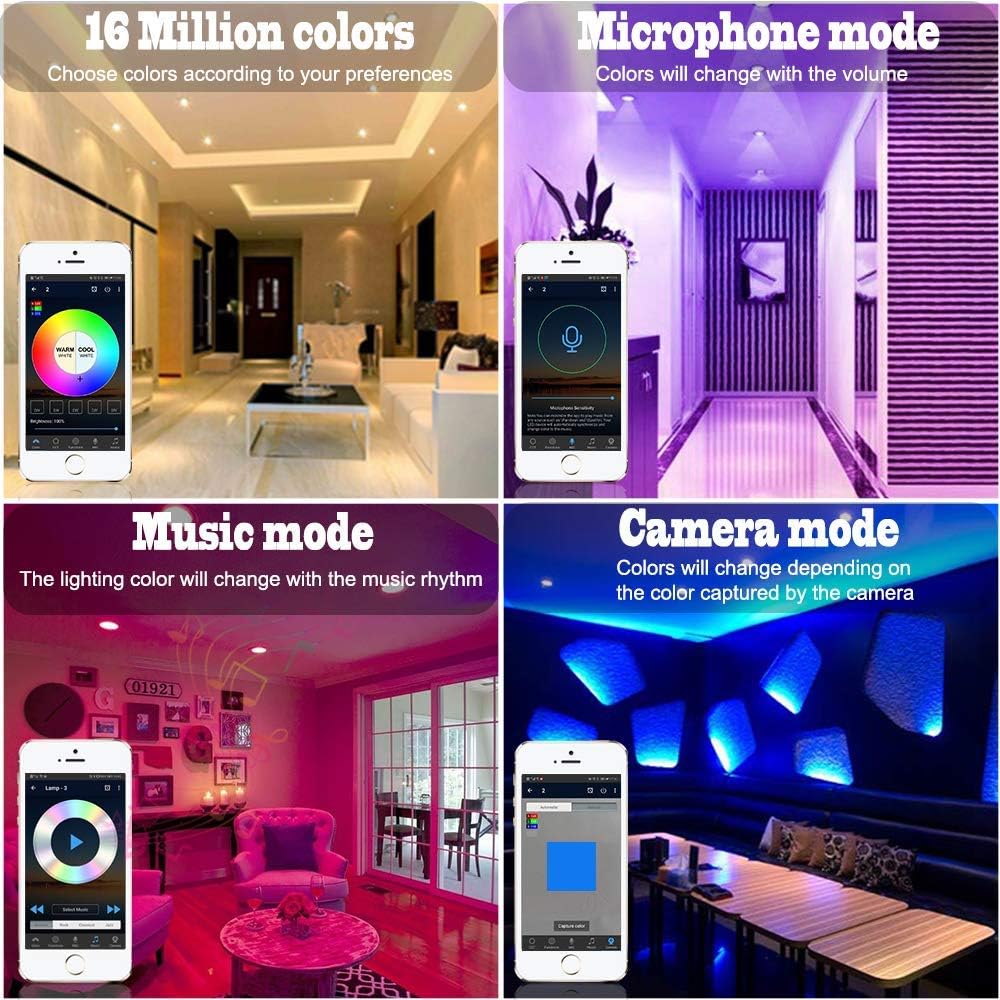
Image 6.3: Haodeng app features including 16 million colors, microphone mode, music mode, and camera mode.

Image 6.4: Various lighting patterns and colors achievable with the downlights to create different atmospheres.
7. Maintenance
The Sumaote LED Downlight requires minimal maintenance.
- Cleaning: Ensure the power is off before cleaning. Wipe the surface of the downlight with a soft, dry cloth. Do not use abrasive cleaners or solvents.
- Inspection: Periodically check for any loose connections or damage to the fixture. If any damage is found, discontinue use and consult a qualified technician.
8. Troubleshooting
| Problem | Possible Cause | Solution |
|---|---|---|
| Light does not turn on. | No power supply; loose wiring; faulty fixture. | Check circuit breaker. Ensure wiring connections are secure. If problem persists, contact support. |
| Cannot connect to the app. | Bluetooth is off; light is out of range; app issue; light not in pairing mode. | Ensure Bluetooth is enabled on your phone. Move closer to the light (within 50 feet). Power cycle the light (turn off/on at switch) to re-enter pairing mode. Restart the Haodeng app. |
| Lights are not responding consistently. | Interference; distance from other mesh devices; weak Bluetooth signal. | Ensure there are enough Bluetooth Mesh devices to create a strong network. Reduce interference from other wireless devices. |
| Voice control (Alexa/Google) not working. | Smart Bridge not connected or configured; incorrect voice commands. | Ensure you have a Smart Bridge (sold separately) and it is properly connected and configured with your voice assistant. Refer to the Smart Bridge's manual for setup. |
9. Warranty and Support
Sumaote products are designed for reliability and performance. For warranty information or technical support, please refer to the product packaging or contact Sumaote customer service through their official website or the retailer where the product was purchased.
For additional resources and product updates, visit the Sumaote Store on Amazon.