
1. Introduction
This manual provides detailed instructions for setting up, operating, and maintaining your Logitech MX Master 3S Wireless Performance Mouse. Designed for precision and comfort, the MX Master 3S features advanced tracking, quiet clicks, and customizable controls to enhance your workflow across various operating systems.
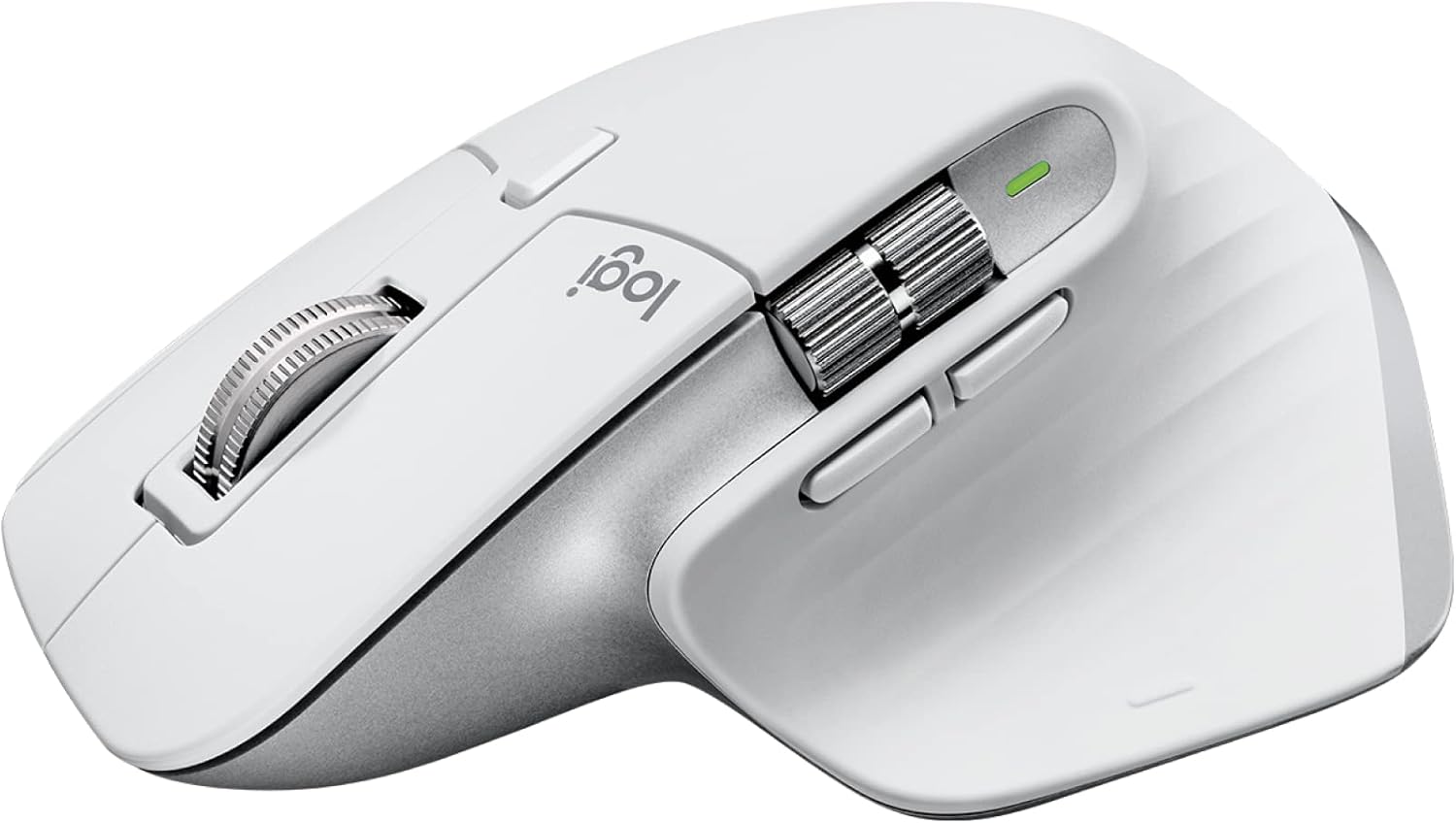
Logitech MX Master 3S Wireless Performance Mouse in Pale Grey.
2. Product Overview
Familiarize yourself with the components of your MX Master 3S mouse.

Diagram of the Logitech MX Master 3S mouse with key features labeled.
- Quiet Click Buttons: Left and Right click buttons with reduced noise.
- MagSpeed Wheel: Main scroll wheel for fast, precise vertical scrolling.
- Thumb Wheel: Side scroll wheel for horizontal scrolling.
- 8K Track-Anywhere Sensor: High-precision sensor located on the bottom, capable of tracking on virtually any surface, including glass (minimum 4mm thickness).
- Customizable Buttons: Side buttons and a gesture button for personalized functions.
- Easy-Switch Buttons: Located on the bottom, allows switching between up to three paired devices.
3. Setup
3.1. Unboxing and Initial Charge
Your MX Master 3S package includes the mouse, a Logi Bolt USB receiver, and a USB-C charging cable.
Contents of the Logitech MX Master 3S package, including the mouse, Logi Bolt USB receiver, and USB-C charging cable.
Before first use, it is recommended to fully charge the mouse using the provided USB-C cable. Connect the USB-C end to the mouse and the USB-A end to a power source (e.g., computer USB port or wall adapter). The LED indicator will show charging status.
3.2. Connecting Your Mouse
The MX Master 3S offers two connection methods: Bluetooth Low Energy or the Logi Bolt USB receiver.
3.2.1. Bluetooth Connection
- Turn on the mouse using the power switch on the bottom.
- Press and hold one of the Easy-Switch buttons (1, 2, or 3) on the bottom of the mouse until the LED blinks rapidly. This indicates pairing mode.
- On your computer or device, open Bluetooth settings and select 'MX Master 3S' from the list of available devices to pair.
- The LED on the mouse will glow solid for 5 seconds when connected.
3.2.2. Logi Bolt USB Receiver Connection
- Plug the Logi Bolt USB receiver into an available USB port on your computer.
- Turn on the mouse using the power switch on the bottom.
- The mouse should automatically connect to the receiver. If not, press one of the Easy-Switch buttons (1, 2, or 3) to select the channel associated with the receiver.
3.3. Installing Logi Options+ Software
To unlock the full potential of your MX Master 3S, including button customization, gesture controls, and application-specific settings, download and install the Logi Options+ software from the official Logitech website. This software is available for Windows and macOS.

A computer screen displaying the Logi Options+ software interface for customizing buttons and settings of the MX Master 3S mouse.
4. Operating Instructions
4.1. Key Features
- 8K DPI Any-Surface Tracking: The Darkfield high-precision sensor allows you to use the mouse on virtually any surface, including glass (minimum 4mm thickness), with adjustable sensitivity up to 8000 DPI. This provides precise control for various tasks.
- Quiet Clicks: Experience the same satisfying click feel with 90% less click noise compared to the MX Master 3, ideal for quiet work environments.
- MagSpeed Electromagnetic Scrolling: The main scroll wheel offers two modes: a super-fast, free-spinning mode for quickly navigating long documents (90% faster) and a precise, line-by-line mode (87% more precise). The wheel automatically shifts between modes based on scrolling speed.
- Ergonomic Design: The mouse is sculpted to fit the contours of your hand, promoting a natural wrist posture and providing comfortable use during extended periods.
- Logitech Flow: When used with Logi Options+, Flow allows you to seamlessly control multiple computers with a single MX Master 3S mouse, moving your cursor, text, and files across different operating systems.

A hand operating the Logitech MX Master 3S mouse on a glass surface, demonstrating its any-surface tracking capability.

A user working at a desk with the Logitech MX Master 3S mouse, illustrating its quiet click feature in a professional setting.

Close-up view of the MagSpeed electromagnetic scroll wheel and thumbwheel on the Logitech MX Master 3S mouse.

A diagram showing the Logitech Flow feature, allowing seamless cursor, text, and file transfer between a laptop and a desktop computer.
4.2. Customization with Logi Options+
The Logi Options+ software allows you to:
- Assign custom functions to all buttons, including the gesture button and thumb wheel.
- Create application-specific profiles, so your mouse behaves differently in various programs (e.g., Photoshop, Chrome, Word).
- Adjust tracking speed (DPI) and scrolling sensitivity.
- Enable and configure Logitech Flow.
5. Maintenance
5.1. Cleaning
To clean your mouse, use a soft, lint-free cloth lightly dampened with water or an alcohol-based cleaner. Avoid harsh chemicals or abrasive materials. Do not allow moisture to enter any openings.
5.2. Battery Care
The MX Master 3S uses a rechargeable Li-Po (500 mAh) battery. Battery life can vary based on usage and computing conditions. To maximize battery lifespan:
- Charge the mouse when the battery indicator is low.
- Avoid extreme temperatures.
- If storing the mouse for an extended period, charge it to about 50% before storage.
6. Troubleshooting
6.1. Connectivity Issues
- Mouse not connecting: Ensure the mouse is powered on and fully charged. If using Bluetooth, verify the Easy-Switch channel is in pairing mode (blinking LED) and your device's Bluetooth is enabled. If using the Logi Bolt receiver, ensure it is securely plugged in and the correct Easy-Switch channel is selected.
- Intermittent connection: Move the mouse closer to your computer or receiver. Avoid placing the receiver near other wireless devices or large metal objects that might cause interference.
6.2. Tracking Problems
- Inaccurate tracking: Clean the sensor lens on the bottom of the mouse with a soft cloth. Ensure the surface you are using is not excessively reflective or uneven. While the mouse tracks on glass, ensure the glass is at least 4mm thick.
- No tracking: Check if the mouse is powered on and connected. If the issue persists, try restarting your computer.
6.3. Button or Scroll Wheel Malfunction
- Buttons not responding: Ensure Logi Options+ is installed and updated. Check if any custom profiles are interfering with button functions. Try resetting the mouse by turning it off and on.
- Scroll wheel issues: Clean any debris around the scroll wheels. If the MagSpeed wheel is stuck in one mode, try toggling the mode-shift button (if configured in Logi Options+).
7. Specifications
| Model Name | Logitech MX Master 3S Performance Wireless Mouse |
| Model Number | 910-006560 |
| Color | Pale Grey |
| Dimensions (H x W x D) | 124.9 mm x 84.3 mm x 51 mm |
| Weight | 141 g |
| Sensor Technology | Darkfield High Precision (Optical) |
| DPI Range | 200 to 8000 DPI (adjustable in 50 DPI increments) |
| Buttons | 7 buttons (Left/Right-click, Back/Forward, App-Switch, Wheel mode-shift, Middle click), Scroll Wheel, Thumbwheel, Gesture button |
| Connectivity | Bluetooth Low Energy, Logi Bolt USB Receiver |
| Wireless Operating Distance | 10 meters (may vary based on environment) |
| Battery | Rechargeable Li-Po (500 mAh) |
| Compatible Operating Systems | Windows, macOS, Linux, Chrome OS, iPadOS (15 or higher), iOS (14 or higher), Android |
| Special Features | 8K DPI, Flow - Cross computer control, MagSpeed scrolling, Silent click, Tracks on glass |
| Recycled Plastic Content | 22% in Pale Grey (excluding PWA, receiver, wire, FFC cable, and packaging) |
8. Warranty and Support
For specific warranty information, please refer to the documentation included with your product or visit the official Logitech support website. Please note that for international products, manufacturer warranty terms may vary or not apply.
For further assistance, troubleshooting guides, and software downloads, please visit the official Logitech support website: www.logitech.com/support

An image highlighting the sustainable design of the MX Master 3S, featuring icons for recycled plastic and responsible packaging.


