
havit HV-MS733
havit RGB Gaming Mouse Instruction Manual
Model: HV-MS733
Brand: havit
Introduction
Thank you for choosing the havit RGB Gaming Mouse. This manual provides detailed instructions to help you set up, operate, and maintain your new gaming mouse, ensuring optimal performance and an enhanced gaming experience. Please read this manual thoroughly before use.
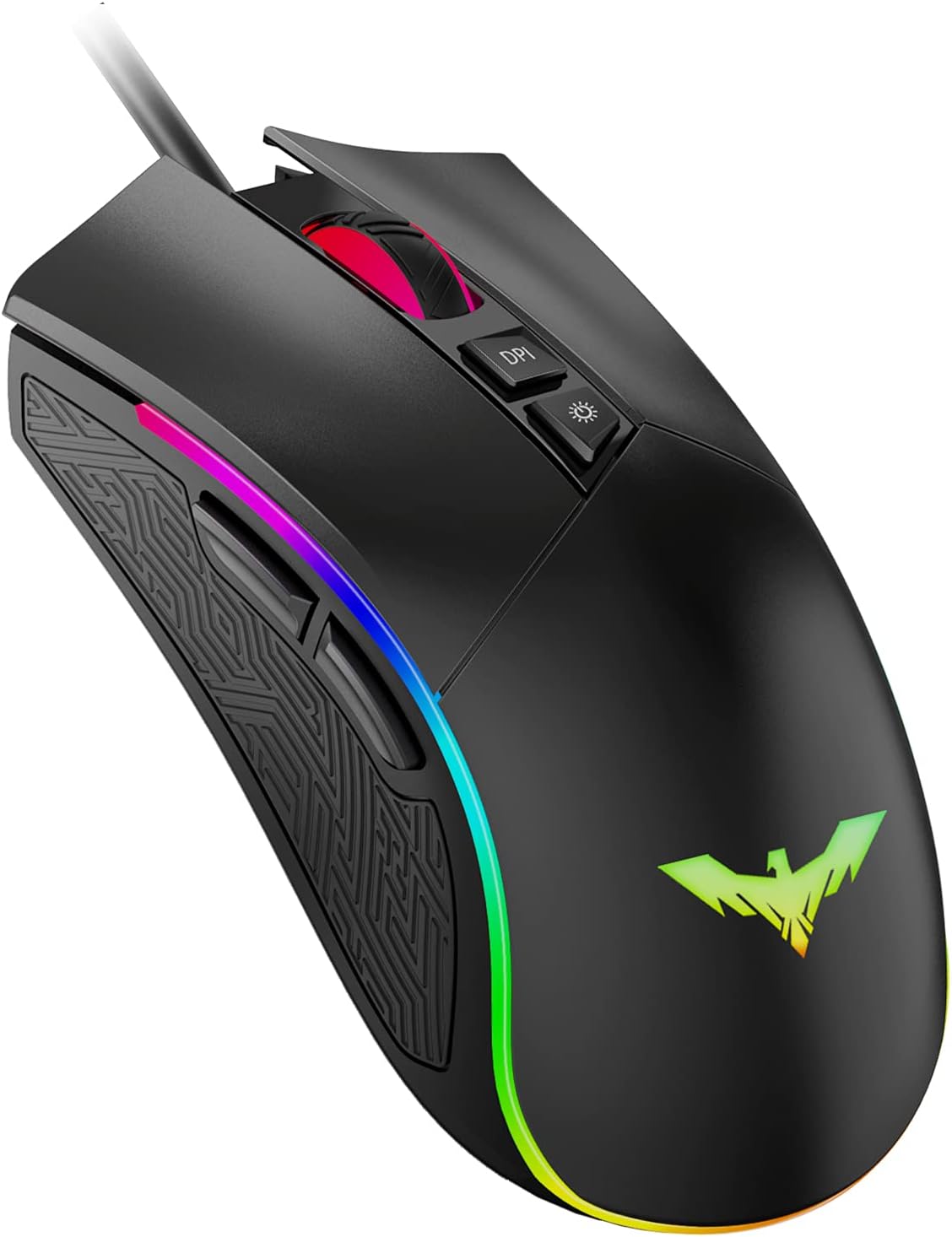
The havit RGB Gaming Mouse, a wired programmable ergonomic USB mouse with 4800 DPI and 7 backlit buttons.
Package Contents
- havit RGB Gaming Mouse (HV-MS733)
- User Manual
Setup
Connecting Your Mouse
- Locate an available USB port on your computer (PC, Laptop, or Desktop).
- Plug the USB connector of the havit RGB Gaming Mouse into the USB port.
- The mouse is plug-and-play and should be automatically recognized by your operating system (Windows, Mac, etc.). No additional drivers are typically required for basic functionality.
Features Overview
The havit RGB Gaming Mouse is designed for gamers, offering a blend of performance, customization, and comfort.
- 7 Kinds of RGB Light: Experience dynamic lighting with various modes including Breathing, Colorful Streaming, Rainbow, Floe Light, Waltz, and 4-Seasons Mode, or turn the LED off.
- 6 Levels of DPI: Adjust sensitivity on the fly with DPI settings ranging from 800 to 4800 DPI, indicated by different LED colors for quick identification.
- Programmable 7 Keys: Customize button functions to suit your gaming style and enhance efficiency.
- Ergonomic Design: Crafted for comfort during extended gaming sessions, featuring a non-slip side to reduce hand sweat and improve grip.
- High Accuracy Optical Sensor: Equipped with a precise optical sensor for reliable tracking and responsive control.

Key features of the havit RGB Gaming Mouse: 7 RGB light modes, 6 DPI levels, 7 programmable keys, and ergonomic design.

The ergonomic design of the havit gaming mouse ensures precision control and features a non-slip side to reduce hand sweat.

The havit RGB Gaming Mouse features a highly accurate positioning gaming engine for superior performance.
Operating Instructions
DPI Adjustment
The mouse features a dedicated DPI button located behind the scroll wheel. Press this button to cycle through 6 different DPI levels. Each DPI level is indicated by a specific LED color:
- 800 DPI (Green)
- 1600 DPI (Purple)
- 2400 DPI (Blue)
- 3200 DPI (Red)
- 4000 DPI (Cyan)
- 4800 DPI (Yellow)

Each color on the havit RGB Gaming Mouse indicates the corresponding DPI level, from 800 DPI (Green) to 4800 DPI (Yellow).
RGB Lighting Control
Use the LED Light Button, located near the DPI button, to change the RGB lighting modes. Cycle through the 7 available modes or turn the lighting off as desired.
- Breathing Mode
- Colorful Streaming Mode
- Rainbow Mode
- Floe Light Mode
- Waltz Mode
- 4-Seasons Mode
- LED Off

The havit RGB Gaming Mouse offers 7 kinds of RGB light modes, including Breathing, Colorful Streaming, and Rainbow.
Programmable Buttons
The mouse features 7 buttons that can be programmed for various functions using the dedicated software. This allows for personalized control and macro assignments to enhance your gaming performance.
- Left Click
- Right Click
- Scroll Wheel (Middle Key)
- DPI Button
- LED Light Button
- Forward Button
- Backward Button

Diagram showing the 7 programmable keys on the havit RGB Gaming Mouse, including DPI, LED Light, and navigation buttons.
Software Customization
For advanced customization of DPI settings, lighting modes, and button assignments, please download the official havit software from the manufacturer's website. The software provides a user-friendly interface to tailor the mouse to your specific needs.
Official video demonstrating the features and customization options of the Havit Gaming Mouse, including programmable buttons and DPI settings.
Maintenance
To ensure the longevity and optimal performance of your havit RGB Gaming Mouse, follow these maintenance guidelines:
- Cleaning: Use a soft, dry cloth to wipe the mouse surface. For stubborn dirt, a slightly damp cloth can be used, but ensure no liquid enters the mouse. Avoid harsh chemicals or abrasive cleaners.
- Cable Care: Do not pull or yank the cable forcefully. Store the cable neatly to prevent tangles and damage.
- Storage: When not in use for extended periods, store the mouse in a cool, dry place away from direct sunlight and extreme temperatures.
Troubleshooting
If you encounter any issues with your havit RGB Gaming Mouse, please refer to the following common solutions:
| Problem | Possible Cause | Solution |
|---|---|---|
| Mouse not responding | Loose USB connection, faulty USB port, driver issue. | Try plugging the mouse into a different USB port. Restart your computer. Check Device Manager for driver issues. |
| RGB lights not working | Lighting mode is off, software setting. | Press the LED Light Button to cycle modes. Check lighting settings in the havit software. |
| DPI not changing | DPI button malfunction, software setting. | Ensure you are pressing the correct DPI button. Check DPI settings in the havit software. |
| Buttons not programmable | Software not installed or running, incorrect settings. | Install and run the havit software. Ensure the software is up-to-date and settings are applied correctly. |
Specifications
| Feature | Detail |
|---|---|
| Model Number | HV-MS733 |
| Connectivity Technology | Wired, USB |
| Movement Detection Technology | Optical |
| DPI Levels | 800/1600/2400/3200/4000/4800 |
| Buttons | 7 (Programmable) |
| RGB Lighting | 7 Modes |
| Special Feature | Ergonomic Design |
| Product Dimensions | 5.2 x 2.68 x 0.04 inches |
| Item Weight | 7 ounces |
| Color | Black |

Detailed dimensions of the havit RGB Gaming Mouse: 132mm length, 68mm width, and 42.5mm height.
Warranty and Support
For warranty information and technical support, please refer to the warranty card included with your product or visit the official havit website. You can also contact havit customer service for assistance with any product-related inquiries.
Ask a question about this manual
Ask about setup, troubleshooting, compatibility, parts, safety, or missing instructions. Manuals+ will review the question and use this page’s manual context to help answer it.