
1. Introduction
The Auerswald COMfortel WS-500M IP-DECT Server is a robust and scalable solution designed for secure, mobile communication within business environments. This system functions as a DECT manager or base station, supporting up to 250 handsets and facilitating up to 60 parallel calls. It ensures reliable, high-definition (HD) voice communication with comprehensive end-to-end encryption, enhancing both call privacy and network security through integrated SIP security. This manual provides essential information for the proper installation, operation, and maintenance of your COMfortel WS-500M system.
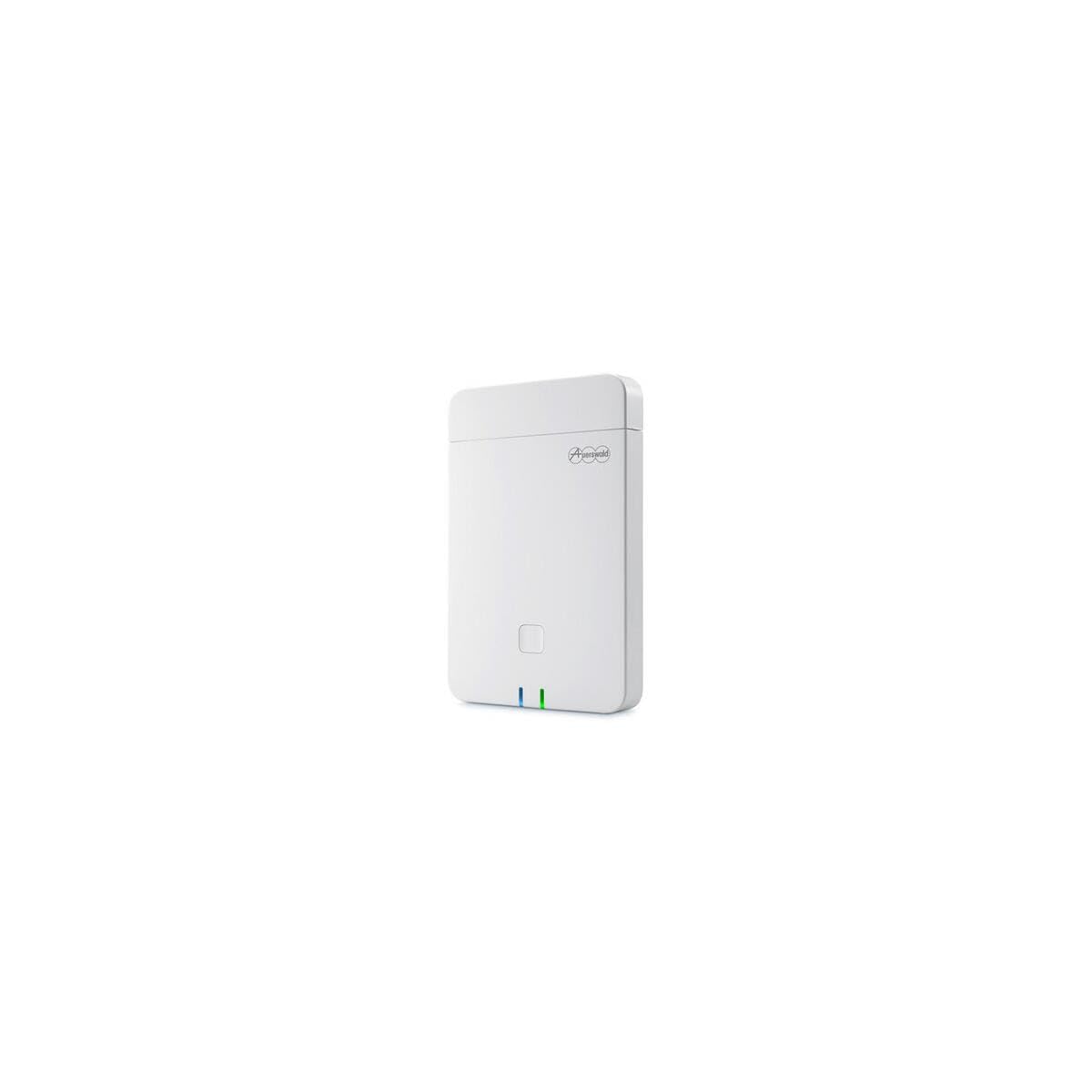
Figure 1: The Auerswald COMfortel WS-500M IP-DECT Server unit. This image displays the compact design of the server, which integrates into various network infrastructures.
2. Safety Information
Please read and follow these safety instructions carefully to prevent damage to the device and ensure personal safety.
- Electrical Safety: Only use the power adapter supplied with the device. Do not expose the device to water or moisture. Disconnect power before cleaning or servicing.
- Placement: Install the device in a well-ventilated area, away from direct sunlight, heat sources, and strong electromagnetic fields. Ensure stable mounting.
- Environmental Conditions: Operate the device within the specified temperature and humidity ranges. Avoid extreme conditions.
- Servicing: Do not attempt to open or repair the device yourself. Refer all servicing to qualified personnel.
3. Package Contents
Verify that all items are present in the package before proceeding with installation.
- Auerswald COMfortel WS-500M IP-DECT Server unit
- Power Adapter
- Mounting Hardware (e.g., screws, wall plugs)
- Quick Start Guide or Documentation
4. Setup
4.1 Physical Installation
- Mounting: Secure the COMfortel WS-500M unit to a wall or suitable surface using the provided mounting hardware. Ensure it is placed centrally within the desired coverage area for optimal DECT signal distribution.
- Power Connection: Connect the power adapter to the server unit and then plug it into a standard electrical outlet. The device will power on automatically.
- Network Connection: Connect an Ethernet cable from your network switch or router to the LAN port on the COMfortel WS-500M. Ensure the network connection is active and provides DHCP services for automatic IP address assignment.
4.2 Initial Configuration and Provisioning
The COMfortel WS-500M supports professional zero-touch setup with automatic provisioning.
- Upon initial power-up and network connection, the server will attempt to obtain an IP address and connect to a provisioning server (if configured on your network).
- Access the web-based management interface of the COMfortel WS-500M by entering its IP address into a web browser. Refer to your network administrator or the quick start guide for default login credentials.
- Follow the on-screen prompts to complete the initial setup, including network settings, time zone, and administrator password changes.
4.3 Handset Registration
To enable mobile communication, DECT handsets must be registered with the COMfortel WS-500M server.
- Place the handset in registration mode (refer to the handset's specific user manual for instructions).
- Initiate the registration process on the COMfortel WS-500M web interface.
- Enter the required PIN or security code when prompted on the handset.
- Repeat for all handsets, up to a maximum of 250.
4.4 Multi-Cell System Expansion
The system supports up to 60 base stations for seamless handover and roaming across larger areas.
- Additional COMfortel WS-500M units can be configured as base stations to expand DECT coverage.
- Ensure proper network connectivity and configuration for each base station to integrate into the multi-cell system.
- The system automatically manages handover and roaming, allowing users to move freely between base station coverage areas without interrupting calls.
5. Operating
5.1 Basic Call Functions
Once handsets are registered, users can make and receive calls as with any standard telephone system.
- Making Calls: Dial the desired number on the registered DECT handset and press the call button.
- Receiving Calls: When a call comes in, the handset will ring. Press the call button to answer.
- Call Capacity: The system supports up to 60 parallel calls across all base stations, with up to 10 simultaneous calls per individual base station.
5.2 Advanced Features and Security
The COMfortel WS-500M provides advanced features for secure and reliable communication.
- HD Voice Quality: Experience clear, high-definition audio during calls.
- End-to-End Encryption: All DECT communication is digitally encrypted, ensuring privacy and preventing unauthorized listening.
- SIP Security: The network security of the system is enhanced through SIP security protocols, providing comprehensive end-to-end safety for your communications.
- Seamless Handover and Roaming: Move freely within the coverage area of multiple base stations without call interruption.
6. Maintenance
- Firmware Updates: Regularly check the Auerswald website for firmware updates. Applying updates ensures optimal performance, security, and access to new features. Firmware updates can typically be performed via the web-based management interface.
- Cleaning: Use a soft, dry cloth to clean the exterior of the device. Do not use liquid cleaners or aerosols, as they may damage the components.
- Environmental Check: Periodically ensure the installation environment remains within recommended temperature and humidity ranges and that ventilation is not obstructed.
7. Troubleshooting
If you encounter issues with your COMfortel WS-500M, refer to the following common troubleshooting steps.
| Problem | Possible Cause | Solution |
|---|---|---|
| No power indicator light | Power adapter disconnected or faulty. | Check power connections. Ensure the power outlet is functional. Try a different outlet. |
| Handset cannot register | Incorrect registration PIN, handset out of range, or server registration mode not active. | Verify PIN. Move handset closer to the base station. Activate registration mode on the server via the web interface. |
| No dial tone or cannot make calls | Network connection issue, SIP account not configured, or server not connected to PBX. | Check Ethernet cable connection. Verify network status. Ensure SIP accounts are correctly configured on the server and connected PBX. |
| Poor call quality (static, drops) | Interference, handset too far from base, or network congestion. | Reduce interference sources. Move closer to a base station. Check network bandwidth and QoS settings. |
For issues not covered here, please consult the comprehensive online documentation or contact Auerswald technical support.
8. Specifications
- Brand: Auerswald
- Model: COMfortel WS-500M
- Part Number: 2161201
- System Type: IP-DECT Server / DECT Manager / Base Station
- Handset Capacity: Up to 250 handsets
- Base Station Capacity: Up to 60 base stations (in multi-cell system)
- Parallel Calls: Up to 60 parallel calls (system-wide), up to 10 simultaneous calls per base station
- Voice Quality: HD Voice
- Security: End-to-end DECT encryption, SIP security
- Provisioning: Professional zero touch setup with automatic provisioning
- Dimensions: Approximately 50 x 50 x 28 cm
- Weight: Approximately 9 grams
- Operating System (for management interface): Compatible with standard operating systems (e.g., Windows for accessing web interface)
9. Warranty and Support
Auerswald products are designed for reliability and performance.
- Warranty: This product comes with a standard manufacturer's warranty. Please refer to the warranty card included with your product or visit the official Auerswald website for detailed warranty terms and conditions.
- Technical Support: For technical assistance, troubleshooting, or service inquiries, please contact Auerswald customer support. Support contact information can typically be found on the official Auerswald website (www.auerswald.de) or in your product documentation.
- Online Resources: Additional documentation, FAQs, and software downloads may be available on the Auerswald support portal.