1. Introduction
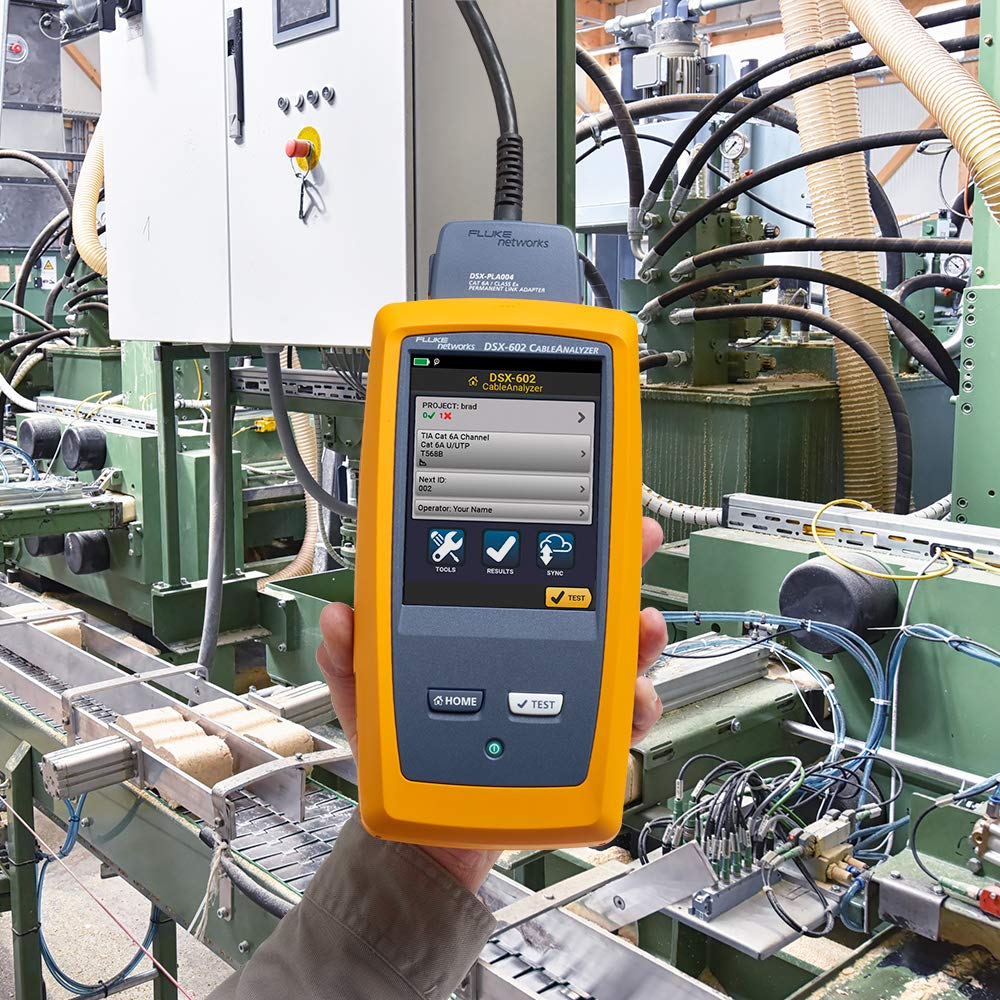
The Fluke Networks DSX-602-PRO CableAnalyzer is an essential certification tool designed for copper, twisted-pair structured cabling systems. It supports categories from Cat 3/Class C through Cat 6A/Class EA, enabling efficient and accurate testing for 10 Gigabit Ethernet. This device features a gesture-based user interface for ease of use and integrates with LinkWare™ Live for cloud-based job management and reporting.
2. Package Contents
Verify that all components are present in your DSX-602-PRO package:
- DSX-602 CableAnalyzer Main Unit
- DSX-602 Smart Remote Unit
- (2) Cat 6A/Class EA Permanent Link Adapters (PLA's)
- (2) Cat 6A/Class EA Channel Adapters
- (1) 6-inch (15 cm) RJ45 Reference Patch Cord
- Soft Carrying Case
- USB Cable for PC Communications
- (2) AC Adapters/Chargers
- (2) Headsets
- (2) Hanging Straps
- (2) Hand Straps
- Universal Couplers
- DSX-602 Open Source CD
- Statement of Calibration
- Getting Started Guide

3. Setup and Initial Use
3.1 Charging the Units
Before first use, fully charge both the Main Unit and the Smart Remote Unit using the provided AC adapters. Connect the AC adapter to the charging port on each unit and plug it into a power outlet. The battery status indicator will show charging progress.
3.2 Connecting Adapters
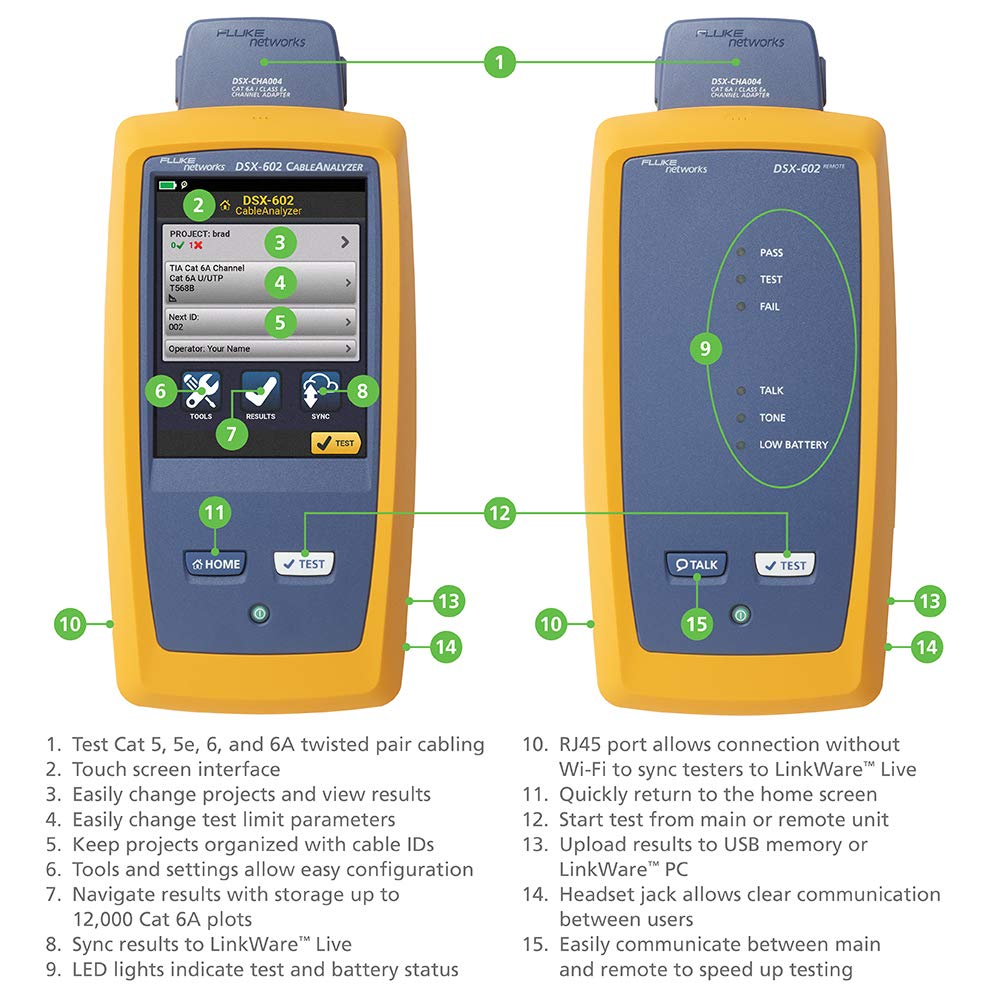
The DSX-602-PRO uses interchangeable adapters for different testing scenarios. For permanent link testing, attach the Permanent Link Adapters. For channel testing, use the Channel Adapters. Ensure the adapters are securely connected to the top port of both the Main and Remote units.
3.3 Powering On
Press and hold the power button on each unit to turn them on. The Main Unit will display the home screen on its touchscreen interface.
4. Operation
4.1 Navigating the Touchscreen Interface
The DSX-602-PRO features a gesture-based touchscreen. Swipe to navigate menus, tap to select options, and use the on-screen keyboard for data entry. The main screen typically displays options for Project, Test, Results, and Sync.

4.2 Performing a Cable Test
- Select Project: From the home screen, select 'Project' to manage or create a new test project. This helps organize test results.
- Configure Test: Choose the appropriate cable type (e.g., Cat 6A Channel) and test limits. Ensure the correct adapters are connected for the chosen test type.
- Connect Cables: Connect the cable to be tested between the Main Unit (via its adapter) and the Remote Unit (via its adapter).
- Start Test: Tap the 'Test' button on the screen or the physical 'Test' button on either unit. The test will typically complete within 10 seconds for Cat 6A cabling.
- Review Results: After the test, the screen will display 'PASS' or 'FAIL'. Detailed results, including graphical representations of measurements, can be viewed.

4.3 LinkWare™ Live Integration
The DSX-602-PRO can connect to LinkWare™ Live via Wi-Fi or USB. This cloud-based service allows you to upload test results, manage projects, and generate professional reports from any device, enhancing collaboration and data management.
5. Measurements and Capabilities
The DSX-602-PRO performs a comprehensive suite of measurements to certify copper cabling:
- Wire Map
- Length
- Propagation Delay
- Delay Skew
- DC Loop Resistance
- Insertion Loss (Attenuation)
- Return Loss (RL)
- Near End Crosstalk (NEXT)
- Attenuation-to-Crosstalk Ratio (ACR-N)
- ACR-F (ELFEXT)
- Power Sum ACR-F (PS ELFEXT)
- Power Sum NEXT
- Power Sum ACR-N
6. Troubleshooting
The DSX-602-PRO provides advanced diagnostics to pinpoint the location of cable failures. If a test results in a 'FAIL', the device will graphically display the specific location and type of failure, such as crosstalk, return loss, or shield faults.
Common Issues and Solutions:
- Low Battery: Ensure both Main and Remote units are fully charged. The remote unit has a low battery indicator.
- Test Failure: Review the on-screen diagnostics for specific fault locations. Check cable terminations, connectors, and ensure the correct test limits and adapters are selected.
- Communication Issues: Verify that the RJ45 port is clean and connections are secure. For Wi-Fi issues, check network settings and signal strength.
7. Specifications
| Feature | Specification |
|---|---|
| Model Number | DSX-602-PRO |
| Supported Cabling | Category 5, 5e, 6, 6A Twisted-Pair |
| Frequency Range | 500 MHz |
| Accuracy | TIA Level IIIe |
| Display | Touchscreen |
| Battery Life | Approximately 8 hours |
| Power Source | Lithium Ion Battery (included) |
| Connectivity | USB, Wi-Fi |
| Product Dimensions | 2.6 x 5.3 x 11 inches |
| Item Weight | 11.4 Pounds |
8. Maintenance
To ensure the longevity and accuracy of your DSX-602-PRO CableAnalyzer:
- Cleaning: Use a soft, damp cloth to clean the exterior of the units. Avoid abrasive cleaners or solvents. Keep the touchscreen clean for optimal responsiveness.
- Adapter Care: Keep the adapter ports free of dust and debris. Inspect adapters regularly for wear or damage.
- Battery Care: Store the units with a partial charge if not used for extended periods. Avoid extreme temperatures.
- Calibration: Refer to the Statement of Calibration for recommended calibration intervals to maintain measurement accuracy.
9. Technical Support
For technical assistance, warranty information, or service, please contact Fluke Networks support:
- Phone: 1-800-28-FLUKE (1-800-283-5853)
- Hours: 8am-5pm Pacific Time
- Email: amazon.support@flukenetworks.com