
TBI Pro Mechanoid X107 TBI (Model: X64Morvelli)
REAL Mechanical Gaming Keyboard Mechanoid X107 TBI User Manual
Model: X64Morvelli
Introduction
The TBI Pro Mechanoid X107 is a high-performance mechanical gaming keyboard designed for professional gamers and everyday use. It features durable blue mechanical switches, customizable RGB LED backlighting, and dedicated multimedia controls for an enhanced user experience. This manual provides comprehensive instructions for setting up, operating, maintaining, and troubleshooting your keyboard.
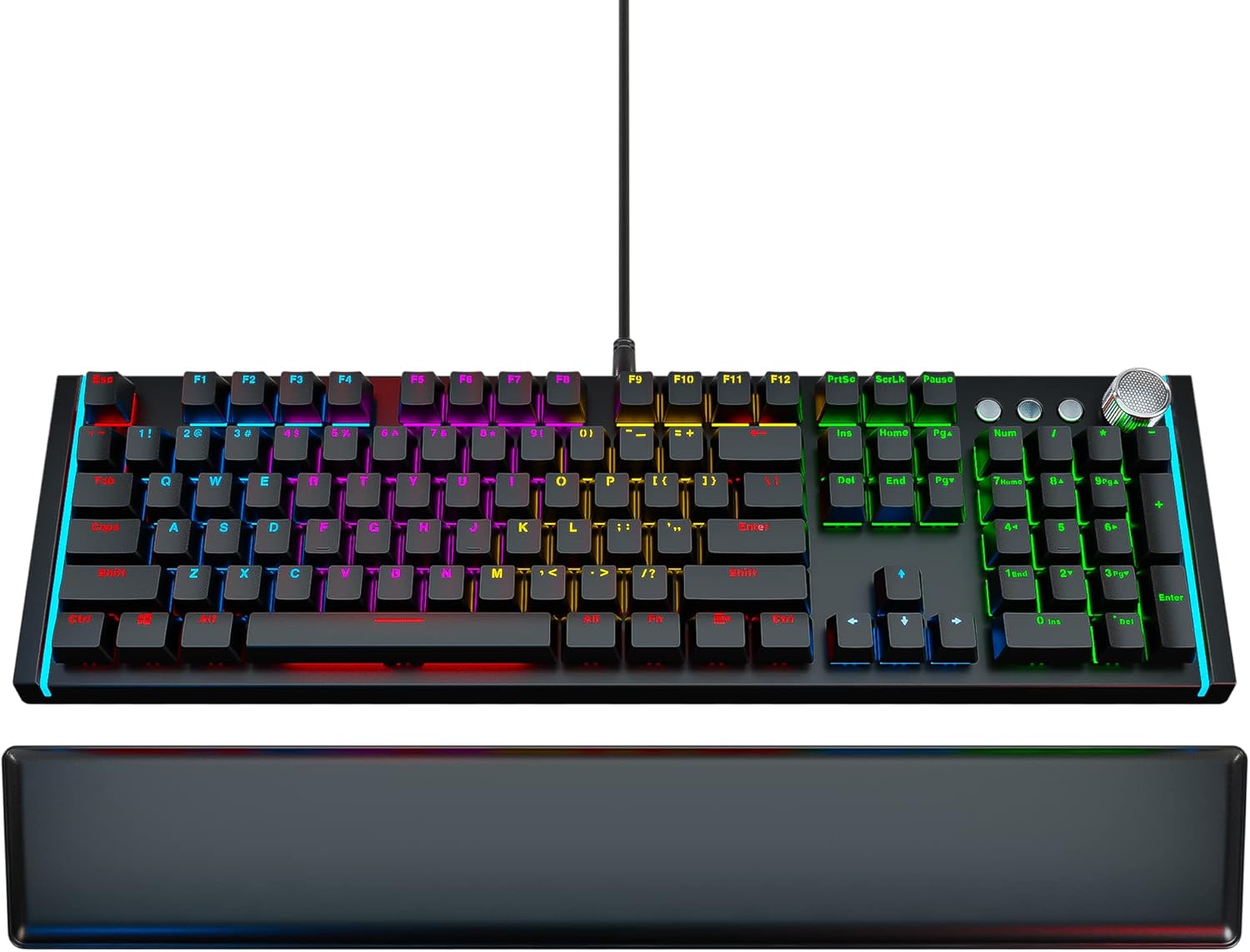
Image: The Mechanoid X107 TBI mechanical gaming keyboard, showcasing its full layout and the included ergonomic leather wrist rest.
What's in the Box
Upon unboxing your Mechanoid X107 TBI keyboard, please ensure all the following items are present:
- Mechanical Keyboard
- Leather Wrist Rest
- Keycap Puller
- USB Cable (6.6ft)
- User Manual (this document)
Setup
- Unpack the Keyboard: Carefully remove the keyboard and all accessories from their packaging.
- Connect the Wrist Rest: The ergonomic leather wrist rest attaches magnetically to the front edge of the keyboard. Align the wrist rest with the keyboard and allow the magnets to secure it in place.

Image: Close-up view showing the magnetic connection points for the leather wrist rest, ensuring easy attachment and detachment.
- Connect to Computer: Plug the USB cable from the keyboard into an available USB port on your computer. The keyboard is plug-and-play, requiring no additional drivers for basic functionality.
- Initial Power On: The keyboard's RGB lighting will illuminate upon successful connection, indicating it is ready for use.
Operating Instructions
RGB LED Backlighting
The Mechanoid X107 features dynamic RGB backlighting with a wide range of customization options. You can adjust lighting modes, brightness, and colors directly from the keyboard without software.

Image: The keyboard illuminated with vibrant RGB lighting, demonstrating the customizable light effects.
- Changing Lighting Modes: Use the dedicated lighting control keys (refer to the manual's specific key combinations, usually Fn + Insert, Home, Page Up, etc.) to cycle through various pre-set lighting effects such as breathing, wave, ripple, and static colors.
- Adjusting Brightness: Typically, Fn + Up/Down arrow keys control the brightness level of the backlighting.
- Customizing Colors: The keyboard supports 65 million individual colors. Specific key combinations allow for per-key color customization or setting a uniform color across the keyboard. Refer to the included quick guide for detailed instructions on advanced color settings.

Image: A visual representation of the RGB color spectrum, indicating the ability to choose from 65 million individual colors for each key.
Multimedia Controls
The Mechanoid X107 features advanced separate multimedia buttons and a dedicated volume adjustment knob for convenient control over your audio and media playback.
- Volume Knob: Rotate the large knob located on the top right of the keyboard to adjust the system volume. Pressing the knob typically mutes/unmutes the audio.

Image: Close-up of the metallic volume control knob, highlighting its textured surface and prominent placement on the keyboard.
- Dedicated Media Buttons: Use the dedicated buttons next to the volume knob for Play/Pause, Fast Forward, and Rewind functions.

Image: Detail of the multimedia control section, showing the dedicated play/pause, track navigation buttons, and the volume knob.
Programmable Keys (Fn Combinations)
The keyboard features function keys that can be combined with the Fn key to access additional shortcuts and controls.
- Fn + F1: Opens the audio player.
- Fn + F2: Turns sound lower.
- Fn + F3: Turns sound higher.
- Fn + F4: Mute/Unmute audio.
- Fn + F5: Stop media playback.
- Fn + F6: Previous Track.
- Fn + F7: Play/Pause media.
- Fn + F8: Next Track.
- Fn + F9: Opens default email client.
- Fn + F10: Opens default web browser (Homepage).
- Fn + F11: Lock/Unlock the keyboard.
- Fn + F12: Opens Calculator.

Image: Diagram illustrating the Fn key combinations for F1 through F4, showing their respective functions like opening audio player and volume control.

Image: Diagram illustrating the Fn key combinations for F5 through F8, showing their respective media control functions like stop, previous, play/pause, and next track.

Image: Diagram illustrating the Fn key combinations for F9 through F12, showing their respective functions like opening email, homepage, locking keyboard, and calculator.
Maintenance
Proper maintenance ensures the longevity and optimal performance of your Mechanoid X107 keyboard.
- Cleaning the Keyboard:
- Disconnect the keyboard from your computer before cleaning.
- Use a can of compressed air to remove dust and debris from between the keycaps.
- Wipe the keycaps and keyboard surface with a soft, slightly damp, lint-free cloth. Avoid excessive moisture.
- For stubborn grime, a small amount of isopropyl alcohol on a cloth can be used, but avoid direct application to the keyboard.
- Cleaning the Wrist Rest: Wipe the leather wrist rest with a soft, damp cloth. For leather care, use a specialized leather cleaner if necessary.
- Keycap Removal: Use the included keycap puller to carefully remove keycaps for deeper cleaning or switch replacement (if applicable). Insert the puller onto the keycap and pull straight up.

Image: Close-up view of a blue mechanical switch with a keycap removed, illustrating the durable design and laser-engraved keycap text.
Troubleshooting
| Problem | Possible Cause | Solution |
|---|---|---|
| Keyboard not responding / No lights | Loose USB connection; Faulty USB port; Computer issue. | Ensure USB cable is securely plugged into both the keyboard and the computer. Try a different USB port. Restart your computer. |
| Keys not registering input | Dust/debris under keycap; Keyboard lock enabled (Fn+F11). | Clean under the affected keycap using compressed air or the keycap puller. Press Fn+F11 to unlock the keyboard. |
| RGB lighting not working or stuck | Lighting mode error; Software conflict (unlikely for hardware control). | Cycle through lighting modes using the dedicated keys. Disconnect and reconnect the keyboard. |
| Multimedia keys not functioning | System settings; Application conflict. | Ensure your operating system's media key settings are default. Try in different applications. |
Specifications
| Feature | Detail |
|---|---|
| Brand | TBI Pro |
| Model Number | X64Morvelli |
| Keyboard Type | Mechanical Gaming Keyboard |
| Switch Type | Blue Mechanical Switches |
| Key Lifespan | >50 million clicks |
| Number of Keys | 104 (standard) + 3 separate media keys + volume knob |
| Backlighting | RGB LED (65 million colors) |
| Connectivity | Wired USB |
| Cable Length | 6.6 ft (2 meters) |
| Color | Black |
| Item Weight | 2.99 pounds (approx. 1.36 kg) |
| Hardware Platform | PC |
Warranty and Support
For warranty information and customer support, please refer to the documentation included with your purchase or visit the official TBI Pro website. You can also find additional support resources and FAQs there.
For further assistance, you may contact TBI Pro customer service through their official channels.
Online Resources:
- TBI Pro Store on Amazon: https://www.amazon.com/stores/TBI+Pro/page/2EB70C71-31FD-407E-B344-FF8BD815BC2A
- User Manual (PDF): https://manuals.plus/m/21c052fadb51be02b7df77ed02b341d92d9b84a0b3cf76279943e80c9c350527
- Installation Manual (PDF): https://manuals.plus/m/0408a730270bfd311d0f6bba171f46608bb5c210b71eab68db3bb5ca1a26ea20
Related documentsMechanoid X107 TBI (Model: X64Morvelli)


Ask a question about this manual
Ask about setup, troubleshooting, compatibility, parts, safety, or missing instructions. Manuals+ will review the question and use this page’s manual context to help answer it.