
1. Introduction and Overview
The Aceele USB 3.0 Hub is a 4-port ultra-slim multiport expander designed to significantly increase the USB connectivity of your devices. With a 4ft (1.2m) extension cable, it provides convenient access to additional USB 3.0 ports, making it ideal for desktop computers, laptops, and other compatible devices. This hub is engineered for high-speed data transfer, allowing you to connect multiple peripherals simultaneously.
2. Product Features
- Multiple Ports: Expands one USB port into four USB 3.0 ports.
- High-Speed Data Transfer: Supports data transfer rates up to 5Gbps, which is 10 times faster than USB 2.0.
- Extended Cable: Features a 4ft (1.2m) long cable for flexible placement and easy access.
- Advanced Chip: Built-in high-performance chip ensures device and data safety, supports hot-swapping, and includes current protection settings for extended hub life.
- Plug and Play: No drivers are needed for installation; simply plug it in and start using it.
- Ultra-Slim Design: Compact and lightweight, making it portable and space-saving.

Image: Aceele 4-in-1 USB Hub highlighting 5Gbps high-speed data transfer.

Image: The ultra-slim design of the multiport hub, measuring 11mm in thickness.
3. Setup Instructions
- Connect the Hub: Plug the USB-A connector of the Aceele USB Hub into an available USB 3.0 port on your computer (desktop PC, laptop, etc.).
- Verify Connection: A blue indicator light on the hub will illuminate, confirming it is powered and ready for use.
- Connect Devices: Plug your USB devices (keyboard, mouse, flash drive, external hard drive, etc.) into the available USB 3.0 ports on the hub.
Note: This hub is designed for data transfer and does NOT support charging devices.

Image: The 1.2M extended cable allows the hub to be placed conveniently on a desk, avoiding the need to reach behind a computer.
Video: Demonstrates plugging the Aceele USB Hub into a desktop computer and connecting various USB devices like a flash drive, printer, and keyboard.
4. Operating Instructions
Once connected, the Aceele USB Hub functions as an extension of your computer's USB ports. You can connect and disconnect devices as needed (hot-swapping is supported). The hub is optimized for efficient data transfer for peripherals such as keyboards, mice, webcams, speakers, USB disks, and printers.
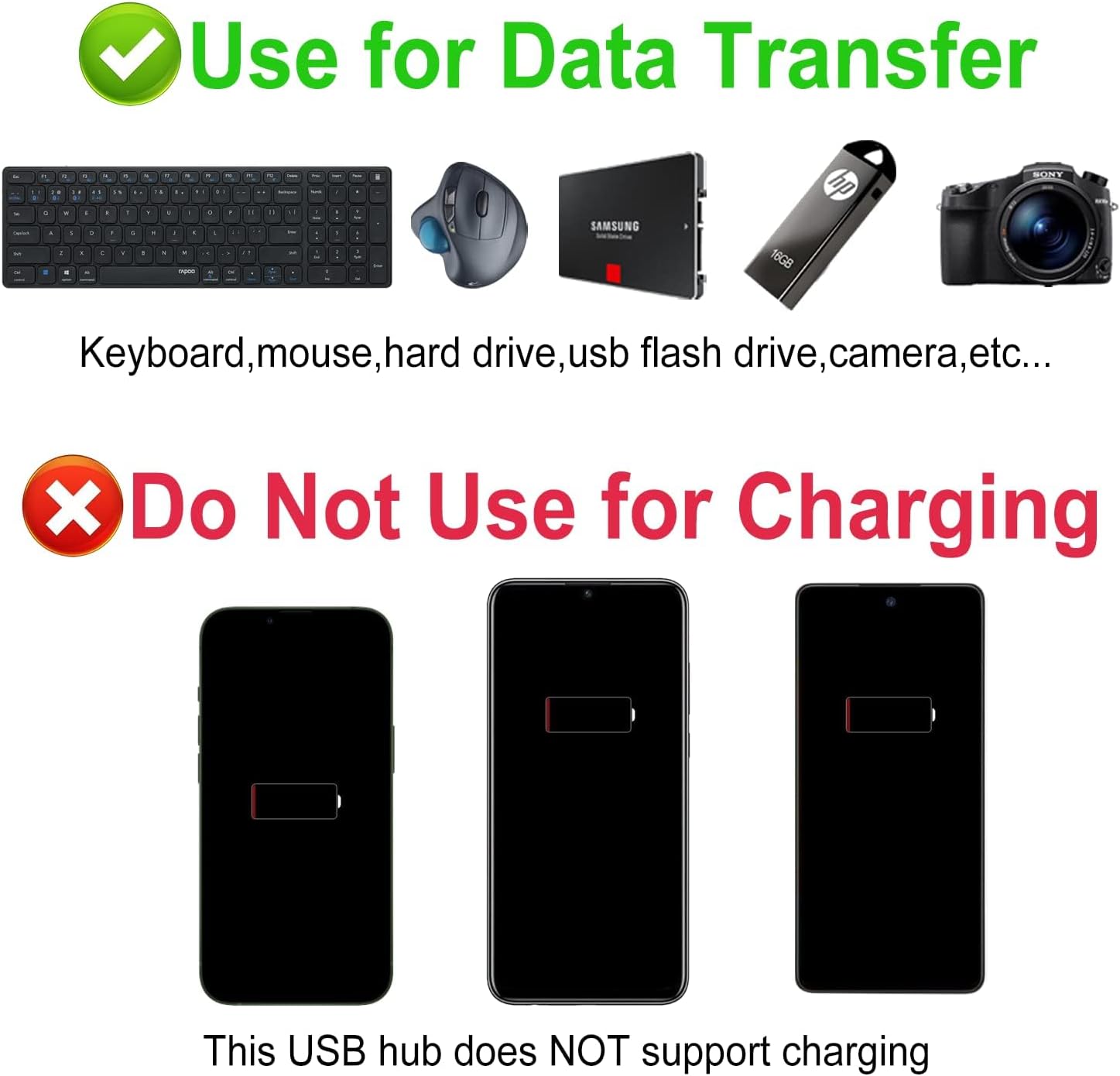
Image: Illustrates that the hub is for data transfer with devices like keyboards, mice, hard drives, USB flash drives, and cameras, and explicitly states it does NOT support charging phones or other terminal devices.
5. Compatibility
The Aceele USB 3.0 Hub offers wide compatibility with various operating systems and devices:
- Operating Systems: Compatible with Windows, Mac OS, Chrome OS, and Linux.
- Compatible Devices (USB 3.0 Male connection to host): Laptops, All-in-One PCs, Desktop Computers, Printers, PS5, Car systems.
- Compatible Devices (USB 3.0 Female connection to hub): USB Disks, Mice, Keyboards, Hard Drives, Gamepads, USB Fans, Cameras.
- Backward Compatibility: Reverse compatible with USB 2.0 and USB 1.1 devices.

Image: A visual guide to the universal compatibility of the Aceele USB Hub with various operating systems and devices.
6. Troubleshooting
Q1: Does this hub support charging phones or other devices?
Answer: No, the USB ports are used for transferring data and CANNOT be used to charge terminal devices.
Q2: USB 3.0 Not Working?
Answer: For a stable connection, avoid connecting devices that exceed a total of 900 mA. Devices are usually rated as follows: Mouse 100 mA / USB Flash Drive 100 mA / Camera 300 mA / Keyboard 500 mA / External Hard Drive 900 mA. Connecting these to the hub at the same time, which are high-power devices, will overload the hub and cause it to fail to work.
Q3: Why is my transfer speed slow?
Answer: USB 3.0 performance (super-speed of up to 5Gbps) can only be expected when connected to a USB 3.0 port, USB 3.0 cables, and USB 3.0 devices. Otherwise, it will work as a USB 2.0 or USB 1.1 hub when connected to a USB 2.0 or USB 1.1 controller respectively.
Q4: When I use this product, my wireless mouse doesn't seem to work properly, why?
Answer: As is known, a working USB 3.0 device will affect the wireless signal around it, such as 2.4GHz and Bluetooth signal of wireless mouses, and WIFI. 2.4GHz wireless devices (such as wireless keyboards and mice), MIDI devices and some USB 3.0 devices may not be supported, or may not work in close proximity to a hub or other USB 3.0 device. The underlying cause of the interference is the interaction between wireless signals of different protocols. To solve this problem, we give the following suggestions: 1. To insert wireless adapters into the USB ports of the computer and leave the hub ports for other devices. 2. To insert wireless adapters into USB 2.0 ports or apply USB extension cables. 3. To keep wireless adapters and routers away from working USB 3.0 devices, as far as possible. 4. To use 5G frequency on WiFi, instead of 2.4G.
7. Specifications
| Feature | Detail |
|---|---|
| Brand | Aceele |
| Model Number | AC-T11 |
| Item Weight | 2.08 ounces |
| Color | Black |
| Hardware Interface | USB 3.0 |
| Special Features | Fast Data Transfer, Indicator Light, Lightweight, Plug and Play, Portable |
| Compatible Devices | Desktops, Keyboards, Laptops, Printers, Speakers, MacBooks, iMacs, Mac minis, XPS, Flash Drives |
| Manufacturer | Aceele |
| Date First Available | October 18, 2019 |
8. Warranty and Support
Aceele offers the following for your product:
- Return Policy: 30-day no-hassle return policy.
- Quality Guarantee: 2-year quality guarantee.
- Customer Service: 24-hour friendly customer service.
For further assistance, please contact Aceele customer support.


