
1. Introduction
The SHADA idinio Smart Ceiling Lamp Ufo 1400 is an intelligent lighting solution designed to enhance your living space. This 18-watt dimmable lamp offers adjustable light color temperatures from 3000K (warm white) to 6500K (cool white), providing versatile illumination for any mood or activity. It connects via Wi-Fi and can be controlled conveniently through a dedicated mobile application or voice commands using Amazon Alexa and Google Assistant.
2. Safety Information
Please read all safety instructions before installation and use. Improper installation or use can lead to electric shock, fire, or other hazards. Always ensure the power supply is disconnected before installation or maintenance. Installation should be performed by a qualified electrician if you are unsure about electrical wiring.
- Do not attempt to repair or modify the device yourself.
- Ensure the lamp is securely mounted to the ceiling.
- Keep the device away from water and high humidity.
3. Setup
3.1 Physical Installation
- Disconnect Power: Before starting, switch off the main power supply at your circuit breaker to prevent electric shock.
- Mount the Lamp: Securely attach the ceiling lamp base to the ceiling using the provided mounting hardware. Ensure it is firmly fixed.
- Connect Wiring: Connect the electrical wires from your ceiling to the lamp's terminals according to local electrical codes. Typically, this involves connecting live, neutral, and ground wires.
- Attach Lamp Body: Once wiring is complete and secure, attach the main body of the lamp to the base.
- Restore Power: Turn the main power supply back on. The lamp should now be ready for pairing.
3.2 App Download and Installation
The idinio Smart Ceiling Lamp is controlled via the idinio app, available for iOS and Android devices. No additional hardware is required.

Image: The idinio Smart Ceiling Lamp shown with logos for Amazon Alexa, Apple App Store, and Google Play Store, indicating compatibility and app availability.
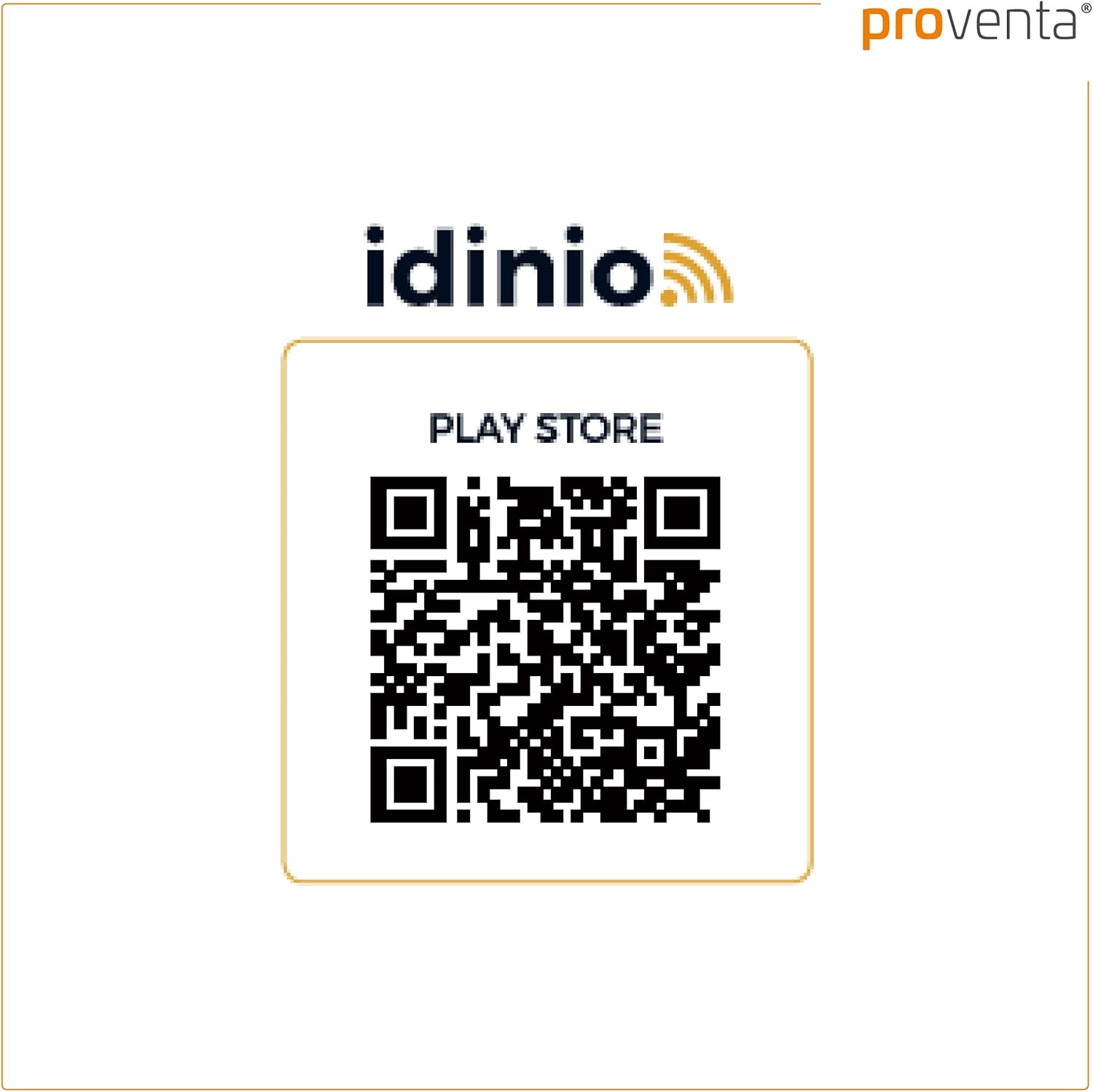
You can download the app using the QR codes below or by searching for "idinio" in your device's app store:

3.3 Device Pairing
- Open the App: Launch the idinio app on your smartphone or tablet.
- Register/Log In: If you are a new user, register an account. Otherwise, log in with your existing credentials.
- Add Device: Tap the "+" icon or "Add Device" option within the app.
- Select Device Type: Choose "Lighting" or "Ceiling Lamp" from the list of available device types.
- Wi-Fi Connection: Ensure your smartphone is connected to a 2.4 GHz Wi-Fi network. The idinio lamp requires a 2.4 GHz network for initial setup.
- Reset Lamp (if needed): If the lamp does not automatically enter pairing mode (often indicated by flashing light), you may need to power cycle it a few times (turn off/on) until it starts flashing rapidly. Follow the app's instructions for specific reset procedures.
- Confirm Flashing: Confirm in the app that the lamp is flashing.
- Enter Wi-Fi Password: Enter your Wi-Fi network password into the app.
- Pairing Process: The app will now attempt to connect to the lamp. This may take a few moments. Once connected, the lamp will stop flashing and remain steadily lit.
- Rename Device: You can rename your lamp within the app for easier identification (e.g., "Living Room Ceiling Lamp").
4. Operating the Smart Ceiling Lamp
Once paired, you can control your idinio Smart Ceiling Lamp using the app or voice commands.

Image: A hand holding a smartphone with the idinio app open, demonstrating app control of the smart ceiling lamp.
4.1 App Control
The idinio app provides full control over your lamp:
- On/Off: Toggle the lamp's power directly from the app.
- Dimming: Adjust the brightness level continuously from 1% to 100%.
- Color Temperature: Change the light color from warm white (3000K) to cool white (6500K) to suit your preference or activity.
- Scheduling: Set timers or schedules for the lamp to turn on/off or change settings at specific times.
- Scenes: Create custom lighting scenes for different occasions (e.g., "Reading Mode," "Movie Night").
- Device Sharing: Share control of the lamp with family members or friends through the app. This allows multiple users to manage the lamp from their own devices.
4.2 Voice Control
The idinio Smart Ceiling Lamp is compatible with Amazon Alexa and Google Assistant. To enable voice control:
- Link Account: In your Alexa or Google Home app, search for the "idinio" skill/service.
- Enable Skill: Enable the idinio skill and link it to your idinio account.
- Discover Devices: Ask your voice assistant to discover new devices.
- Voice Commands: You can now use voice commands such as:
- "Alexa, turn on Living Room Lamp."
- "Hey Google, set Living Room Lamp to 50% brightness."
- "Alexa, change Living Room Lamp to warm white."
5. Maintenance
To ensure the longevity and optimal performance of your idinio Smart Ceiling Lamp, follow these simple maintenance guidelines:
- Cleaning: Disconnect power before cleaning. Use a soft, dry, or slightly damp cloth to wipe the surface of the lamp. Do not use abrasive cleaners, solvents, or harsh chemicals, as these can damage the finish.
- No User-Serviceable Parts: The lamp contains no user-serviceable parts. Do not attempt to open or disassemble the unit.
6. Troubleshooting
If you encounter issues with your idinio Smart Ceiling Lamp, refer to the following common problems and solutions:
- Lamp does not turn on:
- Check if the power supply is connected and the circuit breaker is on.
- Ensure the lamp is correctly wired and securely installed.
- Verify that the lamp is not switched off via the app or voice command.
- Lamp does not connect to Wi-Fi/App:
- Ensure your Wi-Fi network is 2.4 GHz. The lamp does not support 5 GHz networks.
- Check your Wi-Fi signal strength at the lamp's location.
- Make sure your smartphone is connected to the same 2.4 GHz Wi-Fi network during pairing.
- Try power cycling the lamp (turn off and on several times) to put it into pairing mode (flashing light).
- Restart your Wi-Fi router.
- Ensure you have entered the correct Wi-Fi password in the app.
- Voice control not working:
- Verify that the idinio skill is enabled and linked correctly in your Alexa or Google Home app.
- Ensure your voice assistant device is connected to the internet.
- Check if the lamp is online and responsive in the idinio app.
- Use the exact device name you assigned in the idinio app for voice commands.
- Lamp settings reset after power off:
- The lamp is designed to retain its last settings. If settings are lost, ensure the lamp is properly paired and connected to the app. A brief power interruption should not cause a full reset. If this persists, try re-pairing the device.
7. Specifications
| Brand | SHADA |
| Model | Ufo 1400 |
| Style | Modern |
| Wattage | 18 Watt |
| Light Source Type | LED |
| Color Temperature | 3000K - 6500K (Adjustable) |
| Special Features | Dimmable, Smart Control (App/Voice) |
| Connectivity | Wi-Fi (2.4 GHz) |
| Power Source | Corded Electric |
| Installation Type | Ceiling Mount |
| Included Components | Mounting Material |
| ASIN | B07VS4DJK1 |
8. Warranty Information
Specific warranty details for the SHADA idinio Smart Ceiling Lamp Ufo 1400 were not provided in the product data. Please refer to the retailer or manufacturer's official website for current warranty terms and conditions.
9. Customer Support
Customer support contact information for the SHADA idinio Smart Ceiling Lamp Ufo 1400 was not provided in the product data. For assistance, please visit the SHADA official website or contact your product retailer.
