
1. Introduction
This manual provides detailed instructions for the setup, operation, maintenance, and troubleshooting of your LENRUE SoundBoom A25 USB Computer Speaker. Please read this manual thoroughly before using the product to ensure proper function and longevity.
2. Product Overview
The LENRUE SoundBoom A25 is a compact, wired stereo speaker designed for use with computers, laptops, desktops, and smartphones. It features a simple plug-and-play connection and is powered via a USB port.

Figure 2.1: Front view of the LENRUE SoundBoom A25 speaker, showcasing its sleek design and integrated blue LED lighting on both ends.
Key Features:
- Simple Connection: Connects via a 3.5mm audio jack for sound and a USB port for power.
- USB Bus Powered: Eliminates the need for an external power adapter.
- Compact Design: Measures approximately 39.6 cm (L) x 5.8 cm (D) x 6.6 cm (H), ideal for desktop use.
- Stereo Sound: Delivers 2.0 channel stereo audio.
- LED Lighting: Integrated blue LED lights for visual enhancement.
3. Setup Instructions
Follow these steps to connect your LENRUE SoundBoom A25 speaker to your device.
- Connect the USB Power Cable: Insert the USB-A connector of the speaker cable into an available USB port on your computer, laptop, or a compatible USB power adapter. This provides power to the speaker.
- Connect the 3.5mm Audio Cable: Insert the 3.5mm audio jack into the headphone or audio output port of your computer, laptop, desktop PC, or smartphone. This transmits the audio signal to the speaker.
- Power On: The speaker will automatically power on when the USB cable is connected to a powered USB port. The integrated LED lights will illuminate.
- Adjust Volume: Use the volume controls on your connected device (computer, laptop, smartphone) to adjust the audio output level. The speaker itself may also have touch controls (refer to Figure 4.1).

Figure 3.1: Connection diagram illustrating how to connect the 3.5mm audio jack and USB power cable to your devices.

Figure 3.2: Example of connecting the speaker to a laptop, demonstrating the simple plug-and-play setup.
4. Operation
4.1 Power On/Off
The speaker is designed to power on automatically when connected to a live USB port. To turn off the speaker, simply disconnect the USB power cable from its source.
4.2 Volume Control
Volume is primarily controlled through the connected device (computer, laptop, smartphone). The speaker features touch controls on its top surface for additional volume adjustments. These controls are typically marked with '+' and '-' symbols.

Figure 4.1: Top view of the speaker highlighting the touch control panel for volume adjustment and other functions.
4.3 LED Lights
The speaker includes integrated blue LED lights on its ends. These lights illuminate when the speaker is powered on. There is no specific control mentioned for turning off these lights independently.
5. Maintenance
To ensure the longevity and optimal performance of your speaker, follow these simple maintenance guidelines:
- Cleaning: Use a soft, dry cloth to wipe the exterior of the speaker. Avoid using abrasive cleaners, solvents, or harsh chemicals, as these can damage the finish.
- Storage: When not in use for extended periods, store the speaker in a cool, dry place away from direct sunlight and extreme temperatures.
- Handling: Avoid dropping the speaker or subjecting it to strong impacts. Do not attempt to disassemble the speaker, as this will void the warranty and may cause damage.
6. Troubleshooting
If you encounter issues with your LENRUE SoundBoom A25 speaker, refer to the following common problems and solutions:
| Problem | Possible Cause | Solution |
|---|---|---|
| No sound output. |
|
|
| Distorted or poor sound quality. |
|
|
| LED lights are not on. |
|
|
| Speaker is not a "true" USB speaker (requires 3.5mm audio). |
|
|
7. Specifications
Technical specifications for the LENRUE SoundBoom A25 USB Computer Speaker:
| Feature | Detail |
|---|---|
| Brand | LENRUE |
| Model Number | A25 |
| Connectivity Technology | Auxiliary, USB (for power) |
| Audio Output Mode | Stereo |
| Speaker Type | Computer Speaker |
| Mounting Type | Tabletop Mount |
| Product Dimensions | 39.6 cm (Width) x 5.8 cm (Depth) x 6.6 cm (Height) |
| Item Weight | 612 g |
| Power Source | USB Bus Powered |
| Compatible Devices | Desktop, Laptop, Personal Computer, Smartphone |
| Special Feature | USB Port (for power), LED Light |
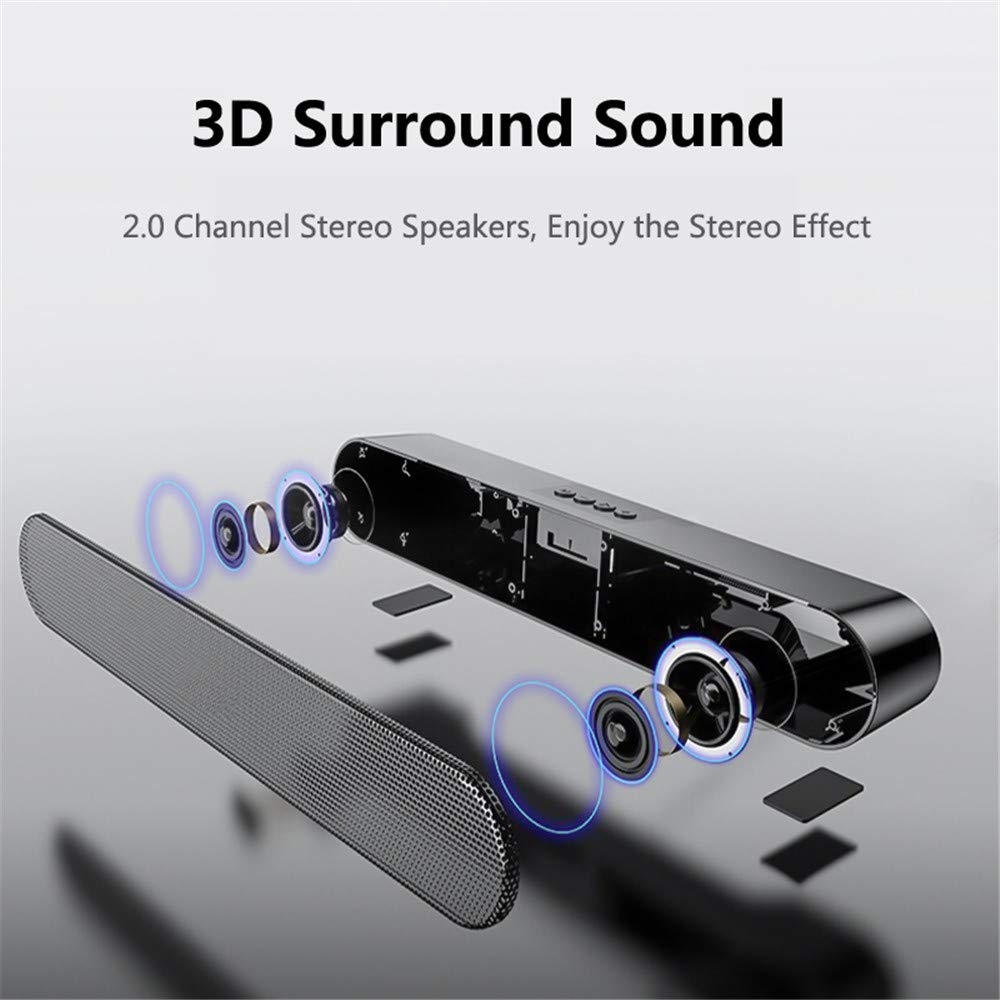
Figure 7.1: Internal component layout, illustrating the 2.0 channel stereo speaker configuration.

Figure 7.2: The speaker's ultra-compact design, fitting seamlessly into a desktop environment.
8. Warranty and Support
For information regarding warranty coverage and customer support, please refer to the warranty card included with your product or contact LENRUE customer service directly. Details are typically available on the manufacturer's official website.
For further assistance, you may visit the LENRUE Store on Amazon.
