
1. Introduction and Overview
Thank you for choosing the Defender Computer Gaming Mouse. This wired optical mouse is designed for PC and laptop gamers, featuring a 7-color RGB backlight, a high-definition 1200 DPI sensor, and an ergonomic, ambidextrous design for comfortable use during extended periods. This manual provides essential information for setup, operation, maintenance, and troubleshooting to ensure optimal performance of your device.

Figure 1: Front view of the Defender Computer Gaming Mouse, showcasing its ergonomic shape and blue LED lighting.
2. Setup Instructions
The Defender Gaming Mouse is a plug-and-play device, requiring no additional software or drivers for basic functionality. It connects via a standard USB port.
- Unpack the Mouse: Carefully remove the mouse from its packaging.
- Connect to Computer: Locate an available USB port on your PC or laptop. Insert the USB connector of the mouse firmly into the USB port.
- System Detection: Your operating system (Microsoft Windows 2000/XP/Vista/7/8/10 or Mac OS X10) will automatically detect and install the necessary drivers. This process may take a few moments.
- Ready for Use: Once detected, the mouse's 7-color RGB backlight will illuminate, indicating it is ready for use.
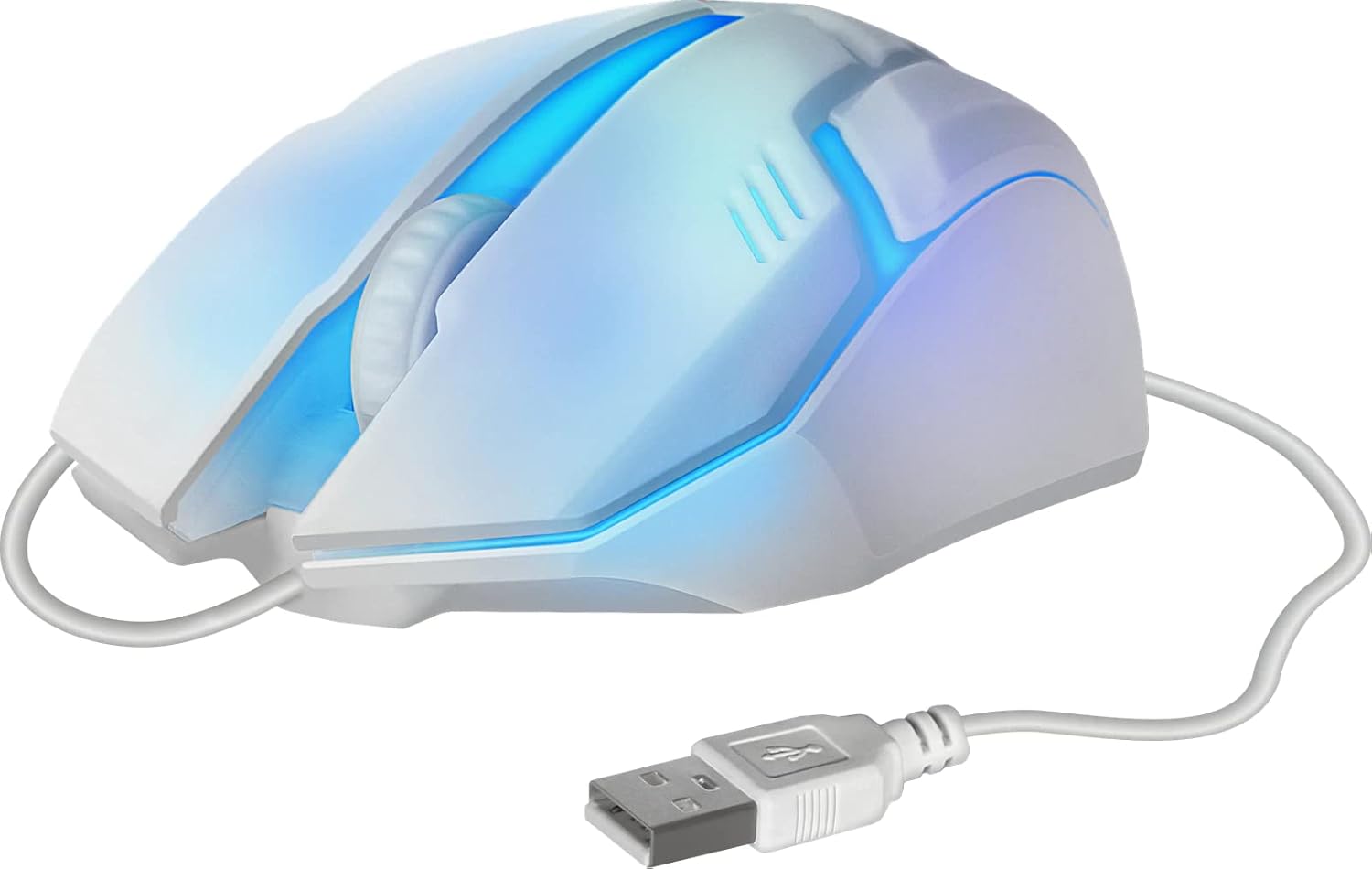
Figure 2: Side view of the mouse showing the integrated USB cable for connection to a computer.
3. Operating Instructions
The Defender Gaming Mouse features three buttons and a scroll wheel for intuitive control.
- Left Click Button: Used for selecting items, opening files, and primary actions.
- Right Click Button: Used for accessing context menus and secondary actions.
- Scroll Wheel: Allows for smooth vertical scrolling through documents and web pages. The ribbed design provides enhanced grip. Pressing the scroll wheel typically acts as a middle-click button.
- 7-Color RGB Backlight: The mouse features an automatic color-changing backlight that cycles through 7 vibrant colors, enhancing your gaming setup. This feature is integrated and does not require manual adjustment.
- High Definition 1200 DPI Optical Sensor: Provides precise and smooth cursor movement. The optical sensor is surface-independent, meaning it can be used effectively on various surfaces without a mouse pad.

Figure 3: Side view illustrating the ergonomic design and green LED lighting of the mouse.
4. Maintenance
Proper care will extend the life of your Defender Gaming Mouse.
- Cleaning: Use a soft, dry, or slightly damp cloth to wipe the surface of the mouse. Avoid using harsh chemicals, abrasive cleaners, or excessive moisture.
- Optical Sensor: Keep the optical sensor on the underside of the mouse clean and free from dust or debris to ensure accurate tracking.
- Cable Care: Avoid bending, twisting, or pulling the USB cable excessively. Store the cable neatly when not in use to prevent damage.
- Storage: Store the mouse in a clean, dry environment away from extreme temperatures.
5. Troubleshooting
If you encounter issues with your Defender Gaming Mouse, try the following solutions:
- Mouse Not Responding:
- Ensure the USB cable is securely connected to your computer's USB port.
- Try plugging the mouse into a different USB port on your computer.
- Restart your computer.
- Erratic Cursor Movement:
- Clean the optical sensor on the underside of the mouse.
- Ensure the surface you are using the mouse on is clean and uniform.
- Backlight Not Illuminating or Changing Colors:
- Verify the mouse is properly connected to a powered USB port.
- The 7-color RGB backlight is designed to cycle automatically. If it remains static on one color or does not light up, try reconnecting the mouse or restarting your computer.
6. Specifications
| Feature | Description |
|---|---|
| Brand | Defender |
| Model Number | 4714033525619 |
| Color | Multicoloured (with 7-color RGB backlight) |
| Connectivity Technology | USB, Wired |
| Movement Detection Technology | Optical |
| DPI | 1200 DPI |
| Special Feature | Ergonomic Design, Ambidextrous, 7-Color Backlight |
| Button Quantity | 3 (Left, Right, Scroll Wheel/Middle Click) |
| Hand Orientation | Ambidextrous |
| Compatible Devices | PC, Laptop, Tablet |
| Operating System | Windows 2000/XP/Vista/7/8/10, Mac OS X10 |
| Power Source | Corded Electric (USB powered) |
7. Warranty Information
The Defender Computer Gaming Mouse is covered by a manufacturer's warranty. Please refer to the product packaging or the official Defender website for specific warranty terms, conditions, and duration. Retain your proof of purchase for warranty claims.
8. Customer Support
For technical assistance, troubleshooting beyond this manual, or warranty inquiries, please contact Defender customer support. Contact information can typically be found on the product packaging, the official Defender website, or through your retailer.


