1. Introduction
This manual provides detailed instructions for the setup, operation, maintenance, and troubleshooting of your ONIKUMA K1B PRO Stereo Gaming Headset. Designed for immersive audio experiences, this headset is compatible with various gaming platforms and mobile devices.

Image 1.1: The ONIKUMA K1B PRO Stereo Gaming Headset, showcasing its design and integrated microphone.
2. Package Contents
Please verify that all items listed below are included in your package:
- 1 x ONIKUMA K1B PRO Stereo Gaming Headset
- 1 x PC Adapter (3.5mm audio/mic splitter cable)
- 1 x User Manual (this document)

Image 2.1: Contents of the ONIKUMA K1B PRO package, including the headset, PC adapter, and user manual.
3. Setup Instructions
Follow these steps to connect your ONIKUMA K1B PRO headset to your device.
3.1 Connecting to PC/Laptop
- For desktop PCs with separate audio and microphone jacks, use the included PC Adapter. Connect the headset's single 3.5mm jack into the adapter.
- Plug the green jack from the PC Adapter into your computer's audio output (headphone) port.
- Plug the red jack from the PC Adapter into your computer's microphone input port.
- For laptops with a single 3.5mm combo jack, plug the headset's single 3.5mm jack directly into the laptop's audio port. The PC Adapter is not required in this scenario.
- Connect the USB plug to a USB port on your PC or laptop to power the LED lights on the headset.
3.2 Connecting to PS4/PS5
- Plug the headset's single 3.5mm jack directly into the controller's 3.5mm port.
- Go to System Settings > Devices > Audio Devices.
- Set "Output to Headphones" to "All Audio".
- Adjust microphone input level as needed.
- Connect the USB plug to a USB port on your console to power the LED lights.
3.3 Connecting to Xbox One/Xbox Series X|S
- For newer Xbox One controllers with a 3.5mm jack, plug the headset's single 3.5mm jack directly into the controller's port.
- For older Xbox One controllers without a 3.5mm jack, a Microsoft adapter (not included) is required. Plug the headset into the adapter, then plug the adapter into the controller.
- Connect the USB plug to a USB port on your console to power the LED lights.
3.4 Connecting to Mobile Devices/Tablets
- Plug the headset's single 3.5mm jack directly into your mobile device's 3.5mm audio port.
- The USB connection is only for LED lighting and is not required for audio functionality on mobile devices.

Image 3.1: Diagram illustrating the compatibility of the ONIKUMA K1B PRO headset with various devices, including PC, PS4, Xbox One, and mobile phones.
4. Operating Instructions
Understand the features and controls of your ONIKUMA K1B PRO headset.
4.1 Audio Control
- Volume Wheel: Located on the inline control unit, rotate the wheel up or down to adjust the audio volume.
- Stereo Surround Sound: The 50mm drivers deliver clear audio with distinct bass and treble for an immersive experience.

Image 4.1: Visual representation of the headset's 50mm drivers and 3D surround sound capabilities for enhanced audio.
4.2 Microphone Usage
- Adjustable Microphone: The omnidirectional microphone can be adjusted to your preferred position for optimal voice pickup. It features noise-canceling technology for clear communication.
- Mic Mute Switch: A dedicated switch on the inline control unit allows you to quickly mute or unmute the microphone.
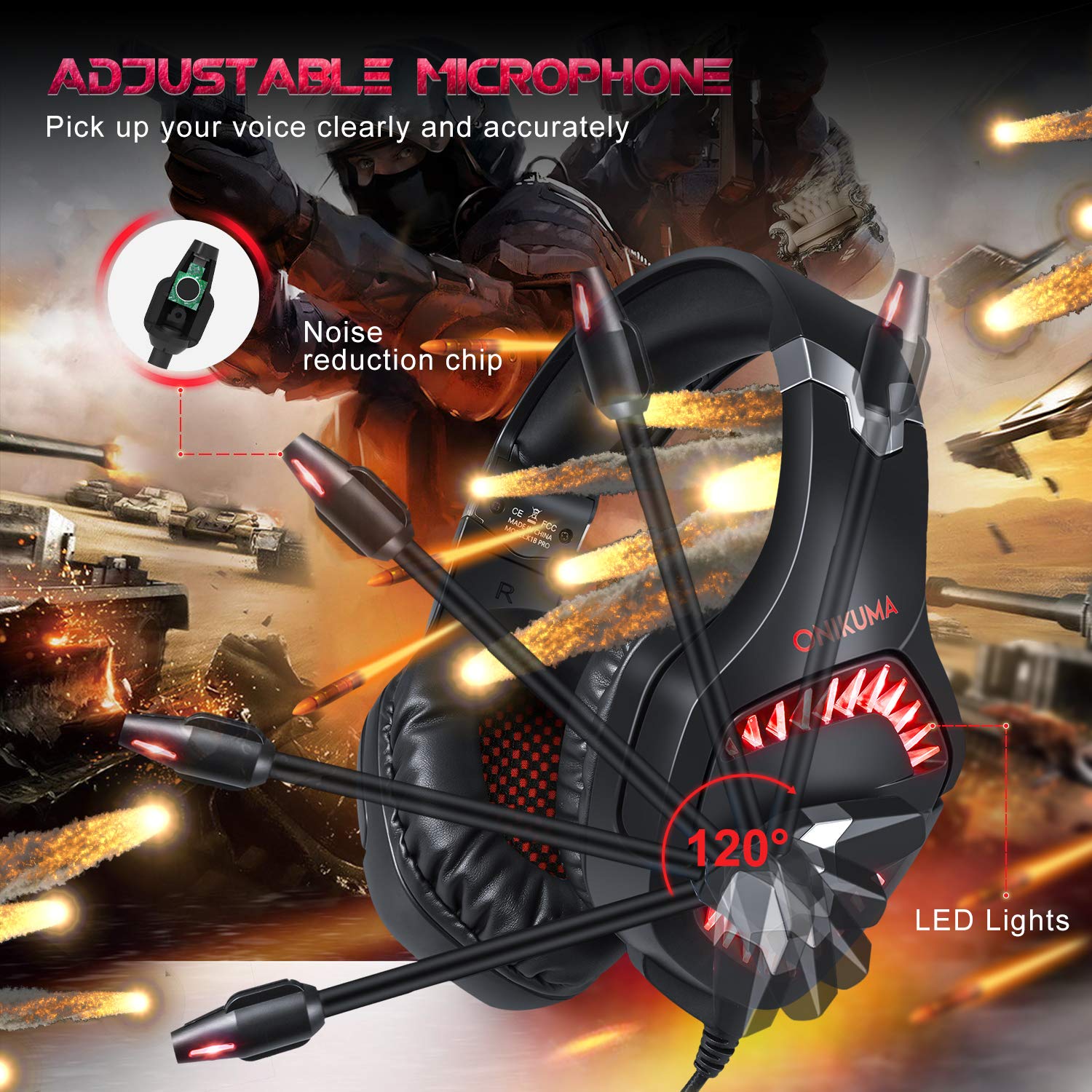
Image 4.2: The adjustable microphone of the ONIKUMA K1B PRO headset, highlighting its flexibility and noise reduction features.
4.3 LED Lighting
- The headset features LED lights that are powered via the USB connection. Ensure the USB plug is connected to an active USB port for the lights to function.
4.4 Comfort and Ergonomics
- Soft Headband: The headband is designed for comfort during extended use.
- Adjustable Ear Cushions: The ear cushions are designed to reduce pressure and sweating, providing long-lasting comfort. The earcups can adjust up to 20 degrees.
- Durable Construction: The headset features a strong structure and steel beam for durability and flexibility.
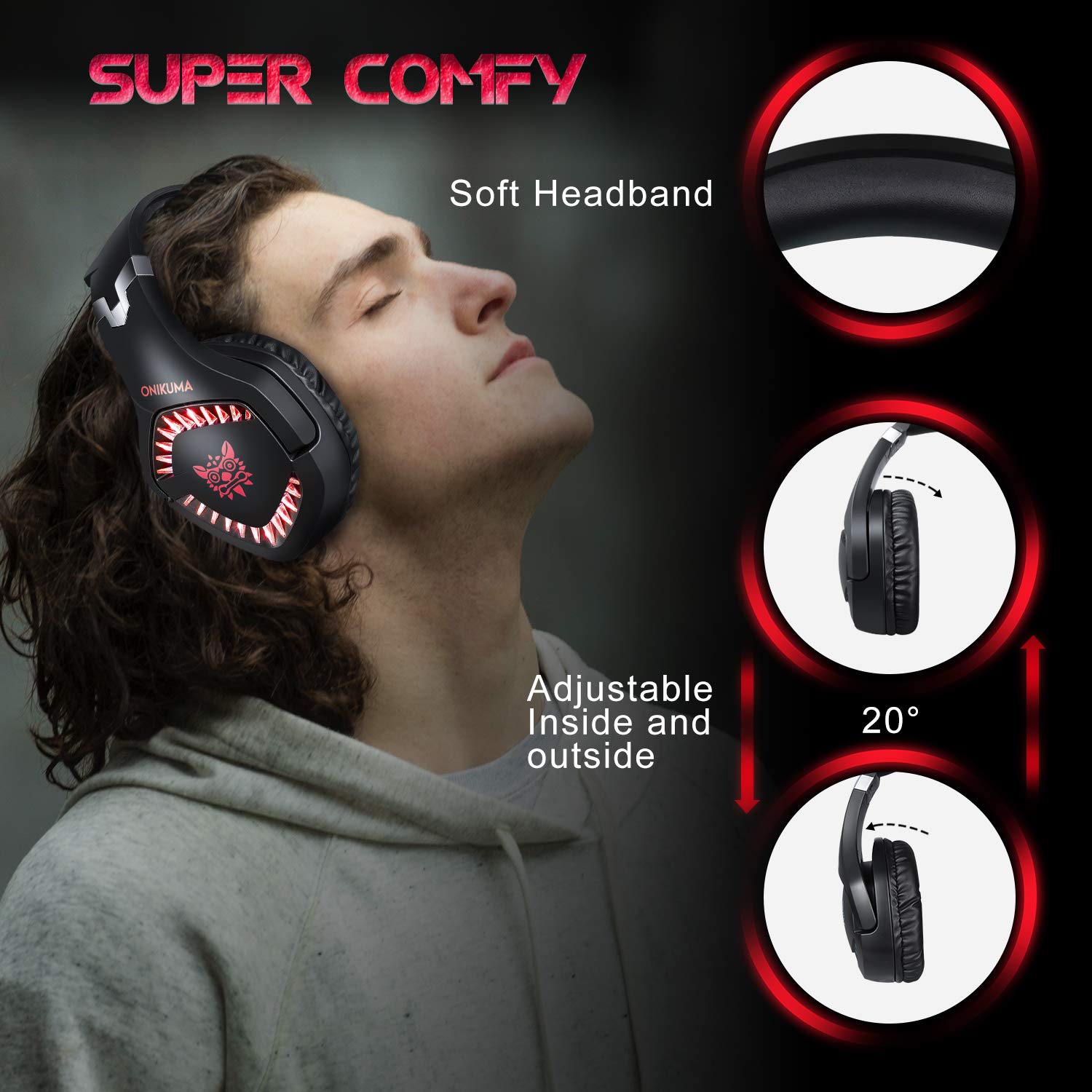
Image 4.3: Details on the headset's comfort features, including the soft headband and adjustable earcups.

Image 4.4: Illustration of the headset's ergonomic and durable design, featuring a steel beam and robust construction.
5. Maintenance
Proper care will extend the lifespan of your headset.
- Cleaning: Use a soft, dry cloth to wipe the headset. For ear cushions, a slightly damp cloth can be used, but ensure no moisture enters the speaker grilles. Avoid harsh chemicals or abrasive cleaners.
- Storage: Store the headset in a cool, dry place away from direct sunlight and extreme temperatures. Avoid placing heavy objects on the headset.
- Cable Care: Do not pull on the cables forcefully. Always grasp the plug when disconnecting. Avoid sharp bends or kinks in the cable.
6. Troubleshooting
If you encounter issues with your headset, refer to the following common solutions:
6.1 No Sound from Headset
- Check Connections: Ensure the 3.5mm audio jack is fully inserted into the correct port on your device or PC adapter.
- Volume Level: Verify that the volume wheel on the inline control is turned up and that your device's volume is not muted or set too low.
- Device Settings: For PCs, check your sound settings to ensure the headset is selected as the default playback device. For consoles, verify audio output settings (e.g., "Output to Headphones" set to "All Audio" on PS4/PS5).
- Test on Another Device: Connect the headset to a different device (e.g., a smartphone) to determine if the issue is with the headset or the original device.
6.2 Microphone Not Working
- Check Mute Switch: Ensure the microphone mute switch on the inline control is in the "unmuted" position.
- Check Connections: For PCs, ensure the microphone jack (red) from the PC adapter is correctly plugged into the microphone input port. For consoles/laptops with combo jacks, ensure the single 3.5mm jack is fully inserted.
- Device Settings: Verify that the headset microphone is selected as the default recording device in your computer's sound settings or console's audio settings. Adjust microphone input levels as necessary.
- Application Settings: Check microphone settings within the specific game or communication application you are using.
6.3 LED Lights Not Functioning
- USB Connection: Ensure the USB plug is securely connected to an active USB port on your PC, console, or a USB power adapter. The LEDs require USB power to operate.
- Power Source: Try connecting the USB to a different USB port or power source to rule out a faulty port.
7. Specifications
| Speaker Diameter | 50mm |
| Impedance | 20ohm ±15% |
| Sensitivity | 117±3dB |
| Frequency Range | 20-20000Hz |
| Mic Sensitivity | -38dB ±3dB |
| Mic Impedance | 2.2kohm |
| Directivity | Omni-directional |
| LED Working Voltage | DC5V ±5% |
| Cable Length | Approx. 2.2m / 7.22ft |
| Product Dimensions (LxWxH) | 21.3 x 8 x 21.5 cm |
| Item Weight | 300 g |
8. Warranty Information
The ONIKUMA K1B PRO Stereo Gaming Headset comes with a 1-Year Limited Warranty from the date of purchase. This warranty covers manufacturing defects and workmanship under normal use. It does not cover damage caused by misuse, accidents, unauthorized modifications, or normal wear and tear. Please retain your proof of purchase for warranty claims.
9. Support
For technical assistance, warranty claims, or any other inquiries regarding your ONIKUMA K1B PRO headset, please contact the manufacturer's support team:
- Phone: 022 40224087
- Email: service@originmarketing.in
- Manufacturer: ONIKUMA (via Origin Marketing Private Limited)


