
1. Introduction
1.1 Product Overview
The Dacom GF7 TWS (True Wireless Stereo) Bluetooth Headset offers a compact and lightweight audio solution. Designed for wireless freedom, these earbuds feature Bluetooth 4.2 technology for stable connectivity and clear sound. The intelligent charging case provides convenient power on the go, ensuring your earbuds are ready when you are.

Image: Dacom GF7 TWS True Wireless Bluetooth Headset, showing both earbuds securely placed within their charging case. The case is open, revealing the earbuds and charging indicators.
1.2 What's in the Box
Please check the package contents upon unboxing:
- 2 x Dacom GF7 Headsets (Main and Subsidiary Earbuds)
- 1 x Charging Box
- 1 x USB Charging Cable
- 2 x Earbud Tips (Pairs)
- 1 x Carry Bag
- 1 x User Manual (This document)
2. Safety Information
- Do not expose the device to extreme temperatures or humidity.
- Avoid dropping or subjecting the device to strong impacts.
- Do not disassemble or attempt to repair the device yourself. This will void the warranty.
- Keep the device away from water and other liquids.
- Use only the provided charging cable and a compatible power source.
- Prolonged exposure to loud sounds may cause hearing damage. Adjust volume to a moderate level.
3. Setup
3.1 Charging the Headset and Charging Box
Before first use, fully charge both the earbuds and the charging box.
- Place the earbuds into the charging box. Ensure they are correctly seated to initiate charging.
- Connect the USB charging cable to the charging box's port and the other end to a USB power adapter (not included) or a computer's USB port.
- The indicator lights on the charging box and earbuds will show charging status. Refer to the image below for visual guidance.
- Once fully charged, disconnect the charging cable.
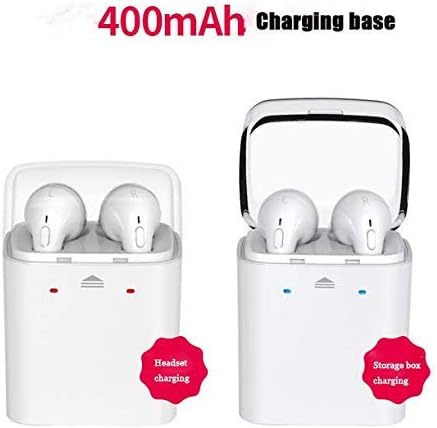
Image: Illustration of the Dacom GF7 TWS charging process. The left side shows earbuds charging within the case, indicated by red lights. The right side shows the charging case itself being charged, indicated by blue lights, with a label for its 400mAh capacity.
3.2 Pairing with a Bluetooth Device
The Dacom GF7 uses True Wireless Technology for seamless pairing. Follow these three steps:
- Step 1: Power On
Remove both earbuds from the charging box. They will automatically power on and attempt to connect to each other. You will hear an audible prompt indicating they are connected. - Step 2: Activate Bluetooth
On your smartphone or Bluetooth-enabled device, go to the Bluetooth settings and ensure Bluetooth is turned on. - Step 3: Connect
Search for available devices. Select "GF7" (or similar, e.g., "Dacom GF7") from the list. Once connected, you will hear a confirmation prompt.
Note: If pairing fails, place the earbuds back into the charging case, close the lid, then reopen and try again. For single earbud use, simply remove one earbud from the case and pair it as described above.
4. Operating Instructions
4.1 Multi-functional Button Controls
Each earbud features a multi-functional button for easy control of music and calls.

Image: A close-up of a hand interacting with the multi-functional button on a Dacom GF7 TWS earbud, illustrating how to press the button for control.
| Function | Action |
|---|---|
| Power On | Remove from charging case (automatic) or long press button. |
| Power Off | Place in charging case (automatic) or long press button. |
| Play/Pause Music | Single press button. |
| Answer/End Call | Single press button during an incoming call or active call. |
| Reject Call | Long press button during an incoming call. |
| Next Track | Double press button (may vary by earbud/device). |
| Volume Control | Volume is controlled via the connected device. |
4.2 Wearing the Earbuds
Gently insert the earbuds into your ears. Adjust them for a comfortable and secure fit. The correct fit helps optimize sound quality and noise isolation.
5. Maintenance
5.1 Cleaning
- Use a soft, dry, lint-free cloth to clean the earbuds and charging case.
- Do not use abrasive cleaners, alcohol, or chemical solvents.
- Regularly clean the earbud tips and charging contacts to ensure proper function and hygiene.
5.2 Storage
When not in use, store the earbuds in their charging case to protect them and keep them charged. Store the device in a cool, dry place, away from direct sunlight and extreme temperatures.
6. Troubleshooting
| Problem | Possible Solution |
|---|---|
| Earbuds not pairing with each other. | Place both earbuds back into the charging case, close the lid, wait a few seconds, then remove them again. They should automatically connect. |
| Earbuds not connecting to device. |
|
| No sound or low volume. |
|
| Charging issues. |
|
7. Specifications
| Feature | Detail |
|---|---|
| Model | GF7 |
| Bluetooth Version | V4.2 |
| Driver Size | 8mm |
| Impedance | 16 ohms |
| Working Voltage | 3.2V-4.2V |
| Sensitivity | -42dB ± 2dB |
| Frequency Range | 2.4-2.48GHz |
| Wireless Distance | <10m (open space) |
| Bluetooth Profiles | A2DP/AVRCP |
| Compatibility | Bluetooth-enabled devices |
| Charging Case Capacity | 400mAh |
| Noise Control | Active Noise Cancellation (Note: Feature listed in specifications, actual performance may vary.) |
8. Warranty and Support
8.1 Warranty Information
Dacom products are designed and manufactured to the highest quality standards. For specific warranty terms and conditions, please refer to the warranty card included with your purchase or contact Dacom customer support. The warranty typically covers manufacturing defects for a specified period from the date of purchase.
8.2 Customer Support
If you encounter any issues or have questions regarding your Dacom GF7 TWS Headset, please contact Dacom customer support. Contact information can usually be found on the official Dacom website or on the product packaging.


