
Epson EP-882AW
Epson EP-882AW Inkjet Multifunction Printer User Manual
Model: EP-882AW
1. Introduction
This manual provides essential information for the safe and efficient use of your Epson EP-882AW Inkjet Multifunction Printer. It covers setup, operation, maintenance, and troubleshooting. Please read this manual thoroughly before using the product and keep it for future reference.
The Epson EP-882AW is an A4 color multifunction printer from the Colorio series. It features a compact design and utilizes 6-color dye ink for high-quality photo and document printing. Key functionalities include copying, scanning, and printing.
2. Safety Information
Always follow these basic safety precautions to reduce the risk of fire, electric shock, or injury:
- Do not attempt to service the product yourself. Refer all servicing to qualified service personnel.
- Use only the power cord supplied with the product.
- Do not place the product in a location where it may be exposed to water or moisture.
- Ensure the product is placed on a stable, flat surface.
- Keep the product away from heat sources and direct sunlight.
3. Package Contents
Verify that all items are included in the box:
- Epson EP-882AW Printer Unit
- Setup Ink Cartridges (6 colors)
- Software Disc
- User Guide (this manual)
- Disc Tray
- Power Cord
- Warranty Card
4. Setup
4.1 Unpacking and Placement
Carefully remove the printer from its packaging. Remove all protective tapes and materials. Place the printer on a flat, stable surface with adequate space around it for ventilation and operation.

Image: Front view of the Epson EP-882AW printer, showcasing its compact white design and central touch panel.
4.2 Power Connection
Connect the supplied power cord to the printer's power input and then to a wall outlet. Press the power button to turn on the printer.
4.3 Ink Cartridge Installation
Follow the on-screen instructions on the printer's 4.3-inch touch panel to install the setup ink cartridges. Ensure each cartridge is inserted into its correct color slot until it clicks into place.
4.4 Software Installation
Insert the software disc into your computer's CD/DVD drive and follow the on-screen instructions to install the printer drivers and utility software. Alternatively, download the latest software from the official Epson support website.
4.5 Network Connection
The EP-882AW supports wired LAN, wireless LAN (Wi-Fi), and USB connections.
4.5.1 Wi-Fi Connection
On the printer's touch panel, navigate to the Wi-Fi setup menu. Select your network and enter the password. The printer also supports easy connection via QR code for smartphones.

Image: A smartphone screen displaying a QR code for quick Wi-Fi connection to the Epson printer, simplifying the setup process.
Example Wi-Fi connection details (for reference, actual details will vary): WIFI:S:DIRECT-FEDCBA98;T:WPA;P:12345678;;
4.5.2 USB Connection
Connect the printer to your computer using a USB cable (not included). The necessary drivers will be installed automatically or can be installed manually using the software disc.
5. Operating Instructions
The EP-882AW features a 4.3-inch wide touch panel for intuitive operation.

Image: The Epson EP-882AW printer positioned on a wooden shelf, demonstrating its compact and space-saving design.
5.1 Loading Paper
The printer features a front two-stage paper feed, allowing two types of frequently used paper (e.g., plain paper and photo paper) to be loaded simultaneously. There is also a rear single-sheet manual feed for specialty media.
5.2 Printing Documents and Photos
From your computer or smartphone, select the print function in your application. Choose the Epson EP-882AW as your printer, adjust print settings (paper size, type, quality), and initiate printing. The printer supports automatic duplex printing for two-sided documents.

Image: A composite image illustrating the Epson EP-882AW's capabilities: printing a document, utilizing the front paper feed, printing on a disc label, and direct printing from an SD card or USB memory.
5.3 Copying
Place the document face down on the scanner glass. On the printer's touch panel, select the 'Copy' function. Adjust settings such as number of copies, color/mono, and paper size, then press 'Start'.
5.4 Scanning
Place the document face down on the scanner glass. On the printer's touch panel, select the 'Scan' function. Choose your scan destination (e.g., computer, cloud service, memory card) and settings, then press 'Start'.
5.5 Direct Printing from Memory Card/USB
Insert an SD memory card or USB memory device into the designated slot on the printer. Use the touch panel to browse and select photos or documents for direct printing.
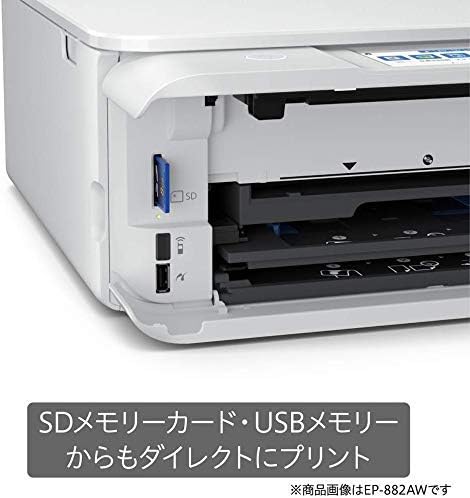
Image: A close-up view of the Epson EP-882AW's side panel, showing the slots for an SD memory card and a USB memory stick, enabling direct printing without a computer.
5.6 Disc Label Printing
Attach the disc tray to the printer as instructed. Use the software provided or the printer's touch panel to design and print directly onto compatible CDs/DVDs.

Image: The Epson EP-882AW printer actively printing a label onto a CD/DVD using its dedicated disc tray, highlighting its disc label printing capability.
5.7 Using Epson Smart Panel App
Download the Epson Smart Panel app on your smartphone or tablet. This app allows you to control the printer remotely, print, scan, and check printer status.

Image: A person using the Epson Smart Panel app on a smartphone to control the Epson EP-882AW printer, which is visible in the background on a shelf.
6. Maintenance
6.1 Cleaning the Printer
Regularly wipe the exterior of the printer with a soft, damp cloth. Clean the scanner glass with a lint-free cloth and glass cleaner. Avoid using abrasive cleaners.
6.2 Replacing Ink Cartridges
When an ink cartridge is low or empty, a message will appear on the touch panel. Follow the on-screen instructions to replace the individual ink cartridge. Use genuine Epson ink cartridges for optimal performance.
6.3 Replacing the Maintenance Box
The EP-882AW features a replaceable maintenance box that collects waste ink. When the maintenance box is full, a message will appear. Refer to the printer's on-screen guide or the full user manual for instructions on how to replace it.
7. Troubleshooting
This section addresses common issues you might encounter.
7.1 Printer Not Responding
- Check if the printer is powered on.
- Verify all cables (power, USB, LAN) are securely connected.
- Ensure the printer is connected to the correct Wi-Fi network.
- Restart both the printer and your computer/device.
7.2 Poor Print Quality
- Check ink levels and replace any low or empty cartridges.
- Perform a nozzle check and head cleaning using the printer's utility software or touch panel.
- Ensure you are using appropriate paper settings for your print job.
7.3 Paper Jams
- Turn off the printer and carefully remove any jammed paper from the paper trays or output slot.
- Ensure paper is loaded correctly and not over the maximum fill line.
- Use paper that meets the printer's specifications.
8. Specifications
| Feature | Specification |
|---|---|
| Model Name | EP-882AW |
| Functions | Print, Copy, Scan |
| Print Technology | Inkjet (6-color dye ink) |
| Maximum Print Resolution (Color) | 4800 x 1200 dpi |
| Maximum Print Resolution (Monochrome) | 600 dpi |
| Maximum Paper Size | A4 (8.5 x 11 inches) |
| Duplex Printing | Automatic |
| Paper Feed | Front 2-stage, Rear 1-sheet manual |
| Scanner Type | Photo |
| Operation Method | 4.3-inch Wide Touch Panel |
| Connectivity | Wired LAN, Wireless LAN (Wi-Fi), USB |
| Compatible Devices | Smartphone, Computer |
| Product Dimensions (W x D x H) | 34.9 x 34 x 14.2 cm |
| Item Weight | 8.36 kg |
| Color | White |
9. Warranty and Support
9.1 Warranty Information
Your Epson EP-882AW printer comes with a limited warranty. Please refer to the warranty card included in your package for specific terms, conditions, and duration of coverage. Keep your purchase receipt as proof of purchase for warranty claims.
9.2 Customer Support
For technical assistance, troubleshooting beyond this manual, or warranty service, please contact Epson customer support. Visit the official Epson website for contact information, FAQs, and driver downloads.
Official Epson Support Website: www.epson.com/support
Related documentsEP-882AW


Ask a question about this manual
Ask about setup, troubleshooting, compatibility, parts, safety, or missing instructions. Manuals+ will review the question and use this page’s manual context to help answer it.