
1. Introduction
This manual provides essential information for the setup, operation, maintenance, and troubleshooting of your ViewSonic VX2758-2KP-MHD 27-inch WQHD 144Hz IPS Gaming Monitor. Please read this manual thoroughly before using the product to ensure optimal performance and safety.
The ViewSonic VX2758-2KP-MHD is designed for gaming and entertainment, offering a 27-inch WQHD (2560x1440p) IPS panel with a 144Hz refresh rate and 1ms (MPRT) response time. It features AMD FreeSync Premium technology to reduce screen tearing and stuttering, and includes Eye Care features for extended viewing comfort. Connectivity options include HDMI and DisplayPort.

2. Package Contents
Verify that all items listed below are included in your product package. If any items are missing or damaged, please contact your retailer or ViewSonic customer support.
- LCD Monitor (ViewSonic VX2758-2KP-MHD)
- Power Cable
- HDMI Cable
- Audio Cable
- Quick Start Guide

3. Setup
3.1 Assembling the Stand
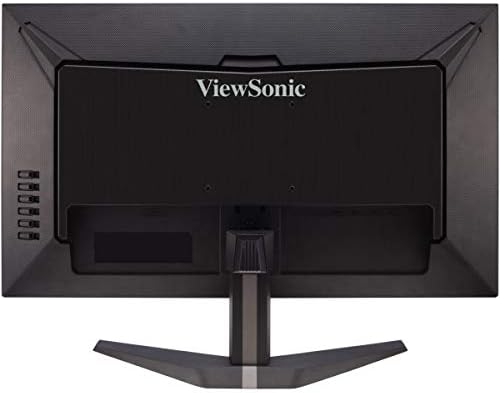
Carefully remove the monitor from its packaging. Attach the stand base to the stand neck, then secure the assembled stand to the back of the monitor. Ensure all screws are tightened appropriately to prevent instability.
3.2 Connecting the Monitor
Connect the monitor to your computer or other video source using the appropriate cables. The VX2758-2KP-MHD supports HDMI and DisplayPort connections.
- Power Connection: Connect the power cable to the monitor's power input and then to a power outlet.
- Video Connection: Use either an HDMI cable or a DisplayPort cable to connect your computer's graphics card to the corresponding port on the monitor. For optimal performance, especially at 144Hz and WQHD resolution, a DisplayPort connection is recommended.
- Audio Connection: If you wish to use external speakers or headphones, connect the audio cable from the monitor's audio output to your audio device.

4. Operating the Monitor
4.1 Power On/Off
Press the power button located on the bottom right side of the monitor to turn it on or off. The power indicator light will illuminate when the monitor is on.
4.2 On-Screen Display (OSD) Menu
The OSD menu allows you to adjust various monitor settings. Use the control buttons on the right side of the monitor to navigate the menu.
- Press the menu button to open the OSD.
- Use the up/down buttons to navigate through menu options.
- Press the select button to enter a sub-menu or confirm a selection.
- Press the exit button to go back or close the OSD.

4.3 Key Features and Settings
- Input Select: Choose between HDMI 1, HDMI 2, or DisplayPort inputs.
- ViewMode: Select from various preset display modes optimized for different content types (e.g., Standard, Game, Movie, Web, Text, Mono).
- Color Adjust: Fine-tune brightness, contrast, color temperature, and gamma settings.
- Audio Adjust: Control volume and mute settings for the integrated speakers or audio output.
- Game Mode: Access specific game modes (FPS, RTS, MOBA) for optimized visual settings.
- FreeSync Premium: Enable or disable AMD FreeSync Premium for tear-free gaming. Ensure your graphics card supports FreeSync and is connected via DisplayPort or compatible HDMI.
- Response Time (MPRT): Adjust the monitor's response time for reduced motion blur. The 1ms MPRT setting provides the fastest response.

The following video provides an overview of the ViewSonic VX58 Series, which includes the VX2758-2KP-MHD, showcasing its features and benefits for an incredible gaming experience.
5. Maintenance
5.1 Cleaning the Monitor
To clean the monitor screen, gently wipe it with a soft, lint-free cloth. For stubborn marks, lightly dampen the cloth with water or a mild, non-abrasive screen cleaner. Avoid using harsh chemicals, alcohol, or ammonia-based cleaners, as these can damage the screen surface.
5.2 General Care
Keep the monitor in a well-ventilated area. Avoid exposing it to direct sunlight, excessive heat, or moisture. Do not block the ventilation openings on the monitor. When moving the monitor, handle it carefully to prevent damage.
6. Troubleshooting
If you encounter issues with your monitor, refer to the following common problems and solutions:
- No Power: Ensure the power cable is securely connected to both the monitor and a working power outlet. Check if the power indicator light is on.
- No Signal: Verify that the video cable (HDMI or DisplayPort) is correctly connected to both the monitor and your computer. Ensure the correct input source is selected in the OSD menu.
- Image Flickering: This can sometimes be related to cable quality, graphics card drivers, or FreeSync settings. Try using a different, high-quality DisplayPort cable. Update your graphics card drivers. Experiment with FreeSync settings (on/off) or different overdrive settings in the OSD.
- Incorrect Resolution/Refresh Rate: Check your computer's display settings to ensure the resolution is set to 2560x1440 and the refresh rate to 144Hz. Ensure your video cable and graphics card support these settings.
- Poor Image Quality: Adjust brightness, contrast, and color settings in the OSD menu. Ensure the monitor is set to its native resolution.
If the problem persists after trying these steps, please contact ViewSonic customer support.
7. Specifications
Below are the key technical specifications for the ViewSonic VX2758-2KP-MHD monitor:
| Feature | Specification |
|---|---|
| Brand | ViewSonic |
| Model Number | VX2758-2KP-MHD |
| Screen Size | 27 Inches |
| Screen Resolution | WQHD (2560x1440) |
| Max Screen Resolution | 2560 x 1440 Pixels |
| Refresh Rate | 144Hz |
| Response Time | 1ms (MPRT) |
| Panel Type | IPS |
| Aspect Ratio | 16:9 |
| Connectivity | HDMI, DisplayPort |
| Features | FreeSync Premium, Eye Care (Flicker-Free, Blue Light Filter) |
| Item Weight | 11.66 pounds |
| Product Dimensions | 24.2 x 17.7 x 7.4 inches |

8. Warranty and Support
8.1 Warranty Information
ViewSonic products are manufactured to the highest standards and deliver high-quality performance. For specific warranty details regarding your VX2758-2KP-MHD monitor, please refer to the warranty card included in your product package or visit the official ViewSonic website.
8.2 Customer Support
If you require technical assistance or have questions about your monitor, please contact ViewSonic customer support. Contact information can typically be found on the ViewSonic website or in the Quick Start Guide provided with your product.


