
1. Introduction
The YANZEO SR360 is a versatile desktop UHF RFID Card Reader Writer designed for efficient data management in various environments. It supports a frequency range of 865Mhz to 915Mhz and offers keyboard emulation output, making it compatible with Windows, Android, iOS, and Linux operating systems. Its compact size allows for easy desktop deployment, saving valuable space.
Key Features:
- Works with Windows, Android, iOS, Linux with Keyboard Emulation Output.
- Enables quick writing and reading of tag information.
- Supports ASCII prefix and suffix output settings, allowing for custom development.
- Small size for convenient desktop deployment.
2. Setup Guide
2.1 Package Contents
Upon unboxing your YANZEO SR360, verify that all components are present:
- YANZEO SR360 UHF RFID Reader Writer unit
- USB Type-C cable
- USB Type-C to USB-A adapter
- UHF Test Card
- User Manual

Figure 2.1: YANZEO SR360 unit with included USB cable.
2.2 Connecting the Device
The YANZEO SR360 supports multiple connectivity options for flexibility:
- USB Connection: Connect the provided USB Type-C cable to the device and the USB-A end to your computer or mobile device using the adapter if necessary. The device will be recognized as a keyboard input.
- Bluetooth Connection: For wireless operation, enable Bluetooth on your host device and pair with the SR360.

Figure 2.2: YANZEO SR360 connected to a laptop via USB cable.
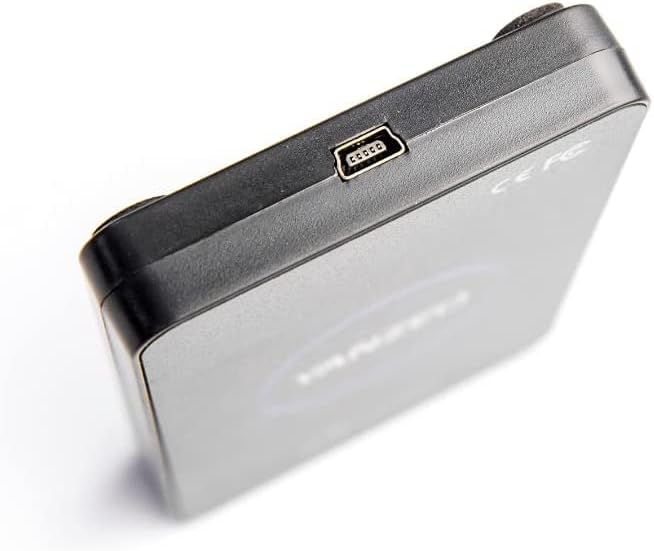
Figure 2.3: Close-up view of the USB Type-C port on the YANZEO SR360.
2.3 Software/App Installation
For full functionality, install the dedicated software/app:
- For Mobile Devices (Android/iOS): Download the RFID app from the respective app store or by scanning the QR code provided in the user manual.
- For Computers (Windows/Linux): Install the provided demo software from the included CD or download it from the manufacturer's website.
Video 2.1: Demonstrates connecting the YANZEO SR360 to a mobile phone and a laptop, showcasing basic app functions and software installation.
3. Operating Instructions
3.1 Reading RFID Tags
Once connected and the software/app is running, navigate to the 'Tag Operations' or 'Inventory' section. Place an RFID tag near the device's sensing area to read its EPC (Electronic Product Code) and TID (Tag Identifier) data. The device features fast reading speed.

Figure 3.1: YANZEO SR360 demonstrating fast reading speed with an RFID tag.
3.2 Writing RFID Tags
In the 'Write' section of the software/app, you can input new data (e.g., EPC, User Data) and write it to a compatible RFID tag. Ensure the tag is within the reading/writing range and follow the on-screen prompts.
3.3 Tag Binding and Management
The software/app allows you to bind specific items to RFID tags, facilitating inventory management and asset tracking. You can also search for bound tags and manage their associated data.
Video 3.1: Overview of the YANZEO SR360's functions, including reading, writing, and tag management within the mobile application.
3.4 Keyboard Emulation Output
When connected via USB, the SR360 can output read tag data directly as keyboard input. This feature is useful for quickly entering tag information into any text field or application that accepts keyboard input.
- Ensure the 'USB keyboard' function is enabled in the device settings within the app/software.
- You can configure prefixes, suffixes (e.g., Space, Enter), and encoding (e.g., Hex, EPC, TID) for the output.
- Note: USB communication functions and USB keyboard functions are mutually exclusive. If one is active, the other cannot be used simultaneously.
4. Maintenance
- Keep the device clean and free from dust. Use a soft, dry cloth for cleaning.
- Avoid exposing the device to extreme temperatures, humidity, or direct sunlight.
- Do not attempt to disassemble or repair the device yourself, as this will void the warranty.
5. Troubleshooting
- Device not recognized: Ensure the USB cable is securely connected and try a different USB port. For Bluetooth, ensure it's enabled and paired correctly.
- Unable to read tags: Check that the tag is compatible with UHF RFID standards (ISO18000-6B/6C). Ensure the tag is placed correctly within the reading range. Verify antenna power settings in the software.
- Reading errors: Environmental interference can affect performance. Try moving away from other electronic devices or metal objects.
- Software/App issues: Ensure you have the latest version of the software/app installed. Restart the application or your device.
6. Specifications
| Feature | Detail |
|---|---|
| Item Model Number | SR360 |
| Operating System Compatibility | Windows, Android, iOS, Linux |
| Connectivity Technology | USB |
| Item Weight | 5.3 ounces |
| Package Dimensions | 4.9 x 3.4 x 0.8 inches |
| Voltage | 12 Volts |
| Special Feature | Compact |

Figure 6.1: YANZEO SR360 with key dimensions (10.4cm x 6.5cm x 1.4cm).
7. Warranty and Support
This YANZEO SR360 device comes with a standard manufacturer's warranty. Please refer to the warranty card included in your package for specific terms and conditions. For technical support, troubleshooting assistance, or warranty claims, please contact YANZEO customer service through their official website or the contact information provided in the user manual.


