
1. Introduction
Thank you for choosing the Kungfuking Surge Protector Power Strip with USB Ports. This device is designed to provide convenient power access and surge protection for your electronic devices. It features two AC outlets and two USB ports, along with a 6.56 ft extension cord and a flat plug for versatile placement. This manual provides essential information for safe installation, operation, and maintenance of your power strip.

Figure 1: Kungfuking Surge Protector Power Strip (Model: Kungfuking 2AC+2USB)
2. Important Safety Instructions
Please read and understand all safety instructions before using this product. Failure to follow these instructions may result in electric shock, fire, or serious injury.
- DO NOT exceed the electrical ratings of 120V, 12A, 60Hz, and 2.1A for USB ports.
- DO NOT use in wet environments or near water.
- DO NOT disassemble or modify the device.
- DO NOT use with aquariums or other water-related products.
- DO NOT plug into another relocatable power tap.
- DO NOT use if the cord or plug is damaged.
- Keep out of reach of children.
- Ensure the plug is fully inserted into the wall outlet.
- This product is for indoor use only.
3. Product Features
The Kungfuking Surge Protector Power Strip is designed for convenience and safety, offering multiple power options in a compact form factor.
- 2 AC Outlets: Provides standard power for electronic devices.
- 2 USB-A Ports: Delivers 5V/2.1A for charging smartphones, tablets, and other USB-powered devices.
- 6.56 FT Extension Cord: Offers flexibility in placement, reaching distant outlets.
- Flat Plug Design: Minimizes obstruction and allows furniture to be placed closer to the wall.
- Surge Protection: Protects connected devices from power surges and spikes.
- Durable Construction: Built with fireproof ABS+PC materials for enhanced safety.
- Mountable Design: Can be easily mounted on or under desks, walls, or other surfaces.

Figure 2: Key Features and Specifications

Figure 3: All-in-One Charging Station in use
4. Setup and Installation
The power strip can be installed in various locations to suit your needs. Mounting screws are included for secure installation.
4.1 Mounting Options
The power strip offers flexible mounting options:
- Under Desk/Table: Mount horizontally or vertically under a desk or table to keep surfaces clear.
- Wall Mount: Secure to a wall for convenient access, such as near a TV or bedside.
- Side of Cabinets/Headboards: Install vertically on the side of furniture for discreet power access.

Figure 4: Installation Options and Dimensions
4.2 Installation Steps
- Choose a Location: Select a flat, stable surface for mounting, ensuring it is within reach of a wall outlet and your devices.
- Mark Screw Holes: Place the power strip in the desired position and mark the locations for the mounting screws using a pencil.
- Drill Pilot Holes (Optional): For wood surfaces, you may pre-drill small pilot holes to prevent wood splitting.
- Secure the Power Strip: Use the provided screws to firmly attach the power strip to the surface. Ensure it is securely fastened before use.
- Connect to Power: Plug the power strip's flat plug into a standard 120V wall outlet. The flat plug design allows for placement behind furniture.
4.3 Example Installations
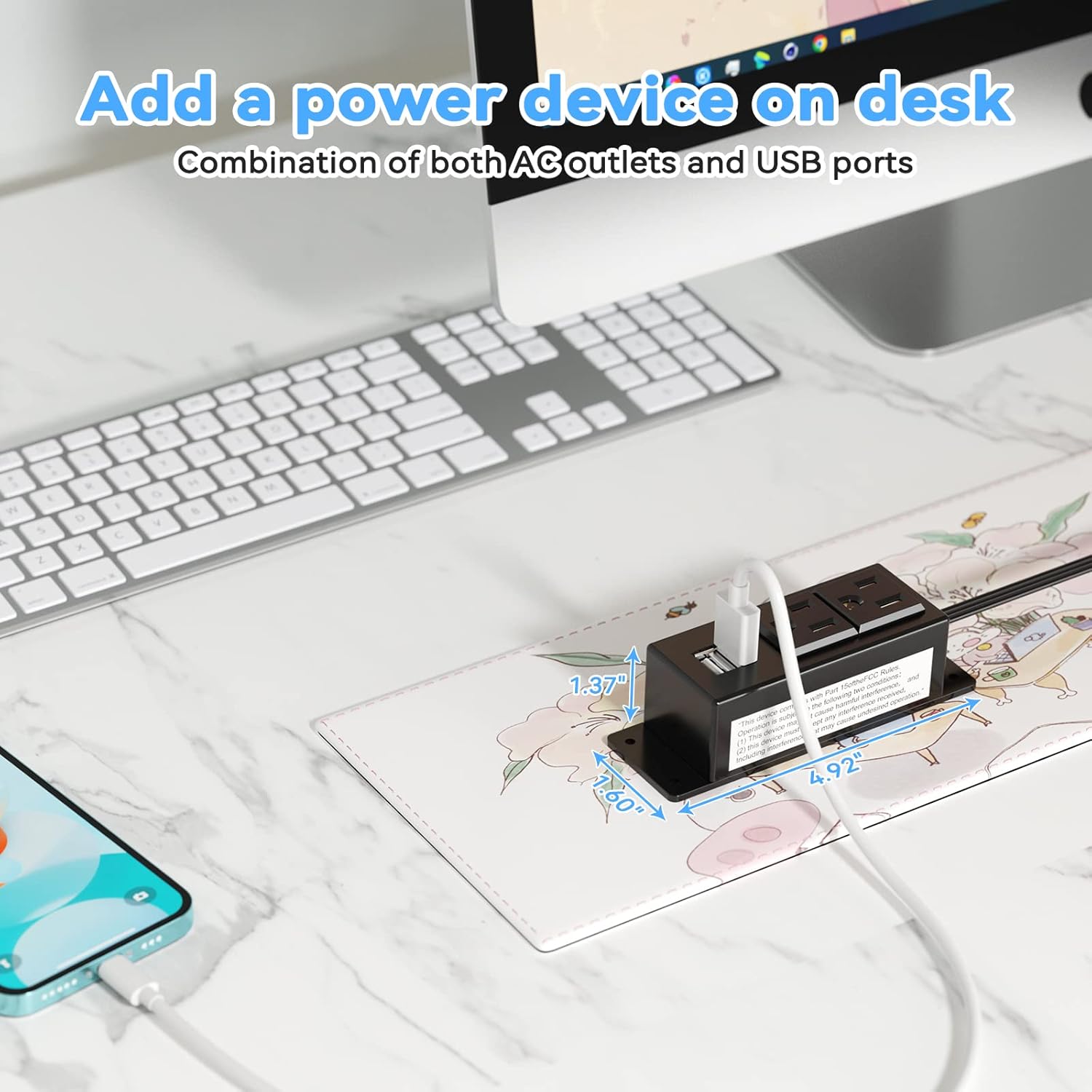
Figure 5: Desk Surface Installation

Figure 6: Under-Desk Installation

Figure 7: Wall-Mounted for TV

Figure 8: Nightstand Installation

Figure 9: Kitchen Cabinet Installation

Figure 10: Flat Plug for Space-Saving Placement
5. Operating Instructions
Using your Kungfuking Surge Protector Power Strip is straightforward:
- Plug into Wall Outlet: Ensure the power strip's flat plug is securely connected to a grounded 120V AC wall outlet.
- Connect AC Devices: Insert the power cords of your electronic devices into the two AC outlets.
- Connect USB Devices: Plug your USB charging cables into the two USB-A ports to charge compatible devices.
- Power On: The power strip is designed for continuous operation once plugged in. There is no on/off switch.
- Monitor Usage: Avoid overloading the power strip by ensuring the total power consumption of connected devices does not exceed the rated capacity (12A, 120V).
6. Troubleshooting
If you encounter issues with your power strip, refer to the following common problems and solutions:
| Problem | Possible Cause | Solution |
|---|---|---|
| No power from AC outlets or USB ports. |
|
|
| USB devices not charging. |
|
|
| Power strip feels hot. |
|
|
7. Specifications
| Feature | Detail |
|---|---|
| Model | Kungfuking 2AC+2USB |
| AC Outlets | 2 |
| USB Ports | 2 (USB-A) |
| Input Voltage | 120V AC |
| AC Current Rating | 12A |
| Frequency | 60Hz |
| USB Output | 5V / 2.1A (Total) |
| Cord Length | 6.56 FT (2 meters) |
| Plug Type | Flat Plug |
| Material | Fireproof ABS+PC |
| Dimensions (Approx.) | 4.92 x 3.74 x 1.37 inches (L x W x H) |
| Weight (Approx.) | 10.5 ounces |
| Special Features | Surge Protection, Mountable Design |
8. Maintenance
Proper maintenance ensures the longevity and safe operation of your power strip:
- Cleaning: Disconnect the power strip from the wall outlet before cleaning. Use a dry, soft cloth to wipe the exterior. Do not use liquid cleaners or sprays.
- Inspection: Periodically inspect the power cord, plug, and housing for any signs of damage, such as cuts, fraying, or cracks. If damage is found, discontinue use immediately.
- Storage: When not in use for extended periods, store the power strip in a cool, dry place away from direct sunlight and moisture.
9. Warranty and Support
Kungfuking products are designed for reliability and performance. For warranty information, technical support, or any questions regarding your product, please refer to the contact information provided at the point of purchase or visit the official Kungfuking website.
Please retain your proof of purchase for warranty claims.
