
1. Introduction
Thank you for purchasing the Bewinner Portable Remote Control. This device is designed to provide convenient control over your PC or laptop's media functions, allowing you to navigate applications, play media, and execute custom shortcuts from a distance. This manual provides detailed instructions for setup, operation, maintenance, and troubleshooting to ensure optimal performance.

The Bewinner Portable Remote Control is designed for ease of use and portability, allowing you to control your PC media from a comfortable distance.
2. Safety Information
Please read and follow these safety guidelines to prevent damage to the product or injury to yourself:
- Do not expose the remote control or USB receiver to water or excessive moisture.
- Avoid dropping the device or subjecting it to strong impacts.
- Do not attempt to disassemble or modify the remote control. This will void the warranty.
- Keep batteries out of reach of children. If swallowed, seek immediate medical attention.
- Dispose of used batteries according to local regulations.
- Ensure proper battery polarity when installing.
3. Package Contents
Verify that all items are present in your package:
- 1 x Bewinner Portable Remote Control
- 1 x USB Infrared Receiver
- Note: 2 x AAA batteries are NOT included and must be purchased separately.
4. Product Overview
The Bewinner Portable Remote Control features a slim design with various buttons for comprehensive PC control.

Front view of the remote control, highlighting its button layout.
Button Functions:
- Power Button: Turns the computer on or off (requires system configuration).
- Mouse Button: Activates/deactivates mouse mode for cursor control using directional keys.
- Directional Keys (Up, Down, Left, Right): Navigation in menus, web pages, or mouse cursor movement.
- Enter Button: Confirms selections.
- Volume Up/Down: Adjusts system volume.
- Mute: Mutes/unmutes audio.
- Play/Pause, Stop, Previous/Next Track: Media playback controls.
- Full Screen: Toggles full-screen mode for media players.
- My PC: Opens 'This PC' or 'My Computer'.
- Backspace: Performs a backspace action.
- Page Up/Down: Scrolls pages.
- Tab: Performs a tab action.
- Esc: Escapes current action or closes menus.
- Desktop: Minimizes all windows to show the desktop.
- Numlock: Toggles numeric keypad functionality.
- Numeric Keys (0-9): Input numbers.
- Custom Shortcut Keys (A, B, C, D): Programmable keys for launching applications.

Detailed view of the top section of the remote, including power and custom shortcut buttons.

Detailed view of the bottom section of the remote, showing numeric and function keys.
5. Setup
5.1. Battery Installation
- Locate the battery compartment on the back of the remote control.
- Slide the battery cover downwards to open it.
- Insert two AAA batteries, ensuring correct polarity (+ and -).
- Replace the battery cover by sliding it back into position until it clicks.
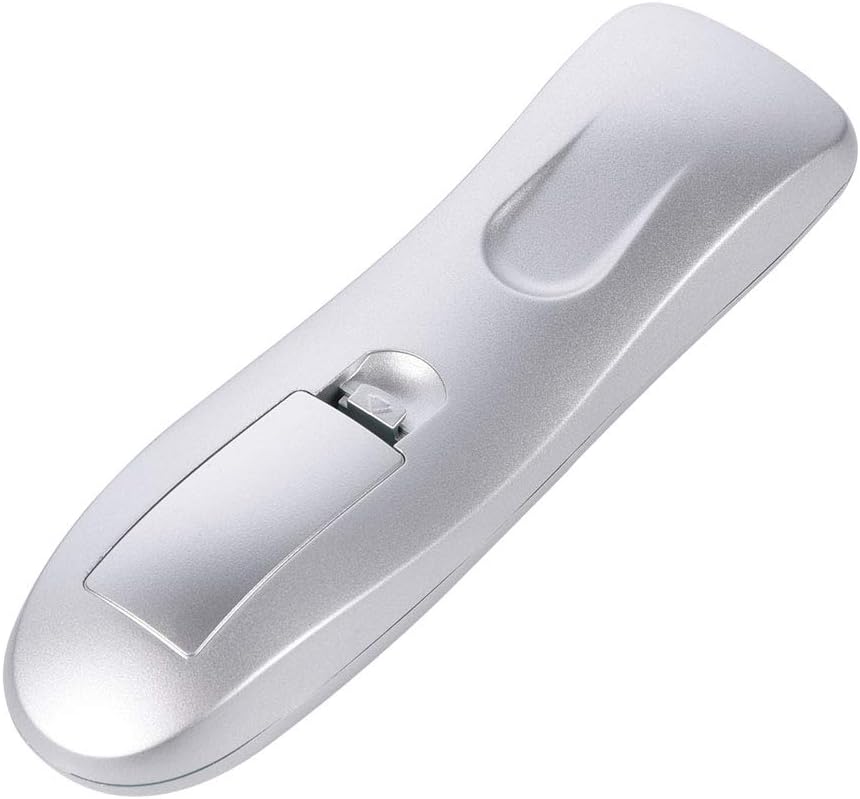
Open the battery compartment to insert batteries.

Ensure the battery cover is securely closed after installation.
5.2. Connecting the USB IR Receiver
- Locate an available USB port on your PC or laptop.
- Plug the USB Infrared Receiver into the USB port.
- The operating system (Windows 98/ME/XP/MCE/Vista/2000 and later) will automatically detect and install the necessary drivers. No manual driver installation is required.
- Once the drivers are installed, the remote control is ready for use.

The remote control and its accompanying USB Infrared Receiver.
6. Operating Instructions
6.1. Basic Control
- Direct Control: Most buttons (e.g., volume, media playback, page navigation) function directly without additional setup.
- Mouse Mode: Press the Mouse button to activate cursor control. Use the directional keys to move the cursor. Press the Mouse button again to exit mouse mode.
- Transmission Distance: The remote operates effectively up to 10 meters (approximately 33 feet) from the USB IR receiver. Ensure a clear line of sight between the remote and the receiver for optimal performance.

The remote control offers a transmission distance of up to 10 meters.
6.2. Customizing Shortcut Keys (A, B, C, D)
The remote features four customizable shortcut keys (A, B, C, D) that can be programmed to launch specific applications. Each shortcut key can be configured to start up to three programs.
To customize these keys, you will typically need to use a third-party software or the operating system's built-in shortcut management features. Refer to your operating system's documentation for detailed instructions on assigning custom shortcuts to applications.
6.3. Compatibility
The remote control is compatible with the following operating systems:
- Windows 98
- Windows ME
- Windows XP
- Windows MCE
- Windows Vista
- Windows 2000
- Later versions of Windows
It supports most common playback software, including but not limited to: WinDvd, RealPlayer, Winamp, MediaPlayer, PowerDvd, and web browsers like IE.
7. Maintenance
7.1. Cleaning
To clean the remote control, use a soft, dry cloth. Do not use liquid cleaners, aerosols, or solvents, as these may damage the device.
7.2. Battery Replacement
If the remote control's performance degrades or it stops responding, replace the AAA batteries. Refer to section 5.1 for battery installation instructions.
8. Troubleshooting
| Problem | Possible Cause | Solution |
|---|---|---|
| Remote is unresponsive. | Low or dead batteries. Incorrect battery polarity. USB receiver not properly connected. No line of sight. | Replace batteries. Check battery polarity. Ensure USB receiver is firmly plugged in. Ensure clear path between remote and receiver. |
| Mouse cursor movement is erratic or slow. | Weak signal. Obstruction between remote and receiver. | Move closer to the receiver. Remove any obstructions. Ensure direct line of sight. |
| Custom shortcut keys do not work. | Keys not programmed. Incorrect programming. | Refer to your operating system's documentation for programming custom shortcuts. Ensure the correct application path is set. |
| Remote works intermittently. | Interference. Low battery. | Ensure no other IR devices are causing interference. Replace batteries. |
9. Specifications
- Brand: Bewinner
- Model Name: Bewinnerrygza79bs3
- Connectivity Technology: Infrared
- Compatible Devices: Laptop, PC
- Maximum Range: 10 Meters
- Battery Type: 2 x AAA (not included)
- Button Quantity: 10 (including numeric and function keys)
- Special Feature: Universal control for PC media
- Supported Operating Systems: WIN98, WINME, WINXP, Windows MCE, Vista, WIN2000, and later Windows versions.
10. Warranty & Support
Bewinner products are manufactured with quality and performance in mind. If you encounter any issues with your Portable Remote Control, please contact our customer service team.
For product support, technical assistance, or warranty inquiries, please reach out to the seller or manufacturer through the platform where the product was purchased. Our professional customer service team is available to assist you with any questions or concerns.