
NETUM NT-M5S
NETUM 2D Barcode Scanner User Manual
Model: NT-M5S | Brand: NETUM
1. Introduction
This user manual provides comprehensive instructions for the NETUM 2D Barcode Scanner, Model NT-M5S. This device is designed for efficient and accurate scanning of both 1D and 2D barcodes from various surfaces, including paper and digital screens. It features a plug-and-play USB connection, making it compatible with a wide range of operating systems and applications. The scanner is ideal for use in retail, inventory management, libraries, and other point-of-sale environments.
2. Product Overview
The NETUM NT-M5S barcode scanner is a versatile tool equipped with advanced features to streamline your scanning operations. Its ergonomic design ensures comfortable use during extended periods.
Key Features:
- Plug and Play: Simple USB connection, no driver installation required for most systems.
- Excellent Decoding Ability: Capable of accurately decoding a wide range of 1D (UPC-A, EAN-13, Code 128, etc.) and 2D (QR Code, Data Matrix, PDF417, etc.) barcodes from labels, paper, and screens.
- Flexible Adjustable Stand: Includes a stand for hands-free scanning with auto-sensing mode.
- Multiple Configuration Functions: Customizable settings such as adding prefixes/suffixes, hiding characters, and adjusting case.
- Durable Design: Built for long-term use in various environments.
Product Components:




3. Setup
The NETUM NT-M5S barcode scanner is designed for quick and easy setup, allowing you to begin scanning almost immediately.
Connecting the Scanner:
- Assemble the Stand (Optional): If using the adjustable stand, connect the flexible arm to the base and then attach the scanner holder to the arm. Ensure all connections are secure.
- Connect to Computer: Plug the USB cable from the scanner into an available USB port on your laptop, desktop, or POS system.
- Driver Installation: The scanner is plug-and-play for most operating systems (Windows XP/7/8/10, Mac OS, Linux). Your computer should automatically detect and install the necessary drivers. For Mac OS with Type-C ports, a Type-C to USB converter cable is required.
- Ready for Use: Once the drivers are installed, the scanner is ready to use with applications like Word, Excel, Novell, and other common software.
Visual Guide for Setup:
This video demonstrates the assembly of the stand and the connection of the NETUM 2D QR Wired Barcode Scanner (Model M5S) to a computer, showcasing its plug-and-play functionality and ease of setup.
4. Operating Instructions
The NETUM NT-M5S offers flexible scanning modes to suit various operational needs.
Scanning Modes:
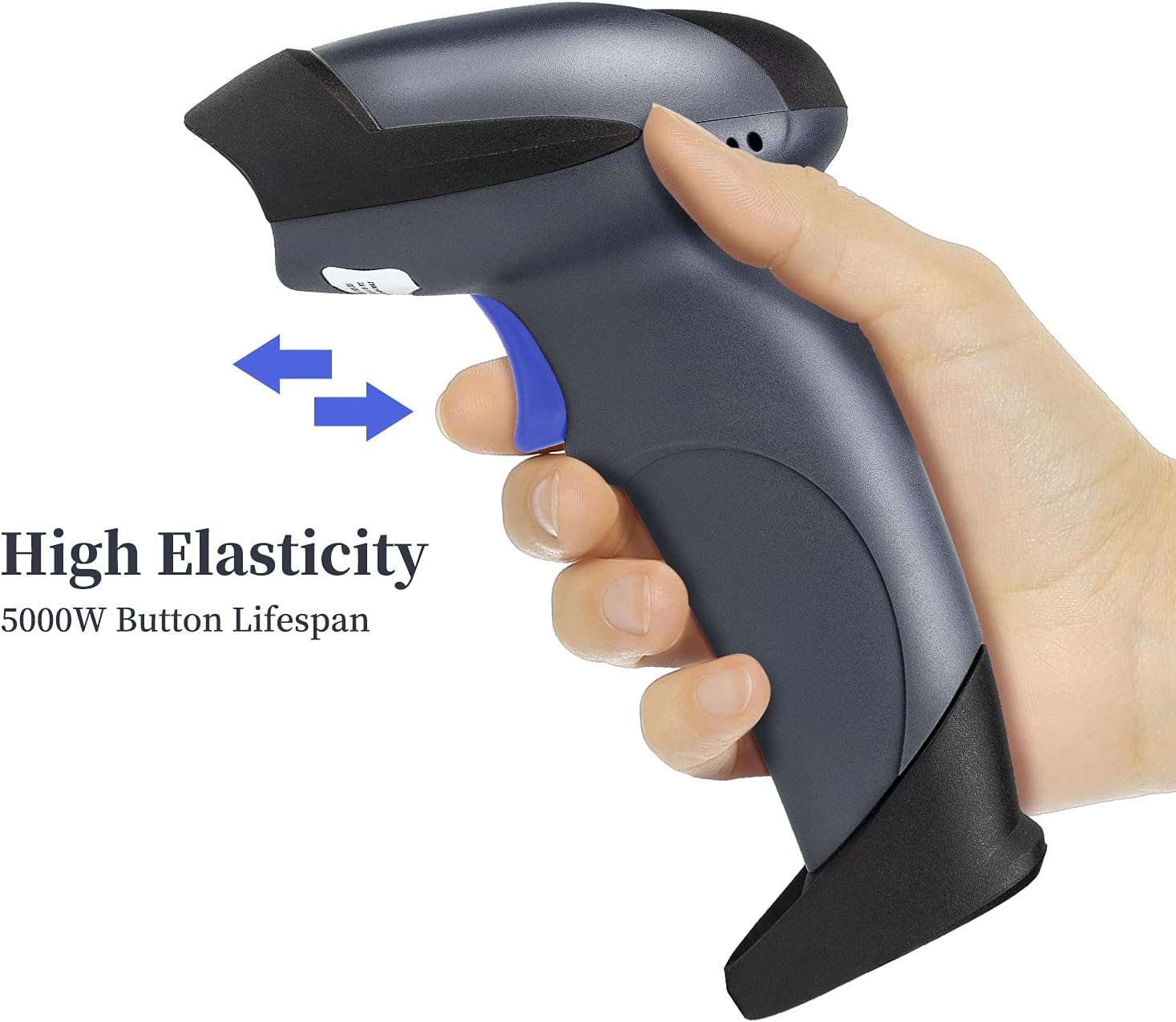
- Key Trigger Scanning: Press the trigger button to activate the scanner and read barcodes. This is the standard manual mode.
- Auto-Sensing Scanning: When placed on its stand, the scanner can automatically detect a barcode presented in its field of view and scan it without requiring a trigger press. This hands-free mode is ideal for high-volume scanning.
- Continuous Scanning: The scanner can be configured to continuously emit its scanning beam, allowing for rapid scanning of multiple items.
Decoding Capabilities:
The advanced CMOS sensor enables the scanner to accurately decode a wide array of barcode symbologies:
- 1D Barcodes: UPC-A, UPC-E, EAN-8, EAN-13, Code 128, Code 39, Code 93, Code 11, Interleaved 2 of 5, Matrix 2 of 5, Standard 2 of 5, Codabar, MSI Plessey, RSS, etc.
- 2D Barcodes: QR Code, Data Matrix, PDF417, Aztec code, Maxicode, etc.
It can scan barcodes on various surfaces, including printed labels, product packaging, and digital screens (e.g., mobile phones, tablets).
Customization:
The scanner supports various configuration options to tailor its output to your specific needs. These include:
- Adding prefixes or suffixes to scanned data.
- Hiding characters from the front or back of the scanned data.
- Adding keyboard keys (e.g., TAB, CR) to the scanning operation.
- Changing the case of characters (capital/lower case).
- Enabling or disabling specific barcode types.
Refer to the included quick start guide or the manufacturer's website for detailed instructions on configuring these advanced settings by scanning specific programming barcodes.
Demonstration of Operating Modes:
This video illustrates the manual trigger mode and auto-sense mode of the NETUM 2D QR Wired Barcode Scanner (Model M5S), demonstrating how to scan various items and barcode types efficiently.
5. Maintenance
Proper maintenance ensures the longevity and optimal performance of your NETUM barcode scanner.
- Cleaning: Regularly wipe the scanner's exterior with a soft, damp cloth. For the scanning window, use a lint-free cloth and a mild, non-abrasive cleaner. Avoid harsh chemicals or abrasive materials that could scratch the lens.
- Storage: Store the scanner in a cool, dry place away from direct sunlight and extreme temperatures. When not in use, it is recommended to place the scanner on its stand or in a protective case to prevent accidental damage.
- Cable Care: Avoid bending or twisting the USB cable excessively, as this can damage the internal wires. Do not pull the scanner by its cable.
- Drop Protection: The scanner features a drop-protection design for drops less than 1.5 meters. However, avoid unnecessary drops to maintain optimal performance.
6. Troubleshooting
If you encounter issues with your NETUM barcode scanner, refer to the following common troubleshooting steps:
| Problem | Possible Cause | Solution |
|---|---|---|
| Scanner not responding/no light. | USB cable not properly connected or power issue. | Ensure the USB cable is securely plugged into both the scanner and the computer. Try a different USB port. |
| Scanner not decoding barcodes. | Incorrect barcode type enabled, damaged barcode, or scanning distance. | Verify the barcode type is enabled in the scanner's settings. Ensure the barcode is not damaged or smudged. Adjust the scanning distance (up to 10 inches). |
| Scanned data is incorrect or incomplete. | Incorrect configuration settings (prefix/suffix, character hiding). | Refer to the programming guide to reset or reconfigure the scanner's output settings. |
| Scanner beeps but no data is transmitted. | Software application not in focus or not compatible. | Ensure the cursor is active in the desired input field of your application. Test with a simple text editor (e.g., Notepad) to confirm basic functionality. |
If the problem persists after attempting these solutions, please contact NETUM customer support for further assistance.
7. Specifications
| Feature | Detail |
|---|---|
| Model Number | NT-M5S |
| Product Dimensions | 8.3 x 5.7 x 4.4 inches |
| Item Weight | 1.28 pounds |
| Connectivity Technology | USB Cable |
| Power Source | Corded Electric |
| Compatible Devices | Laptops, Desktops, POS Systems |
| Decoding Capability | 1D (UPC-A, EAN-13, Code 128, etc.), 2D (QR Code, Data Matrix, PDF417, etc.) |
| Sensor | CMOS (640*480) |
| Motion Tolerance | 5 inches per second |
| Scanning Range | Up to 10 inches |
| Drop Protection | Less than 1.5 meters |
8. Warranty and Support
For information regarding the product warranty, please refer to the documentation included with your purchase or visit the official NETUM website. Standard warranty terms typically cover manufacturing defects for a specified period from the date of purchase.
For technical support, troubleshooting assistance beyond this manual, or inquiries about replacement parts, please contact NETUM customer service:
- Manufacturer: NETUM
- Contact Information: Please refer to the contact details provided on the official NETUM website or in your product packaging.
Related documentsNT-M5S


Ask a question about this manual
Ask about setup, troubleshooting, compatibility, parts, safety, or missing instructions. Manuals+ will review the question and use this page’s manual context to help answer it.