
Epson ET-4700
Epson EcoTank ET-4700 Inkjet Printer User Manual
Model: ET-4700 | Brand: Epson
Introduction
This manual provides detailed instructions for the setup, operation, maintenance, and troubleshooting of your Epson EcoTank ET-4700 Wireless All-in-One Color Supertank Printer. Please read this manual thoroughly before using your printer to ensure optimal performance and longevity.
What's in the Box
Upon unboxing your Epson EcoTank ET-4700, verify that all the following components are included:
- Ink Bottles (Cyan, Magenta, Yellow, Black)
- Epson EcoTank ET-4700 Printer
- Power Cord
- Setup Guide
- CD-ROM for product setup (Windows only)
Setup
1. Unpacking and Initial Placement
Carefully remove the printer from its packaging. Remove all protective tapes and materials from the exterior and interior of the printer. Place the printer on a stable, flat surface near a power outlet and your computer or network connection point.

Figure 1: Epson EcoTank ET-4700 with paper input tray open.
2. Filling the Ink Tanks
The EcoTank ET-4700 uses refillable ink tanks. Follow these steps to fill the ink tanks:
- Open the ink tank unit cover on the side of the printer.
- Open the cap for the black ink tank.
- Uncap the black ink bottle and insert it into the filling port. The bottle is keyed for correct color.
- Allow the ink to fill the tank. The ink will stop automatically when the tank is full.
- Remove the ink bottle and securely close the ink tank cap.
- Repeat for the Cyan, Magenta, and Yellow ink tanks.
- Close the ink tank unit cover.

Figure 2: Filling an ink tank on the Epson EcoTank ET-4700.
After filling, turn on the printer and follow the on-screen instructions to initiate the ink charging process. This may take several minutes.
3. Loading Paper
Open the paper support and pull out the output tray. Load paper into the rear paper feed slot, printable side up. Adjust the edge guides to the width of your paper. The maximum input sheet capacity is 30 sheets.
4. Connecting to a Computer or Network
The ET-4700 supports Ethernet connectivity. You can also connect via Wi-Fi for wireless printing. Follow the on-screen prompts on the printer's LCD display to configure network settings or connect directly via USB (cable not included).
Operating the Printer
The Epson EcoTank ET-4700 is an All-in-One printer, capable of printing, copying, and scanning. Operations are managed via the LCD display and control panel.
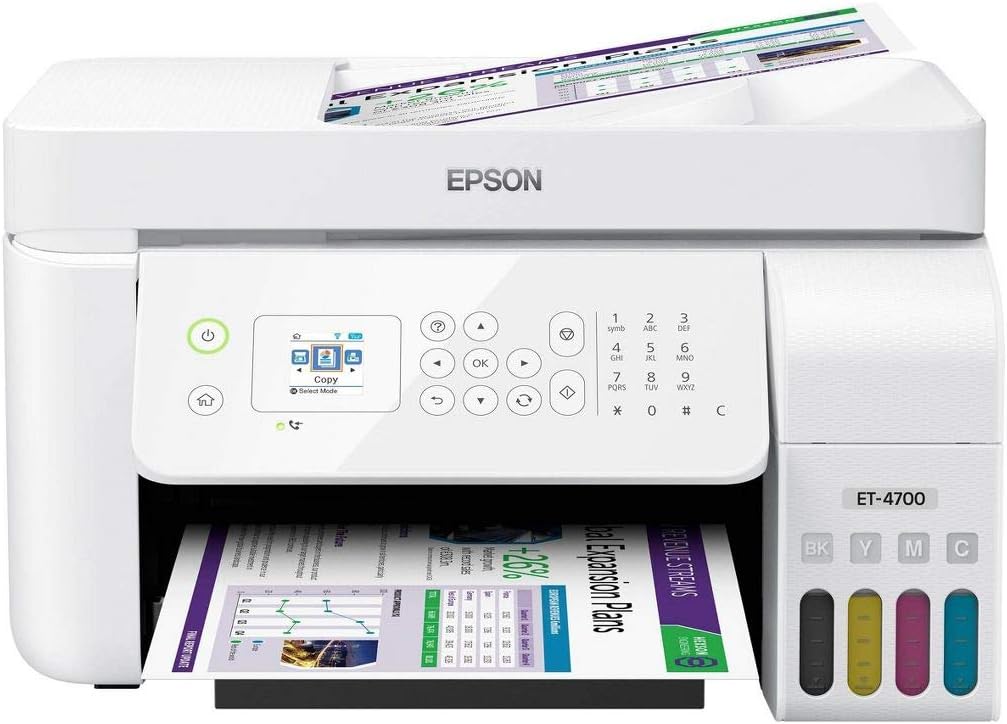
Figure 3: Epson EcoTank ET-4700 front view.
Printing Documents
To print from your computer, ensure the printer drivers are installed. Select the print option from your application, choose the ET-4700, and adjust settings as needed. The printer supports automatic duplex (two-sided) printing.
Copying Documents
Place the document face-down on the scanner glass or face-up in the Automatic Document Feeder (ADF). Use the control panel to select 'Copy', choose the number of copies, and press the start button. The maximum copy resolution for both color and black-white is 1200 dpi.
Scanning Documents
Place the document on the flatbed scanner. From the printer's control panel or your computer's scanning software, select 'Scan'. Choose your desired scan settings (e.g., resolution, color/grayscale, destination) and initiate the scan. The scanner type is Flatbed.

Figure 4: Epson EcoTank ET-4700 with scanner lid open.
Maintenance
Checking Ink Levels
Regularly check the ink levels through the transparent ink tanks on the front of the printer. The LCD display will also provide warnings when ink levels are low. Refill tanks as needed using genuine Epson ink bottles to maintain print quality and prevent damage.
Cleaning the Printer
Periodically clean the exterior of the printer with a soft, damp cloth. For print quality issues, perform a nozzle check and head cleaning using the printer's utility software or control panel options. Refer to the on-screen instructions for detailed steps.
Troubleshooting
This section addresses common issues you might encounter with your ET-4700 printer.
Paper Jams
If a "Paper jammed" error (e.g., W-01) appears on the LCD, follow these steps:
- Turn off the printer and unplug the power cord.
- Carefully open the printer covers (rear, front, or top) as indicated by the error message or the printer's internal diagrams.
- Gently pull out any jammed paper, ensuring no torn pieces remain inside.
- Close all covers, plug in the power cord, and turn the printer back on.
- If the error persists, check other areas for jammed paper or consult the online support resources.
Poor Print Quality
If prints are faded, streaky, or have incorrect colors:
- Check ink levels and refill any low tanks.
- Perform a nozzle check to identify clogged nozzles.
- Run a print head cleaning cycle. You may need to run it multiple times.
- Ensure you are using genuine Epson ink.
- Verify that the paper type setting in your print driver matches the paper loaded.
Connectivity Issues
If the printer is not connecting to your computer or network:
- Restart your printer, computer, and router.
- Check all cable connections (Ethernet, USB).
- For Wi-Fi, ensure the printer is within range of your router and the Wi-Fi settings are correctly configured on the printer's LCD panel.
- Temporarily disable any firewall software on your computer to see if it's blocking the connection.
Specifications
| Feature | Detail |
|---|---|
| Model Name | ET-4700 |
| Printing Technology | Inkjet |
| Printer Output | Color |
| Connectivity Technology | Ethernet |
| Special Feature | Refillable Ink Tank |
| Scanner Type | Flatbed |
| Max Input Sheet Capacity | 30 |
| Display Type | LCD |
| Maximum Color Print Resolution | High Resolution |
| Maximum Black and White Print Resolution | 1200 dpi |
| Dual-sided printing | Yes (Automatic Duplex) |
| Item Weight | 11 pounds |
| Product Dimensions | 16.5"D x 17.6"W x 12"H |
| Ink Colors | Cyan, Magenta, Yellow, Black |
Warranty and Support
Your Epson EcoTank ET-4700 printer comes with a limited warranty. For specific details regarding the warranty period and coverage, please refer to the warranty documentation included with your product or visit the official Epson support website.
For technical assistance, driver downloads, FAQs, and additional support resources, please visit the Epson support website or contact Epson customer service. Keep your product's serial number (usually found on a label on the back or bottom of the printer) handy when contacting support.
You can find more information and support at the Epson Store on Amazon.
Related documentsET-4700


Ask a question about this manual
Ask about setup, troubleshooting, compatibility, parts, safety, or missing instructions. Manuals+ will review the question and use this page’s manual context to help answer it.