1. Introduction
This manual provides detailed instructions for operating your MYPIN 1080P HDMI Video Capture Card. This device allows you to record Full HD 1080P video content from various HDMI sources, including game consoles, set-top boxes, and video players, directly onto a TF card without requiring a PC. It features a 3.5-inch LCD for real-time preview and playback, a remote control for convenient operation, and a built-in rechargeable battery for portable use. Please read this manual thoroughly to ensure proper use and maintenance of your device.
2. Package Contents
Verify that all items listed below are included in your package:
- MYPIN 1080P HDMI Video Capture Card
- Remote Control
- Instruction Manual
- HDMI Cable
- USB Charge Cable

The image displays the MYPIN 1080P HDMI Video Capture Card alongside its accessories: a remote control, a printed instruction manual, an HDMI cable, and a USB charging cable.
3. Product Overview
Familiarize yourself with the components and ports of your MYPIN Video Capture Card.
3.1 Device Layout

This image shows the front of the MYPIN capture card, highlighting its 3.5-inch LCD screen on the left and the control buttons on the right. The included remote control is also visible below the device.

The image illustrates the side of the MYPIN capture card, detailing its various ports and controls. These include the HDMI In, HDMI Out, TF card slot, PC/DC USB port for power and data transfer, a microphone input, a headset output, and the On/Off switch.
3.2 Control Panel and Remote Control
The device features an integrated control panel and comes with a dedicated remote control for ease of use.

This image provides a closer look at the control panel on the MYPIN capture card and its remote. Key buttons such as 'Rec/Stop', 'Menu', 'OK', and directional arrows are clearly visible, indicating support for both manual and remote operation.
4. Setup Guide
4.1 Powering the Device
- Connect the USB Charge Cable to the PC/DC port on the capture card.
- Connect the other end of the USB cable to a power source (e.g., USB wall adapter, computer USB port).
- Slide the ON/OFF switch to the 'ON' position to power on the device.
4.2 Inserting a TF Card
- Ensure the device is powered off.
- Locate the TF card slot on the side of the device.
- Insert a TF card (up to 128 GB, formatted to FAT32 or exFAT) into the slot until it clicks into place.
4.3 Connecting HDMI Sources
- Connect an HDMI cable from your video source (e.g., game console, set-top box) to the HDMI IN port on the capture card.
- (Optional) To view the content on an external display while recording, connect another HDMI cable from the HDMI OUT port on the capture card to your TV or monitor.
4.4 Connecting Audio Devices
- To record external audio commentary, connect a 3.5mm TRS standard microphone to the MIC input port. (Note: TRRS microphones are not supported).
- To monitor audio privately, connect headphones to the HEADSET output port.
This image clarifies microphone compatibility, showing a diagram that distinguishes between TRS (Tip-Ring-Sleeve) and TRRS (Tip-Ring-Ring-Sleeve) 3.5mm audio jacks. It explicitly states that only TRS standard microphones are supported for recording with the device.
5. Operation
5.1 Basic Recording
- Power on the device.
- Ensure your HDMI source is connected and active. The video feed should appear on the 3.5-inch LCD screen.
- Press the Rec/Stop button on the device or the remote control to start recording. The recording indicator will illuminate.
- Press the Rec/Stop button again to stop recording. The recorded file will be saved to the inserted TF card.
5.2 Playback
- From the main interface, navigate to the playback menu using the directional buttons and confirm with OK.
- Select the desired recorded file from the list.
- Press OK to start playback.
- Use the control buttons (Rew, F.F, Pause/Play) for media control.
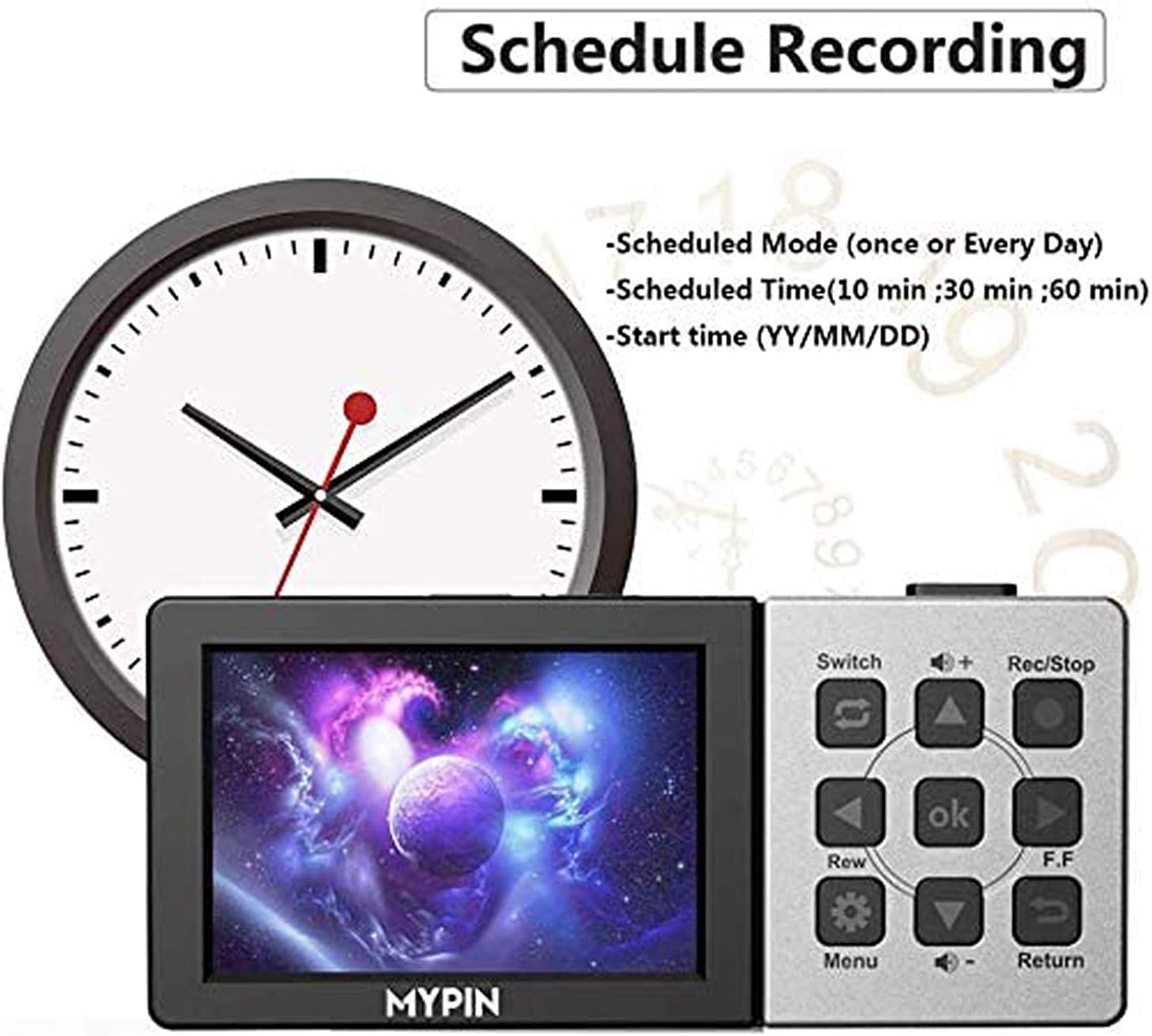
5.3 Scheduled Recording
The device supports scheduling recordings for convenience.
- Access the Menu using the Menu button on the device or remote.
- Navigate to the "Schedule Recording" option.
- Set the desired recording mode (e.g., once, daily), scheduled time (e.g., 10 min, 30 min, 60 min), and start time (YY/MM/DD).
- Confirm your settings. The device will automatically begin recording at the specified time.

This image shows the user interface for setting up scheduled recordings on the MYPIN capture card. It highlights options to configure the recording mode (e.g., once, daily), duration (e.g., 10, 30, 60 minutes), and the specific start date and time.
5.4 Volume Control
Use the volume buttons on the device or remote control to adjust the playback volume through the built-in speaker or connected headphones.
6. Maintenance
- Keep the device clean and free from dust. Use a soft, dry cloth for cleaning.
- Avoid exposing the device to extreme temperatures, humidity, or direct sunlight.
- Do not attempt to disassemble the device, as this will void the warranty.
- Ensure the TF card is properly inserted and removed to prevent damage.
7. Troubleshooting
If you encounter issues with your MYPIN Video Capture Card, refer to the following common solutions:
| Problem | Possible Cause | Solution |
|---|---|---|
| No video on LCD screen or external display. | Incorrect HDMI connection, source not active, or incompatible resolution. | Check all HDMI cable connections. Ensure the video source is powered on and outputting a signal. Verify the source resolution is 1080P or lower. |
| Device not recording. | TF card full, not inserted, or incompatible format. | Ensure a TF card is inserted and has sufficient free space. Format the TF card to FAT32 or exFAT if necessary. |
| No audio from microphone input. | Incorrect microphone type or connection. | Ensure you are using a 3.5mm TRS standard microphone. Check the microphone connection. |
| Remote control not responding. | Low battery in remote, obstructed IR sensor. | Replace the remote control battery. Ensure there is a clear line of sight between the remote and the device's IR sensor. |
| Recorded files are split into multiple segments. | This is normal behavior for long recordings due to file system limitations. | The device automatically splits recordings into segments (e.g., 25-minute files) to manage file sizes on the TF card. This is not an error. |
8. Specifications
Key technical specifications for the MYPIN 1080P HDMI Video Capture Card:
- Video Capture Resolution: 1080p@60fps
- Display: 3.5-inch LCD
- Storage: TF Card (up to 128 GB, FAT32/exFAT)
- Input: HDMI, 3.5mm Microphone (TRS standard)
- Output: HDMI, 3.5mm Headset
- Battery: Built-in 3000mAh Lithium Battery
- Power Supply: USB DC 5V
- Dimensions: 6.89 x 4.57 x 2.05 inches (approximate package dimensions)
- Weight: 13.7 ounces (approximate item weight)
- Model Number: B07VB65SDK
9. Warranty and Support
For warranty information and technical support, please refer to the contact details provided with your purchase or visit the official MYPIN website. Keep your proof of purchase for warranty claims.


