
1. Introduction
This manual provides detailed instructions for the installation, operation, and maintenance of your COOAU 4MP Wireless Security Camera, Model 827S-400. Designed for indoor use, this camera offers advanced features such as 4MP Ultra HD video, Pan/Tilt/Zoom (PTZ) functionality, two-way audio, and intelligent detection capabilities to enhance your home monitoring experience.
2. Product Overview
The COOAU 4MP Wireless Security Camera is a versatile indoor monitoring device. Familiarize yourself with its components and key features:
2.1 Components
- COOAU 4MP Wireless Security Camera Unit
- Power Adapter
- USB Power Cable
- Mounting Accessories (screws, wall anchors)
- User Manual (this document)
2.2 Key Features
- 4MP Ultra HD Video: Captures clear and detailed footage.
- Pan/Tilt/Zoom (PTZ): Offers 360° horizontal and 120° vertical rotation for comprehensive coverage.
- Two-Way Audio: Built-in microphone and speaker for communication.
- Intelligent Detection: Features sound detection, motion detection, and motion tracking with alerts.
- Enhanced Night Vision: Provides clear monitoring in low-light conditions.
- Flexible Storage: Supports local storage via Micro SD card (up to 128GB, not included) and cloud storage options.
- Alexa Compatibility: Integrates with Amazon Alexa for voice control.

Image: The COOAU 4MP Wireless Security Camera, highlighting its compact design and key functionalities like 360-degree coverage and 4MP HD view.
3. Setup
Follow these steps to set up your COOAU Wireless Security Camera:
3.1 App Installation
- Scan the QR code provided in the camera's packaging or search for "MIPC" in your device's app store (Apple App Store for iOS or Google Play Store for Android).
- Download and install the MIPC app.
- Open the app and create a new user account or log in if you already have one.
3.2 Power Connection
- Connect the USB power cable to the camera's power port.
- Plug the power adapter into a standard electrical outlet.
- The camera will power on and initiate its startup sequence. Wait for a voice prompt indicating it's ready for connection.
3.3 Network Configuration (Wi-Fi)
- In the MIPC app, tap the '+' icon to add a new device.
- Select the camera type (e.g., "Wireless IP Camera").
- Choose "Wi-Fi connection" as the network connection method.
- Follow the on-screen instructions to enter your Wi-Fi network details (SSID and password).
- The app may instruct you to scan a QR code displayed on your phone with the camera, or to place your phone near the camera for sound pairing.
- Once connected, you will hear a confirmation sound from the camera, and the app will indicate successful addition.
- Set a new password for the camera for security purposes.
Video: Demonstrates the indoor camera connection steps, including app installation, power connection, and Wi-Fi setup.
3.4 Mounting the Camera
The camera can be placed on a flat surface or mounted to a ceiling. Use the provided mounting accessories for ceiling installation. Ensure the camera is positioned to cover the desired monitoring area.
4. Operating Instructions
Learn how to utilize the various features of your COOAU camera:
4.1 Live View and PTZ Control
- Open the MIPC app and select your camera from the device list to access the live video feed.
- Use the on-screen controls to pan (rotate horizontally up to 355°), tilt (move vertically up to 120°), and digitally zoom the camera view.
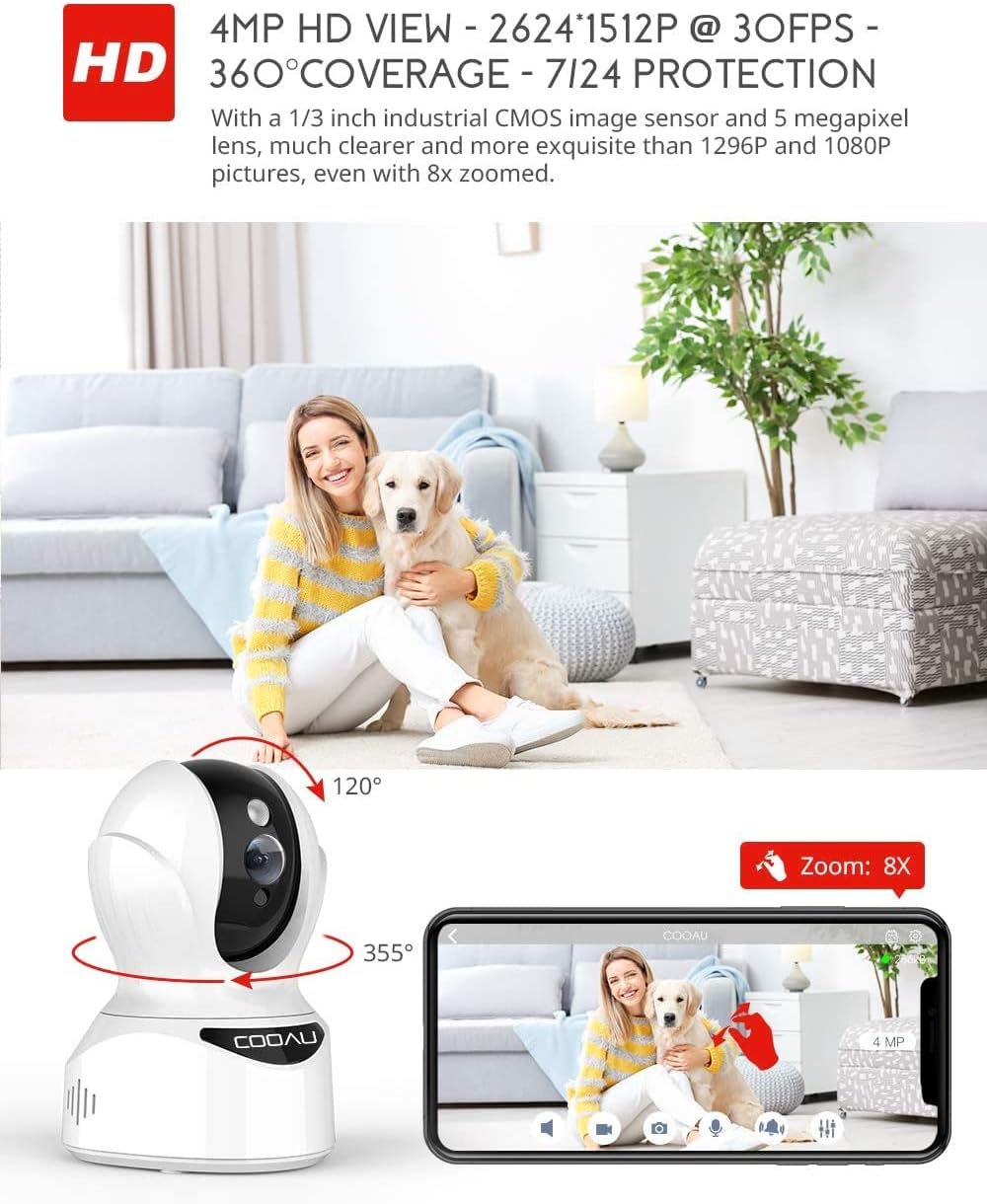
Image: Illustrates the camera's Pan/Tilt capabilities, offering 355° horizontal and 120° vertical rotation for comprehensive room coverage.
4.2 Two-Way Audio
- While in live view, tap the microphone icon in the app to speak through the camera's speaker.
- The camera's built-in microphone allows you to hear audio from the camera's location.

Image: Depicts the two-way audio feature, enabling clear communication through the camera's built-in anti-noise and echo cancellation microphone and speaker.
4.3 Intelligent Detection and Alerts
- Access the camera settings in the MIPC app to configure motion detection, sound detection, and motion tracking.
- Enable push notifications to receive alerts on your smartphone when activity is detected.
- Motion tracking allows the camera to automatically follow moving objects within its field of view.
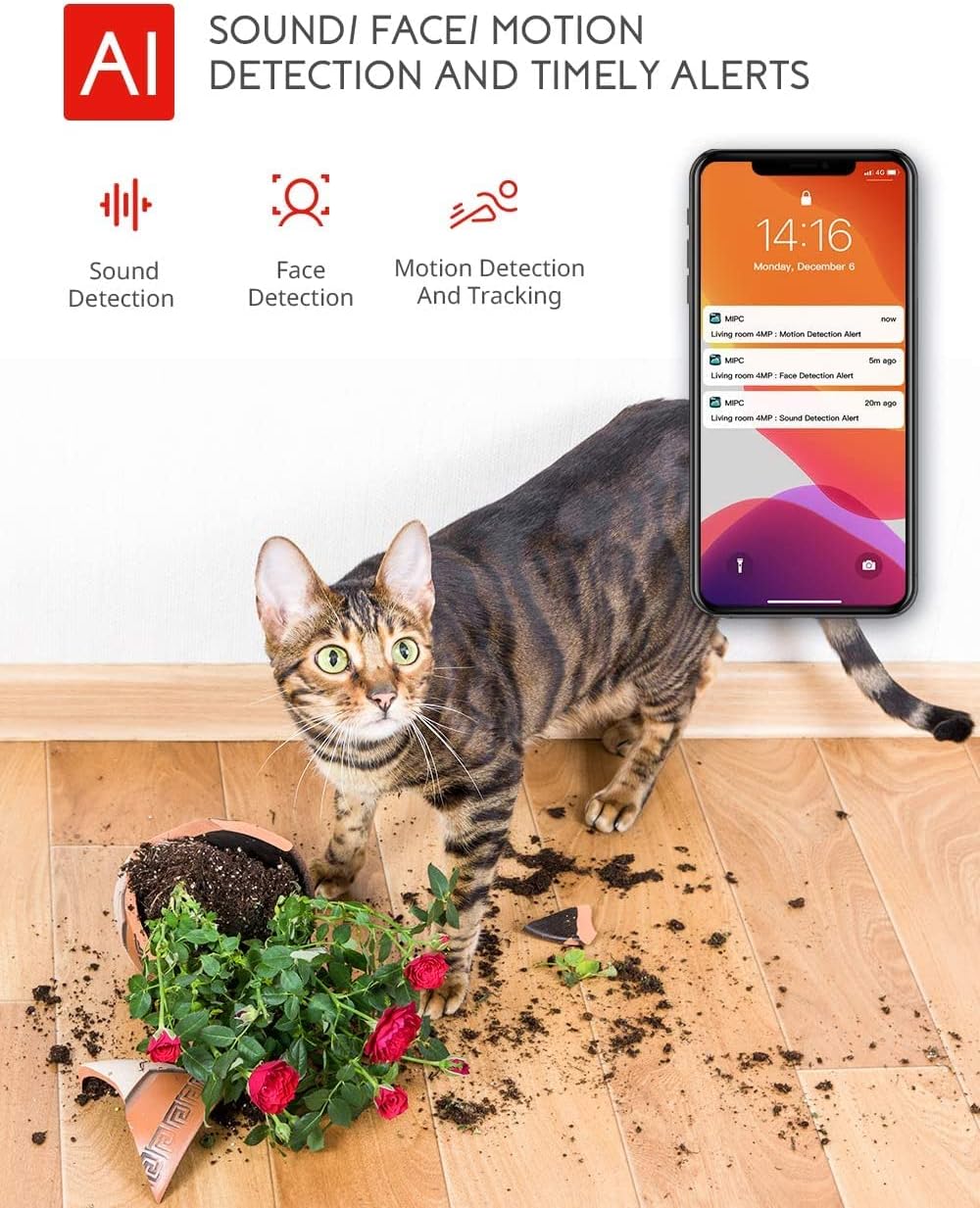
Image: Highlights the AI-powered sound, face, and motion detection features, with timely alerts sent to your smartphone.
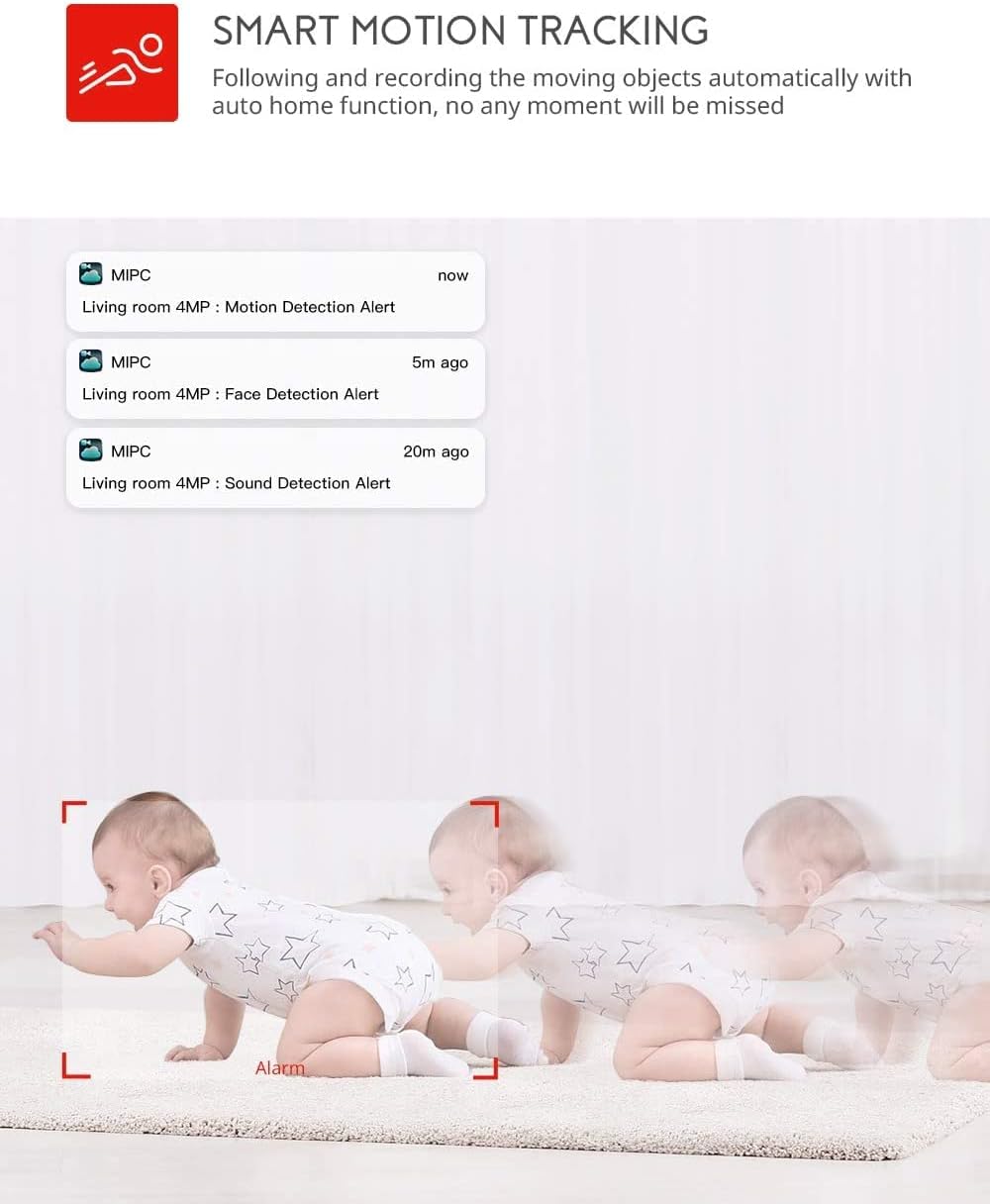
Image: Illustrates the smart motion tracking feature, where the camera automatically follows and records moving objects.
4.4 Night Vision
- The camera automatically switches to night vision mode in low-light conditions.
- This feature provides clear black and white video footage without additional light sources.
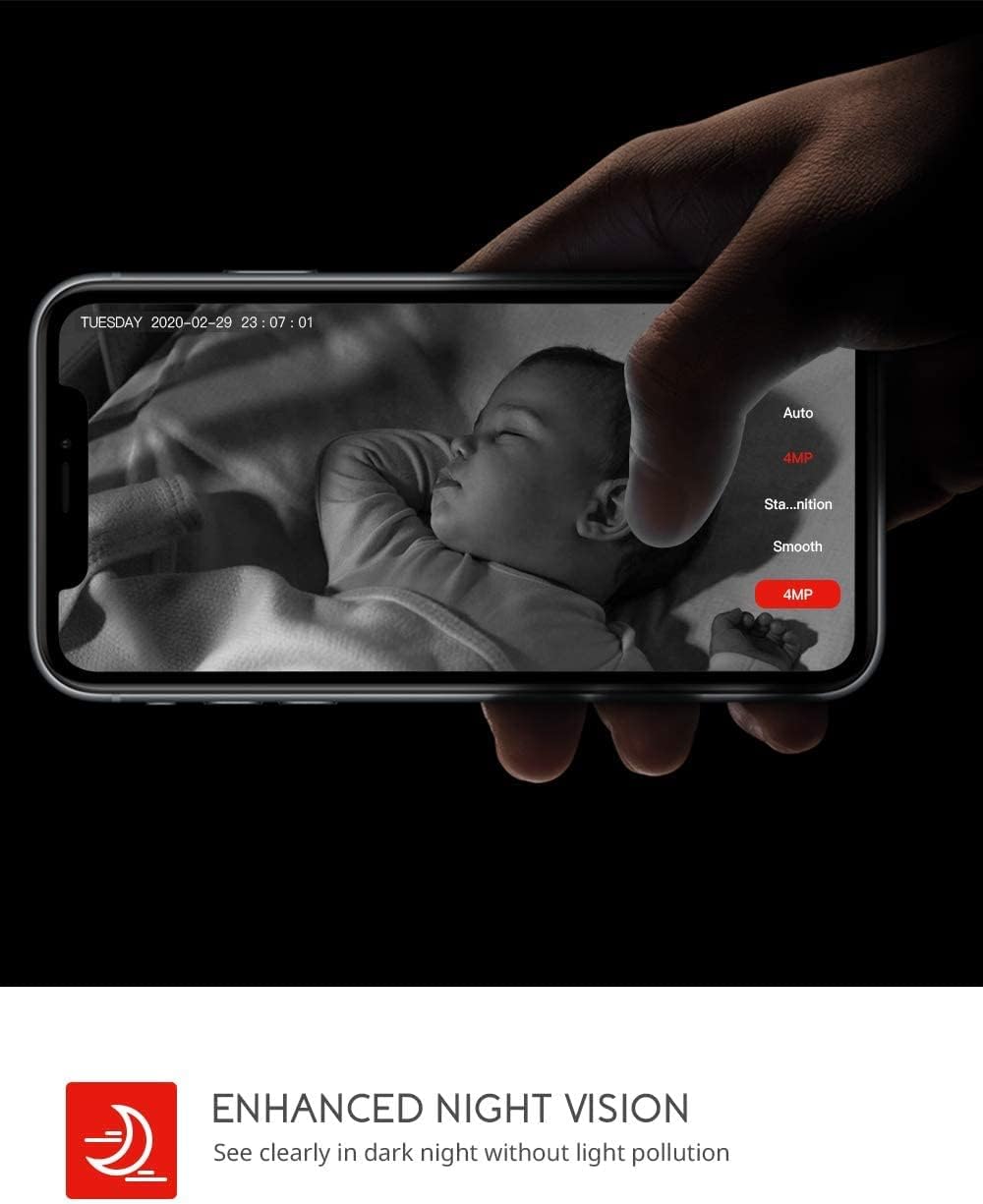
Image: Demonstrates the enhanced night vision capability, providing clear visibility in dark environments.
4.5 Storage Options
- Micro SD Card: Insert a Micro SD card (up to 128GB, Class 10 or higher recommended) into the designated slot for local video recording.
- Cloud Storage: The MIPC app offers optional cloud storage services for secure off-site backup of your recordings.
4.6 Multi-User Support
- Share camera access with family members or trusted individuals through the MIPC app.
- This allows multiple users to view the live feed and receive alerts simultaneously.

Image: Illustrates the camera's support for multiple devices and users, allowing footage sharing across various platforms.
5. Maintenance
Proper maintenance ensures the longevity and optimal performance of your camera:
- Cleaning: Use a soft, dry cloth to clean the camera lens and body. Avoid abrasive cleaners or solvents.
- Placement: Ensure the camera is placed in a stable location, away from direct sunlight, heat sources, and excessive moisture.
- Software Updates: Regularly check the MIPC app for firmware updates to ensure your camera has the latest features and security enhancements.
- Power Supply: Use only the original power adapter provided with the camera.
6. Troubleshooting
If you encounter issues with your camera, refer to the following common problems and solutions:
| Problem | Solution |
|---|---|
| Camera fails to connect to Wi-Fi. | Ensure your Wi-Fi password is correct. Check if the camera is within range of your Wi-Fi router. Reset the camera by pressing the reset button for 1 second and try connecting again. Ensure your router is 2.4GHz compatible. |
| Poor video quality. | Check your internet connection speed. Ensure the camera lens is clean. Adjust the video resolution settings in the MIPC app. |
| Motion detection not working. | Verify that motion detection is enabled in the app settings. Adjust the sensitivity level. Ensure there are no obstructions blocking the camera's view. |
| Two-way audio is unclear. | Ensure your phone's volume is up. Check for any interference or background noise near the camera or your phone. |
| Camera is offline. | Check the power connection to the camera. Verify your Wi-Fi network is active and stable. Restart the camera and your router. |
7. Specifications
Detailed technical specifications for the COOAU 4MP Wireless Security Camera (Model 827S-400):
| Feature | Specification |
|---|---|
| Model Number | 827S-400 |
| Effective Still Resolution | 4 MP |
| Effective Video Resolution | 4 MP |
| Connectivity Technology | Wireless (Wi-Fi) |
| Indoor/Outdoor Usage | Indoor |
| Special Features | Motion Sensor, Sound Detection, Motion Tracking, 2-Way Audio, Night Vision |
| Controller Type | Amazon Alexa |
| Mount Type | Ceiling Mount |
| Storage Options | Cloud/SD Storage (up to 128GB) |
| Frame Rate | 30 fps |
| Item Dimensions | 3.35 x 3.35 x 4.72 inches |
| Power Source | AC/DC |
| GTIN / UPC | 889328768553 |
8. Warranty and Support
For warranty information or technical support, please contact COOAU customer service. You can reach us via:
- Official Mailbox: info@cooau.net
- Official Facebook: COOAU Official