
Bewinner MC-818
Bewinner MC-818 82 Keys USB Wired Keyboard with Built-in Touchpad User Manual
Model: MC-818 | Brand: Bewinner
1. Introduction
This manual provides detailed instructions for the proper setup, operation, and maintenance of your Bewinner MC-818 82 Keys USB Wired Keyboard with Built-in Touchpad. Please read this manual thoroughly before using the product to ensure optimal performance and longevity.
2. Product Overview
The Bewinner MC-818 is a compact 82-key USB wired keyboard designed for efficiency and portability. It features an integrated touchpad, eliminating the need for a separate mouse, and a scissor-foot mechanical structure for a comfortable typing experience. The keyboard also includes a USB HUB port for convenient data transfer.

Figure 2.1: An overhead view of the Bewinner MC-818 82-key USB wired keyboard, featuring an integrated touchpad on the right side and a coiled USB cable extending from the top.

Figure 2.2: A close-up image showing a finger interacting with the built-in touchpad of the Bewinner MC-818 keyboard, highlighting its mouse-free operation.
3. Safety Information
Warning: Important Safety Instructions
Do not attempt to disassemble, modify, or repair the product yourself to avoid personal injury or equipment damage. Unauthorized modifications can void your warranty.

Figure 3.1: A warning label in multiple languages advising against disassembling, modifying, or repairing the product to prevent injury or damage.
4. Setup Instructions
- Unpack the Keyboard: Carefully remove the keyboard from its packaging. Ensure all components, including the USB cable, are present.
- Connect to Your Device: Locate an available USB port on your computer (desktop or laptop). Insert the USB-A connector of the keyboard's cable into the USB port.
- Plug & Play: The Bewinner MC-818 keyboard is designed for plug-and-play functionality. Your operating system should automatically detect and install the necessary drivers. No additional software installation is typically required.
- Placement: Place the keyboard on a stable, flat surface. The integrated anti-slip mats on the underside help prevent movement during use.

Figure 4.1: The Bewinner MC-818 keyboard positioned in front of a computer monitor, illustrating its 'Plug & Play' functionality for desktop and laptop computers.
Video 4.1: This video provides a brief overview of the Bewinner MC-818 82-key USB wired keyboard, showcasing its design, integrated touchpad, and the simple USB connection process.
5. Operating Instructions
5.1 Keyboard Functions
- Standard Typing: Use the alphanumeric keys for text input.
- Function Keys (F1-F12): These keys perform various system functions, often in combination with the Fn key. Refer to your operating system's documentation for specific shortcuts.
- Special Keys: Keys like Esc, Tab, Caps Lock, Shift, Ctrl, Alt, Enter, and Back Space operate as standard.
- Navigation Keys: Home, End, PgUp, PgDn, and arrow keys are available for document and web navigation.
5.2 Touchpad Usage
The integrated touchpad allows for precise cursor control without an external mouse.
- Move Cursor: Slide your finger across the touchpad surface to move the cursor on the screen.
- Left Click: Press the left button below the touchpad or tap once on the touchpad surface.
- Right Click: Press the right button below the touchpad or tap with two fingers on the touchpad surface (if supported by your OS settings).
- Scrolling: Use two fingers to scroll vertically or horizontally on the touchpad (if supported by your OS settings).

Figure 5.1: An image of the keyboard accompanied by text explaining its scissor-foot mechanical structure, designed for a smooth and comfortable typing experience.
Video 5.1: This video highlights various aspects of the Bewinner 82 Keys USB Wired Keyboard, including its compact design and integrated touchpad, demonstrating its functionality.
6. Maintenance
- Cleaning: To clean the keyboard, disconnect it from your computer. Use a soft, lint-free cloth slightly dampened with water or a mild cleaning solution. Avoid excessive moisture.
- Dust Removal: Use compressed air to remove dust and debris from between the keys.
- Avoid Liquids: Do not spill liquids on the keyboard. If a spill occurs, immediately disconnect the keyboard and allow it to dry completely before reconnecting.
- Storage: Store the keyboard in a cool, dry place away from direct sunlight and extreme temperatures.
7. Troubleshooting
| Problem | Possible Cause | Solution |
|---|---|---|
| Keyboard is not responding. | Loose USB connection, faulty USB port, driver issue. |
|
| Touchpad is not working or is inaccurate. | Software settings, dirty touchpad surface, driver issue. |
|
| Keys are sticking or unresponsive. | Debris under keys, physical damage. |
|
8. Specifications
| Feature | Detail |
|---|---|
| Model Number | MC-818 (Bewinnerex4pmrzfg6) |
| Keys | 82 Keys |
| Connectivity | Wired USB (USB-A) |
| Special Feature | Integrated Touchpad, USB HUB Port |
| Keyboard Description | Integrated |
| Compatible Devices | Laptop, Desktop Computers |
| Product Dimensions | 12.2 x 4.53 x 0.67 inches (31cm L x 11.5cm W x 2cm H) |
| Item Weight | 12.6 ounces |
| Color | Black |
| Material | Plastic or Metal Alloy |
| Manufacturer | Bewinner |
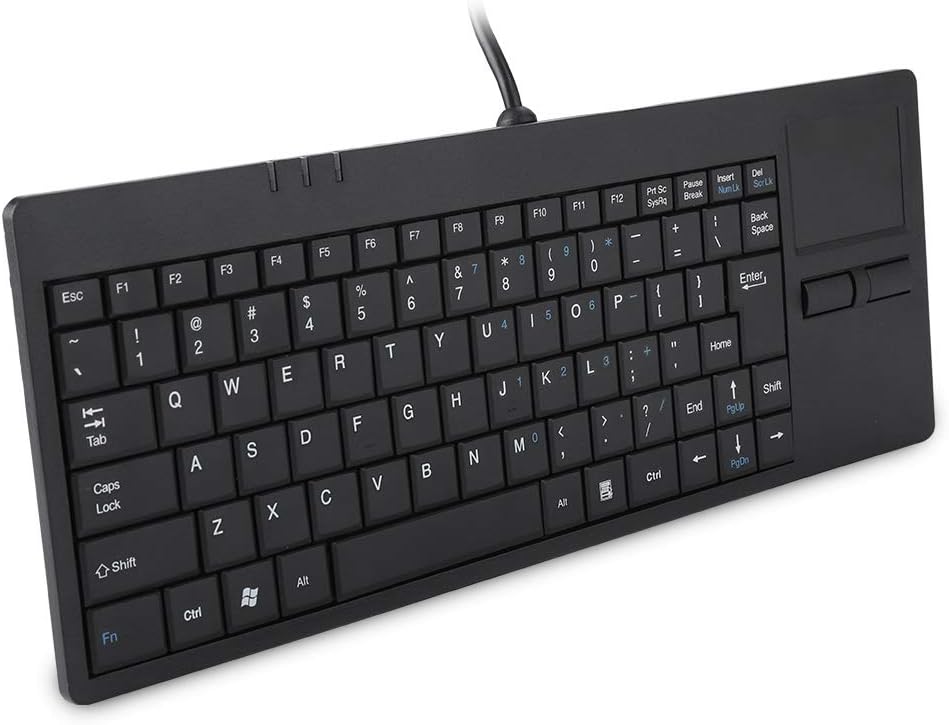
Figure 8.1: An image of the Bewinner MC-818 keyboard with its length (31cm/12.2in), width (11.5cm/4.5in), and height (2cm/0.8in) clearly indicated.

Figure 8.2: The underside of the keyboard, revealing the anti-slip mats designed to provide stability during use on various surfaces.
9. Warranty and Support
Bewinner offers a 100% Satisfaction Guarantee for this product. If you encounter any issues or are not satisfied with your purchase, please contact the seller or Bewinner customer support for assistance.
For specific warranty details and support inquiries, please refer to the contact information provided with your purchase or visit the official Bewinner website.
Ask a question about this manual
Ask about setup, troubleshooting, compatibility, parts, safety, or missing instructions. Manuals+ will review the question and use this page’s manual context to help answer it.