
Introduction
This manual provides detailed instructions for the assembly, operation, and maintenance of your CanaKit Raspberry Pi 4 4GB Starter PRO Kit. Please read these instructions carefully before beginning to ensure proper setup and functionality.
The CanaKit Raspberry Pi 4 4GB Starter PRO Kit includes all essential components to get started with your Raspberry Pi 4 Model B, featuring 4GB of RAM. This kit is designed for ease of use while providing a robust platform for various computing projects.

Image 1: Overview of the CanaKit Raspberry Pi 4 4GB Starter PRO Kit components.
Setup Guide
Follow these steps to assemble and prepare your CanaKit Raspberry Pi 4 for first use.
- Prepare the Raspberry Pi Board:
Carefully unbox the Raspberry Pi 4 Model B board. Identify the three heatsinks provided in the kit. Remove the protective backing from each heatsink and firmly press them onto the designated chips on the Raspberry Pi board. Refer to the CanaKit Quick-Start Guide for specific placement.
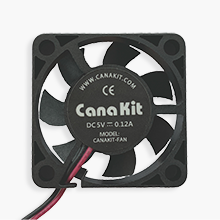
Image 2: The three heatsinks included for thermal management.
- Assemble the Case and Fan:
The CanaKit Premium High-Gloss Raspberry Pi 4 Case features an integrated fan mount. Separate the top and bottom parts of the case. Install the CanaKit Low Noise Bearing System Fan into the designated slot on the top part of the case. Connect the fan's power wires to the appropriate GPIO pins on the Raspberry Pi board. Typically, the red wire connects to pin 4 (5V) and the black wire to pin 6 (Ground) for higher speed, or red to pin 3 (3.3V) for lower speed. Consult the included GPIO Reference Card for precise pinout details.

Image 3: The CanaKit case with the fan and its integrated mount.
- Install the Raspberry Pi into the Case:
Carefully place the Raspberry Pi board, with heatsinks and fan connected, into the bottom section of the case. Ensure all ports align correctly with the case openings. Snap the top part of the case onto the bottom, securing the Raspberry Pi inside.
- Insert the MicroSD Card:
The kit includes a pre-loaded 32GB EVO+ Micro SD Card. Locate the MicroSD card slot on the Raspberry Pi board (usually on the underside or side, depending on the case orientation). Gently push the MicroSD card into the slot until it clicks into place. Ensure it is fully seated.

Image 4: The pre-loaded 32GB EVO+ MicroSD card.
- Connect Peripherals:
Connect your display to one of the two micro HDMI ports on the Raspberry Pi using the provided Micro HDMI to HDMI Cable. Connect a USB keyboard and mouse to the available USB ports. (Keyboard and mouse are not included in the kit.)

Image 5: The Micro HDMI to HDMI cable for display connection.
- Connect Power:
Connect the CanaKit 3.5A USB-C Raspberry Pi 4 Power Supply to the USB-C power input port on the Raspberry Pi. The kit also includes a CanaKit USB-C PiSwitch for convenient on/off control. Connect the PiSwitch inline with the power supply and the Raspberry Pi.

Image 6: The CanaKit USB-C power supply and PiSwitch.
Operating Instructions
First Boot and OS Setup
Once all components are connected, press the power button on the CanaKit PiSwitch (if used) or plug in the power supply. The Raspberry Pi will begin to boot. Since the MicroSD card is pre-loaded with NOOBS (New Out Of Box Software), you will be guided through the operating system installation process. Follow the on-screen prompts to select your preferred operating system (e.g., Raspberry Pi OS), configure network settings, set a password, and update software.
Basic Operation
After the operating system is installed and the Raspberry Pi reboots, you will be presented with the desktop environment. You can now use your Raspberry Pi like a standard computer for browsing the internet, programming, or running various applications. Ensure regular software updates are performed to maintain system security and performance.
Maintenance
- Software Updates: Regularly update your operating system and installed software to ensure optimal performance and security. This can typically be done through the terminal using commands like
sudo apt updateandsudo apt upgrade. - Cleaning: Keep the Raspberry Pi and its case free from dust. Use a soft, dry cloth to wipe the exterior. For internal components, use compressed air to gently remove dust buildup, especially around the fan and heatsinks. Ensure the device is powered off and disconnected from power before cleaning.
- Thermal Management: The included heatsinks and fan are crucial for maintaining optimal operating temperatures. Ensure the fan is unobstructed and functioning correctly. Excessive heat can lead to performance degradation or damage.
- Safe Shutdown: Always shut down the Raspberry Pi properly through the operating system's menu before disconnecting power. Abrupt power cuts can corrupt the MicroSD card.
Troubleshooting
| Issue | Possible Cause / Solution |
|---|---|
| No display on screen after power-on. |
|
| Raspberry Pi does not boot. |
|
| Fan is not spinning. |
|
| System is slow or unresponsive. |
|
Technical Specifications
| Feature | Detail |
|---|---|
| Model | Raspberry Pi 4 Model B (4GB RAM) |
| CPU | 1.5GHz 64-bit quad-core ARM Cortex-A72 |
| RAM | 4GB LPDDR4 |
| Storage | 32GB EVO+ Micro SD Card (Class 10) |
| Power Supply | CanaKit 3.5A USB-C Power Supply with Noise Filter |
| Case | CanaKit Premium High-Gloss Case with Integrated Fan Mount |
| Cooling | CanaKit Low Noise Bearing System Fan, Set of Heat Sinks |
| Display Output | 2x Micro HDMI ports (supports up to 4K60p) |
| Connectivity | 2x USB 3.0, 2x USB 2.0, Gigabit Ethernet, Dual-band Wi-Fi, Bluetooth 5.0 |
| Dimensions | 8.27 x 6.61 x 1.81 inches (Product Package) |
| Weight | 1.1 pounds (Product Package) |
Warranty and Support
For warranty information and technical support, please refer to the official CanaKit website or contact CanaKit customer service directly. Details are typically provided with your purchase documentation or on the manufacturer's website.
The CanaKit Quick-Start Guide and GPIO Reference Card included in your kit also provide valuable information and can be referenced for initial setup and advanced usage.

Image 7: CanaKit Quick-Start Guide and GPIO Reference Card for additional assistance.
