
1. Introduction
The TCL 65R625 6-Series 4K UHD QLED Dolby Vision HDR Roku Smart TV combines advanced picture performance with the user-friendly Roku TV smart platform. This manual provides essential information for setting up, operating, and maintaining your television.
Key features include QLED color technology for vivid picture, 4K Ultra HD resolution with Dolby Vision HDR for enhanced contrast and color, and LED backlighting with Contrast Control Zones for deep blacks. The Full View design offers an edge-to-edge glass display for an immersive viewing experience.
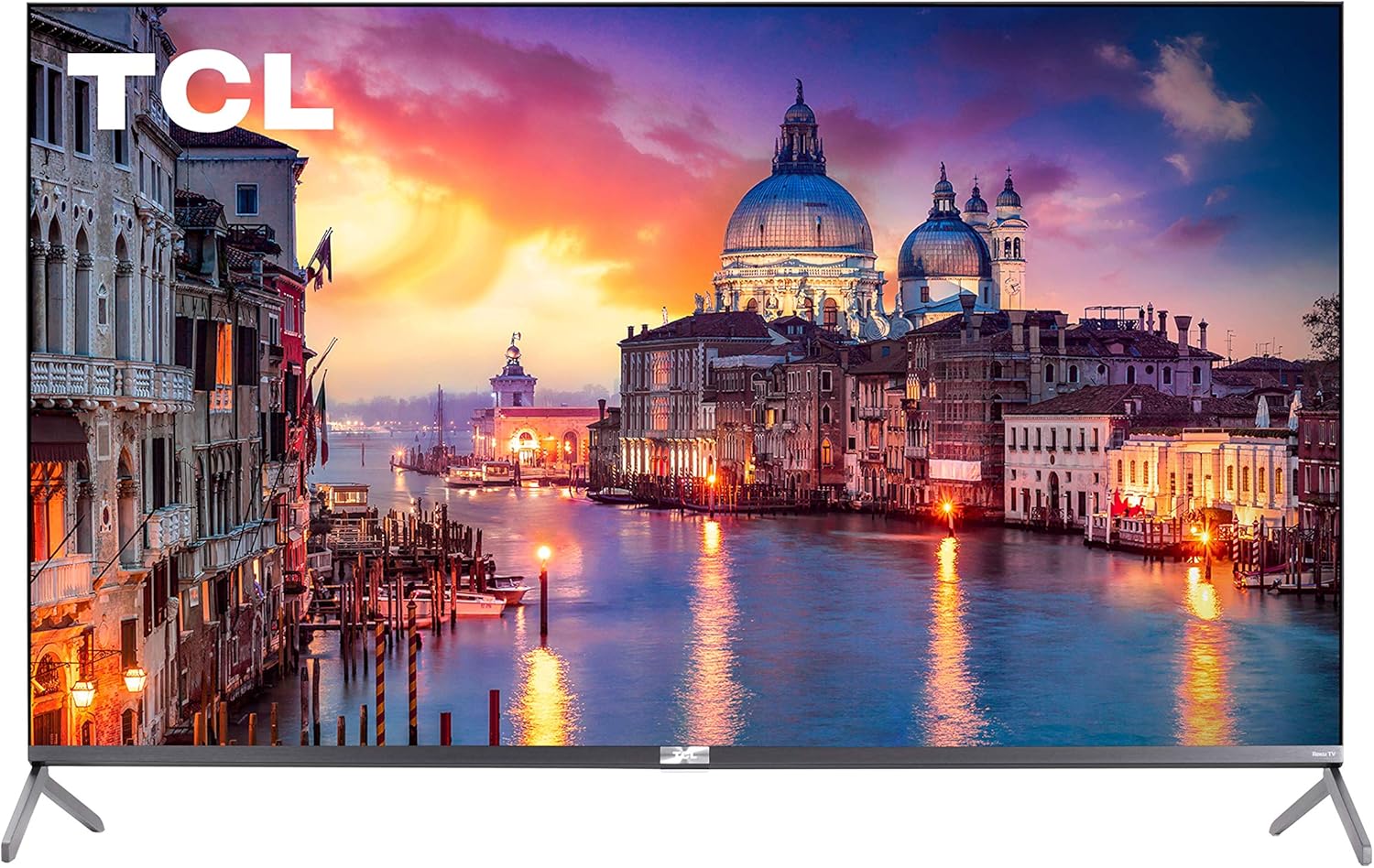
Figure 1.1: Front view of the TCL 65R625 6-Series 4K UHD QLED Roku Smart TV.
Video 1.1: Overview of the TCL 4K UHD Dolby Vision HDR Roku Smart TV, highlighting its key features and visual performance.
2. What's in the Box
Ensure all components are present before proceeding with setup:
- Power Cable
- Remote Control
- Stand
3. Setup
3.1 Physical Setup (Stands/Mounting)
Carefully place the TV screen-down on a soft, flat surface. Attach the included stands to the designated slots on the bottom of the TV. Secure them with the provided screws. Alternatively, the TV can be wall-mounted using a compatible VESA mount (sold separately).

Figure 3.1: The TCL 65R625 TV with its included stands attached, ready for placement on a flat surface.

Figure 3.2: Side view of the TCL 65R625 TV, illustrating the profile with the stand attached.
3.2 Connections (Ports)
Locate the input ports on the back and side of the TV. Connect your external devices such as cable boxes, Blu-ray players, and gaming consoles using HDMI cables. The TV features multiple HDMI ports, including eARC for enhanced audio return.

Figure 3.3: Close-up view of the side-mounted input ports on the TCL 65R625 TV, including HDMI and USB connections.

Figure 3.4: Rear view of the TCL 65R625 TV, showing the arrangement of various input and output ports.
3.3 Initial Power On and Roku Setup
Connect the power cable to the TV and a power outlet. Press the power button on the remote control. Follow the on-screen instructions to connect to your Wi-Fi network and activate your Roku account. If you do not have a Roku account, you will be prompted to create one.
4. Operating the TV
4.1 Roku OS Navigation
The Roku TV interface provides seamless access to streaming channels, live TV, and connected devices. Use the directional pad and 'OK' button on your remote to navigate through menus and select content. The home screen displays your favorite apps and inputs for quick access.

Figure 4.1: The TCL 65R625 TV displaying the Roku smart TV home screen with various streaming app icons.
4.2 Remote Control
The included remote control is designed for simplicity, with essential buttons for navigation, volume, and quick access to popular streaming services. It also supports voice control for convenient searching and commands.

Figure 4.2: The TCL Roku TV remote control, featuring a simplified layout with dedicated streaming service buttons.
4.3 Picture Settings
Access picture settings by pressing the '*' button on your remote while content is playing. Adjust settings such as Picture Mode (Movie, Normal, Bright), TV Brightness, Backlight, Contrast, Sharpness, Color, and Tint. For optimal viewing, 'Movie' mode is often recommended for color accuracy.
4.4 Audio Settings
The TV features a premium audio system. Audio settings can be adjusted via the options menu. For enhanced sound, external soundbars or wireless Roku speakers can be connected. The TV supports HDMI eARC for seamless integration with compatible audio devices.
4.5 Gaming Features
The TCL 65R625 supports Auto Game Mode, which automatically optimizes settings for gaming. It includes features like Variable Refresh Rate (VRR) and Auto Low Latency Mode (ALLM) for smoother gameplay, along with FreeSync Premium Pro certification.
4.6 Accessibility Features
Roku TV includes various accessibility options, such as a screen reader mode for the visually impaired with customizable speech rate and volume. Parental controls are available to manage content access, and a Guest Mode allows temporary access to streaming apps without compromising your personal account settings.
5. Specifications
| Feature | Specification |
|---|---|
| Brand | TCL |
| Model Number | 65R625 |
| Screen Size | 65 Inches |
| Display Technology | QLED |
| Resolution | 4K Ultra HD |
| Refresh Rate | 60 Hz |
| Special Feature | Flat |
| Connectivity Technology | Ethernet, HDMI, USB, Wi-Fi |
| Product Dimensions | 56.9"D x 12.4"W x 36"H |
| Item Weight | 54.2 pounds (24584.71 Grams) |
| Batteries Required | 3 AAA batteries (for remote) |
6. Troubleshooting
If you encounter issues with your TCL Roku TV, try the following:
- No Power: Ensure the power cable is securely connected to both the TV and the outlet. Try a different outlet.
- No Picture/Sound: Check all HDMI and audio cable connections. Ensure the correct input source is selected on the TV.
- Remote Not Working: Replace the batteries in the remote control. Ensure there are no obstructions between the remote and the TV.
- Network Connection Issues: Restart your Wi-Fi router and the TV. Re-enter your Wi-Fi password in the TV's network settings.
- Picture Quality Issues: Adjust picture settings (brightness, contrast, picture mode) as described in Section 4.3.
7. Maintenance
To ensure the longevity and optimal performance of your TV:
- Cleaning: Use a soft, dry cloth to clean the screen and TV cabinet. Do not use liquid cleaners or sprays directly on the screen.
- Ventilation: Ensure adequate ventilation around the TV to prevent overheating. Do not block ventilation openings.
- Power Surges: Consider using a surge protector to protect your TV from electrical fluctuations.
8. Warranty & Support
For warranty information and technical support, please refer to the documentation included with your TV or visit the official TCL support website. Keep your purchase receipt as proof of purchase for warranty claims.


