
Marantz SR5014/N1B
Marantz SR5014
7.2CH 4K Ultra HD AV Receiver with HEOS Built-in
User Manual
1. Important Safety Instructions
Please read these instructions carefully before operating your Marantz SR5014 AV Receiver. Keep this manual for future reference.
- Do not block any ventilation openings. Install in accordance with the manufacturer's instructions.
- Do not install near any heat sources such as radiators, heat registers, stoves, or other apparatus (including amplifiers) that produce heat.
- Protect the power cord from being walked on or pinched, particularly at plugs, convenience receptacles, and the point where they exit from the apparatus.
- Only use attachments/accessories specified by the manufacturer.
- Unplug this apparatus during lightning storms or when unused for long periods of time.
- Refer all servicing to qualified service personnel. Servicing is required when the apparatus has been damaged in any way.
2. Product Overview
The Marantz SR5014 is a high-performance 7.2 channel 4K Ultra HD AV Receiver designed to deliver immersive home theater and musical experiences. It features advanced video processing, support for the latest audio formats, and HEOS Built-in for multi-room audio streaming.
2.1 Key Features
- 7.2 Channel discrete power amplifier, 180 Watts per channel.
- Supports 4K Ultra HD, HDR, HLG, and Dolby Vision.
- eARC (Enhanced Audio Return Channel) support.
- Dolby Atmos, DTS:X, and DTS Virtual:X decoding.
- HEOS Built-in for multi-room audio, streaming services, and voice control.
- Audyssey MultEQ XT room acoustic correction.
- Multiple HDMI inputs and outputs.
2.2 Front Panel Layout
The front panel provides access to essential controls and connections for convenient operation.

Image: Front view of the Marantz SR5014 AV Receiver, showcasing the central display, input selector, volume knob, and front panel connections.
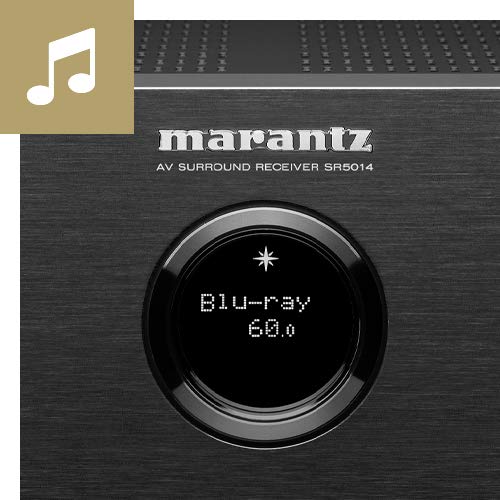
Image: Close-up of the Marantz SR5014's front panel display and controls, highlighting the input selection and volume knobs.
- Power Button: Turns the unit on or off.
- Display: Shows current input, volume level, and other status information.
- Input Selector: Rotates to select different audio/video sources.
- Volume Knob: Adjusts the master volume level.
- PHONES Jack: For connecting headphones.
- USB Port: For connecting USB storage devices.
- HDMI Input: Front HDMI input for quick connection of devices like cameras or game consoles.
2.3 Rear Panel Connections
The rear panel houses all the necessary connections for your home theater system, including HDMI, audio, and speaker terminals.
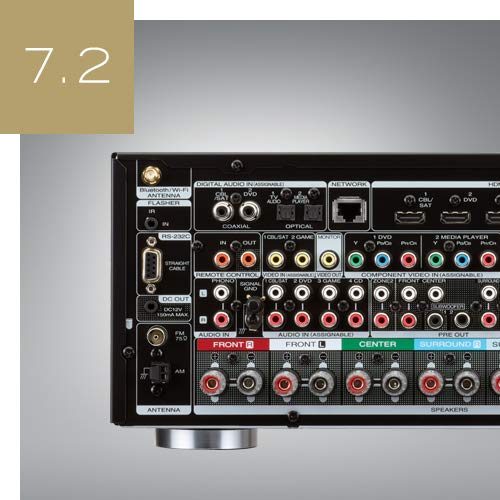
Image: Rear view of the Marantz SR5014 AV Receiver, showing the extensive array of input and output ports, including HDMI, speaker terminals, and network connections.
- HDMI Inputs/Outputs: Connect your video sources (Blu-ray player, game console) and display (TV, projector).
- Speaker Terminals: Connect your speakers (Front, Center, Surround, Surround Back/Height).
- Network Port (Ethernet): For wired network connection.
- Wi-Fi/Bluetooth Antennas: For wireless network and Bluetooth connectivity.
- Digital Audio Inputs (Optical/Coaxial): For connecting digital audio sources.
- Analog Audio Inputs: For connecting analog audio sources.
- Pre-Outs: For connecting external power amplifiers or powered subwoofers.
3. Setup Guide
3.1 Unpacking and Placement
Carefully remove the receiver from its packaging. Place the receiver on a sturdy, level surface with adequate ventilation around it. Ensure there is at least 10 cm (4 inches) of clear space above the unit and 5 cm (2 inches) on the sides and rear for proper heat dissipation.
3.2 Speaker Connections
The SR5014 supports 7.2 channel configurations. Connect your speakers to the corresponding terminals on the rear panel. Ensure correct polarity (+ to + and - to -) for all speakers.
- Front Speakers (L/R): Connect to the FRONT L and FRONT R terminals.
- Center Speaker: Connect to the CENTER terminal.
- Surround Speakers (L/R): Connect to the SURROUND L and SURROUND R terminals.
- Surround Back / Height Speakers (L/R): Connect to the SURROUND BACK L and SURROUND BACK R terminals. These can be configured as Surround Back or Height speakers in the setup menu.
- Subwoofers: Connect powered subwoofers to the SUBWOOFER 1 and SUBWOOFER 2 PRE OUT jacks using an RCA cable.
3.3 HDMI Connections
Connect your video sources and display using high-speed HDMI cables.
- Connect your TV or projector to the HDMI MONITOR OUT port. For eARC functionality, ensure your TV's HDMI port also supports eARC and connect to the designated eARC HDMI output on the receiver.
- Connect your Blu-ray player, game console, or other HDMI devices to any of the available HDMI INPUT ports.
3.4 Network Connection
A network connection is required for HEOS features, firmware updates, and internet radio.
- Wired Connection: Connect an Ethernet cable from your router to the NETWORK port on the receiver.
- Wireless Connection: Attach the two Wi-Fi/Bluetooth antennas to the rear panel. During initial setup, you will be prompted to connect to your wireless network.
3.5 Initial Setup and Audyssey Calibration
After connecting all components, power on the receiver and follow the on-screen setup assistant. This assistant will guide you through speaker configuration, network setup, and input assignments.
The included Audyssey MultEQ XT microphone should be used to perform room acoustic correction. Place the microphone at various listening positions as prompted by the on-screen guide. This process optimizes the sound for your specific room and speaker setup.
4. Operating Instructions
4.1 Basic Operation
- Power On/Off: Press the power button on the front panel or the remote control.
- Input Selection: Use the INPUT SELECTOR knob on the front panel or the dedicated input buttons on the remote control to switch between connected sources (e.g., Blu-ray, TV Audio, Game).
- Volume Adjustment: Use the VOLUME knob on the front panel or the VOLUME +/- buttons on the remote control.
- Mute: Press the MUTE button on the remote control to temporarily silence the audio.
4.2 HEOS Built-in
The SR5014 features HEOS Built-in technology, allowing you to stream music from various online services, network storage, and control multi-room audio.
- Download the HEOS App on your smartphone or tablet (available for iOS and Android).
- Open the app and follow the instructions to add your SR5014 to your HEOS system.
- Browse and play music from streaming services (e.g., Spotify, Amazon Music), internet radio, or your local music library.
- Group multiple HEOS-enabled devices to play the same music in perfect synchronization across different rooms.
4.3 Audio Modes
The receiver automatically detects the incoming audio format and applies the appropriate decoding. You can also manually select various sound modes.
- Auto: Automatically selects the optimal sound mode based on the input signal.
- Movie: Optimized for movie soundtracks (e.g., Dolby Atmos, DTS:X, Dolby Surround, DTS Neural:X).
- Music: Optimized for music playback (e.g., Stereo, Multi-Channel Stereo).
- Game: Optimized for gaming audio.
- Pure Direct: Bypasses all processing for the purest audio signal.
5. Maintenance
5.1 Cleaning
To maintain the appearance of your receiver, wipe the cabinet and front panel with a soft, dry cloth. Do not use abrasive cleaners, waxes, or solvents as they may damage the finish.
5.2 Firmware Updates
Marantz periodically releases firmware updates to improve performance and add new features. Ensure your receiver is connected to the internet to receive these updates.
- You will typically be notified on the display when an update is available.
- Follow the on-screen prompts to initiate the update.
- Do not power off the unit during a firmware update, as this may cause damage.
6. Troubleshooting
If you experience issues with your Marantz SR5014, refer to the following common problems and solutions.
| Problem | Possible Cause | Solution |
|---|---|---|
| No power | Power cord disconnected; Power outage | Check power cord connection; Check household circuit breaker. |
| No sound | Incorrect input selected; Volume too low; Mute engaged; Speaker wires disconnected | Select correct input; Increase volume; Disable mute; Check speaker connections. |
| No video | Incorrect input selected; HDMI cable issue; TV input not set correctly | Select correct input; Check HDMI cable connections; Ensure TV is on correct HDMI input. |
| Network connection fails | Incorrect network settings; Router issue; Wi-Fi signal weak | Re-run network setup; Restart router; Ensure Wi-Fi antennas are properly attached. |
| Remote control not working | Batteries depleted; Obstruction between remote and receiver | Replace batteries; Remove any obstructions. |
If the problem persists after trying these solutions, please contact Marantz customer support.
7. Specifications
| Feature | Detail |
|---|---|
| Brand | Marantz |
| Model | SR5014/N1B |
| Channels | 7.2 |
| Output Power | 180 Watts (Speakers Maximum Output Power) |
| Product Dimensions (LxWxH) | 44 x 33.8 x 16.11 cm |
| Item Weight | 10 kg |
| Connectivity Technology | HDMI, Ethernet, USB |
| HDMI Ports | Multiple (Total HDMI Ports: 1 is listed, but typically more for AV Receiver) |
| Special Features | HEOS Built-in |
| Compatible Devices | Speaker |
| Audio Output Mode | Stereo, Surround |
| Surround Sound Channel Configuration | 5.1 (Note: Product title states 7.2CH, this may be a default or minimum configuration) |
| Media Format Support | 4K |
| Includes Remote | Yes |
8. Warranty and Support
Marantz products are designed for reliability and performance. For information regarding your product's warranty, please refer to the warranty card included in the product packaging or visit the official Marantz website for your region.
For technical support, troubleshooting assistance beyond this manual, or service inquiries, please contact Marantz customer support through their official website or authorized service centers.
You can find more information and support resources at: www.marantz.com
Related documentsSR5014/N1B


Ask a question about this manual
Ask about setup, troubleshooting, compatibility, parts, safety, or missing instructions. Manuals+ will review the question and use this page’s manual context to help answer it.