
Lenovo ZA4G0000US
Lenovo Tab M10 HD (ZA4G0000US) 10.1-inch Tablet User Manual
Model: ZA4G0000US
Introduction
This manual provides essential information for setting up, operating, maintaining, and troubleshooting your Lenovo Tab M10 HD tablet. The Lenovo Tab M10 HD is a 10.1-inch Android tablet designed for general use, featuring an HD display, dual front speakers with Dolby Audio, and a Qualcomm Snapdragon 429 quad-core processor. It operates on Android 9.0 Pie and includes features like facial recognition and a dedicated Kids Mode.
1. Setup
1.1 Unboxing and Initial Inspection
Carefully remove all items from the packaging. The box should contain the following:
- Lenovo Tab M10 HD Tablet
- Travel Adapter
- Micro USB Cable
- Quick Start Guide (QSG)
- Warranty Information
- Safety Guide
- SIM PIN (if applicable for cellular models, though this model is WiFi only)
Inspect the tablet for any physical damage before proceeding.
1.2 Charging the Tablet
Before first use, fully charge your tablet. Connect the Micro USB cable to the tablet's Micro USB port and the travel adapter. Plug the adapter into a power outlet. The battery indicator on the screen will show charging status.
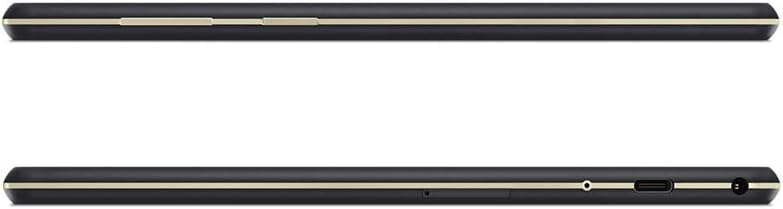
Image: Side view of the Lenovo Tab M10 HD tablet, highlighting the Micro USB charging port and power button.
1.3 Powering On/Off
- To Power On: Press and hold the Power button (located on the side) until the Lenovo logo appears.
- To Power Off: Press and hold the Power button until the power options menu appears, then select "Power off".
- To Restart: Press and hold the Power button until the power options menu appears, then select "Restart".
1.4 Initial Setup Wizard
Upon first power-on, the tablet will guide you through an initial setup process:
- Select your preferred language.
- Connect to a Wi-Fi network.
- Sign in with your Google Account or create a new one. This is necessary for downloading apps from the Google Play Store.
- Review and accept the terms and conditions.
- Set up screen lock (PIN, pattern, password, or facial recognition).
- Configure other settings as prompted.
1.5 Inserting a MicroSD Card
To expand storage, you can insert a microSD card (up to 256GB). Locate the card slot on the side of the tablet. Use the provided SIM PIN tool to gently eject the tray. Place the microSD card into the tray with the gold contacts facing down, then reinsert the tray into the tablet.

Image: Bottom view of the Lenovo Tab M10 HD tablet, indicating the location of the microSD card slot.
2. Operating Instructions
2.1 Basic Navigation
The Lenovo Tab M10 HD uses a touchscreen for interaction:
- Tap: Select an item or open an app.
- Touch and Hold: Access contextual menus or move icons.
- Swipe: Scroll through screens, lists, or dismiss notifications.
- Pinch-to-Zoom: Enlarge or reduce content on screen.

Image: Front view of the Lenovo Tab M10 HD tablet, showing the Android home screen with various app icons.
2.2 Connecting to Networks
- Wi-Fi: Go to Settings > Network & Internet > Wi-Fi. Turn Wi-Fi on and select your desired network. Enter the password if prompted. The tablet supports 2.4 GHz and 5 GHz Wi-Fi bands.
- Bluetooth: Go to Settings > Connected devices > Bluetooth. Turn Bluetooth on and pair with compatible devices like headphones or speakers.
2.3 Camera Usage
The tablet features both front and rear cameras. Open the Camera app to take photos or record videos. Tap the screen to focus, and press the shutter button to capture. You can switch between front and rear cameras within the app.

Image: Front and back views of the Lenovo Tab M10 HD tablet, showing the placement of both front and rear cameras.
2.4 Audio Features
The Tab M10 HD is equipped with dual front speakers and Dolby Audio for enhanced sound. A 3.5 mm audio jack is available for connecting headphones or external speakers.
2.5 Kids Mode
The tablet includes a special Kids Mode with custom content and parental control features. Access this mode to create a safe environment for children to use the tablet. Configuration options are available within the Kids Mode application.
3. Maintenance
3.1 Cleaning the Tablet
Use a soft, lint-free cloth to clean the screen and body of the tablet. For stubborn smudges, slightly dampen the cloth with water or a screen-cleaning solution. Avoid harsh chemicals or abrasive materials.
3.2 Battery Care
To maximize battery life (up to 8 hours of video playback):
- Avoid extreme temperatures.
- Do not let the battery fully discharge frequently.
- Unplug the charger once the tablet is fully charged.
- Reduce screen brightness and disable unnecessary features (e.g., Bluetooth, Wi-Fi) when not in use.
3.3 Software Updates
Regularly check for and install system updates to ensure optimal performance and security. Go to Settings > System > System update.
3.4 Storage Management
The tablet has 16GB of internal storage. To manage storage and improve performance:
- Regularly delete unused apps and files.
- Move photos and videos to a microSD card or cloud storage.
- Clear app cache in Settings > Apps & notifications > [App Name] > Storage & cache.
4. Troubleshooting
4.1 Device Not Powering On
- Ensure the battery is charged. Connect the tablet to its charger and wait a few minutes before attempting to power on again.
- Perform a forced restart: Press and hold the Power button for approximately 10-15 seconds.
4.2 Wi-Fi Connectivity Issues
- Toggle Wi-Fi off and on in Settings > Network & Internet > Wi-Fi.
- Restart your Wi-Fi router.
- Forget the network and reconnect: Tap on the network name in Wi-Fi settings, then select "Forget". Re-enter the password.
- Ensure the tablet is within range of the Wi-Fi signal.
4.3 Slow Performance
- Close unused applications running in the background.
- Clear app caches and manage storage as described in Section 3.4.
- Restart the tablet regularly.
- Consider performing a factory reset as a last resort (see Section 4.5).
4.4 MicroSD Card Not Recognized
- Ensure the microSD card is correctly inserted into the tray.
- Try reinserting the card.
- Test the microSD card in another device to check if the card itself is faulty.
- Ensure the card is formatted correctly (FAT32 or exFAT are generally compatible).
4.5 Factory Reset
Warning: A factory reset will erase all data on your tablet. Back up important data before proceeding.
To perform a factory reset: Go to Settings > System > Reset options > Erase all data (factory reset). Follow the on-screen prompts.
5. Specifications
| Brand | Lenovo |
| Model Name | TB-X505F |
| Model Number | ZA4G0000US |
| Operating System | Android 9.0 Pie |
| Processor | Qualcomm Snapdragon 429, Quad-Core, 2.0 GHz |
| Graphics Coprocessor | Integrated Qualcomm Adreno 504 GPU |
| Screen Size | 10.1 Inches |
| Display Resolution | 1280 x 800 Pixels (HD) |
| RAM Size | 2 GB |
| Internal Storage | 16 GB |
| Expandable Storage | microSD (up to 256 GB) |
| Wireless Technology | Wi-Fi (802.11a/b/g/n/ac, 2.4 GHz/5 GHz), Bluetooth 4.2 |
| Connectivity | Micro USB 2.0, 3.5 mm Headphone Jack |
| Cameras | Front, Rear (Photo Sensor Resolution: 5 Pixels) |
| Battery Life (Average) | 9 Hours (Video Playback: 8 Hours) |
| Battery Capacity | 4850 Milliamp Hours (mAh) |
| Weight | 1.1 Pounds |
| Color | Slate Black |
| Special Features | Dual Front Speakers with Dolby Audio, Facial Recognition |
6. Warranty Information
The Lenovo Tab M10 HD (ZA4G0000US) comes with a 1-year manufacturer's warranty. This warranty covers defects in materials and workmanship under normal use. For specific terms and conditions, please refer to the warranty documentation included in your product packaging or visit the official Lenovo support website.
Keep your proof of purchase for warranty claims.
7. Support
For further assistance, technical support, or to download updated drivers and manuals, please visit the official Lenovo support website. You can typically find support resources by searching for your product model number (ZA4G0000US) on their website.
Online Support: Refer to the Lenovo official website for FAQs, troubleshooting guides, and contact information.
Customer Service: Contact Lenovo customer service for direct assistance with product issues or warranty inquiries.
Ask a question about this manual
Ask about setup, troubleshooting, compatibility, parts, safety, or missing instructions. Manuals+ will review the question and use this page’s manual context to help answer it.