
WAVLINK WN575A3
Contents
WAVLINK WN575A3 AC1200 WiFi Repeater User Manual
Model: WN575A3 | Brand: WAVLINK
1. Introduction
This manual provides detailed instructions for the installation, configuration, and operation of the WAVLINK WN575A3 AC1200 Dual Band WiFi Repeater. This device is designed to extend your existing Wi-Fi coverage, eliminate dead spots, and provide high-speed wireless connectivity throughout your home or office. It supports multiple operating modes including Repeater, Access Point, and Router, offering versatile networking solutions.
2. Product Overview
2.1 Components
The WAVLINK WN575A3 device includes the following main components:
- Four External Antennas: For enhanced signal transmission and reception.
- WAN/LAN Port: One port for connecting to a modem/router or a wired device.
- LAN Port: One additional port for connecting a wired device.
- WPS Button: For quick and secure connection setup.
- Reset Button: To restore factory default settings.
- Power Switch: To turn the device on or off.
- Mode Switch: To select between Repeater, Access Point, or Router modes.
- LED Indicators: For Wi-Fi, WPS, WAN/LAN, LAN, and Power status.
2.2 Key Features
- AC1200 Dual Band Wi-Fi: Supports 2.4GHz (up to 300Mbps) and 5GHz (up to 867Mbps) for a combined speed of 1200Mbps.
- 4x4 MIMO Antennas: Enhances simultaneous communication with multiple devices for improved performance.
- Extensive Coverage: Designed to cover areas up to 2000+ sqft and support up to 30 devices.
- Smart Signal Indicator: Helps in finding the optimal placement for the device.
- Multiple Operating Modes: Functions as a Wi-Fi Repeater, Access Point, or Router.
- Ethernet Ports: Two ports for connecting wired devices, acting as a media bridge.

Figure 2.1: The WAVLINK WN575A3 AC1200 WiFi Repeater, showcasing its four external antennas and front panel indicators.
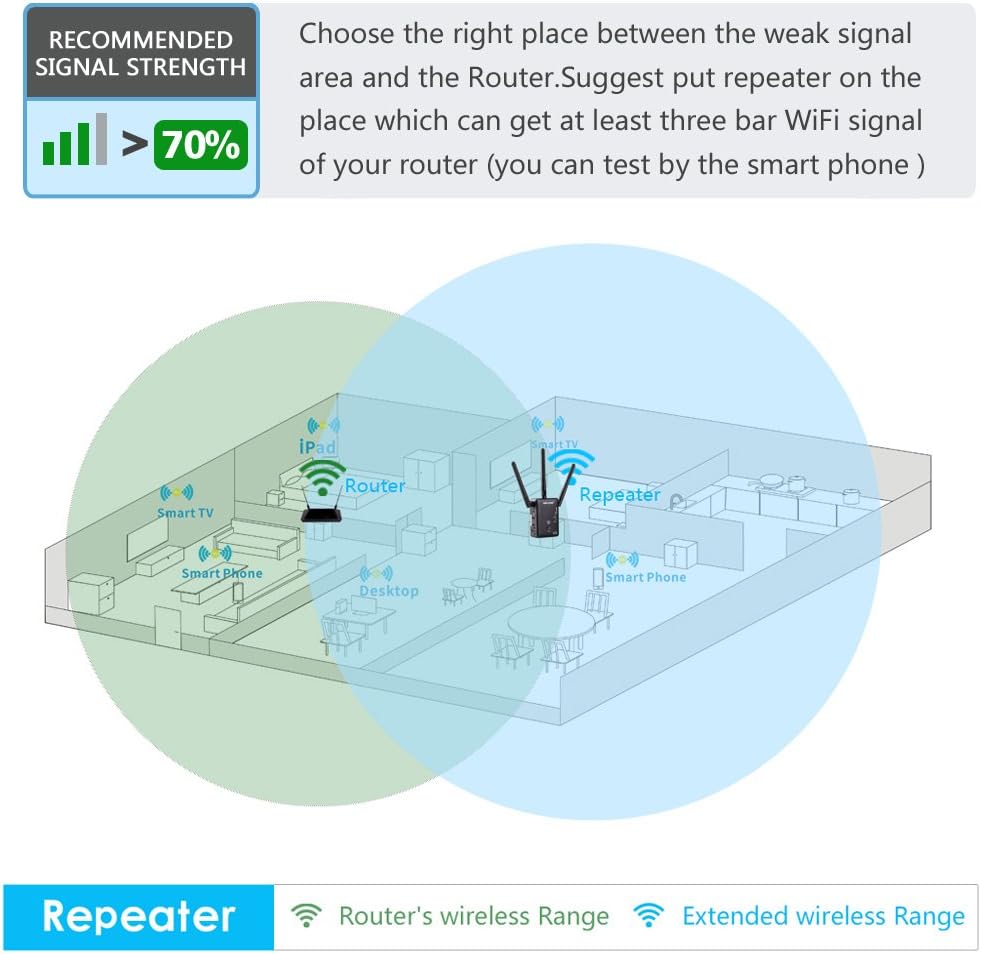
Figure 2.2: Close-up view of the WAVLINK WN575A3's LED indicators, providing status for various functions.
3. Setup
3.1 Before You Begin
Ensure you have the following before starting the setup process:
- An active internet connection and a working Wi-Fi router/modem.
- A computer or mobile device with a web browser.
- An available power outlet.
3.2 Installation and Placement
For optimal performance, place the WAVLINK WN575A3 in an area where it can receive a strong signal from your existing router and effectively extend coverage to desired areas. The Smart Signal Indicator LEDs on the device will help you determine the best location.
- Plug the device into a standard power outlet.
- Observe the LED indicators to ensure the device powers on correctly.
- Position the device between your router and the Wi-Fi dead zone. Aim for a location where the device receives at least three bars of Wi-Fi signal from your router.

Figure 3.1: Recommended placement of the repeater to ensure optimal signal strength and extended coverage.

Figure 3.2: The WAVLINK WN575A3 device plugged directly into a wall outlet for power.
3.3 Configuration
The WAVLINK WN575A3 can be configured using either the WPS button or a web browser.
3.3.1 WPS (Wi-Fi Protected Setup) Configuration
- Plug the WAVLINK WN575A3 into a power outlet near your main router.
- Wait for the Power LED to become solid.
- Press the WPS button on your main router.
- Within two minutes, press the WPS button on the WAVLINK WN575A3.
- The WPS LED on the repeater will blink and then become solid, indicating a successful connection.
- You can now relocate the repeater to an optimal location (refer to Section 3.2).
3.3.2 Web Browser Configuration
- Plug the WAVLINK WN575A3 into a power outlet.
- Connect your computer or mobile device to the repeater's default Wi-Fi network (e.g., "WAVLINK_EXT"). No password is required initially.
- Open a web browser and enter the default IP address (e.g.,
192.168.10.1) or domain name (e.g.,ap.setup) into the address bar. Refer to the Quick Installation Guide for exact details. - Follow the on-screen instructions to select your desired operating mode (Repeater, Access Point, or Router) and configure network settings, including Wi-Fi name (SSID) and password.
- Save the settings and restart the device if prompted.
Video 3.1: Online Configuration Guide for WAVLINK WN575A3. This video provides a visual walkthrough of the setup process using a web browser.
4. Operating Modes
The WAVLINK WN575A3 offers three primary operating modes to suit various networking needs:
4.1 Repeater Mode
In Repeater Mode, the device extends the range of your existing Wi-Fi network. It receives the wireless signal from your main router and re-transmits it, effectively expanding coverage to areas with weak or no signal. This mode is ideal for eliminating Wi-Fi dead zones.

Figure 4.1: Comparison of a router's wireless range versus the extended range provided by the repeater.
4.2 Access Point (AP) Mode
In AP Mode, the device transforms a wired network connection into a wireless one. Connect the device to your wired router or modem via an Ethernet cable, and it will broadcast a new Wi-Fi network. This is useful for adding wireless capability to a wired-only network or creating a separate Wi-Fi network.
4.3 Router Mode
In Router Mode, the device functions as a primary router, connecting directly to your modem via the WAN/LAN port. It creates a new private network, providing internet access to all connected devices, both wired and wireless. This mode is suitable for small offices or homes without an existing router.

Figure 4.2: Illustration of the device's dual-band capabilities (2.4GHz and 5GHz) and its 1200Mbps combined speed.
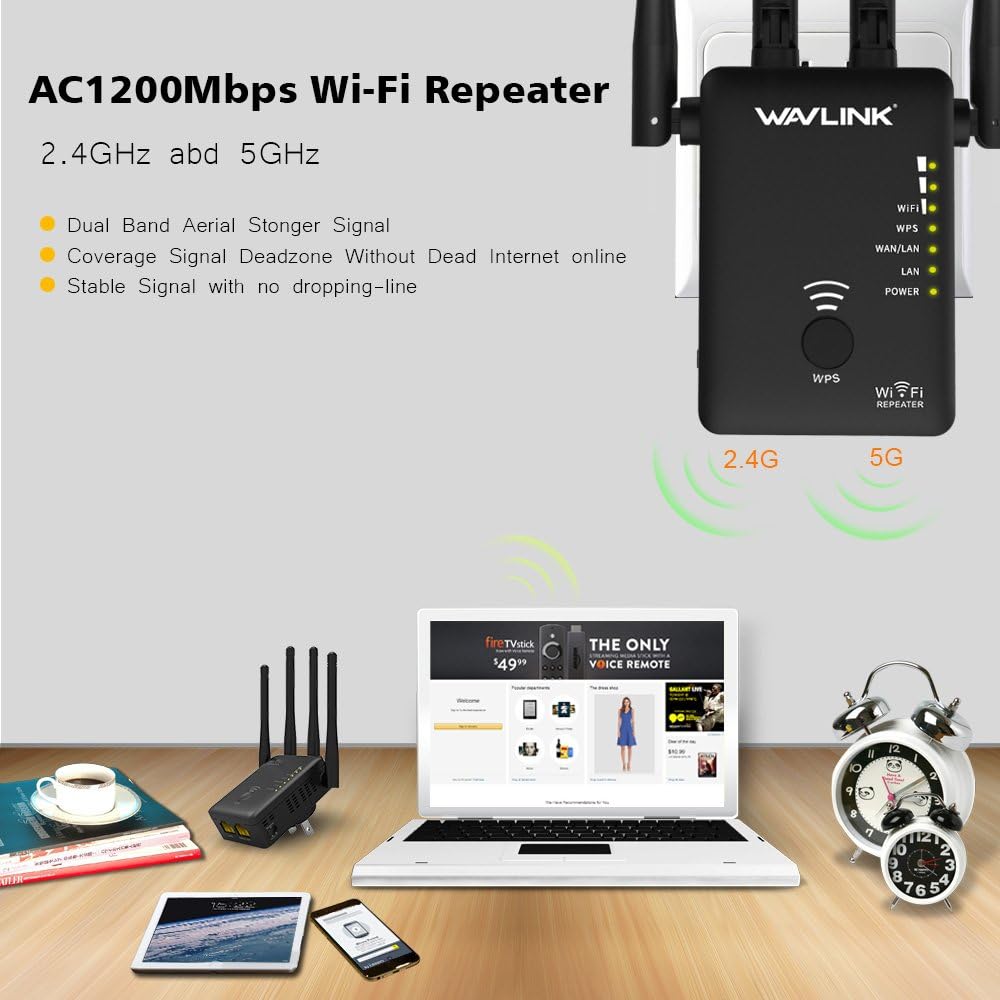
Figure 4.3: Examples of how the WAVLINK WN575A3 can extend Wi-Fi coverage to different areas within a home.
5. Maintenance
To ensure the longevity and optimal performance of your WAVLINK WN575A3, consider the following maintenance tips:
- Keep it Clean: Regularly wipe the device with a soft, dry cloth to prevent dust accumulation, which can affect performance and lead to overheating.
- Proper Ventilation: Ensure the device is placed in a well-ventilated area, away from direct sunlight or heat sources, to prevent overheating.
- Firmware Updates: Periodically check the WAVLINK official website for firmware updates. Updating the firmware can improve performance, add new features, and fix bugs.
- Avoid Obstructions: Do not place the device near large metal objects or appliances that emit strong electromagnetic interference, as this can degrade Wi-Fi signal quality.
6. Troubleshooting
If you encounter issues with your WAVLINK WN575A3, refer to the following common problems and solutions:
| Problem | Possible Solution |
|---|---|
| No Power / Device not turning on | Ensure the power adapter is securely plugged into the device and a working power outlet. Check the power switch on the device. |
| Cannot connect to the repeater's Wi-Fi network | Verify you are selecting the correct Wi-Fi network (SSID). Ensure you are entering the correct Wi-Fi password. Try restarting the repeater. |
| Weak or unstable extended Wi-Fi signal | Relocate the repeater closer to your main router, ensuring it receives a strong signal (check Smart Signal Indicator). Reduce physical obstructions between the repeater and your devices. |
| Internet access issues after setup | Ensure your main router has an active internet connection. Verify the repeater is correctly configured for the chosen operating mode (Repeater, AP, or Router). Try restarting both the router and the repeater. |
| Forgot login password for web management page | Perform a factory reset. With the device powered on, press and hold the Reset button for approximately 10 seconds until the LEDs flash. The device will revert to factory default settings. |
7. Specifications
Detailed technical specifications for the WAVLINK WN575A3 AC1200 WiFi Repeater:
- Standard: IEEE 802.11b/g/n/a/ac
- Frequency Band: 2.4GHz and 5GHz (Dual-Band)
- Data Transfer Rate: Up to 1200 Megabits Per Second (300Mbps for 2.4GHz, 867Mbps for 5GHz)
- Ports: 1x WAN/LAN Port, 1x LAN Port
- Antennas: 4 x 3dBi Omni-Directional Antennas
- Buttons: 1x WPS, 1x Reset, 1x Power Switch, 1x Mode Switch
- Power Consumption: 5W
- Color: Black
- Item Weight: 8 ounces
- Package Dimensions: 7.09 x 4.25 x 3.23 inches
- First Available: July 17, 2019
8. Warranty and Support
WAVLINK provides a 1-Year Quality Guarantee and Free Replacement Service for the WN575A3 device.
For further assistance, technical support, or to check for the latest firmware updates, please visit the official WAVLINK website or contact their customer support.
You can also visit the WAVLINK Store on Amazon for more product information and resources.
Documents and downloads
Ask a question about this manual
Ask about setup, troubleshooting, compatibility, parts, safety, or missing instructions. Manuals+ will review the question and use this page’s manual context to help answer it.